Quick Fixed: Extend Volume Is Disabled in Windows 11, 10, 8, 7 for C Drive
Extend Volume is disabled
When Extend Volume is disabled in Disk Management, the most common reason is that the unallocated space is not directly to the right of the C drive. Other causes include an unsupported file system, disk errors, or a partition layout that Disk Management cannot resize. The following sections explain the requirements and show practical ways to extend C drive safely.
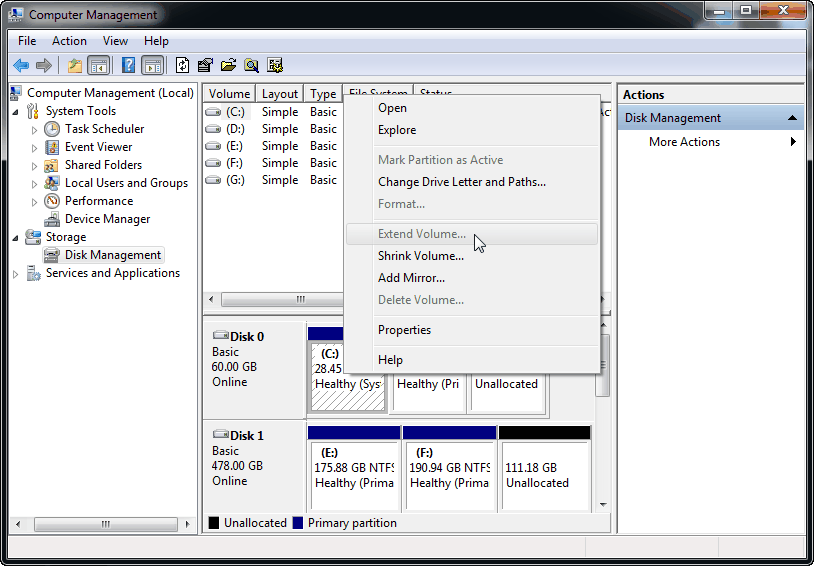
When will Extend Volume not work properly in Disk Management?
1. Extend Volume only works on NTFS partition or RAW.
2. Extend Volume only works with unallocated space.
3. Extend Volume only works with the right adjacent unallocated space to the target partition.
If your disk does not meet all three requirements, the "Extend Volume" option is grayed out. Some users shrink the D: drive to free up space, but the new unallocated space is created after D: drive, not directly after C: drive. As a result, C: drive still cannot be extended unless you move the space or delete the adjacent partition, which may cause data loss.
How to fix Extend Volume is disabled in Windows 7/8/10/11 for C drive
Deleting a partition is risky because all data on it will be removed. If you do not want to delete D: drive, Qiling Disk Master Standard is a practical choice. It is designed for Windows 7, 8, 10, and 11 users and can help extend a partition beyond the limits of Disk Management.
Step 1. Download and install Qiling Disk Master.
Step 2. In the main interface, right-click the target partition and select "Move/Resize Partition".
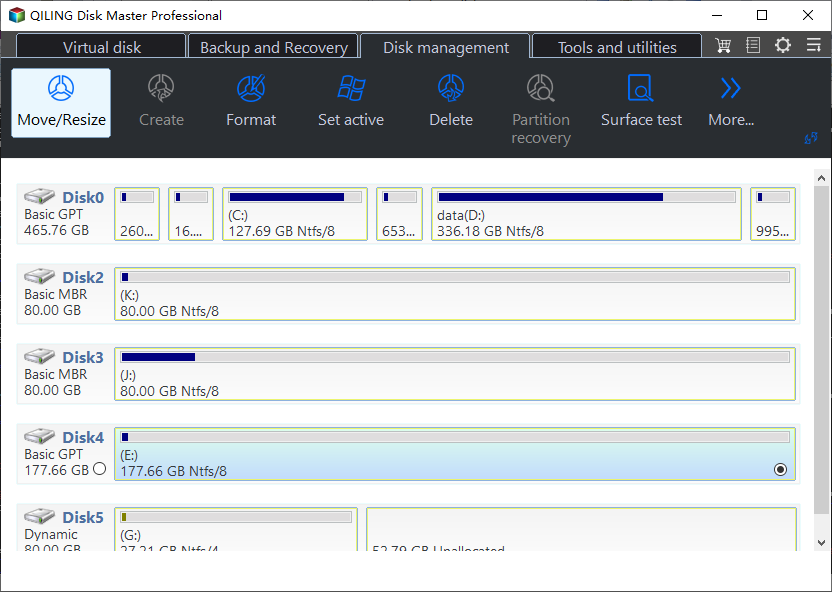
Step 3. Drag the left or right border of the partition to add unallocated space or available free space.
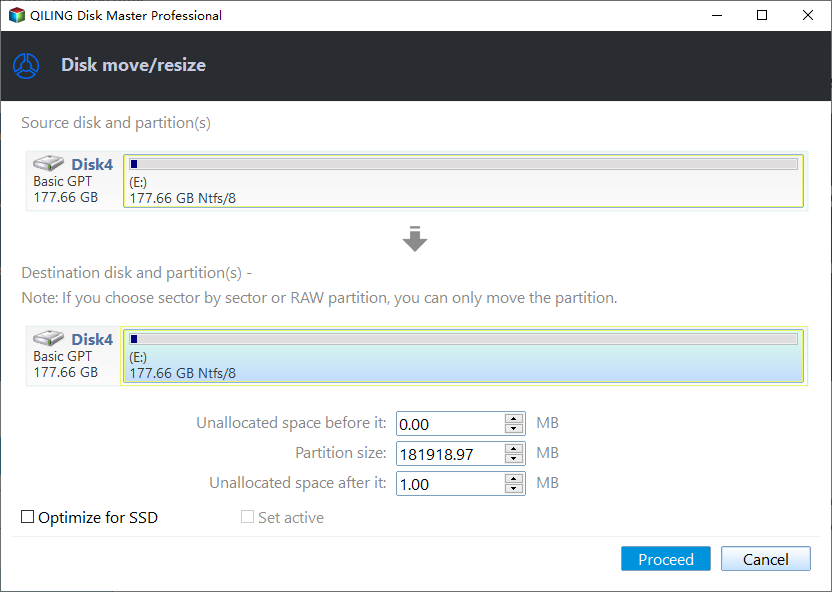
Step 4. Preview the result and click "Proceed" to apply the pending operation.
1. If there's no unallocated space, you can merge the D drive to the C drive, which will store all files on the D drive in a folder named "D:".
2. Or you can upgrade to the Professional Edition and use the "Allocate Free Space" feature to share free space from D drive or another drive with C drive directly.
Summary
Extend Volume may be disabled for C drive in Windows 7/8/10/11 when the partition is not NTFS/RAW or when there is no right-adjacent unallocated space. Qiling Disk Master Standard can bypass these Disk Management limits with features such as Move Partition, Resize Partition, Merge Partition, and more.
Related Articles
- Some volumes will be lost after converting dynamic disk to basic
Learn how to avoid volume loss after converting a dynamic disk to basic. - How to Merge C Drive That Is Less Than 2GB with Unallocated Space?
When we planned to use Qiling Disk Master to merge C drive that is less than 2GB with unallocated space, but unallocated space can't be ticked. - How to Allocate Free Space from One Partition to Another Easily and Quickly
You can allocate free space to C drive when C drive is almost full, you can refer to this post to learn how to do it. - Top Samsung SSD Factory Reset Tool for Windows 11, 10, 8, 7
This guide explains Top Samsung SSD Factory Reset Tool for Windows 11, 10, 8, 7 with clear steps, key checks, and practical tips. - How to Split Partitions with Qiling Partition Master?
Learn how to split a partition in Windows to free up disk space and make better use of available storage. - SSD Maintenance: Tips to Maintain Performance and Extend the Life of Your SSD
To keep your SSD running at peak performance for years to come, you can follow these steps: regularly clean up temporary files and system logs, disable unnecessary startup programs, and update your operating system and drivers.
Products
Articles & Tutorials
- Data Recovery
- Data Backup
- File Recovery
- File Backup
- File synchronize
- System Backup and Restore
- Disk and Partition Clone
- Technical articles
- Disk Master Help
- Windows Deleted File and Disk Recovery Tutorials
- Windows File and Data Recovery Tutorials
- More Windows Tutorials for Install, Security, Files, and PC Tips
- Windows Boot, Repair, and Recovery Environment Tutorials
- Windows Backup Tutorials
- Windows Restore Tutorials
- Windows Clone and Migration Tutorials
- Windows Server Backup, Recovery, and Management Tutorials
- Windows Disk, Partition, and Storage Management Tutorials