Shrink Volume with Disk Management in Windows 11, 10, 8, 7
What does it mean to shrink volume?
Shrinking a volume reduces the size of an existing partition and turns the released space into unallocated space. This process is usually used for two main reasons.
☞ Users can create new volumes to store important data or information after shrinking volume, or use the new volume to keep backup system files and run multiple operating systems.
☞ Users can create unallocated space by shrinking a volume, then use that space to extend an adjacent volume when the disk layout allows it.
You can use the space released from shrinking a partition to create a new partition or, in some cases, extend another partition on the same disk. For example, if your system disk has only one partition, you can shrink it and create a new data volume. If C drive is almost full while another partition has enough free space, you may need extra partition software to move or allocate space because Disk Management has strict adjacency limits.
How to use Disk Management to shrink volume
Disk Management (DM) is a Windows built-in program that allows you to troubleshoot issues like formatting partitions, deleting partitions, and changing drive letters. You can use it to shrink a volume by following these steps.
Step 1. To shrink a volume in Windows, press Windows + R, type "diskmgmt.msc", and press Enter. On the Disk Management page, right-click the volume you want to shrink and select "Shrink Volume".
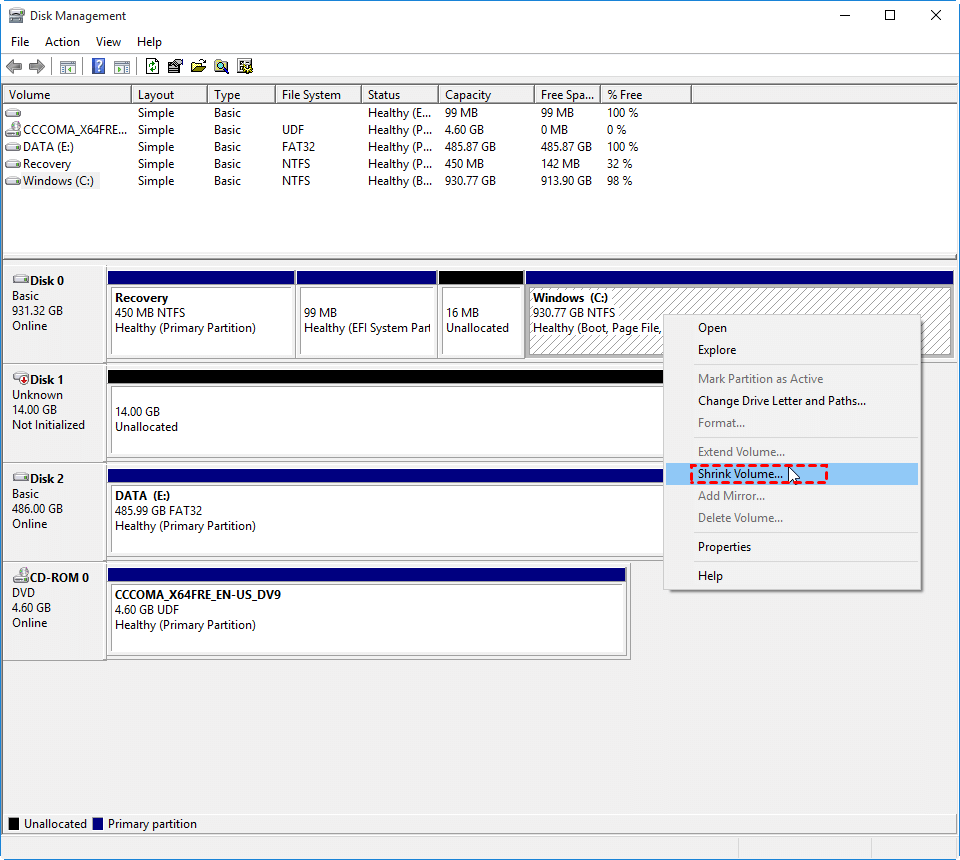
Step 2. Enter the amount of space to shrink in the input field, and then click the "Shrink" button. Disk Management will create unallocated space after the selected volume.
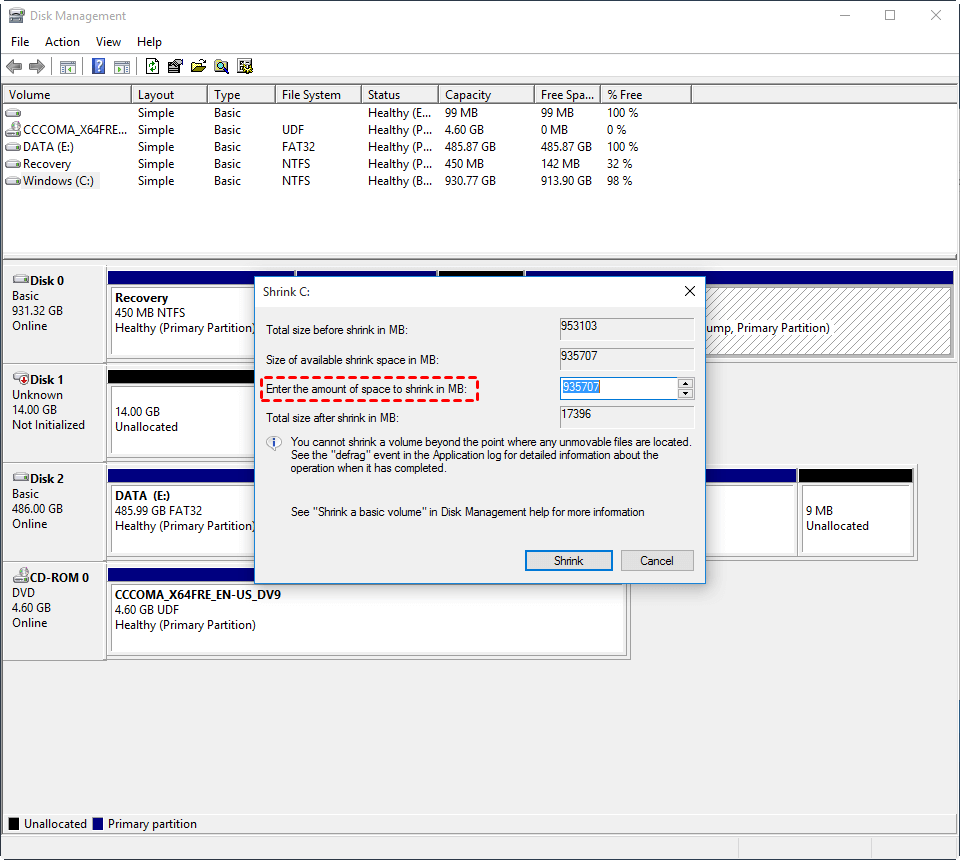
In Windows 10, Disk Management may fail to shrink a volume when the volume is already at its minimum size, the file system has errors, the volume is corrupted, free space is insufficient, BitLocker affects access, or unmovable files are located near the end of the partition.
1. If the Shrink Volume option is greyed out, unmovable files may be blocking the shrink operation.
2. Virtual memory, hibernation files, or system restore files can also limit shrinkable space.
3. If the file system is not NTFS or RAW, you cannot shrink the volume, but you can convert it to NTFS to enable shrinking.
4. Disk fragmentation or file system errors may reduce the available shrink size.
Disk Management alternatives to shrink volume in Windows
To shrink volume, you can use alternative methods beyond Disk Management. DiskPart, PowerShell, and Qiling Disk Master can help when you need command-line control or more flexible partition resizing.
│Method 1. Shrink volume via Command Prompt
In addition to Disk Management, you can use Command Prompt and DiskPart to shrink a volume. The steps are as follows:
Step 1. Press "WIN+R", type "cmd" and press Enter.
Step 2. To shrink volume in Windows 10, type the following commands in sequence and hit ENTER after each command.
● diskpart
● list volume
● select volume 4 (volume number of the partition to shrink)
● shrink desired=10240
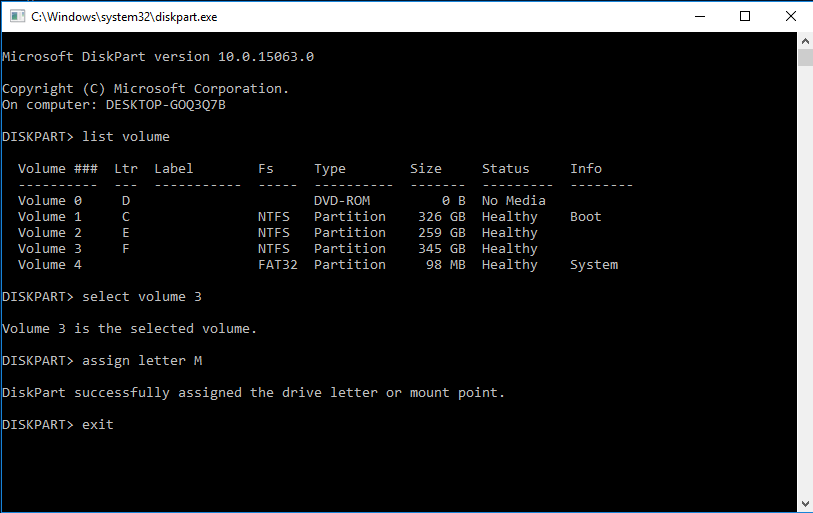
Note: When attempting to shrink a volume using the command line, if any bad clusters are identified, the volume cannot be shrunk due to this issue.
│Method 2. Shrink volume by PowerShell
First, click "Start" and search PowerShell.
Step 1. Open PowerShell as administrator, and then enter the following commands one by one and hit ENTER:
● diskpart
● list volume
● select volume 3
● shrink desired = 2048
● exit
Step 2. Wait for the command to finish, then check Disk Management for the new unallocated space.
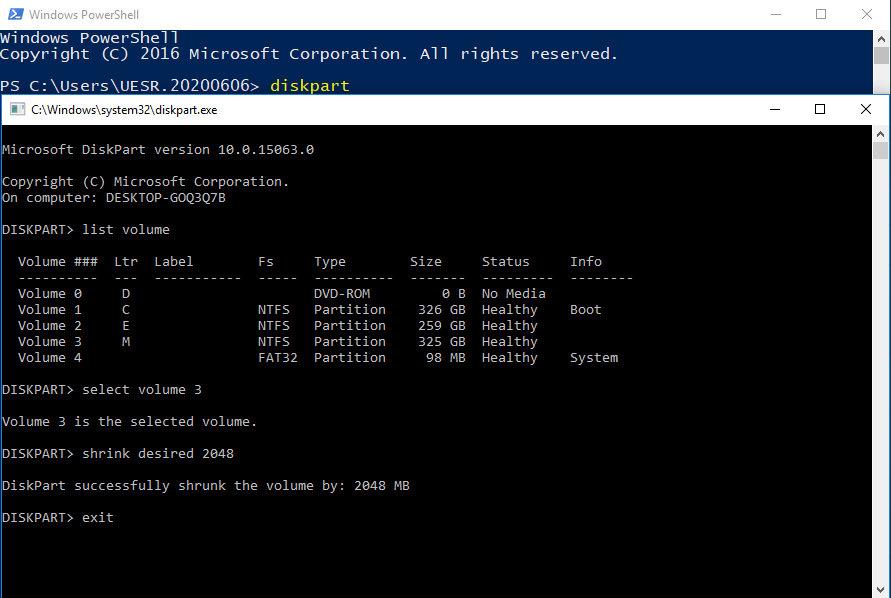
Note: If you're unable to shrink a volume due to unmovable files, the shrinking process can only proceed up to the point where those files are located. This means you won't be able to reduce the volume size further than where those files are situated.
│Method 3. Shrink volume with Qiling Disk Master
Note: The methods above can shrink a volume, but they still have limitations. Shrinking may fail when unmovable files, virtual memory, file system errors, or unsupported file systems block the operation. In that case, a partition manager can be easier.
Qiling Disk Master Standard is free software that lets users manage disks more flexibly, especially when shrinking volumes becomes difficult in Disk Management. It supports Windows XP to Windows 11 and can help resize partitions, including extending or shrinking volumes.
If you need advanced features such as allocating free space from one partition to another, converting NTFS to FAT32, converting primary partition to logical, cloning computer systems, and more, you'll need to upgrade to Qiling Disk Master Professional.
To shrink volume, you can follow the steps below:
Step 1. Download the freeware, install and launch it, and you will see the basic status of your disk.
Step 2. Right-click the drive you want to shrink, then choose "Resize/Move Partition".
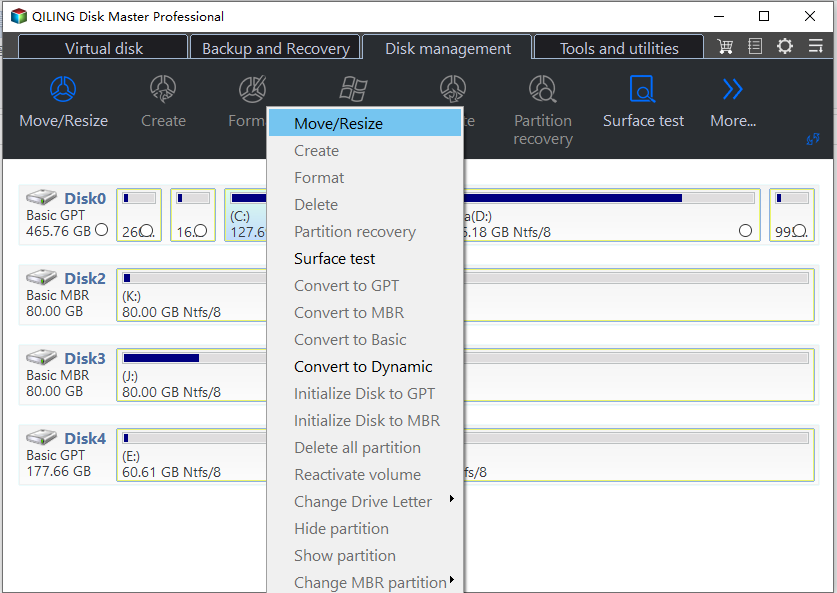
Step 3. Drag the partition border to reduce its size and create unallocated space.
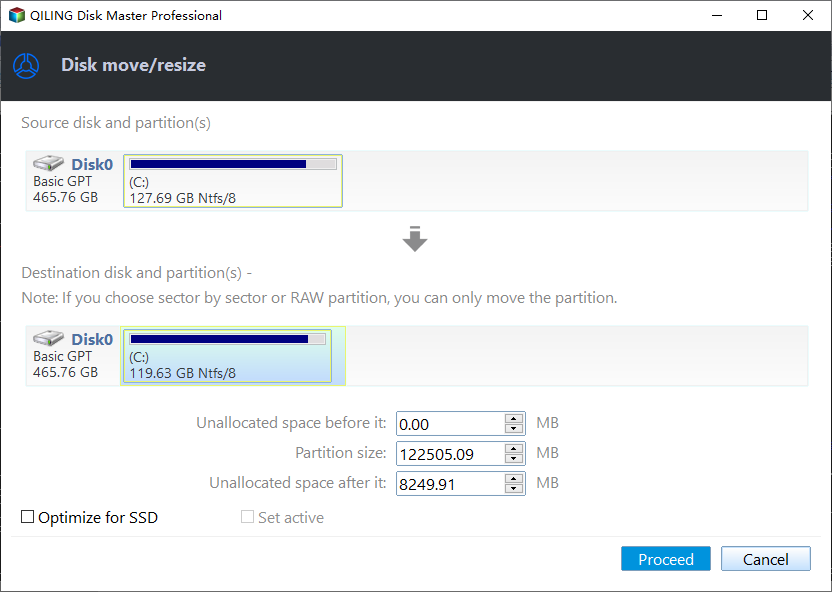
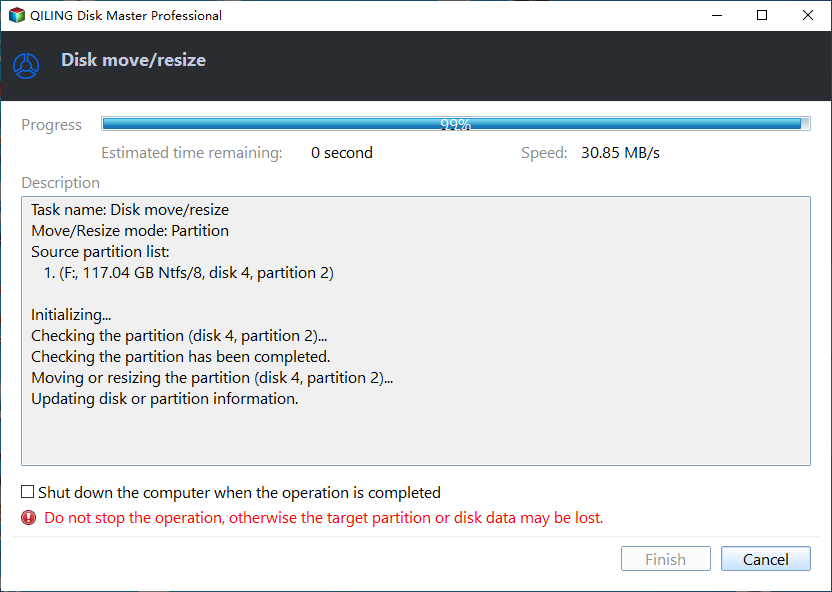
Step 4. Click Apply to submit the operation.
Things you might do after shrinking volume
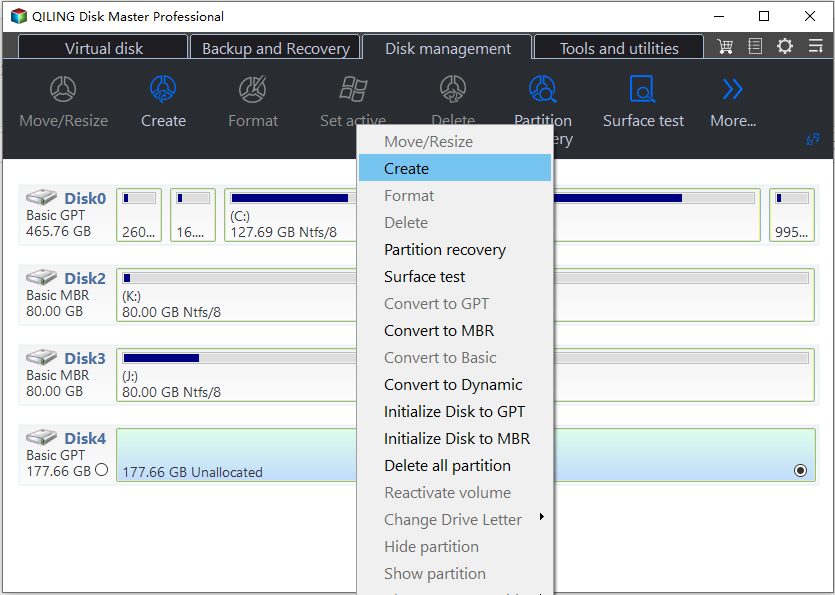
After successfully shrinking the volume with the free partition manager, you can use the unallocated space to create a new partition or extend another partition that needs more disk space. This can be easily done using Qiling Disk Master Standard, which allows you to create a new partition in the unallocated space.
Conclusion
You can shrink a volume with Disk Management, DiskPart, PowerShell, or Qiling Disk Master. If Windows built-in tools are limited by unmovable files or file system restrictions, Qiling Disk Master provides a more flexible way to resize partitions.
Related Articles
- Save You from Disk Boot Failure in Windows 10 Right Now
This guide explains Save You from Disk Boot Failure in Windows 10 Right Now with clear steps, key checks, and practical tips. - [New Guide] How to Run Disk Speed Test on Windows 10 PC
Learn how to Run Disk Speed Test on Windows 10 PC with clear steps, key checks, and practical tips. - Best Dynamic Disk Manager for Windows 10, 8, 7, You Can Try
This guide explains Best Dynamic Disk Manager for Windows 10, 8, 7, You Can Try with clear steps, key checks, and practical tips. - Format External Drive/USB exFAT in Windows 10 in Simple Steps
Format drive to exFAT Windows 10 so that it is read-and-write in Mac OS. This post tells how to format drives to exFAT in Windows 10. - How Do I Fix 'This PC Can't Run Windows 11' Error? Your Complete Guide Is Here
Microsoft's PC Health Check warns that 'This PC Cannot Run Windows 11' due to various reasons such as incompatible hardware, outdated drivers, or corrupted system files. - How To Fix the Item Can Not Be Copied Because It Is Too Large for the Volume's Format on Mac and Windows 11/10
To fix the issue of being unable to copy files larger than 4GB on Mac and Windows 11/10 due to the volume's format, simply format the file system to NTFS or exFAT. This will resolve the problem and allow for seamless file transfer on USB or external hard drives.
Products
Articles & Tutorials
- Data Recovery
- Data Backup
- File Recovery
- File Backup
- File synchronize
- System Backup and Restore
- Disk and Partition Clone
- Technical articles
- Disk Master Help
- Windows Deleted File and Disk Recovery Tutorials
- Windows File and Data Recovery Tutorials
- More Windows Tutorials for Install, Security, Files, and PC Tips
- Windows Boot, Repair, and Recovery Environment Tutorials
- Windows Backup Tutorials
- Windows Restore Tutorials
- Windows Clone and Migration Tutorials
- Windows Server Backup, Recovery, and Management Tutorials
- Windows Disk, Partition, and Storage Management Tutorials