Wipe Hard Drive in Windows 7 from Command Prompt Completely
- What is Command Prompt?
- Why wipe a hard drive from Command Prompt?
- How to wipe a hard drive in Windows 7 Command Prompt accordingly?
- Completely and easily wipe a hard drive with powerful tool
- How to delete hard drive partition in Windows 7 step by step
- Verdict
What is Command Prompt?
The Command Prompt, also known as cmd.exe or cmd, is the command line interpreter on Windows operating systems, serving as the counterpart to COMMAND.COM in DOS and similar to Unix shells used on Unix-like systems.
The Command Prompt provides a text-based interface for interacting with the user, allowing developers and advanced users to execute tasks and scripts unattended, unlike graphical user interfaces which require manual input.
Many users now prefer to manage their hard drive and partitions using the Command Prompt, finding it more convenient than other methods. A number of simple command line operations are accepted, including wiping a hard drive. To do this, users can follow specific commands in the Command Prompt to securely erase their hard drive, effectively removing all data and restoring it to its factory settings.
Why wipe a hard drive from Command Prompt?
People have different reasons for wiping a hard drive, and 100 individuals may have 100 unique motivations. In general, however, users want to erase a hard drive in Windows 7 Command Prompt for various personal reasons.
● To reform a hard drive, one must first wipe the existing data, either by writing zeros or deleting existing partitions, making it ready for a new structure to be built.
● When upgrading to a new hard drive or SSD, it's essential to erase all data on the old one to prevent sensitive information from falling into the wrong hands. Formatting or deleting data is not enough, as it can still be recovered. Erasing all data completely ensures that the old hard drive is completely wiped clean and can be safely disposed of or sold without any risk of data breaches.
You can deploy different methods for different solutions, and generally, you can achieve your goal with the help of three key tools.
How to wipe a hard drive in Windows 7 Command Prompt accordingly?
Attention: When wiping a hard drive, all data on it will be erased. Make sure to back up any important files before proceeding, as the process will completely remove all content.
If you need to wipe a hard drive, there are three tools you can consider. Depending on your situation, you may want to choose one that is suitable for you. For example, if you want a tool that is easy to use and doesn't require a lot of technical expertise, you may want to choose one of the three tools that is specifically designed for this purpose.
Wipe hard drive with Command Prompt
The command to wipe a hard drive partition by formatting is used to format a specific partition, allowing you to wipe the partition.
1. To run the command prompt as administrator in Windows 7, type "cmd" in the Search box after clicking Start, right-click on "cmd.exe" or "command prompt" from the list, and select "Run as administrator".
2. To format a drive to NTFS, type the correct drive letter followed by a colon and the word "format" and the file system "NTFS" in the command prompt, and press Enter. This process can take a significant amount of time to complete.
Tips: repeat the command to format other partitions if necessary.
To format a drive containing an operating system, you can use the Command Prompt from the BIOS settings. This requires a bootable device such as an installation disc or repair disk.
1. To install the software, first shut down your computer and then insert the installation disc. Next, boot your computer from the disc. This will initiate the installation process.
2. At the "Where do you want to install Windows" page, press Shift+F10 to open Command Prompt.
3. Type format C: /fs:ntfs and press Enter.
Delete all partitions to wipe data with DiskPart
Another way to wipe a hard drive from the Command Prompt is to use the DiskPart tool, which is a faster method for formatting or cleaning the entire hard drive. This is a method commonly used by users.
1. To open an elevated Command Prompt, follow these steps: First, press the Windows key + X and select the Command Prompt (Admin) option. Alternatively, you can search for Command Prompt in the Start menu, right-click on it, and select Run as administrator. Once you have an elevated Command Prompt, type `diskpart` and press Enter.
2. At the diskpart prompt, run these commands successively.
● list disk
● select disk n (replace n with the disk number of the hard drive you want to wipe)
● clean (or clean all)
Till now, the selected hard drive is wiped, meaning all partitions and data on the disk are gone. If you have further plans for it, keep running the following commands to build a new structure.
● create partition primary
● select partition 1
● format fs=ntfs quick (or format fs=fat32 quick)
● assign drive letter=G
● active (if you want to install operating system on the disk)
● exit
Completely and easily wipe hard drive with powerful tool
In case you encounter diskpart clean error or other similar virtual disk service errors, Qiling Disk Master Professional, a dedicated hard drive and partition management tool, is recommended. Its outstanding features in disk cleaning include the ability to clean disk partitions, manage disk space, and prevent data loss, making it a reliable solution for disk-related issues.
● Four options for wiping data. For common data wiping, filling sectors with zero or random data is sufficient, with the first two options being enough. This is in contrast to more advanced methods like the DoD 5220.22-M and Gutmann algorithms, which are not typically needed for everyday data erasure.
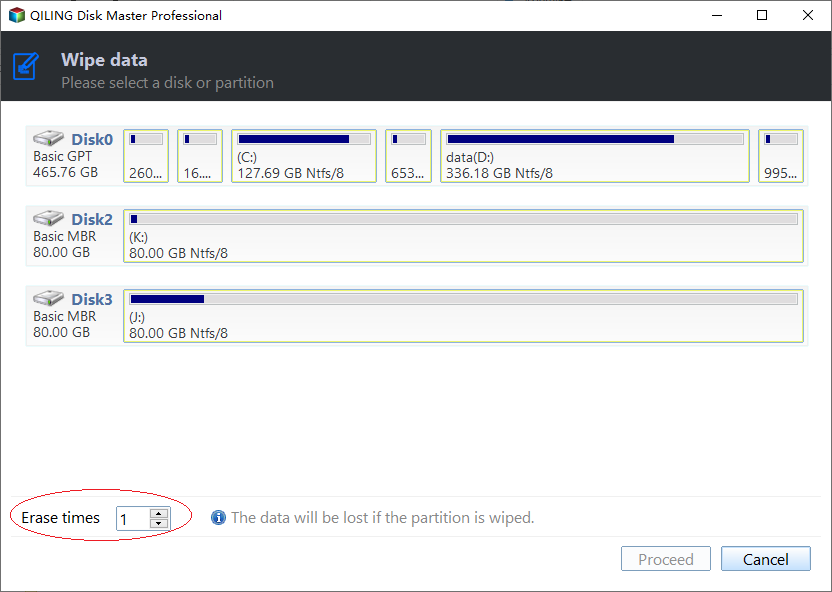
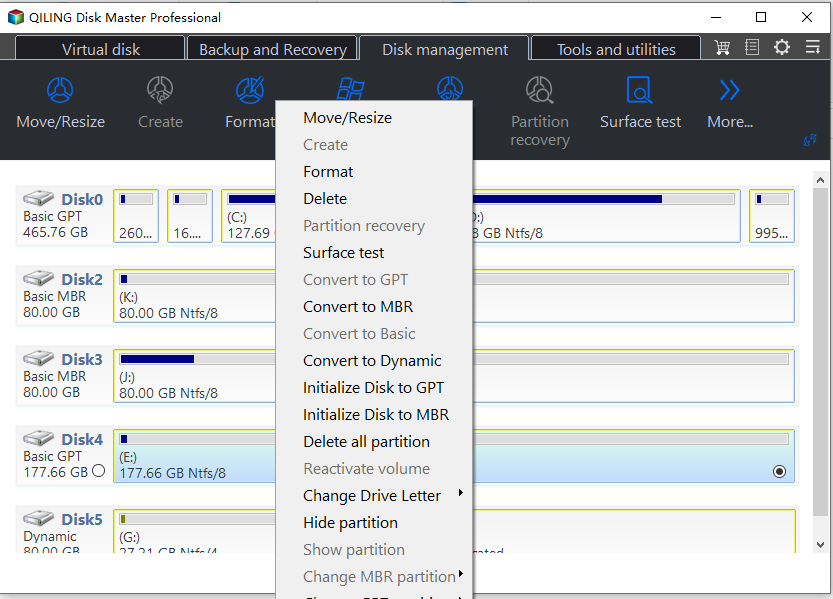
● Delete partitions only. This software allows you to wipe all partitions on a hard drive, which is faster and more useful than erasing data, especially when the drive is being reused.
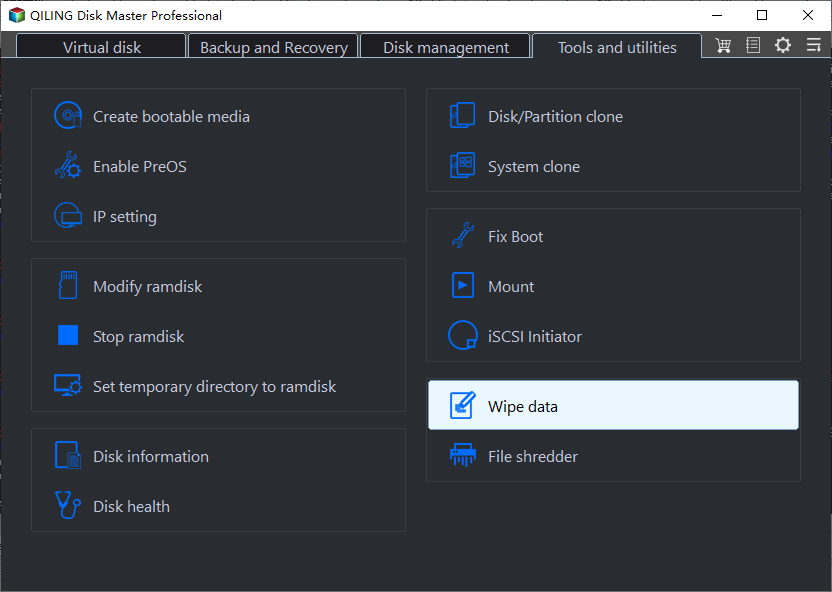
● Wipe hard drive without booting Windows. The software allows users to create a bootable WinPE drive, which can be used to wipe data even if the disk contains an operating system, and can be saved to a USB or CD/DVD disc.

● Extra bonus SSD secure erase is a feature that securely wipes data on SSDs without affecting their lifespan. It is a safe way to erase data from an SSD, making it suitable for scenarios where data security is paramount. This process is different from a regular format, as it doesn't involve physically rewriting the drive, which can reduce its lifespan.
● Supports a graphical user interface (GUI) that presents a visual representation of a computer system, allowing users to interact with it through icons, menus, and other graphical elements. This approach is suitable for both beginners and advanced users, providing a user-friendly way to navigate and utilize computer functions. In contrast, a command-line interface (CLI) is a text-based interface that relies on typed commands to interact with the system, often preferred by advanced users who value efficiency and customization.
To wipe a hard drive from the Command Prompt in Windows 7, 8/8.1, 10, XP, and Vista, you can use the software to execute the following command lines. This will delete all partitions on the disk, effectively wiping the hard drive. Note that the next part will cover this process in more detail.
How to delete hard drive partition in Windows 7 step by step?
To delete a specific partition, you can type commands such as "DiskMasterX.exe /hd:o /del:0" to delete by volume number or "DiskMasterX.exe /del:F" to delete by drive letter.
Descriptions:
● /hd: hard drive.
● /del: delete.
Verdict
In Windows 7, Windows 10, and Windows XP Command Prompt, you can wipe your hard drive for different purposes using various approaches. To choose the best method for your case, consider the following steps, which can also be applied to wipe hard drive in Windows 10 and XP Command Prompt.
Qiling Disk Master Professional allows you to recover deleted partitions or data if you delete them mistakenly, in addition to hard drive wiping. For detailed steps, please refer to the guide on recovering lost partitions in Windows 10.
Related Articles
- How to Convert RAW to FAT32 Using CMD with Ease?
Here we show how to convert RAW to FAT32 using CMD for your reference. Then you can easily change RAW micro SD card, memory card, pen drive or USB flash drive to FAT32 file system when necessary. - How to Remove MBR Partition Table from USB Flash Drive in Windows 7/XP?
Learn what a MBT partition table is and how to remove or delete MBR partition table from hard drive or USB flash drive in Windows XP and Windows 7. - Can't Merge USB Partitions? 2 Proven Fixes Here
Manage can't Merge USB Partitions 2 Proven Fixes Here with safer disk and partition steps to avoid data loss or boot problems. - Fixed: Change Block Size From 4K to 64K | 2024 Full Guide
If you want to change your block size from 4K to 64K but don't know how, then this article is for you. Continue reading for a step-by-step guide and understand the background of this tutorial. - Windows 11 MBR to GPT Convert Tool [Free&Paid]
Windows 11 users can utilize various tools to convert their Master Boot Record (MBR) to a GUID Partition Table (GPT) for improved disk management and flexibility. - Full Guide to Fix Windows 11 Slow Startup Error
If you're experiencing slow startup errors on your Windows 11 computer, there are 9 simple methods to fix the issue.
Products
Articles & Tutorials
- Data Recovery
- Data Backup
- File Recovery
- File Backup
- File synchronize
- System Backup and Restore
- Disk and Partition Clone
- Technical articles
- Disk Master Help
- Windows Deleted File and Disk Recovery Tutorials
- Windows File and Data Recovery Tutorials
- More Windows Tutorials for Install, Security, Files, and PC Tips
- Windows Boot, Repair, and Recovery Environment Tutorials
- Windows Backup Tutorials
- Windows Restore Tutorials
- Windows Clone and Migration Tutorials
- Windows Server Backup, Recovery, and Management Tutorials
- Windows Disk, Partition, and Storage Management Tutorials