How to Explore Image File in Windows 11, 10, 8, 7 [5 Steps]
In Need of Image File Explore
When backing up a disk, partition, or volume, all data is saved to an image file. To access or use this backed-up data, you typically need to restore the image file to its original or new location, which can be a time-consuming process.
You can explore specific files in Windows by using the built-in File History feature, which allows you to browse and restore individual files from previous backups. Alternatively, you can use third-party backup software that supports file-level restore, such as Qiling Disk Master. These tools enable you to selectively restore specific files or folders without having to restore the entire system drive. This approach can be more efficient and convenient than restoring the entire system drive, especially when you need to recover a single file.
Best Tool to Explore Windows Image Backup File
Fortunately, the Explore Image feature in Qiling Disk Master makes it easy to access the contents of an image file. By mounting the image file to a virtual drive, you can browse its contents in Windows File Explorer, just like you would with a physical drive, and then move the files to other locations.
Qiling Disk Master Professional is a tool that can help you go through the steps of extracting files from a Windows image file. In addition to its other features such as system, disk, and file backup with incremental or differential backup, it allows you to check the integrity of a backup image using the Check Image feature. With this tool, you can easily follow a step-by-step process to extract files from a Windows image file.
Image File Explorer with Qiling Disk Master
Step 1. Download Qiling Disk Master Professional and install it on your computer. Then, launch it, select "Mount" under the "Backup and recovery" tab.
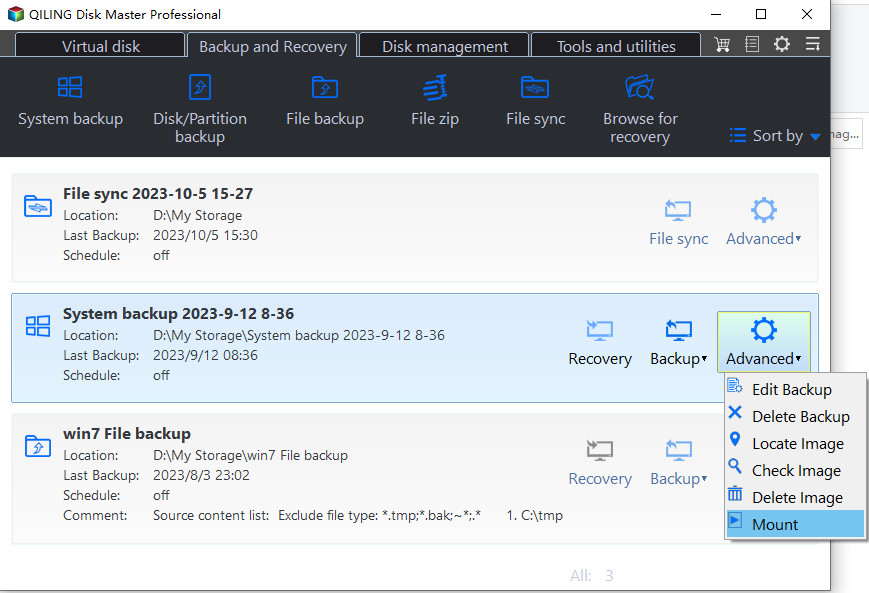
Step 2. Select a backup time point to explore.
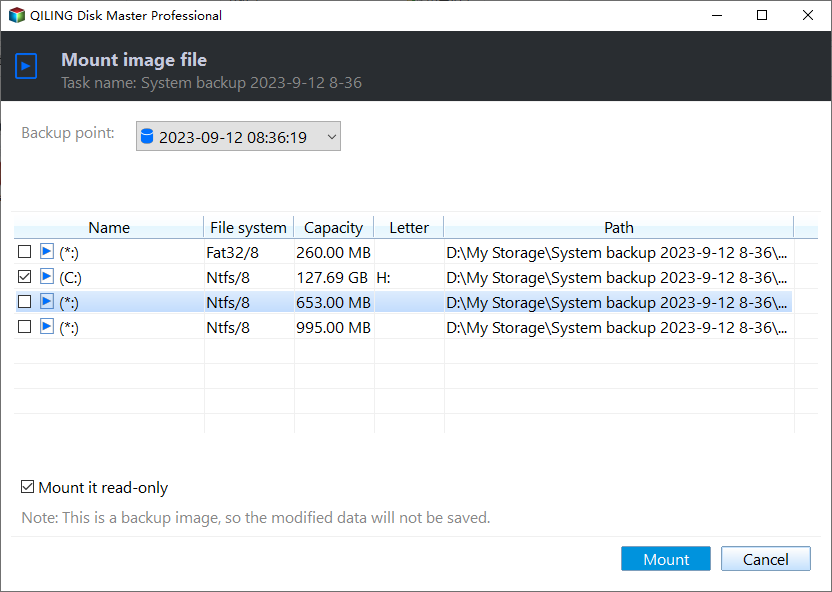
Step 3. Select the partition you'd like to explore, and you can assign drive letters for the image partitions.
Step 4. Click Proceed after specifying the path in step 3 to find the files.
Note: At the Home interface, click on the system backup option and then click on the "Advanced" option. This will open a new window where you can click on the "Explore Image" function.
Related Articles
- Selective File Restore Helps to Restore Individual Files
- Easily Extract Individual Files from System Image Backup in Windows 10
- Top 4 Ways to Mount Windows System Image Backup VHD/VHDX File
- Move Windows Server 2008 (R2) to New Machine with Different Hardware
Moving Windows Server 2008 or 2008 R2 to new machine with dissimilar hardware can be as easy as pie if we find the best solution. Get a powerful server backup and restore tool to help you from this page. - Best Bootable Hard Drive Eraser for Windows 11/10/8/7
This tutorial provides the best bootable hard drive eraser freeware for Windows 11/10/8/7 and offers a step-by-step guide on how to use it to wipe your hard drive clean. The process will completely erase all data on your hard drive, leaving it completely blank. - [Fixed] Bootmgr Is Missing after Marking a Partition as Active
This guide explains Bootmgr Is Missing after Marking a Partition as Active with clear steps, key checks, and practical tips.
Products
Articles & Tutorials
- Data Recovery
- Data Backup
- File Recovery
- File Backup
- File synchronize
- System Backup and Restore
- Disk and Partition Clone
- Technical articles
- Disk Master Help
- Windows Deleted File and Disk Recovery Tutorials
- Windows File and Data Recovery Tutorials
- More Windows Tutorials for Install, Security, Files, and PC Tips
- Windows Boot, Repair, and Recovery Environment Tutorials
- Windows Backup Tutorials
- Windows Restore Tutorials
- Windows Clone and Migration Tutorials
- Windows Server Backup, Recovery, and Management Tutorials
- Windows Disk, Partition, and Storage Management Tutorials