[Useful Guide] How to Free Up Disk Space on PC
About how to free up disk space on PC
Insufficient disk space is a common issue for both HDD and SSD users. When you receive a low disk space warning, it's essential to take action promptly to free up space. If left unaddressed, low disk space can cause your computer to run slowly or even crash, severely impacting user experience.
To free up disk space on a PC, try emptying the Recycle Bin, deleting unnecessary files, uninstalling unused programs, using Disk Cleanup, or enabling Storage Sense in Windows 10/11. These methods can recover valuable storage space.
However, these basic methods may not be enough if large files, installed apps, or an undersized C drive are the main cause of low disk space.
How to free up disk space on Windows 11, 10, 8, and 7
To completely free up disk space, you'll need a reliable tool.
▶ Option 1. Remove junk files
Qiling Disk Master Standard is a free and safe disk partition management software compatible with Windows 11, 10, 8, and 7. It offers various features to effectively solve disk partition issues, including a "PC Cleaner" feature that cleans up all junk files on the target disk, such as system and registry junk files, helping to free up disk space on your Windows PC.
▶ Option 2. Delete large files
You likely have many large files on your disk that you don't use often, which can be difficult to find and remove manually, making it challenging to free up space.
Fortunately, using Qiling Disk Master Professional's "Delete Large Files" feature can help automatically scan the target disk or folder for large files larger than 16MB, listing them for you to delete and freeing up disk space. You can download it to see how to free up disk space on your PC.
Tip: The system will highlight system-related files and bootloader-related files in red to remind you to handle them with care.
▶ Option 3. Move apps to another drive
You can free up disk space by uninstalling unused applications, deleting temporary files, and moving installed applications to a different drive without reinstalling, as facilitated by Qiling Disk Master Pro.
Extend C drive via Allocate Free Space feature
After learning how to free up disk space on a computer, you can also extend the C drive if it is still short of space. "Allocate Free Space" can move unused space from one partition to another to expand the target drive.
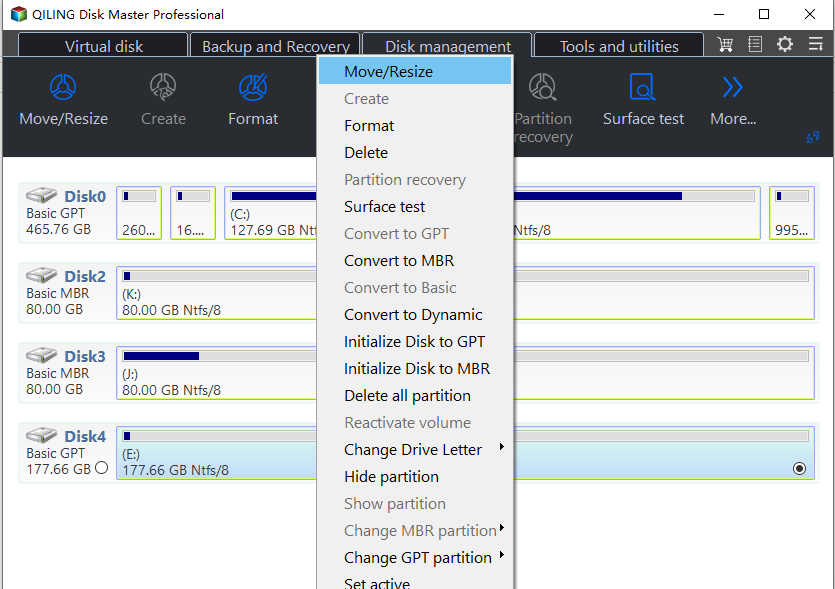
Step 1. Right-click the partition that has enough free space, such as D drive, and choose "Allocate Free Space".
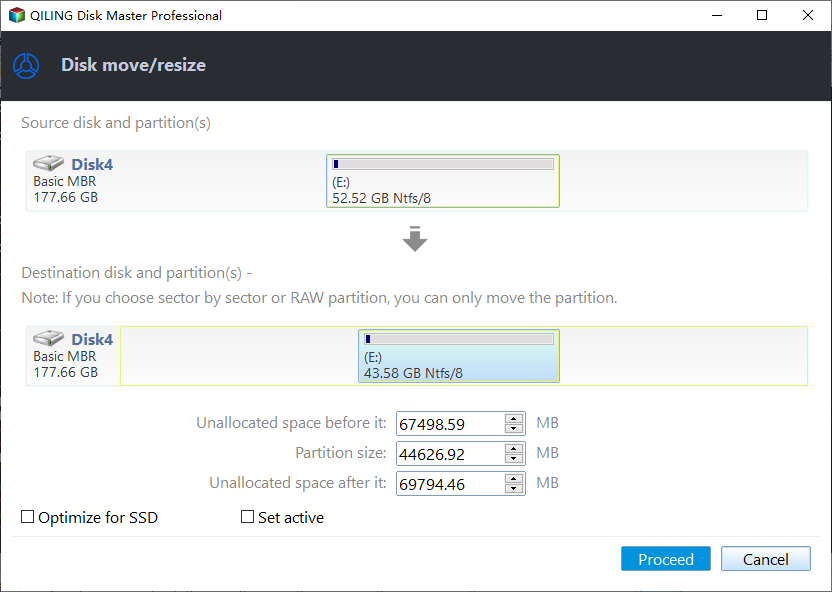
Step 2. Set the amount of free space you want to allocate and choose the destination drive, such as C drive.
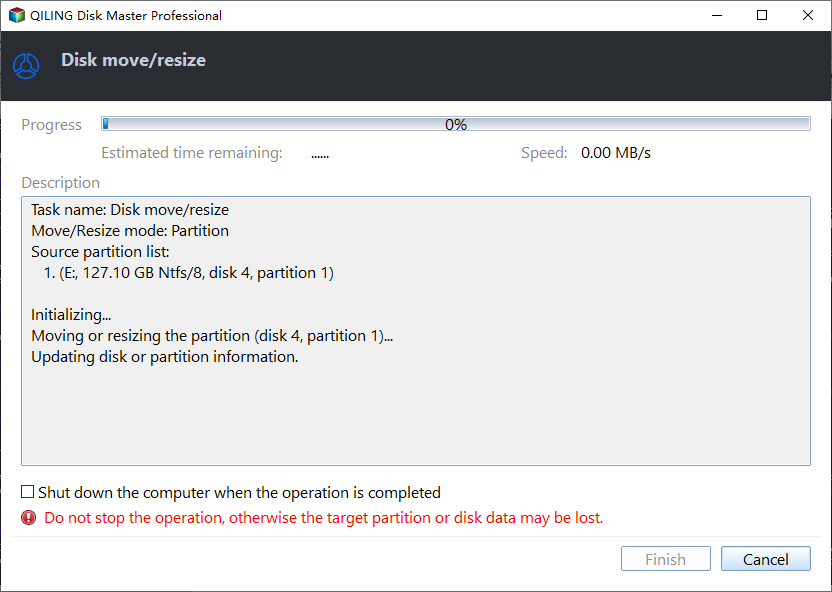
Step 3. If the pending operation is correct, click "Proceed" to commit it.
Sum up
This guide provides three methods to free up disk space on your PC, as well as a method to expand drive space, giving you options to choose from and free up space on your computer.
Qiling Disk Master Pro offers additional features, including cloning a smaller drive to a larger one, wiping a hard drive for reuse, and converting MBR to GPT without data loss.
Related Articles
- 6 Methods: How to Free Up Space on D Drive in Windows 7, 8, 10
This guide explains 6 Methods: How to Free Up Space on D Drive in Windows 7, 8, 10 with clear steps, key checks, and practical tips. - [6 Ways] How to Free up Space on Windows 11
Learn 6 practical ways to free up space on Windows 11 when your computer is running out of storage. - Stepwise Guide to Free up Disk Space in Window 10
This post tells four effective ways to free up disk space, especially for C drive on Windows 10. - How to Partition Western Digital Hard Drive on Windows 11/10/8/7
To partition your Western Digital hard drive on Windows 11/10/8/7, you can use a tool like Qiling Disk Master or the built-in Disk Management feature. This will allow you to easily and quickly partition your hard drive. - How to Check Total Disk Space in Windows 11 [Best Solutions Here]
Learn how to Check Total Disk Space in Windows 11 with clear steps, key checks, and practical tips. - How to Clone PS4 Hard Drive to SSD Without Losing Data
Clone your PS4 hard drive to a larger SSD to gain more storage and better performance while keeping games, saves, and data intact.
Products
Articles & Tutorials
- Data Recovery
- Data Backup
- File Recovery
- File Backup
- File synchronize
- System Backup and Restore
- Disk and Partition Clone
- Technical articles
- Disk Master Help
- Windows Deleted File and Disk Recovery Tutorials
- Windows File and Data Recovery Tutorials
- More Windows Tutorials for Install, Security, Files, and PC Tips
- Windows Boot, Repair, and Recovery Environment Tutorials
- Windows Backup Tutorials
- Windows Restore Tutorials
- Windows Clone and Migration Tutorials
- Windows Server Backup, Recovery, and Management Tutorials
- Windows Disk, Partition, and Storage Management Tutorials