6 Methods: How to Free Up Space on D Drive in Windows 7, 8, 10
"My D drive full in Windows 7"
To free up space on your D drive in Windows 7, you can try deleting any unnecessary files or programs, emptying the Recycle Bin, and checking for any system restore points that might be taking up space. You can also check for any duplicate files and delete them. Additionally, you can use the Disk Cleanup tool to remove temporary files and other items that are taking up space. If you're still unsure, you can try running a virus scan to ensure your computer isn't infected with malware that's taking up space. If you're still having issues, you can try checking the disk properties to see if there's a specific reason why your D drive is full, such as a large system file or a program that's taking up space. If you're still unsure, you can try seeking help from a computer expert or a Microsoft support specialist. I hope this helps! Let me know if you have any other questions.
Main symptoms when D drive is full in Windows PC
The symptoms of a full D drive are that it is getting full and leaving no space for new data.
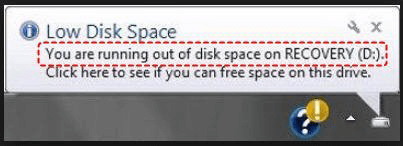
◆Low Disk Space alert: On D drive, a low disk space notification will appear when the free space falls below 200MB, displaying a warning message at the bottom left of the screen.
◆Red bar in File Explorer: When the free space of a drive is less than 2GB, the default blue bar in File Explorer turns red.
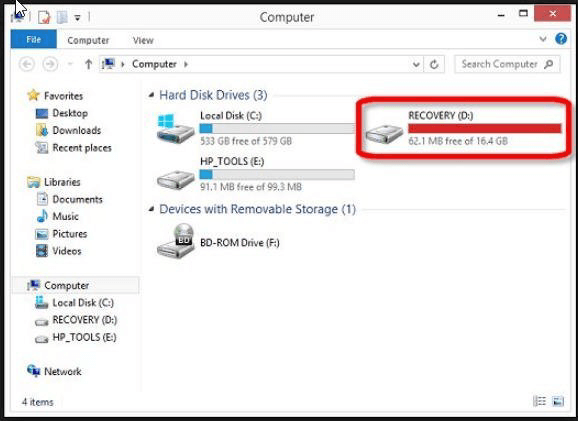
To save new data onto the D drive, you need to free up space on the D drive by deleting unnecessary files, uninstalling unused programs, and emptying the recycle bin in Windows 7/8/10.
5 Ways to free up space on D drive in Windows 7, 8, 10
To clear space on the D drive in Windows 7, 8, or 10, you can try technical methods beyond the usual emptying the recycle bin and uninstalling programs. This can include using the built-in Disk Cleanup tool, which can help remove temporary files, system files, and other items you may not need. You can also use the Windows built-in tool called "WinDirStat" to visualize and delete unnecessary files, or use a third-party disk cleanup tool like CCleaner to scan and remove temporary files and other items. Additionally, you can try using the Windows built-in "System File Checker" tool to scan and replace any corrupted system files that may be taking up space on your D drive. By using these technical methods, you can free up space on your D drive and keep your computer running smoothly.
- Way 1. Disable Hibernation
- Way 2. Perform a Disk Cleanup
- Way 3. Turn off System Restore
- Way 4.Move apps from D drive to another drive
- Way 5. Free up D drive space with formatting it
- Way 6. Clean up D drive by wiping it completely
▌Way 1. Disable Hibernation
Hibernate, a feature that saves computer memory to the hard disk, can speed up startup times. However, it takes up almost the entire space of your computer's installed RAM, meaning a large portion of your hard drive is dedicated to it. For instance, with an 8GB RAM, the hiberfil.sys file would occupy 8GB of your hard drive, and with a 20GB RAM, it would take up 20GB.
To disable Hibernate and free up disk space, follow these steps: Open the Power Options in the Control Panel, click on "Choose what the power buttons do", and uncheck the box next to "Turn on fast startup (recommended)". This will disable Hibernate and free up disk space. Alternatively, you can also disable Hibernate by running the command "powercfg /h off" in the Command Prompt as an administrator.
1. Click the Start button and type "cmd".
2. Right-click the item that appears and select "Run as administrator".
3. To disable hibernation in Windows, open the Command Prompt as an administrator, type "powercfg.exe /hibernate off" and press Enter.
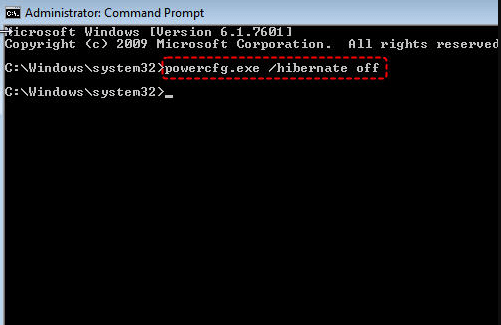
The hibernate.sys file that is used by the hibernation process will be deleted, freeing up disk space equal to the size of your RAM.
▌Way 2. Perform a Disk Cleanup
Windows has a built-in tool called Disk Cleanup that helps keep your computer's storage organized by deleting temporary files and other unnecessary data, freeing up disk space in the process. Regularly running Disk Cleanup can be a great way to free up several GB of space, making it a useful tool for maintaining a clutter-free computer in Windows 7, 8, or 10.
1. Double click "My Computer" to open File Explorer.
2. Right-click the D drive and select "Properties".
3. Under the "General" tab, click "Disk Cleanup".
4. Windows will scan your drive and calculate how much space you can save by running Disk Cleanup, which helps to free up space on your computer by deleting temporary files and other items you don't need.
5. Select the files you want to delete, and then click "OK" to confirm the deletion.
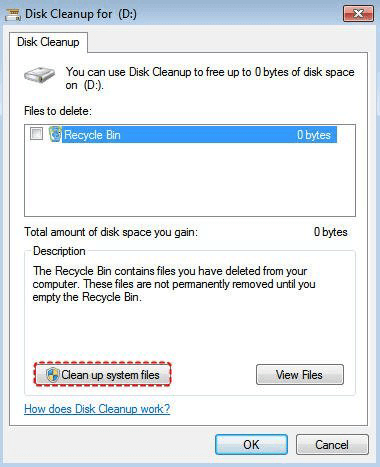
To free up more space on your computer, you can use the "Clean up system files" feature, which allows you to remove older Windows restore points, keeping only the most recent one, and freeing up space on your drive.
▌Way 3. Turn off System Restore
System Restore can be useful for backing up system files, but it's not the most effective method. A better approach is to use a free cloning software to create a system backup. However, System Restore can take up a significant amount of disk space, so it's a good idea to turn it off to free up space.
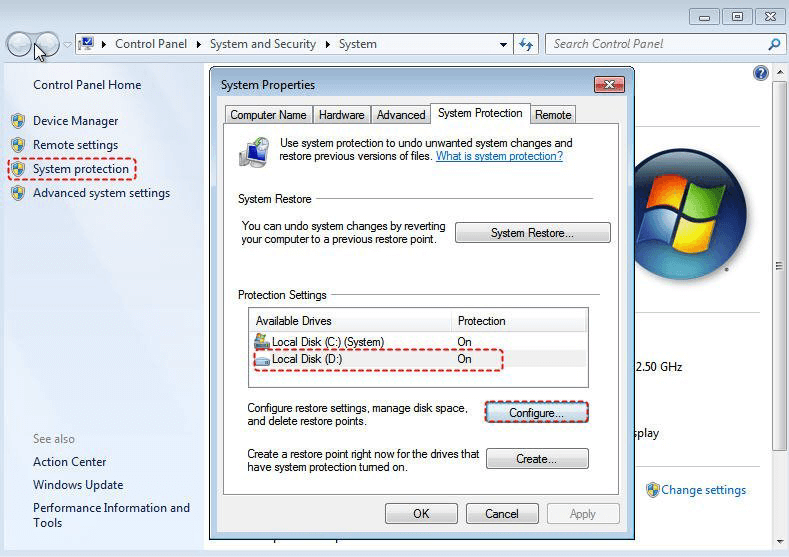
1. Right-click "Computer" and then click "Properties".
2. In the left pane click "System Protection".
3. To disable System Protection for a specific disk, select the disk you want to turn off System Protection for and click "Configure".
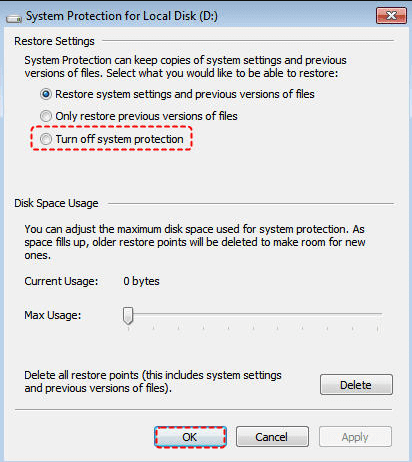
4. To disable system protection, select "Turn off system protection", click OK, and then click OK again.
▌Way 4. Move some apps from D drive to another drive
To free up drive space without uninstalling necessary applications, you can move them from the D drive to another partition using the Qiling Disk Master Professional, which has an "App Mover" feature that allows you to transfer apps to another partition and ensure they load normally.
PS.: You can download the Demo version and have a try.
▌Way 5. Free up D drive space with formatting it
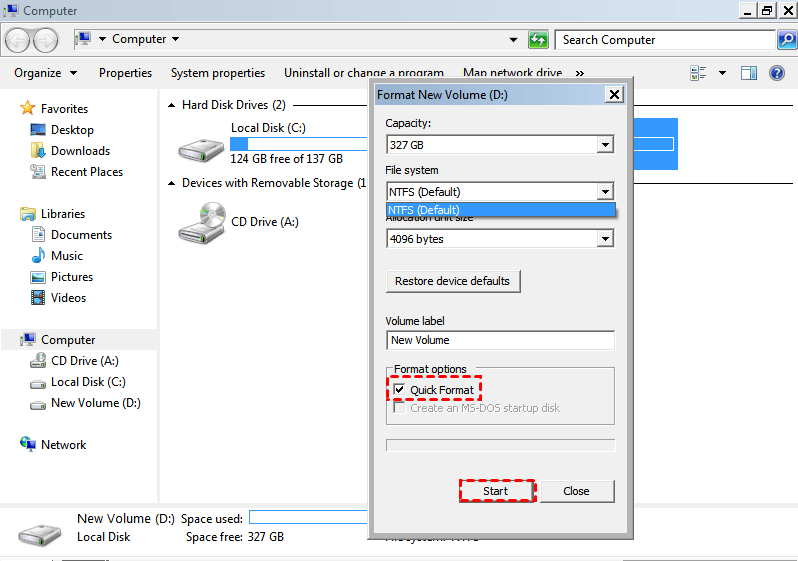
Formatting a hard drive will quickly erase all of the data saved on it, making it a convenient way to clean up space on the D drive. Before doing so, it's essential to back up any files you still need, as formatting will permanently delete them. Once backed up, you can format the drive using Windows File Explorer, a straightforward process.
To format the D drive, open File Explorer by double-clicking "My Computer" or "This PC". Right-click on the D drive and select "Format" from the context menu. Choose a file system and click "Quick Format" to complete the process.
▌Way 6. Clean up D drive by wiping it completely
Apart from formatting the D drive to clean up free space, you can also wipe it permanently, a more powerful operation that completely erases everything inside. Alternatively, you can use Qiling Disk Master Professional to achieve this.
1. Install and launch Qiling Disk Master Standard. Choose "Wipe Partition".
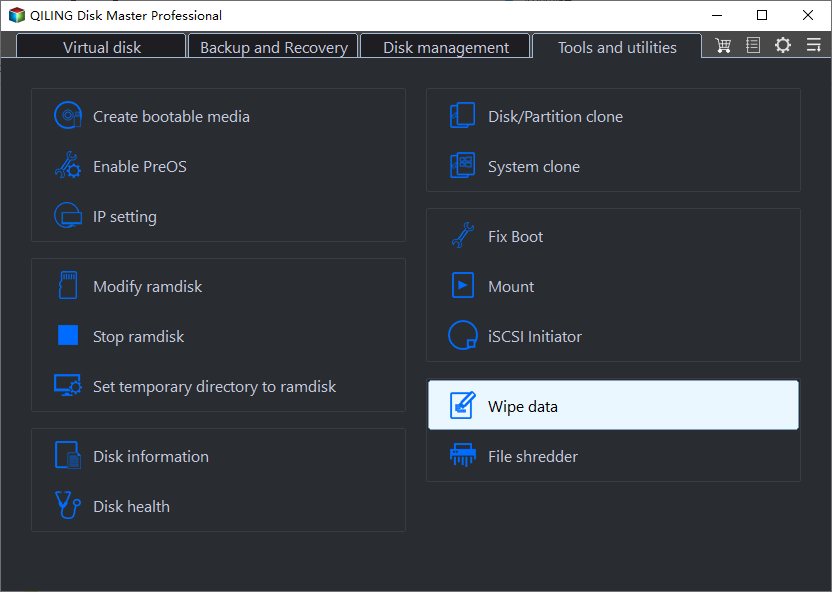
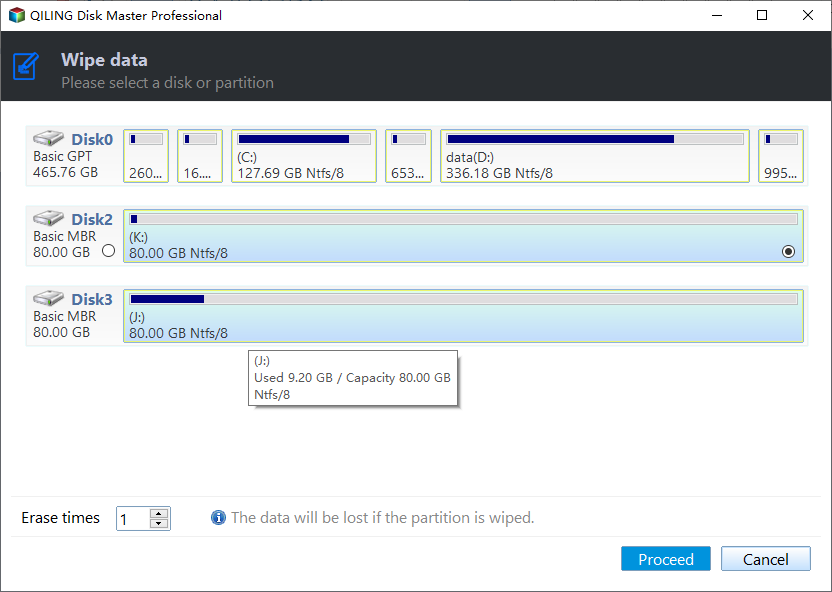
2. To wipe the D drive/partition, navigate to the next window and select the D drive/partition. Then, choose the appropriate method for wiping the partition based on your needs.
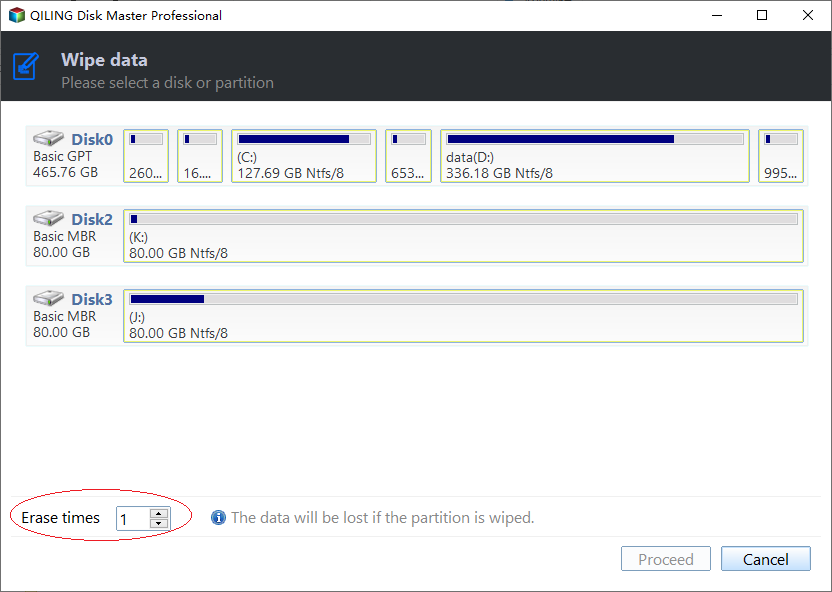
3. Click "Proceed" to commit the pending operation.
You may want to know:
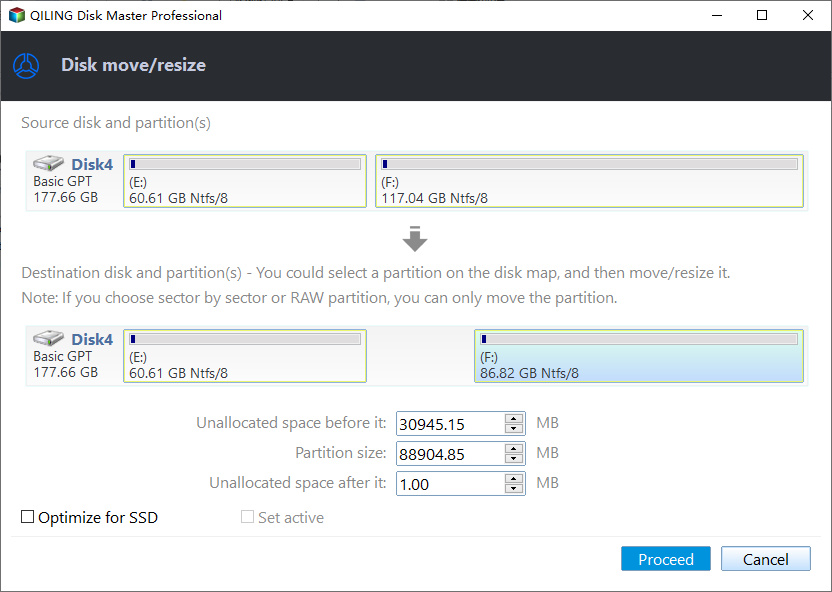
The Qiling Disk Master Professional offers two additional features: "wipe" and "allocate free space". The "wipe" feature allows you to wipe the D drive to free up space, while the "allocate free space" feature enables you to allocate unused space from other partitions on the same disk to the D drive, effectively increasing its size. For instance, you can allocate free space from the C drive to the D drive.
Summary
To free up space on your D drive in Windows 7/8/10, consider using Qiling Disk Master, which can help remove unnecessary data and add more space to enlarge your disk space. This tool can also assist you in freeing up space on your C drive to upgrade to Windows 11.
The Server edition is designed for both Windows Server and Windows PC users.
Related Articles
- Easiest | Automatic Backup Software for External Hard Drive
You will learn the easiest automatic backup software for external hard drive - Qiling Disk Master and how to backup file to external hard drive in simple steps. - Perform Auto Backup with Batch File in Windows 10 (2 Ways)
This article introduces how to create backup batch file in Windows 10 and how to automate the task. If you have further backup needs, here's also a reliable program with GUI - How to Easily Backup Buffalo NAS to External Hard Drive?
You will learn how to backup Buffalo NAS to external hard drive to protect your data with best free Buffalo backup software. - How to Backup or Export Entire Outlook Mailbox Easily
You will learn how to backup entire Outlook mailbox to PST file or other location. This article also includes two useful methods to backup individual or multiple emails. - Fix a Corrupted Flash Drive without Formatting (2+5 Solutions)
You will learn how to fix a corrupted flash drive without formatting or data loss. Also, backing up files is necessary for data security. - How Much Free Disk Space Should I Have and How to Free up Disk?
This guide explains How Much Free Disk Space Should I Have and How to Free up Disk with clear steps, key checks, and practical tips.
Products
Articles & Tutorials
- Data Recovery
- Data Backup
- File Recovery
- File Backup
- File synchronize
- System Backup and Restore
- Disk and Partition Clone
- Technical articles
- Disk Master Help
- Windows Deleted File and Disk Recovery Tutorials
- Windows File and Data Recovery Tutorials
- More Windows Tutorials for Install, Security, Files, and PC Tips
- Windows Boot, Repair, and Recovery Environment Tutorials
- Windows Backup Tutorials
- Windows Restore Tutorials
- Windows Clone and Migration Tutorials
- Windows Server Backup, Recovery, and Management Tutorials
- Windows Disk, Partition, and Storage Management Tutorials