Reset Lenovo Ideapad (300, 110) with Lenovo Onekey Recovery
What Is Lenovo Ideapad OneKey Recovery?
Lenovo Ideapad OneKey Recovery is the default recovery system on Lenovo ideapad laptops, specifically version 8.0, which serves the same purpose as Lenovo OneKey Recovery in other Lenovo devices.
Lenovo OneKey Recovery 8.0 supports Windows 8, Windows 8.1 and Windows 10/11, so when a new ideapad comes with Windows 8 as its default OS, we usually hear about Lenovo ideapad OneKey Recovery Windows 8.
What can You Benefit from Lenovo Ideapad OneKey Recovery 8?
Lenovo OneKey Recovery is a system backup and recovery tool that allows users to back up their operating system to a local recovery partition or an external hard drive when the system is functioning properly. This feature provides a convenient and efficient way to create a backup of the system, ensuring that users can quickly recover their data and settings in case of a system failure or other issues.
If the current operating system fails to boot up, you can try restoring it to its factory default settings or a previous healthy state using system backup image files as a backup option.
The OneKey Recovery feature on Lenovo Ideapads allows users to create a system image and restore their computer to its original state in case of a problem, and this feature is applicable to various Lenovo Ideapad models.
How to Use Lenovo Ideapad OneKey Recovery for Resetting
If you want to access Lenovo OneKey Recovery to restore your system from the Lenovo recovery partition, you can do so in one of three ways.
In one way, You can press the Novo Button, usually located next to the power port, to enter the Novo Button Menu, regardless of the power status, and select "System Recovery" from there.
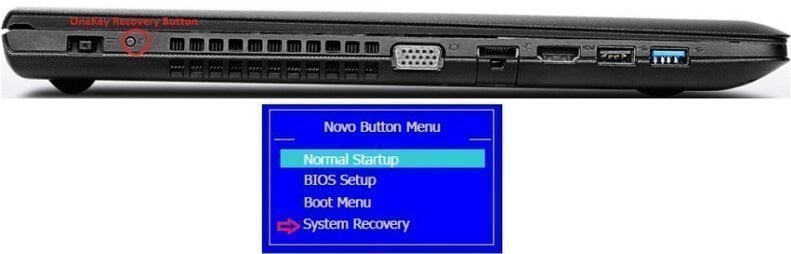
In another way, To recover your system in Windows, directly open OneKey Recovery 8.0, select "System Recovery", and then reboot into the recovery environment.
The last way You can use recovery discs by plugging them into your computer, rebooting, and pressing F12 repeatedly when the Lenovo logo appears, until you get to the Boot Manager. Then, select "boot from the first recovery disk" and follow the on-screen instructions to complete system recovery.
The Novo Button or F12 key is a small button located on the side or top of a Lenovo ideapad laptop. It can be used to access the ideapad's recovery system, which allows users to restore their laptop to its factory settings or troubleshoot common issues.
After getting access to Lenovo Ideapad OneKey Recovery, follow these steps to reset your laptop:
Step 1. Click "Restore from initial backup" and click Next.

Step 2. Click "Start" to backup your Lenovo Ideapad.
Lenovo Ideapad Onekey Recovery Problem
Lenovo Ideapad Onekey Recovery is specialized for operating system backup and restoration on Lenovo devices, but it's not perfect. Sometimes, it may not work due to various reasons, making it unreliable for users.
- Current system cannot support backup.
- Lenovo OneKey Recovery driver initialization failed.
- Okr button not working.
- One key recovery partition has damaged.
Lenovo OneKey Recovery not Working: How to Protect Your System
Since Lenovo OneKey Recovery has many restrictions, it's better to use a reliable third-party software like Qiling Disk Master to backup your system and protect it, allowing you to save it to a recovery partition or external storage devices such as a new hard drive or USB flash drive.
If your Lenovo computer stops working, you can easily factory reset it, including IdeaPad, Yoga, Thinkpad, and Gaming models, among others. This process also offers some additional benefits.
- This scheduler frees up your hands to backup your system manually, allowing you to keep track of changes from the initial backup or the previous one, with daily, weekly, and monthly scheduling options available.
- Supports other brands of computers: Asus, Dell, HP, Acer, Sony, Toshiba, Samsung, etc.
- The software supports Windows XP, Vista, 7, 8, 8.1, 10, 11 and various server editions, including 2022, 2019, 2016, and 2012, across all editions and both 32-bit and 64-bit platforms.

Then, how to create system backup with this software? Please follow the steps below.
Step 1. First download this software and then launch it after installation complete. Then, click "System Backup" at the left side.
Tips:
- If you think the backup will take up a lot of disk space, you can also choose to save the system backup to another location by checking the "Backup system to other location" option.
- There are two additional options at the lower left corner that can be helpful when you want to compress or encrypt backup images, or set the backup frequency, which can be set to daily, weekly, or monthly.
Step 3. After selecting a path for the recovery partition, click "Proceed" to create a recovery partition that will store the backup, but will not assign a specific drive letter to it.

After the process, you can click the Settings icon and enable the "F11" / "A" recovery key or boot menu, allowing you to quickly access Lenovo system recovery.
Summary
If Lenovo OneKey Recovery 8 doesn't work for system recovery, you can still protect your system with a reliable third-party software like Qiling Disk Master, which can help with Lenovo IdeaPad onekey recovery and other system-related tasks.
This software offers more benefits than the branded recovery software, including automatic system backup, saving time and protecting the system promptly. It also supports unlimited PCs and servers, and offers customizable UI in its Technician or Customization edition.
Related Articles
- How to Use Lenovo One Key Recovery in Windows 7, 8, 10, 11
You will learn how to use Lenovo one key recovery to protect system and data on it and recreate partition or image when Lenovo OneKey Recovery not working. - Beginner Guide to Lenovo OneKey Recovery in Windows 10
Lenovo OneKey Recovery is a backup and restore tool preloaded on Lenovo computers. Learn how to use Lenovo OneKey Recovery in Windows 10 and get the best alternative from this page. - How to Solve Lenovo OKR Button Not Working
lenovo onekey recovery not working problem may be caused by system upgrade, boot partition resizing, recovery partition damage or deletion, etc. The best way to solve this is to find an alternative of Lenovo OKR. - How to Use Lenovo G50 Recovery Key for Factory Reset
Use Lenovo g50 recovery key to enter into recovery environment. Either press F12 when starting up computer or directly press novo button next power port. - Create Lenovo Onekey Recovery on New Hard Drive Easily (2 Ways)
You can easily recover your system as long as you create Lenovo onekey recovery on new hard drive, even when the original is damaged. - 2022 Best Samsung Backup Software for PC/Phone (Free Download)
Learn how to back up 2022 Best Samsung Backup Software for PC/Phone with practical steps, storage tips, and safer recovery planning.
Products
Articles & Tutorials
- Data Recovery
- Data Backup
- File Recovery
- File Backup
- File synchronize
- System Backup and Restore
- Disk and Partition Clone
- Technical articles
- Disk Master Help
- Windows Deleted File and Disk Recovery Tutorials
- Windows File and Data Recovery Tutorials
- More Windows Tutorials for Install, Security, Files, and PC Tips
- Windows Boot, Repair, and Recovery Environment Tutorials
- Windows Backup Tutorials
- Windows Restore Tutorials
- Windows Clone and Migration Tutorials
- Windows Server Backup, Recovery, and Management Tutorials
- Windows Disk, Partition, and Storage Management Tutorials