Free Disk Drill Alternative for Windows to Recover Files [2023]
Disk Drill for Windows is a data recovery software developed by Cleverfiles, initially available for macOS before being launched for Windows in February 2015. It uses recovery vault technology to run as a background service, helping to recover data from storage devices. Compatible with Windows 11, 10, 8, 7, Vista, and XP, as well as major file systems like FAT, NTFS, HFS+, EXT 2/3/4, Disk Drill can restore deleted files of any type, including documents, music, videos, and messages, from devices such as SSDs, HDDs, USB drives, memory cards, and more.
For Windows 11 users, compare this option with free data recovery software for Windows 11.
- Quick Navigation
- Part 1. How to Use Disk Drill for Windows
- Part 2. Is Disk Drill Really Free?
- Part 3. Best Disk Drill Alternative for Windows
- Part 4. How to Use the Disk Drill Alternative for Windows to Recover Files Free
Part 1. How to Use Disk Drill for Windows
To use Disk Drill for Windows, follow these steps: it's a perfect tool to get back deleted files on your Windows PC. Disk Drill is a powerful data recovery software that can help you recover deleted files, even if they have been emptied from the Recycle Bin. By following the steps, you can use Disk Drill to scan your computer, locate the deleted files, and recover them efficiently. With its user-friendly interface and powerful recovery capabilities, Disk Drill is the perfect solution for anyone who needs to recover deleted files on their Windows PC.
- Download and install Disk Drill for Windows from the Cleverfiles website, then run it on your PC to recover data up to 500MB for free.
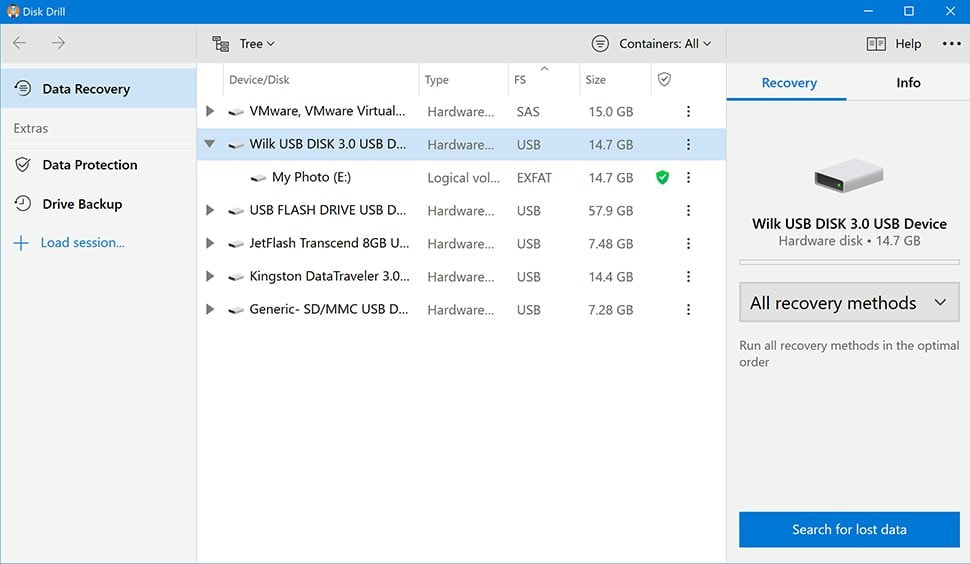
- As soon as Disk Drill for Windows starts running on your computer, you'll land on the Data Recovery section. To begin, select the Device/Disk from which you want to recover lost data. Then, choose "All recovery methods" from the right side of the screen and click "Search for lost data".
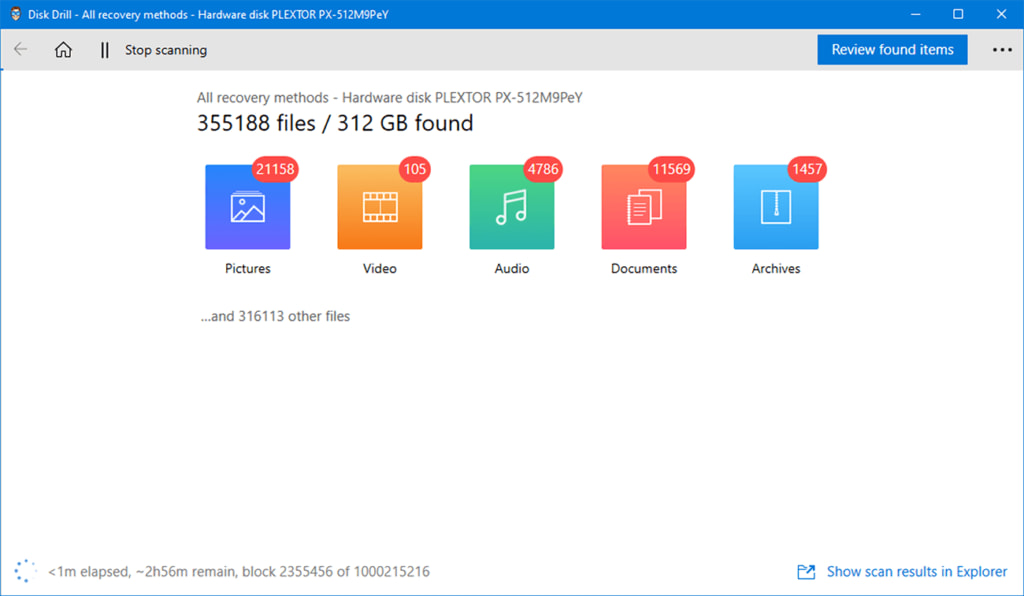
- Disk Drill for Windows will start scanning the drive, taking a few minutes to complete, and then display the number of files and their size, allowing you to review specific file types.
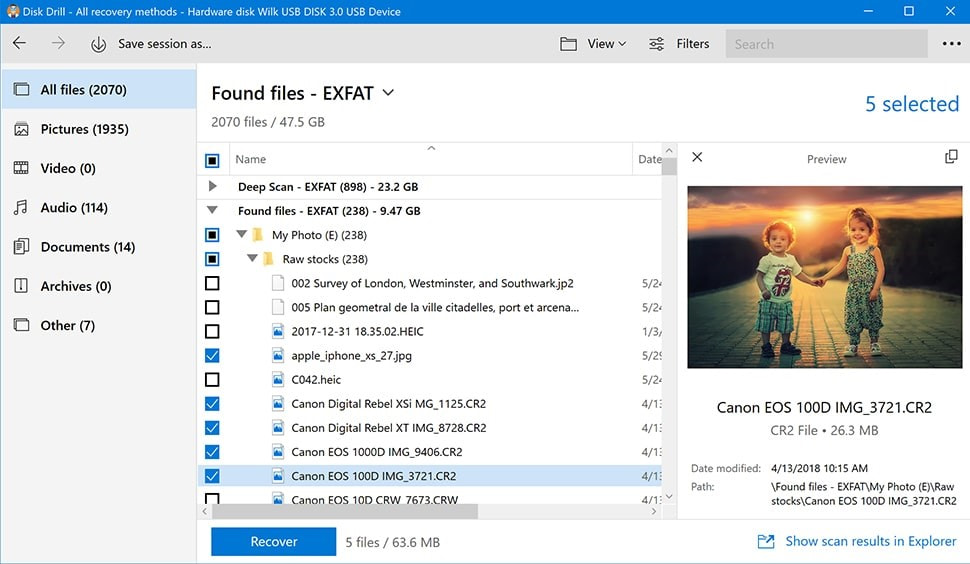
- On the next screen, you will see the found files. You can browse through all files, or filter by type, such as pictures, videos, documents, etc. You can also use the search option to quickly find a specific file. Once you've selected the files you want to recover, click the "Recover" button.
- After the data recovery is complete, you'll see a confirmation screen with details like the number of files and total file size. From there, you can either go back to the disk list or check the recovered files in the folder where you saved them initially.
Part 2. Is Disk Drill Really Free?
While Disk Drill for Windows may seem like a free software, the reality is that it has limitations. The free version, known as Disk Drill Basic, only allows users to recover data up to 500MB, which is a relatively small amount. Once this limit is reached, users can only preview files but cannot recover them, making it less useful for actual data recovery purposes. This is in contrast to the Disk Drill Pro Version, which offers more features and capabilities, but at a cost.
- Disk Drill Basic Version
- Disk Drill Pro Version
- Free recovery only up to 500 MB
- Unlimited Recovery
- Recovery Vault
- 1 User up to 3 Activations
- Preview Recoverable Items
- All Recovery methods
- Create byte to byte backup
- Everything in Basic
It's clear from the table that the Disk Drill Basic version is just hype, as the actual functionality requires purchasing the Pro Version, which costs around $89.99. If budget is a concern, an alternative to Disk Drill for Windows is available.
Part 3. Best Disk Drill Alternative for Windows
Disk Drill for Windows is not free. If you were trying to use its free version to recover deleted files on Windows, you may be disappointed. However, there is a free Disk Drill alternative for Windows. After comparison, I found Qiling Free Data Recovery as the best alternative for Disk Drill.
Qiling Free Data Recovery is a data recovery software that can restore files from various devices, including USD drives, SSD/HDD, and memory cards. It has been rated as the best alternative to Disk Drill by many tech publications, and offers a range of features, including the ability to recover files from any device.
- Retrieve Files Free DiskGenius supports recovering files up to 2GB, which is 4 times larger than the 500 MB limit of Disk Drill. This capacity should be sufficient for most users.
- Supports All Major File Formats Qiling supports almost all major file systems, including FAT, exFAT, NTFS, ext2, ext3, and HFS+, ensuring that it can recover data from a wide range of storage devices, regardless of their file system type.
- Supports all Storage devices There are various types of storage devices available, including PC and server, memory cards, digital cameras, external hard drives, and USB flash drives, among others, and they are all supported by the software.
- Support File Types The software supports all major file types, including pictures, audio, videos, documents, archives, and other files.
- Resume Files Lost in Different Scenarios Data loss can occur in various scenarios, but the software effectively retrieves files lost in situations such as recovering deleted files, formatted drive recovery, recovering files after a partition is deleted or lost, recovering files from a RAW drive, and recovering files after a wrong operation.
Part 4. How to Use the Disk Drill Alternative for Windows to Recover Files Free
Qiling Free Data Recovery is the best Disk Drill alternative for Windows to restore lost or deleted files. To use it on your Windows computer, follow these steps: [insert steps here].
- To install Disk Drill on Windows, click on the "Download" button to get the installation file. Once downloaded, open and run the installation file on your Windows PC.
- On the next screen, select the storage location from the list of all your hard disk drives, then click the Scan button after choosing the disk where the deleted files were located.
- The Disk Drill alternative for Windows will take a few minutes to scan the selected drive, with the actual time depending on the number of recoverable files and their size. Once the scan is completed, you'll see the number of files found and can browse through them by path or file type. Select the desired files and tap the "Recover" button. If you can't find the files you're looking for, clicking "Deep Scan" will initiate a more thorough scan using Deep Data Recovery.


Qiling Recovery is a simple alternative to Disk Drill for recovering deleted files. The process involves just three steps: selecting a lost file type, choosing the drive to search, and reviewing and recovering the files. This straightforward approach makes it easy to recover deleted files, and users may find it a convenient option. If you're looking for a Disk Drill alternative, Qiling Recovery is worth considering. Would you like to know more about it? Please let me know in the comments.
Related Articles
- Top 4 Alternatives to SanDisk RescuePro Recovery Software
- Free Data Recovery Software for Windows 11
- Partition Is Missing in Windows 10? Easily Recover It! (Video)
This guide explains Top 4 Alternatives to SanDisk RescuePro Recovery Software Free Data Recovery Software for Windows 11 Partition Is Missing in Windows 10 Easily Recover It! (Video) with clear steps, key checks, and practical tips. - Four Steps to Recover Deleted Ext3 Partitions in Windows 11, 10
If you're looking for a hassle-free way to recover deleted Ext3 partitions, consider using Ext3 recovery software, which can recover Ext3/Ext4 partitions in just four easy steps. - [Full Guidance] How to Recover Data from HDD
Learn how to Recover Data from HDD with clear steps, key checks, and practical tips. - Recover Data After Format: Complete in Seconds
Formatting a drive does not permanently erase data. Learn how to recover data after format using professional data recovery software. Act quickly to maximize your chances of successful recovery.
Products
Articles & Tutorials
- Data Recovery
- Data Backup
- File Recovery
- File Backup
- File synchronize
- System Backup and Restore
- Disk and Partition Clone
- Technical articles
- Disk Master Help
- Windows Deleted File and Disk Recovery Tutorials
- Windows File and Data Recovery Tutorials
- More Windows Tutorials for Install, Security, Files, and PC Tips
- Windows Boot, Repair, and Recovery Environment Tutorials
- Windows Backup Tutorials
- Windows Restore Tutorials
- Windows Clone and Migration Tutorials
- Windows Server Backup, Recovery, and Management Tutorials
- Windows Disk, Partition, and Storage Management Tutorials