How to Format SD Card for Canon Camera
To access and save shot videos and photos, Canon camera SD cards need to be formatted. This can be done on the camera itself or on a computer, and is a step-by-step process. Before formatting, try using a Canon camera memory card recovery software to recover any inaccessible photos or videos. Once recovered, you can then format the memory card for use with your Canon camera.
Before formatting a Canon card that contains important photos, this Canon photo recovery guide can help you recover files first.
As a Canon camera user, formatting a memory card is a crucial step to troubleshoot issues such as a "card cannot be accessed" message, slow camera performance, or difficulties editing and transferring photos. To resolve these problems, formatting the SD card in the Canon camera is often the first and most effective solution. This simple process can be done in two easy ways, making it a quick fix for Canon camera users experiencing these issues.
- Quick Navigation
- Part 1. 2 Ways to Format Memory Card on Canon Camera
- Part 2. How to Fix the Issue "Card cannot be accessed"
Part 1. 2 Ways to Format Memory Card on Canon Camera
#1. Format SD card for Canon camera on the device directly
If you're sure you need to format the Canon camera SD card right away or without any extra device, you can do it directly on the device itself.
- Make sure the SD card is properly inserted into the card slot before trying to format it, especially if you're using it with a Canon camera, where you should power it off first and then insert the card.
- Power on the Canon camera. From the navigation wheel, navigate to "SET" or "SETTINGS" by pressing the buttons left or right until you're there.
- To find the submenu "Format card" in the "SET" or "SETTINGS" menu, simply navigate to that menu and select the "Format card" option. That's it!
#2. Format SD car for Canon camera on computer
If you're a new user of a Canon camera, it's recommended to format the SD card with a computer before using it. This process is straightforward and can be completed by following a few simple steps. Before formatting, it's a good idea to back up any important photos and videos to prevent data loss. By doing so, you can ensure that your valuable content is safe and secure, and your SD card is ready for use with your Canon camera.
- To transfer photos from your Canon camera, power it off and remove the SD card.
- To transfer files from the SD card, you can either insert the SD card into your computer's SD card slot, if available, or connect the SD card to your computer using an external card reader. Alternatively, you can keep the SD card in your camera and connect the camera to your computer using a USB cable.
- When the SD card is recognized as an external hard drive on your computer, you can right-click on it and select "Format" to erase its contents.
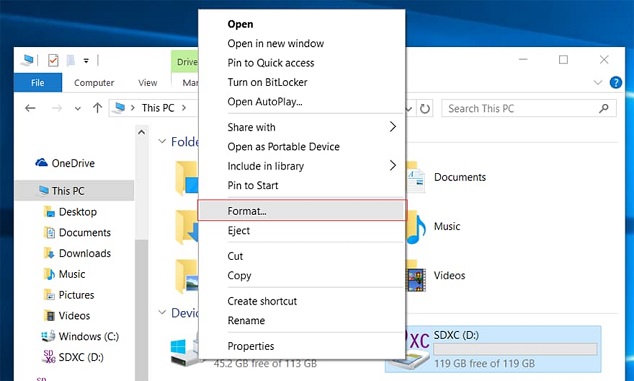
Formatting the SD card in a Canon camera will erase all data, including photos and videos, and may be irreversible. It's essential to back up all data before formatting the card, and if data is accidentally lost, Deep Data Recovery may be able to retrieve it if attempted promptly.
How to Perform Canon Camera SD Card Formatted Recovery
Videos and photos formatted in SD card on Canon camera are not deleted immediately, but are still on the card, waiting to be overwritten. If you haven't generated new data, it's likely to retrieve these files. Deep Data Recovery is a professional yet affordable software that can recover video and photo formats from Canon camera, compatible with Windows PC or Mac, and can unformat the SD card.
- Download and install the software on your computer, which is free of viruses, and can be used on both Windows PC and Mac. Choose the version that fits your computer's operating system.
- Connect your formatted SD card to your computer using a USB cable or an SD card reader. This will ensure a proper connection and allow your computer to detect the SD card as an external hard drive.
- Launch the software, select the external hard drive that represents your Canon camera, and click "Scan". The software will then automatically search for files on the drive.
- To preview and recover formatted data, start by scanning the affected drive. During the process, you can pause by clicking the "Stop" button if you see the target files. If not, wait patiently for the scan to finish, which may take a few minutes. Once the scan is complete, select the desired files and click the "Recover" button to save them on your computer.


Part 2. How to Fix the Issue "Card cannot be accessed"
If you receive the message "card cannot be accessed. Reinsert/change the card or format card with the camera" from your Canon camera, there are several possible causes and solutions. Firstly, try reinserting the memory card to see if it resolves the issue.
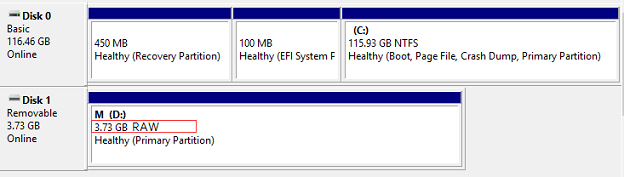
The SD card system becomes Raw, allowing it to be connected to a computer. To verify this, right-click "My Computer" and select "Manage", then open "Disk Management" to check if the SD card is listed as a Raw system.
To format a raw SD card, you can use the following command in the terminal: `sudo fdisk /dev/sdX` (replace X with the actual drive letter, e.g.
- Connect the SD card with your computer.
- Click Win + X and select Command Prompt
- Type "diskpart" and press Enter.
- Type list disk and press Enter. Select the raw SD card and type: Disk F format fs=FAT32 (please note the F here represents the SD card. If it is not the case in your computer, replace it with the right one for SD card.) and click Enter to start the formatting.
If the SD card is virus infected, use an anti-virus software tool to remove the virus before formatting the SD card for your Canon camera.
If the SD card is physically damaged, it's likely that the data on it is lost forever. In this case, the best course of action would be to contact the developer of the device or the SD card, as they may be able to provide a solution or replacement. However, it's unlikely that the data can be recovered in this scenario.
If the Canon camera SD card is locked or write-protected, you should first remove the protection before formatting it.
Related Articles
- Fix SD Card Is Blank or Has Unsupported File System
- How to Format NTFS to FAT32 without Losing Data
- How to Recover Deleted Photos from Canon Camera
- How to Recover Deleted Videos from Canon Camera
- How to Format SD Card for GoPro Hero 4/5 Sesssion
- 6 Ways to Solve Desktop icon Reappears after Delete
Learn the key steps, checks, and practical tips for this related guide.
Products
Articles & Tutorials
- Data Recovery
- Data Backup
- File Recovery
- File Backup
- File synchronize
- System Backup and Restore
- Disk and Partition Clone
- Technical articles
- Disk Master Help
- Windows Deleted File and Disk Recovery Tutorials
- Windows File and Data Recovery Tutorials
- More Windows Tutorials for Install, Security, Files, and PC Tips
- Windows Boot, Repair, and Recovery Environment Tutorials
- Windows Backup Tutorials
- Windows Restore Tutorials
- Windows Clone and Migration Tutorials
- Windows Server Backup, Recovery, and Management Tutorials
- Windows Disk, Partition, and Storage Management Tutorials