How to Recover Unsaved/Deleted Notepad Files in Windows 10/11

Notepad is a simple text editor on Microsoft Windows that has been part of the operating system since 1983, offering a small footprint and low resource requirements, making it suitable for creating and editing text files.
If the file was saved as a TXT document before deletion, this deleted text file recovery guide covers file-based recovery methods.
If you've lost a document in Notepad due to an unexpected exit or deletion, recovering your TXT file in Windows 11/10 is still possible. Unlike more advanced text editors, Notepad lacks restore and backup features, making it harder to retrieve lost documents. However, there are some helpful options available to assist you in this situation.
- Quick Navigation
- Part 1. How to Recover Unsaved Notepad/Notepad++ Files
- Part 2. How to Restore A Previous Version of Notepad
- Part 3. How to Recover Deleted Notepad Files in Windows 11/10/7
- Part 4. Helpful Tips to Protect Your Notepad Files
- Part 5. Frequently Asked Questions for TXT File Recovery
How to Recover Unsaved Notepad/Notepad++ Files
To recover unsaved Notepad files, you can check the temporary folder on your computer, as data is temporarily stored there. The cache file is usually cleared when the program closes, but some temp files may remain, including unsaved Notepad files. You can find these files in the temp folder and recover them.
- Press the "Windows + R" keys simultaneously.
- Type "%AppData%" in the newly opened window and hit Enter.
- To quickly find a saved document, type "*.txt" in the search box. If you remember the name of the unsaved document, you can also type it directly to abbreviate the search range.
- Double-click the found file to preview it.
- When you locate the unsaved Notepad file, copy it to a different location to prevent it from being overwritten.
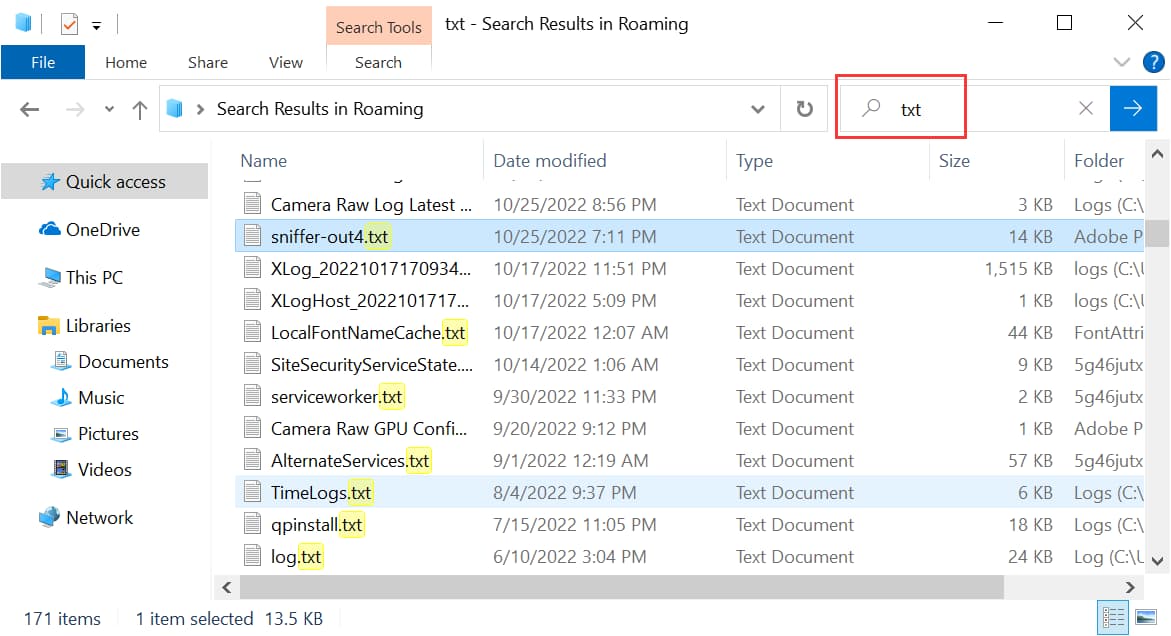
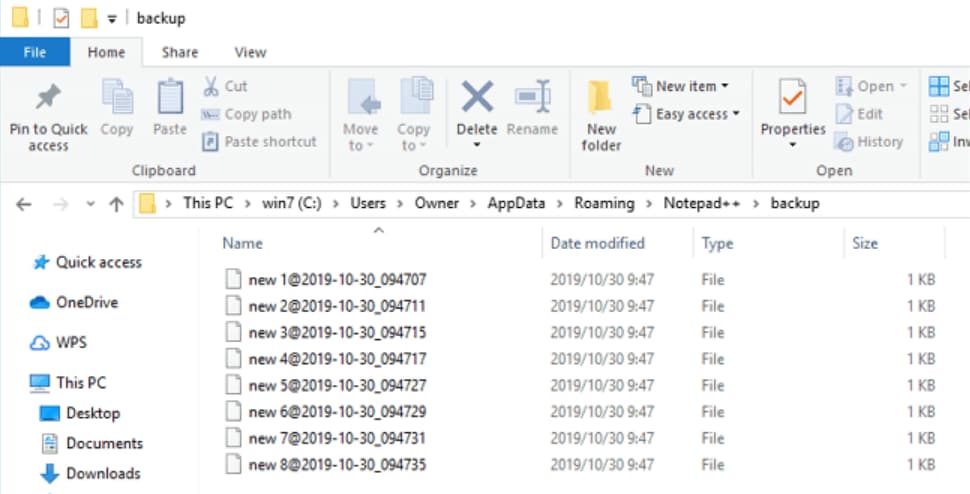
Tip for finding unsaved files in Notepad++: If you're using Notepad++, you'll find that it has a feature to save unsaved items, making it a premium version of Notepad with a backup option. To restore unsaved Notepad files, simply replace the location with "C:\Users\USERNAME\AppData\Roaming\Notepad++\backup" and follow the steps above.
How to Restore A Previous Version of Notepad
Have you ever changed some items in Notepad, only to realize later that you should have kept the original version? If so, you're in luck because there are ways to cancel some of your changes.
Ways 1. Use the Undo Shortcut
The "undo" command is a valuable function in any program, allowing you to instantly revert changes with a single keystroke. Typically, this is achieved by simultaneously pressing the Ctrl + Z keys. If you made a mistake while editing a TXT file, you can continuously click this key combination to roll back to the previous version.

Tips: The method only works if you don't close the program. If you forgot to save and clicked the close button or unexpectedly exited, you can try the following method to recover Notepad files in Windows 11, 10, and 7.
Ways 2. Use the Previous Version Options in Windows PC
In today's fast-In a fast-paced world, it's easy to accidentally delete or overwrite a Notepad file. However, Windows PCs offer a solution by allowing you to restore previous versions of your work, which can be a lifesaver if you've made changes you later regret.
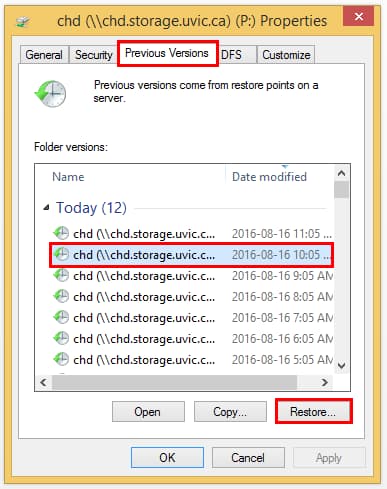
- Go to the folder where the TXT file is saved.
- Right-click and select "Properties."
- Switch to the "Previous Versions" tab.
- Select one from the list of versions and click "Restore."
Tips: To enable the Backup feature in Windows, go to Settings > System > Backup, and toggle the switch to "On". This will allow you to create and save backups of your system, including Notepad, which can be used to recover previous versions in case of data loss. Once enabled, you can follow the above-mentioned steps to recover a previous version of Notepad.
- Click the Window key and click Settings.
- Navigate to System & Security > Backup.
- Enable "Back up using File History."

How to Recover Deleted Notepad Files in Windows 11/10/7
If you've accidentally deleted a Notepad file, you can try to restore it by checking the Recycle Bin, which is a temporary storage area for deleted files in Windows. If the file is still in the Recycle Bin, you can simply right-click on it and select "Restore" to bring it back to its original location. If the file is not in the Recycle Bin, you can also try using a file recovery software to scan your computer for deleted files and recover the one you need. However, the longer you wait, the less likely it is that you'll be able to recover the file.
Ways 1. Check Recycle Bin
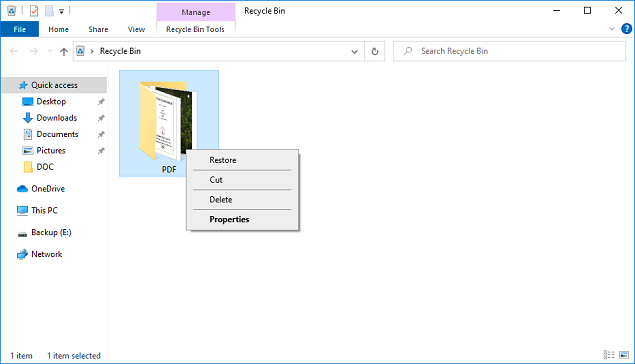
If you've accidentally deleted a file and need it back, it's easily recoverable if you're using a Windows PC. When you delete an item, it's not erased immediately, but rather moved to the Recycle Bin, where it stays until you empty it. This means you can recover deleted files, including Notepad files, in Windows 10, 11, and 7, by simply checking the Recycle Bin.
- Open the Recycle Bin on the desktop.
- Locate the Notepad file you need back.
- Select the .txt file and right-To restore a deleted file, click on the same. From the drop-down menu, select the 'Restore' option.
Tips: If the Recycle Bin doesn't have the target file or you deleted the Notepad file using Shift+Del keys, you can also use the System Restore feature or a third-party data recovery software to retrieve it. These tools can help recover deleted files by scanning the system for any changes made to the file system and restoring the file from a previous backup or snapshot. However, the effectiveness of these methods depends on various factors, such as how long ago the file was deleted and whether the system has been restarted or updated since then.
Ways 2. Use Professional Notepad Recovery Software
You can use Deep Data Recovery software to recover permanently deleted files in Windows 11, 10, 8, 7, and Mac, even in cases where the file has been deleted due to deletion, an empty recycle bin, a disk format, or a system crash. This software is the best and foolproof solution for safe file recovery in the most crucial scenarios.
Your Safe & Effective Notepad File Recovery Software
- Retrieve text files deleted from your PC, SD cards, USB flash drives, or external hard drives.
- Two scan modes are available to ensure a high success rate of recovering Notepad files in both Windows and Mac operating systems.
- The best disk recovery software can also repair damaged .txt files during retrieval.
To recover deleted Notepad files in Windows 10/11, download the best software and follow the steps below.
- Install Deep Data Recovery software on your PC and launch it to start the recovery process.
- Tap on the location from where the Notepad file got deleted, and then select the "Scan" option to initiate the scanning process.
- After the scan is complete, select the deleted Notepad files and click "Recover" to save them to the computer.


Ways 3. Use Microsoft File Retrieval Tool
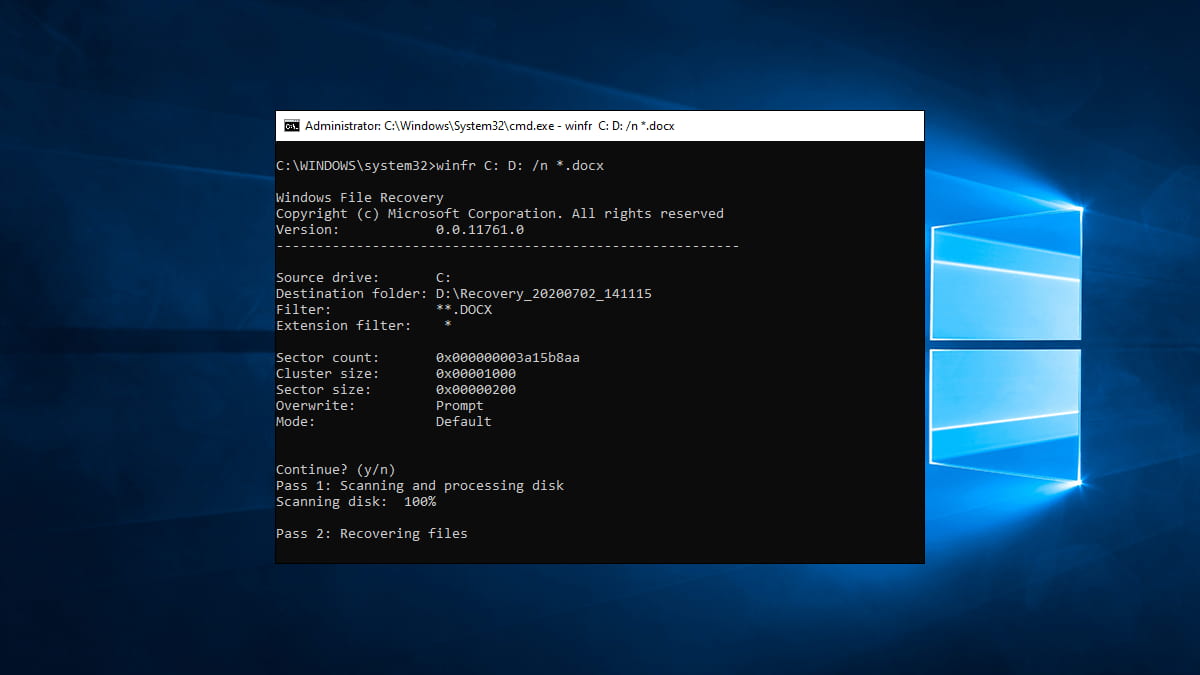
Deep Data Recovery software is effective in recovering Notepad documents, but other options are available. Microsoft's file recovery tool can also be used, although it lacks a user interface and requires remembering the name of the missing file. For those familiar with the command line, it can be used to retrieve deleted Notepad files in Windows 11/10 for free.
- Download this program in Microsoft Apps.
- To recover lost files, you can use the Windows built-in tool "Winfr" by launching the command prompt, then typing "winfr C: D: /n Qiling.txt", where "C:" is the drive where the files were lost, "D:" is the location where the recovered files will be saved, and "/n" and "Qiling.txt" are specific parameters for the recovery process.
- Enter Y to start the Notepad recovery process.
If none of these methods work, your last resort is to contact a data recovery service provider for help, which may require a fee. They can assist you in recovering your lost data.
Helpful Tips to Protect Your Notepad Files
To avoid losing your Notepad work, it's a good idea to save your files regularly, especially when working on important projects. This can be done by clicking the "File" menu and selecting "Save As" to choose a location and file name for your work. Additionally, consider setting up automatic saving intervals, such as every 5-10 minutes, to ensure your progress is saved frequently. You can also use cloud storage services like Google Drive or Dropbox to sync your Notepad files across devices, making it easier to access and recover your work if needed.
- 🎏 Regularly backing up your data is essential to ensure you can restore lost or deleted files. Do this at least once a week by saving your files to an external hard drive or cloud storage service.
- ☠️ To protect your network and files, it's essential to keep an eye on potential vulnerabilities and install robust security measures. This includes ensuring your network settings are loophole-free, so hackers can't steal or corrupt your data. Additionally, installing a good antivirus is crucial to safeguard your files against viruses.
- 🕶️ If you're using a shared PC, you should hide your Notepad files to protect them, so you do not end up deleting them.
- ⚙️ You can use permission settings to control access to your Notepad files, granting or denying access to anyone other than yourself.
Taking a few simple precautions can help ensure that your notepad files are safe and sound.
Frequently Asked Questions for TXT File Recovery
Notepad file recovery is a process that can be done using various tools and techniques. Despite the challenges, it is possible to recover deleted, unsaved, or overwritten TXT files in Windows 11, 10, and 7 with the right tools and knowledge.
-
A Notepad file is a text file created with Microsoft's Notepad application, which can contain plain text, HTML, rich text, or programming code.
-
You can find unsaved Notepad files in the location C:\Users\Username\AppData\Roaming.
-
It is one of the simplest text editing tools, so there is no AutoSave function. However, you can continuously and regularly use the Ctrl + S keys to save your work.
-
If you think your TXT files may have been lost, check your backup to see if they're still intact. If not, data recovery software like Qiling can help you recover deleted Notepad files by scanning your hard drive for remnants and piecing them together.
-
Several methods can be used to repair a corrupted text file, depending on the extent of the damage. If the file is only partially damaged, manual editing with a hex editor may be possible. For more severe damage, specialized recovery software can be used to try and reconstruct the original data. In some cases, extracting data from a corrupted file using an XML parser may also be possible.
-
If you're trying to access an older version of a Notepad file, your best bet is to try using the previous version or Deep Data Recovery, which can often find older versions of files that have been overwritten or lost.
-
A corrupt TXT file can be repaired by modifying the encoding, but some data may be lost depending on the extent of the corruption. To avoid losing data, it's advisable to make backups of essential files in case they become corrupted and cannot be completely fixed.
-
You can find hidden files maintained by Windows OS, including previous version information, in the same directory as the current version, making it easily accessible once you restore to an earlier version.
Conclusion
Losing important Notepad files can be a frustrating experience, whether due to accidental deletion or a power outage damaging your hard drive. Fortunately, there are ways to recover unsaved or deleted Notepad files in Windows 10 and 11, with Deep Data Recovery being a reliable option. Its user-friendly interface and simple recovery process make it a trustworthy tool for rescuing lost data.
Related Articles
- How to Recover Deleted Archive Files in Windows 11/10
- How to Recover Corrupted Files in Windows 10/11
- How to Recover Data from VMware Disk [2023 Updated Guide]
The problem of VMware data recovery and the VMware disk file not found problem occasionally bothers many users. This article describes three ways to recover data from a VMware disk to reduce the losses of a VMware disk file. - [Answered] Where Do Deleted Files Go on PC/Mac/Android/iPhone
This guide explains Where Do Deleted Files Go on PC/Mac/Android/iPhone with clear steps, key checks, and practical tips. - How to Get Back Deleted WhatsApp Messages on Computer/iPhone
You can recover deleted WhatsApp messages, making it easy to get back what's been lost. - How to Recover a Deleted Folder in Outlook
Learn how to recover a deleted folder in Outlook from Deleted Items or Recover Deleted Items, and restore emails to the right mailbox location.
Products
Articles & Tutorials
- Data Recovery
- Data Backup
- File Recovery
- File Backup
- File synchronize
- System Backup and Restore
- Disk and Partition Clone
- Technical articles
- Disk Master Help
- Windows Deleted File and Disk Recovery Tutorials
- Windows File and Data Recovery Tutorials
- More Windows Tutorials for Install, Security, Files, and PC Tips
- Windows Boot, Repair, and Recovery Environment Tutorials
- Windows Backup Tutorials
- Windows Restore Tutorials
- Windows Clone and Migration Tutorials
- Windows Server Backup, Recovery, and Management Tutorials
- Windows Disk, Partition, and Storage Management Tutorials