Total Word File Recovery Solution to Recover A Word Document
Quick Navigation:
- Reasons for disappearing documents:
- How to Recover a Deleted Word Document
- Step-by-step guide:
- Recover an Unsaved Word Document Using the AppData
- Step-by-step guide:
- Recover a Word Document after a Computer Crash Using the AutoRecovery Feature
- Step-by-step guide:
- How to Recover a Word Document that was Saved to the Wrong Location?
- Step-by-step guide:
- Recover an Accidentally Overwritten Word Document Using the Previous Version
- Step-by-step guide:
- Repair a Corrupted Word Document that Won't Open Using the Trust Center Settings
- Step-by-step guide:
- Tips for Preventing Word File Loss in the Future
- Conclusion
- Frequently Answered Questions

Microsoft Word, or MS Word, is a simple computer word processing program used to create text, such as letters and official documents. It features advanced tools like adding graphics, spell and grammar check, auto-formatting, and table of content. Additionally, it comes with an online document collaboration tool that allows multiple users to simultaneously read, write, or make changes to a document saved in OneDrive.
If Word created temporary files during the crash, this temporary Word file recovery guide explains where to check.
Even if Microsoft Word has built-in features like offline "Auto Recovery" and online "Auto-Save" to protect your documents, there are still instances where they can suddenly disappear, leaving you without a clear explanation.
Reasons for disappearing documents:
- ❌ You accidentally deleted the whole document while deleting some specific portion.
- 📑 You haven't saved the documents before exiting from the page.
- 📤 When working offline without the "Auto-saved" feature enabled on OneDrive, files may not be saved and can disappear.
- 🖥️ Sudden software crash or accidental formatting of partitions/disks
- 👽 Any bug or malware attack on your system could cause the sudden deletion of your Word document.
Losing a Word document can be frustrating, whether it's for business or personal use. Instead of wasting time regretting the loss, you can try viable solutions to recover your Word document. This article offers guidance on how to quickly recover lost Word files in various situations, providing you with fast access to your important documents.
How to Recover a Deleted Word Document
If you're looking for a reliable tool to quickly recover lost Word files, Deep Data Recovery is a trusted and efficient option that's suitable for both beginners and professionals, and works on both Windows and Mac computers.
The tool is designed to help users recover lost Word documents in an easy and efficient way. To ensure successful recovery, it's recommended to stop using the disk where the files were lost to prevent data from being overwritten.
- Advantages:
- Beginner-friendly user interface and built-in navigation
- Recovers files from more than 2000 storage devices
- Recovers files in various data loss scenarios
- Has a file recovery success rate of 99.65%
- Saves time and provides professional assistance
- Applicable users/scenarios:
- To recover RAW drives or a deleted file
- To restore partition after deleted, lost or hidden
- To recover lost files due to virus and malware attacks or hard drive crash, you can try using data recovery software, such as Deep Data Recovery Wizard, to scan the affected device and retrieve the files. Alternatively, you can also use a cloud backup service, like Google Drive or Dropbox, to restore the lost files from a previous backup.
- If the storage device is erased unexpectedly
Step-by-step guide:
- Install and launch the Deep Data Recovery software on your computer.
- On the app's main interface, select and scan the drive where you lost your Word document, such as the C drive if your Word files are saved in the Documents folder. Then, click the Scan icon.
- Wait for the scanning process to complete, then check the found files and save the document in a safe place.

Recover an Unsaved Word Document Using the AppData
The default autosave location for MS Word is AppData, a hidden directory in your system where unsaved files, custom settings, and other system application information are stored.
- Applicable scenarios:
- To recover an unsaved document in Word on Windows, follow these steps: Open Word and click on the "File" tab, then select "Recent" and click on "Recover Unsaved Documents." Alternatively, you can also press "Ctrl+Shift+Delete" to open the recovery window.
Step-by-step guide:
- Press the Windows key + R keys on your keyboard together to open the Run command.
- To open the AppData folder in File Explorer, type 'AppData' in the search box and click Enter.
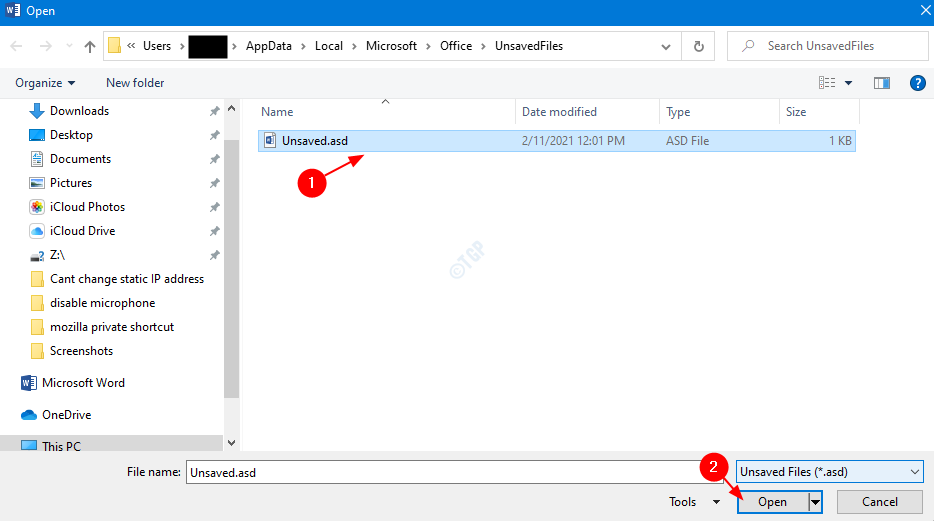
- Next, navigate to: Local > Microsoft > Office > UnsavedFiles
- To recover a file from File Explorer, select the file you intend to recover and click Open. This will open the file in its associated program, allowing you to view and edit its contents.
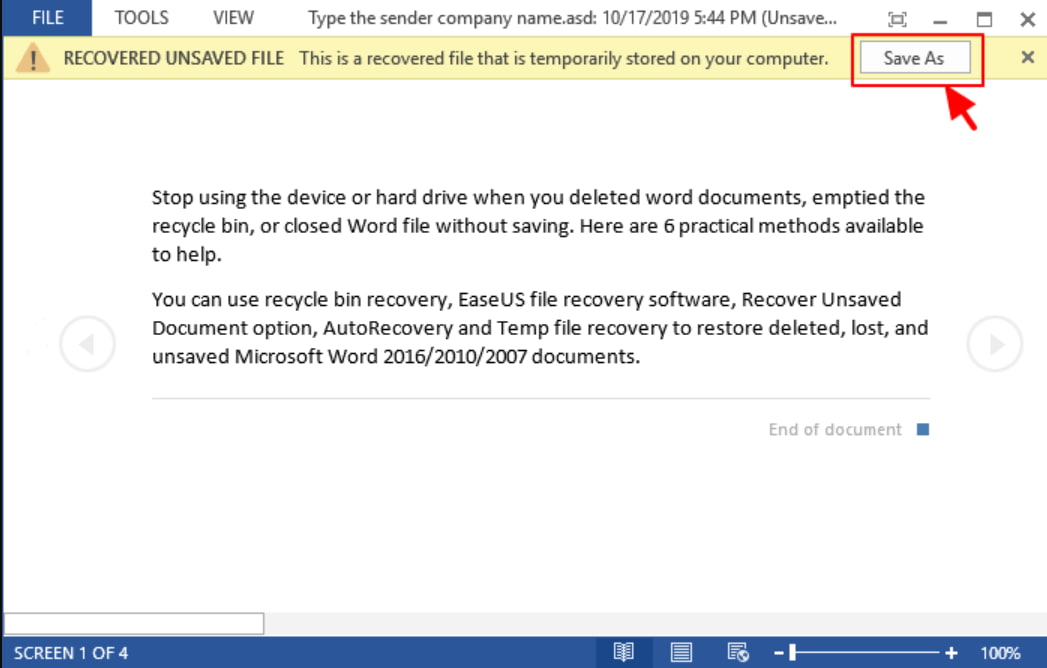
- Save your recovered Word document by tapping the Save As button to save it in your desired location.
If this method doesn't work, you can click here for more plans to restore unsaved Word files.
Recover a Word Document after a Computer Crash Using the AutoRecovery Feature
Microsoft Word allows auto recovery of lost or deleted files, including in cases of system crashes, where users may not be at fault due to PC issues.
- Limitations:
- Unfortunately, if a Word file has been overwritten or replaced, it's unlikely that you can recover the original content. This is because the overwritten file has been completely replaced with new data, erasing the previous information.
Step-by-step guide:
- Once your system is back online, reopen MS Word and click on "Show Recovered Files" to see if any unsaved Word files have auto recovered.
- To recover a Word document, first, check if the file is still open in Microsoft Word. If it is, you can save it by going to File > Save As.
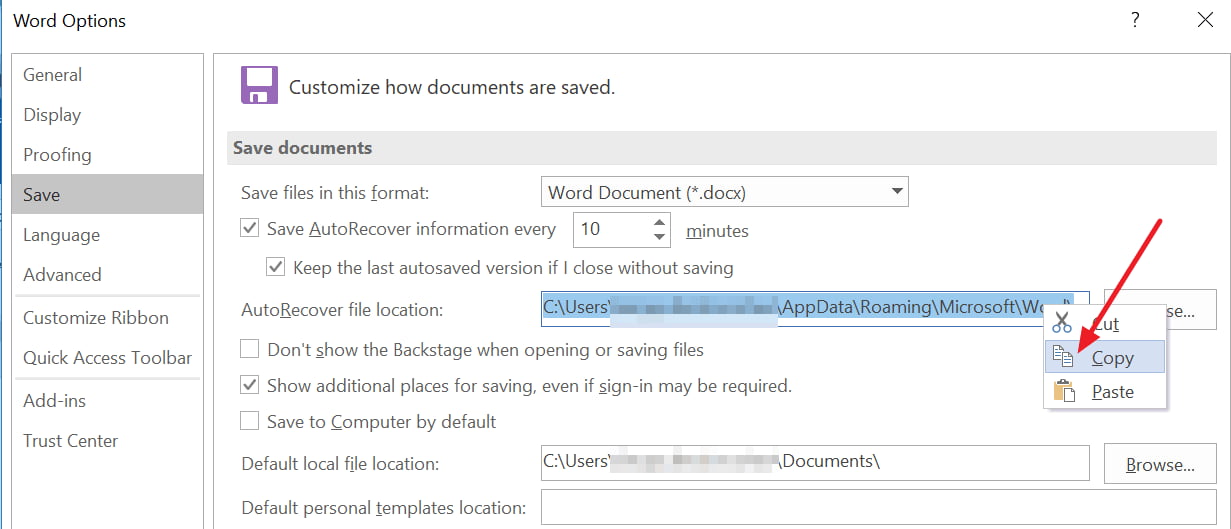
- Select File > Options > Save
- To find the AutoRecover file location, go to the File menu, select Options, then click on the Save tab, and finally, click on the AutoRecover file location button. This will open the file path in File Explorer.
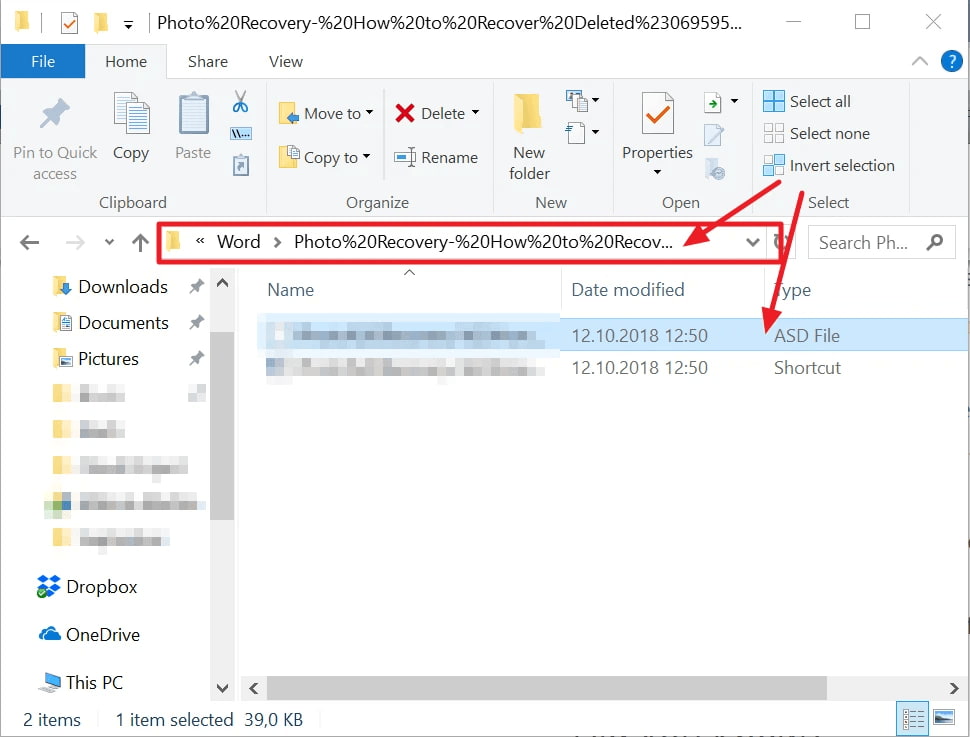
- To summarize, open the folder containing your document's name, locate the .asd file with the most recent modified time and date, and copy it.
- To reopen a recently unsaved document in MS Word, follow these steps: Open MS Word, go to File, select Open, and then click on the "Recent document list" at the bottom. From there, choose "Recover Unsaved Documents".
- To recover your Word document, paste the file into the popped-up folder and then open the file. This should allow you to access and view your document again.
How to Recover a Word Document that was Saved to the Wrong Location?
If you're having trouble finding a saved Word file, you can use Windows File Explorer as a quick and easy method to locate and recover the file. This is often the best approach, as it allows you to search through your computer's files in a straightforward way.
- Limitations:
- It doesn't work to recover a deleted Word file.
- Applicable Scenarios/ Users:
- If you're having trouble remembering where you saved the Word document, try checking your computer's file explorer or search bar. You can also try looking for the document in the places where you usually save your files, such as your desktop or documents folder.
- When data is stored on a path that is not used frequently, it can become outdated and less relevant over time, making it less useful for future reference or analysis. This can lead to wasted storage space and potential issues with data management and retrieval.
- Search any file and document within seconds
Step-by-step guide:
- Run the Windows File Explorer on your system.
- To search for a file on your computer, you can open the search box, which is usually found in the taskbar or by pressing the Windows key + S on your keyboard. Once the search box is open, you can type the name of the file you're looking for or use keywords related to the file's content.
- Wait until the search process completes.
- Once you've located the file, click on it to view its contents and then save it to your desired location.
Recover an Accidentally Overwritten Word Document Using the Previous Version
If you've accidentally overwritten a Word document, you can recover it by tracing its previous versions. However, this method only works if you've enabled the backup option and regularly backed up your files, ensuring all arrangements are covered.
- Limitations:
- It works only when you have configured the File History to back up the files.
- Applicable scenarios/users:
- To revert your process of Windows' Word and Excel documents
- To restore the original and earlier versions of accidentally modified, deleted, or damaged documents, you can use the "Restore Earlier Version" feature in most document editing software. This feature allows you to revert back to a previous version of the document, undoing any changes made since then.
Step-by-step guide:
- Tap Start > double click on Computer.
- Double-click on the drive having your overwritten Word file > Select the file location.
- Next, right-To restore a previous version of a Word document, click on the Word document and select Restore previous versions. This will display all available versions and their locations.
- Select the version you need to restore and click the Restore button.
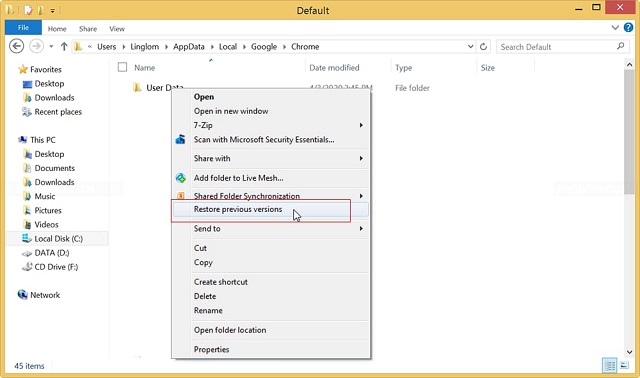
If you've overwritten a Word document, don't panic! There are still ways to retrieve it.
Repair a Corrupted Word Document that Won't Open Using the Trust Center Settings
Using the Trust Center Settings in MS Word, you can customize privacy and security settings to repair corrupt Word documents that won't open, or share files with others while restricting confidential info. This also helps disable protected view settings and resolve issues with corrupt Word files.
- Cons:
- You must enable the settings beforehand to make them work.
- Applicable scenarios/users:
- Customization of privacy and security settings
- Open corrupt Word files (DOC and DOCX)
Step-by-step guide:
- Open the MS Word app on your PC.
- Open the File menu and click Options.
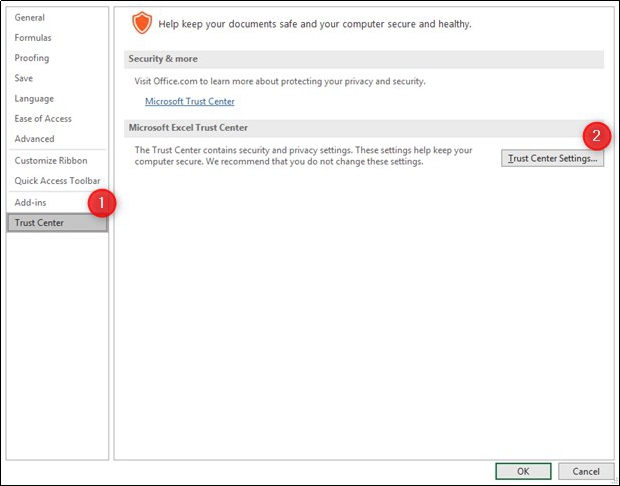
- Select the Trust Center and click on Trust Center Settings.
- To exit Protected View, tap the Protected View tab, uncheck all the available boxes, and select OK.
- To close your Word application and open the file you need, simply click on the "X" button in the top-right corner of the Word window to close the application. Then, navigate to the location where the file you need is saved, and double-click on the file to open it in Word.
Tips for Preventing Word File Loss in the Future
Taking preventive measures beforehand can save you from the embarrassment of losing your data later. It's better to be safe than sorry, and avoiding the hassle of Word file recovery is a good reason to do so.
- 🖥️ Keep your system clean and dust-proof.
- 💽 To prevent storing your Word file in the primary drive or the operating system, consider saving it on a second internal hard drive instead. This can help protect your file from potential data loss or corruption due to operating system crashes or other system-wide issues. By keeping your Word file on a separate drive, you can ensure its safety and accessibility even in the event of a system failure.
- ⛔ To avoid accidental deletion of your Word document while editing, use the F12 key to save a copy with a different name before making changes, allowing you to recover your original file if needed.
- 📧 Be cautious with emails and attachments from unknown sources, and keep your antivirus software up to date to protect yourself from potential cyber threats.
- ⛱️ To ensure the safety of your important Word documents, make regular backups and store them in a fireproof vault. Additionally, consider keeping copies at multiple locations, such as an external hard drive or cloud storage service, and encrypt the files for added security.
- 🎏 To add an extra layer of protection to your Word files, you can also save a backup of them in Cloud storage.
- 🗃️ Be cautious with email attachments, as receiving a file with the same name and location as your original document can overwrite it, so save attachments in a unique location to avoid overwriting your original document.
- 📰 Keeping hard copies of your Word files can provide a backup in case you lose your digital copies, ensuring you still have access to your work even if your computer or storage device fails.
Conclusion
Technology has not advanced enough to prevent losses, so it's essential to take proactive steps to protect your data. Enabling built-in backup features can ensure a solid backup, even in case of accidental loss. This helps prevent losing essential data.
If you fail to retrieve your valuable data and need to recover a Word document, you can rely on the Deep Data Recovery software, which is a one-stop solution for all your Word file recovery needs.
Frequently Answered Questions
-
You can easily retrieve an unsaved Word document by accessing its temporary file in the AppData folder. This folder stores temporary files created by various applications, including Microsoft Word. By navigating to the AppData folder, you can find the temporary file associated with the unsaved document and open it to recover your work.
-
Using the Trust Center Settings in MS Word is the safest and most cost-effective way to repair and recover corrupt Docx files.
-
Saving or accessing Word files on a fragmented disk can lead to corruption, as well as other issues such as round-tripping, improper download, and header corruption.
-
Deep Data Recovery software can easily recover corrupted Word files by employing an advanced search process that helps repair the files during the scan, making the recovery process simpler.
-
Files can become corrupted due to various reasons, including power failures, bad sectors on the hard drive, user errors, phishing, program crashes or freezes, and improper system shutdowns. Additionally, viruses and malware can also cause file corruption. These issues can arise from a range of factors, making it essential to take preventative measures to protect your data.
-
Formatting the drive will erase all data, including your backup files, but you can still use Qiling Word document recovery software to help recover your files.
- Download and install Deep Data Recovery
- After launching the application, click "go to settings" to deselect other file types.
- Select the formatted drive to scan
- Preview erased word files and re-save them to the drive
Related Articles
- How to Recover Items Deleted from Recycle Bin?
This article aims to recover items deleted from Recycle Bin, even if it has been emptied, and provides users with 6 proven methods below. - Guide to Restore Files from Backup in Windows 10
To restore files from a backup in Windows 10, follow this tutorial to easily recover backed up files. - How to Restore Previous Version of Files (4 Ways)
Learn how to Restore Previous Version of Files (4 Ways) with clear steps, key checks, and practical tips. - 7 Fixes | This Device Cannot Start Code 10!
Learn how to fix this device cannot start code 10 via seven fixes in this guide. Besides, you can get top-rated data recovery software for Windows to recover files. - How to Recover Kaspersky Deleted Files
To recover deleted files from Kaspersky, you can try the following: First, check if the files are still in the Kaspersky quarantine folder. If they are, you can restore them from there. If not, you can check the Kaspersky logs to see if the files were deleted by the antivirus software. - How to Recover Deleted Files from NTFS Partition/Drive/External Hard Drive/Formatted NTFS Drive
Here are the steps to recover deleted files from an NTFS partition, NTFS external hard drive, or restore files from a damaged/corrupted/formatted NTFS disk/partition.
Products
Articles & Tutorials
- Data Recovery
- Data Backup
- File Recovery
- File Backup
- File synchronize
- System Backup and Restore
- Disk and Partition Clone
- Technical articles
- Disk Master Help
- Windows Deleted File and Disk Recovery Tutorials
- Windows File and Data Recovery Tutorials
- More Windows Tutorials for Install, Security, Files, and PC Tips
- Windows Boot, Repair, and Recovery Environment Tutorials
- Windows Backup Tutorials
- Windows Restore Tutorials
- Windows Clone and Migration Tutorials
- Windows Server Backup, Recovery, and Management Tutorials
- Windows Disk, Partition, and Storage Management Tutorials