Guide to Restore Files from Backup in Windows 10
"How do I restore individual files in Windows 10 Backup?"
Some users take precautions to prevent data loss by regularly backing up their important data.
Many people still fail to make backups due to their lack of awareness about the devastating consequences of losing important data.
Many Windows 10 users who have backups often struggle with restoring files, even though they have the backups, due to lack of knowledge on how to do it efficiently.
Unfortunately, if you've deleted a folder and used apps to scan for lost files, it's likely that the files have been overwritten and are now unrecoverable. Windows backup may not have captured the deleted files, especially if they were deleted recently.
- Question from WindowsForum
If you want to learn how to restore files from a backup in Windows 10, this article will be helpful. Alternatively, if you don't have any backups, there's still a way to easily recover deleted data.
How to restore files from backup in Windows 10?
Windows has two common backup tools: File History, which backs up selected user folders, and Backup and Restore, which can restore files from a previously created Windows backup.
1. Recover files from Windows backup via File History
File History only saves data from the C: drive, including Desktop, Downloads, Favorites, etc., and Previous versions also come from the File History and restore points.
You can restore previous versions of files to recover overwritten or lost files.
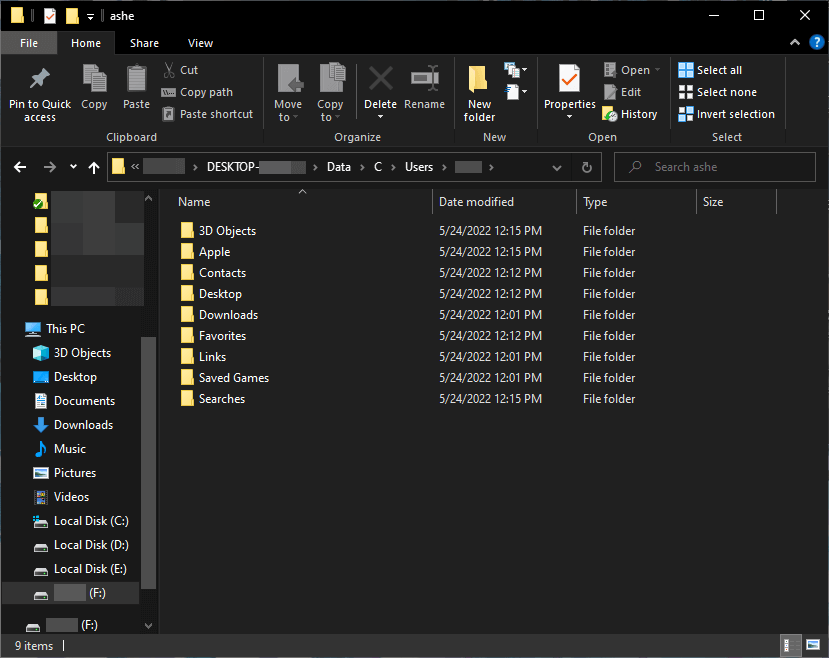
If you've lost files from your C: drive, you can try using Deep Data Recovery Wizard to recover them. This software allows you to scan your C: drive and recover deleted, formatted, or corrupted files.
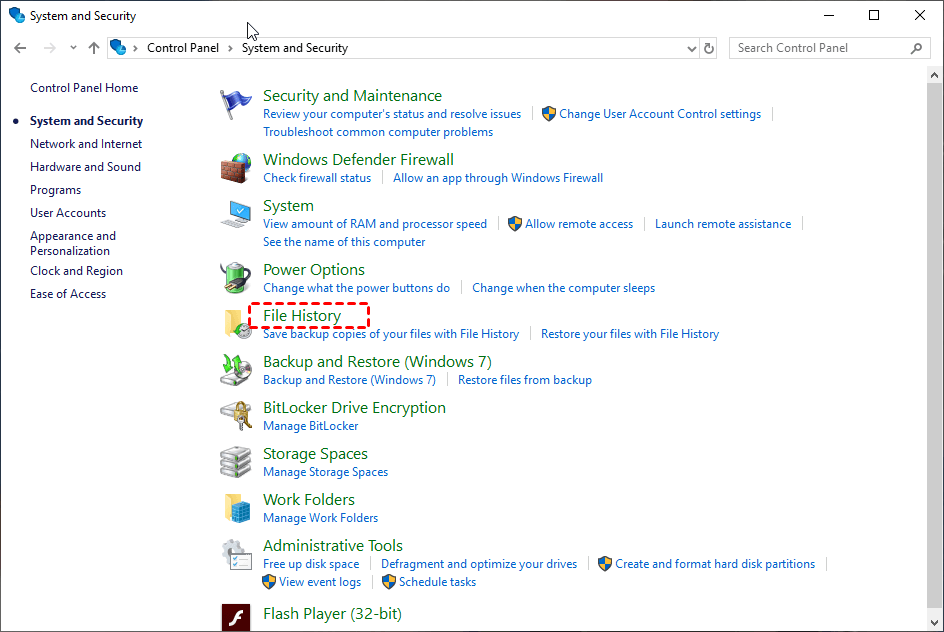
Step 1. Start Control Panel > System and Security > File History.
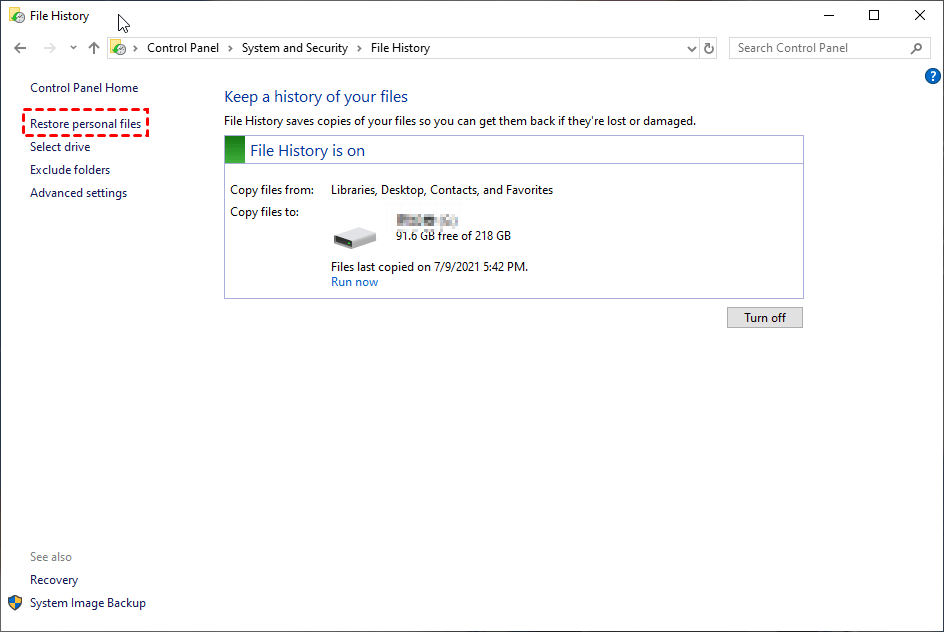
Step 2. Click Restore personal files.
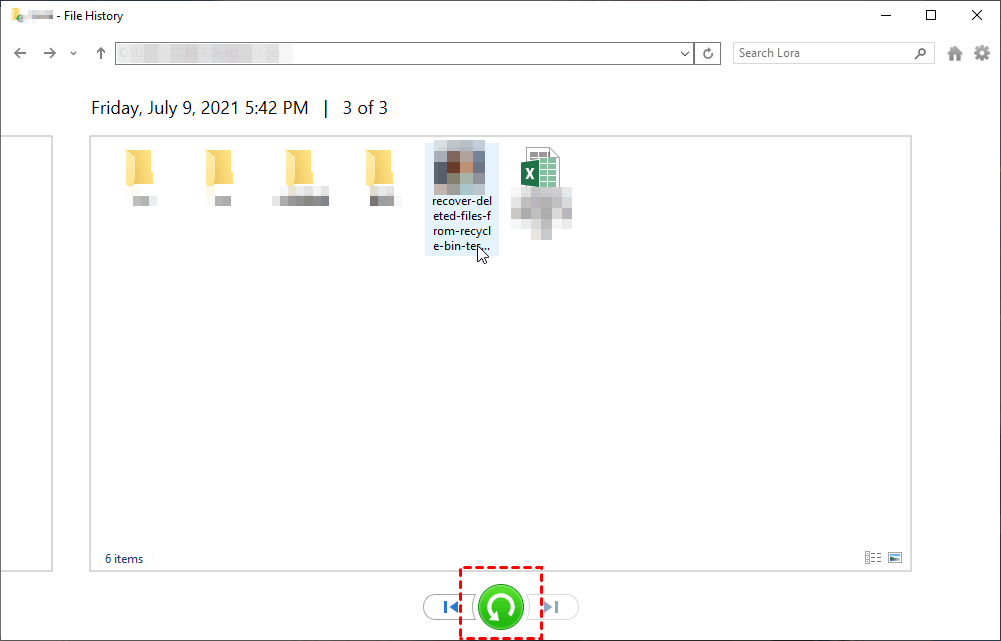
Step 3. To recover deleted files, select the files you need, click the "Recover" button, and navigate to the desired folder to see earlier versions. For example, you can recover a deleted folder from the desktop.
You can restore files from a backup in Windows 10 with File History or Backup and Restore. Make sure the backup drive or network location is connected before starting the restore process.
2. Restore backed up files in Windows 10 using Backup and Restore
Here's how to restore backed up files in Windows 10: You can use the Backup and Restore feature, pre-installed on Windows, to restore backed up files by selecting the backup set you want to restore and following the on-screen instructions. This will allow you to restore any local disk files that were backed up using this feature.
The Windows backup and restore tool may not be sufficient if your files are stored on secondary partitions, such as a data drive or external hard drive. This is because the tool only backs up and restores files from the primary partitions where Windows is installed.
Step 1. To access the backup and restore feature in Windows 7, go to the Control Panel, click on System and Security, and then select Backup and Restore (Windows 7) from the options.

Step 2. Click Restore my files.
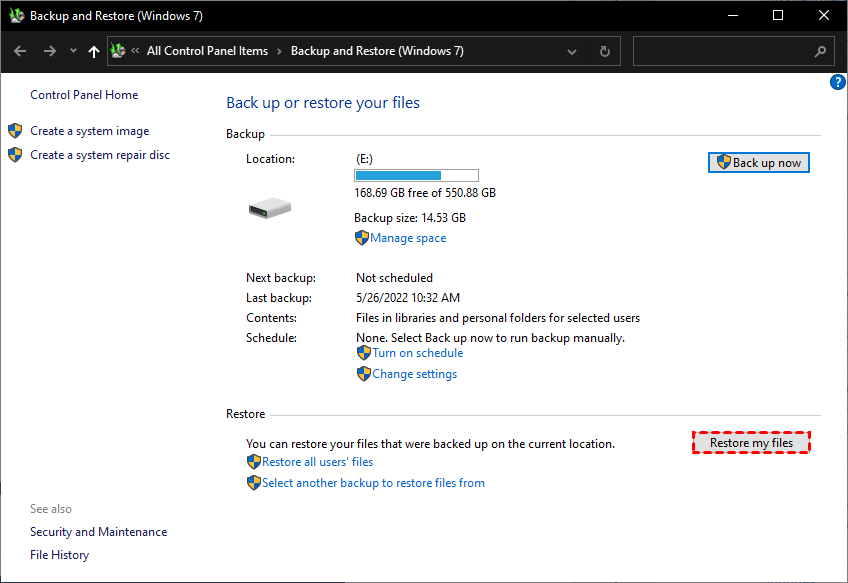
Step 3. Click on the "Browse for files/folders" option, select the files you require, and then click on the "Next" button.
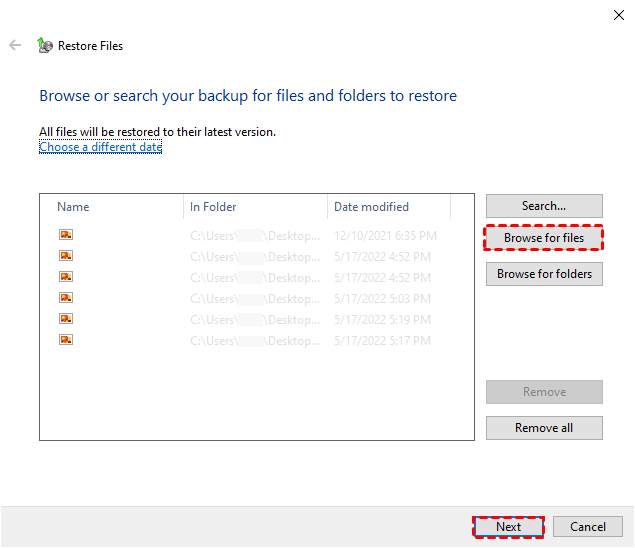
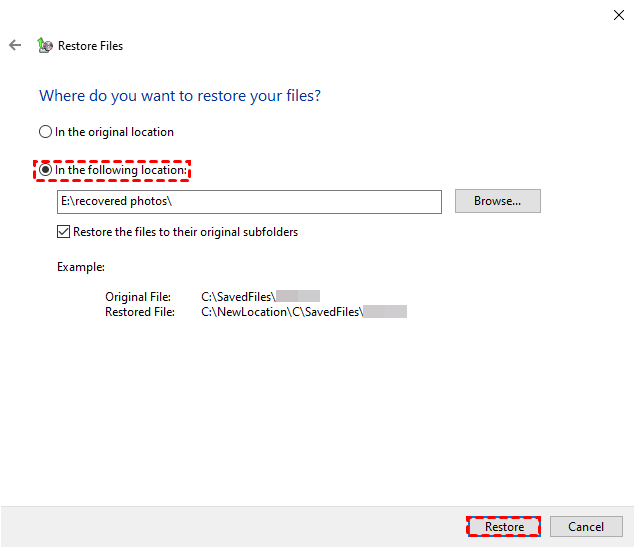
Step 4. Specify the destination according to your preferences > click Restore.
This feature can also assist you to recover permanently deleted pictures on computers.
3. Recover files from backup via a professional backup tool
You can restore files from a backup in Windows 10 using professional backup software, such as Qiling Disk Master, which offers many useful features.
To restore files from a backup in Windows 10, follow these steps: Go to the Backup and Restore (Windows 10) utility, click on "Restore your files" and select the backup you want to restore from. Choose the files you want to restore, and select the destination where you want to save them.
Step 1. Click Restore > Select Task and find your wanted files.

Step 2. Choose a backup file > click Next.
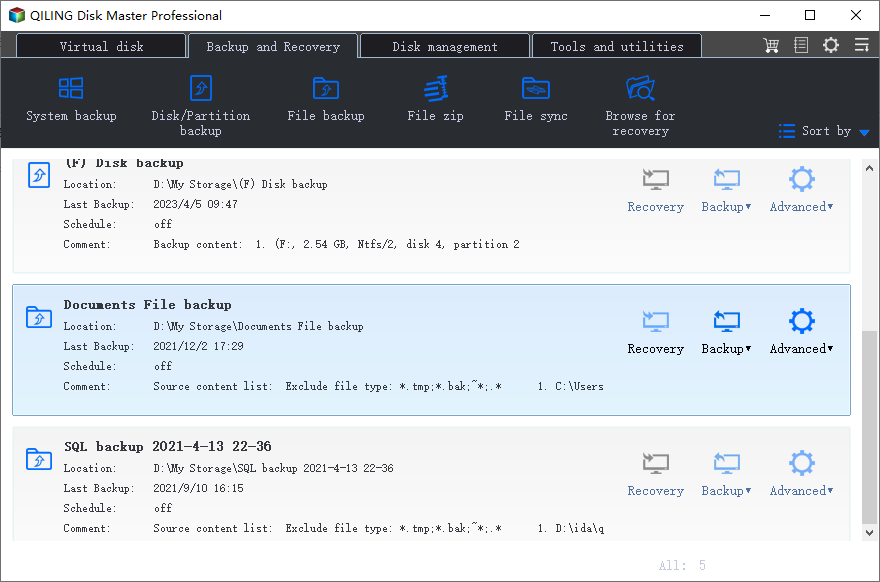
Step 3. Select your needed files > Next.
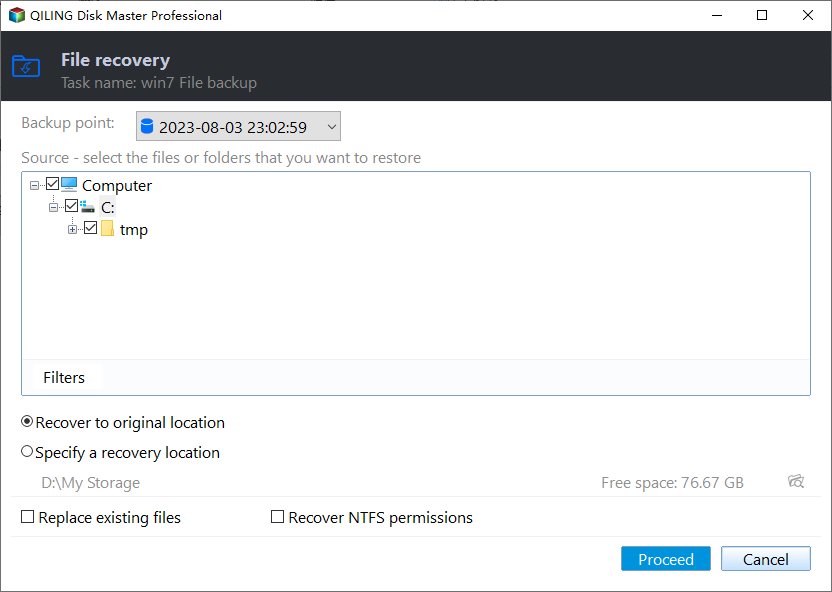
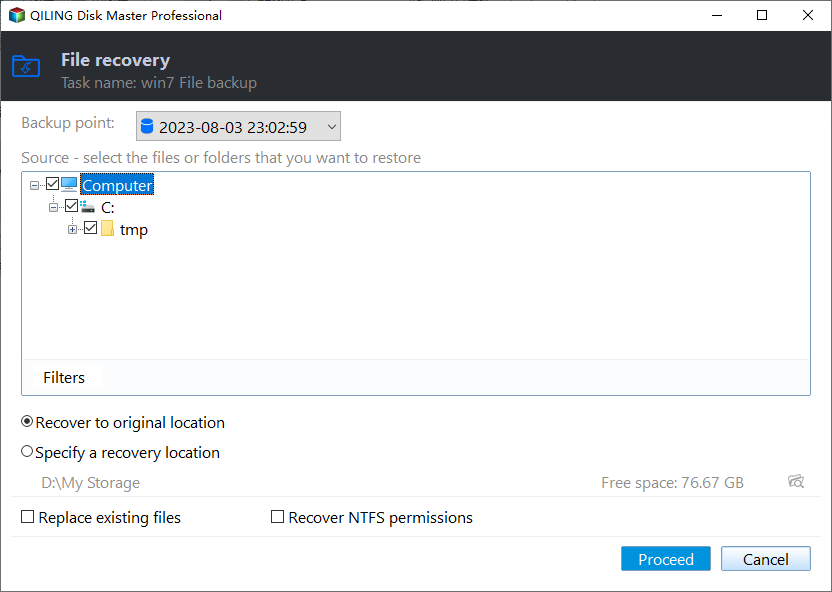
Step 4. To proceed, please select the desired location from the provided options or restore the original location. Once you've made your choice, click the "Proceed" button to continue with the operation.
How to restore deleted and missing files without backup?
Many people overlook the importance of backups, but accidents won't wait until they're ready. Despite the benefits of having a backup, a significant number of individuals haven't even made one, leaving them vulnerable to data loss.
In the event of data loss, you can attempt to recover lost files by using built-in Windows features such as the Recycle Bin, Previous Versions, or System Restore. You can also utilize third-party data recovery software like Deep Data Recovery Wizard to scan your system for deleted files.
For the sake of convenience and efficiency, you might as well choose a reliable Windows data rescue tool, such as Deep Data Recovery.
This data recovery software is designed by a leading enterprise in the data security industry, utilizing advanced scanning methods to efficiently locate lost files, making it easier for users to recover their lost data.
- This tool allows you to recover deleted and missing files from various storage devices, including hard drives (HDD), solid-state drives (SSD), USB drives, and memory cards (SD card), among others.
- To recover deleted files with their original filenames, formats, and paths intact, you can use a reliable data recovery software. This software scans your storage device, identifies the deleted files, and restores them to their original state.
- Restore files while scanning.
- Get back 200+ types of data, including jpg/png/mp4/avi/docx/xlsx, etc.
- As a compatible tool, it supports Windows 11/10/8/7/Server.
Don't wait - download and start restoring deleted or missing files without a backup.
Step 1. Install and run the software, then hover the mouse over the drive saved deleted files before and click the "Scan" button.

Step 2. To quickly find the files you need, you can sort and filter them based on various criteria such as file size, type, date modified, and more. This allows you to narrow down your search and focus on the specific files that match your requirements, saving you time and effort.

Step 3. To recover deleted files, go to the "Deleted files" section, navigate to the original location, select the desired files, and click "Recover". Alternatively, go to the "Raw files" section, choose the data types you need, and click "Restore".

Using this app, you can also perform SD card recovery and restore data from other external storage devices.
Related suggestions
If you need to restore files from a backup on Windows 10, there are several methods you can use. You can turn to File History, Backup and Restore, or a data backup tool for assistance. Alternatively, you can use a professional data recovery utility to restore deleted or missing files.
- To prevent data loss, it is recommended to take some precautions.
- Do not delete essential files in a hurry.
- Do not empty the Recycle Bin too frequently.
- Back up important files on a regular basis.
- When deleting files from external storage devices, ensure you have a copy of the files before doing so.
Related Articles
- Google Drive Recover Permanently Deleted Files
This guide explains Google Drive Recover Permanently Deleted Files with clear steps, key checks, and practical tips. - How to Find Missing Drives on Windows 10/11?
Learn how to Find Missing Drives on Windows 10/11 with clear steps, key checks, and practical tips. - How to Recover Deleted Files from External Hard Drive Free
You will learn 6 effective methods and how to recover deleted files from external hard drive step by step. Besides, this article also include the possible reasons, disk problem signs and protection tips. - How to Recover Deleted Files from Voice Recorders & Voice Recorder Apps?
Learn how to Recover Deleted Files from Voice Recorders & Voice Recorder Apps with clear steps, key checks, and practical tips. - How to Recover Deleted File from SATA Hard Drive Recovery?
Learn how to Recover Deleted File from SATA Hard Drive Recovery with clear steps, key checks, and practical tips. - How to Recover Formatted Hard Drive - Formatted Hard Drive Recovery
Losing crucial data due to a formatted or inaccessible hard drive can be a stressful experience.
Products
Articles & Tutorials
- Data Recovery
- Data Backup
- File Recovery
- File Backup
- File synchronize
- System Backup and Restore
- Disk and Partition Clone
- Technical articles
- Disk Master Help
- Windows Deleted File and Disk Recovery Tutorials
- Windows File and Data Recovery Tutorials
- More Windows Tutorials for Install, Security, Files, and PC Tips
- Windows Boot, Repair, and Recovery Environment Tutorials
- Windows Backup Tutorials
- Windows Restore Tutorials
- Windows Clone and Migration Tutorials
- Windows Server Backup, Recovery, and Management Tutorials
- Windows Disk, Partition, and Storage Management Tutorials