Powerful Cloner: Clone OS to New Hard Drive without Reinstallation
Why clone OS to new hard drive?
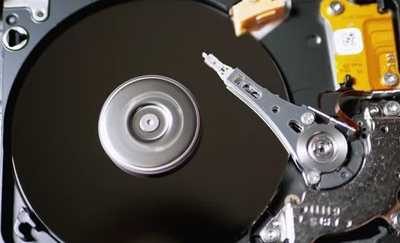
People typically clone their Windows system for convenience, backup, and to maintain a consistent working environment. This is often done to ensure that they can quickly restore their system to a previous state in case something goes wrong, or to easily transfer their settings and applications to a new device.
• Upgrading the hard drive from an old one to a larger capacity one can be done without reinstalling the operating system and all applications, allowing users to retain their existing setup. This process involves replacing the old hard drive with the new one, then booting up the system and allowing it to automatically detect and configure the new drive.
• You can restore your operating system and programs to the hard drive by cloning it, rather than reinstalling everything after a crash.
• Clone OS to new hard drive as a backup.
OS cloning software: Qiling Disk Master Professional
To clone an OS to a new drive without reinstalling Windows, you'll need to use a specialized tool like Qiling Backup. These programs can create a bit-for-bit copy of your existing OS, including all installed software, settings, and files, and transfer it to the new drive. This process is often referred to as a "disk-to-disk" or "clone" operation. Simply follow the tool's instructions to select the source and target drives, and let the software handle the rest. This way, you can move your OS to a new drive without having to reinstall Windows or reconfigure your settings.
To successfully transfer your operating system to a new hard drive, consider using a professional cloning program like Qiling Disk Master Professional. This software offers a "Migrate OS to SSD" feature that clones only the operating system and its related partitions, ensuring a smooth transfer. Alternatively, its "Disk Clone Wizard" allows you to clone all data, including the OS, applications, and files, to a new HDD or SSD without risking data loss or boot failure.
Regardless of whether you choose to migrate your OS to an SSD or clone your disk, the process is surprisingly straightforward, even for a beginner, making it easy to complete.
Note: After cloning an operating system from GPT to MBR or vice versa, it's necessary to switch the boot mode from UEFI to BIOS or BIOS to UEFI.
To see how to clone Windows 10 OS to a new hard drive easily and safely, download the demo version and follow this step-by-step guide.
Two methods to clone OS to new hard drive with secure boot
Qiling Disk Master offers two helpful functions for cloning Windows operating systems: "Migrate OS to SSD Wizard" and "Disk Clone Wizard". These tools allow users to easily clone Windows 11, 10, 8, 7 to a new hard drive, making it a convenient option for upgrading to a solid-state drive (SSD) or replacing an existing hard drive.
Before you do:
✍ To clone an OS, you need to reboot your computer in PreOS Mode, which requires a reboot.
✍ Qiling Disk Master will inform you to close other applications running on the OS partition if there are any.
✍ Connect the new hard drive to the computer via a SATA to USB cable, ensuring it's detected by the system.
▶ Method 1. Clone only OS partitions to new hard drive
To clone only system and system-related partitions to a new drive, you can use the Migrate OS to SSD Wizard.
Step 1. Click the "Tools" tab page and then choose "System clone". In the pop-up window, click "Next" to proceed.

Step 2. Choose an unallocated space on the new hard drive, and then click "Next" to proceed.

Step 3. The pop-out window allows you to resize the partition and assign a drive letter to it. Clicking "Next" will proceed with the process.

Step 4. To proceed with the pending operation, click on the "Proceed" button in the main interface.
Step 5. A helpful boot note will appear. Read it and click "OK".

▶ Method 2. Clone OS hard drive to new hard drive
You can choose to clone the entire operating system hard drive to a new SSD or HDD via the "Disk Clone Wizard". This feature offers two different clone methods: "Clone Disk Quickly", which clones only the used space in the source partition and supports resizing partitions in the process, and "Sector-by-Sector Clone", which copies all sectors, regardless of whether they are used or not.
Step 1. To clone a disk using Qiling Disk Master Professional, install and launch the software, then navigate to the "Tools" menu and select "Clone Disk".

Step 2. To clone a hard drive, select the operating system hard drive as the source disk and the new drive as the destination disk. If the destination is an SSD, ensure the "Optimize the performance of SSD" option is checked. Then, click "Next".

Step 3. In the "Edit Disk" window, you can resize a partition to fit the new hard drive.

Step 4. When you return to the main interface, click Proceed to complete the progress.

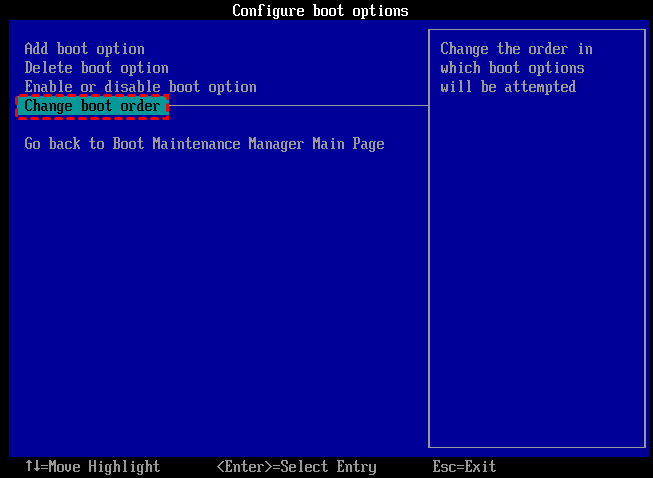
Regardless of the method you choose to clone your operating system to a new hard drive, you'll need to restart your computer, enter the BIOS settings, and change the boot order to prioritize the new hard drive as the first boot device. This will enable you to successfully boot your computer from the cloned disk.
Summary
To successfully clone an OS to a new hard drive and boot from it, you can use cloning software that supports cloning the entire OS to the new drive, or cloning a specific data partition to another disk with the "Partition Clone" feature. This allows you to transfer your operating system and all its data to a new hard drive, or just transfer specific data to a different disk, making it easy to upgrade or replace your hard drive.
The software offers various features such as moving installed programs to another drive, merging partitions, creating bootable media, and more. However, it is not compatible with Windows Server OS, which requires the use of Qiling Disk Master Server instead.
Related Articles
- How to Clone Windows 10 to UEFI SSD Drive Successfully?
Cloning Windows 10 to SSD UEFI can speed up the OS boot process. And the Qiling Disk Master Professional can help you easily to clone Windows OS to GPT SSD and uses the UEFI boot mode. - Windows 11 SSD Slow? Top 3 Ways to Fix It Now!
If you're experiencing slow performance on your Windows 11 SSD, you're not alone. Fortunately, this article provides a summary of the top 3 effective ways to get your device running fast again. - Top Two Ways to Make Windows 11 Sync Folders Fast and Easily
This guide explains Top Two Ways to Make Windows 11 Sync Folders Fast and Easily with clear steps, key checks, and practical tips. - [Easy Fixes] Windows 11 Update Stuck or Failed
This guide explains Windows 11 Update Stuck or Failed with clear steps, key checks, and practical tips. - Deploy Windows 11 to Multiple Computers Easily (2 Ways)
You can learn 2 methods to easily and efficiently deploy Windows 11 to multiple computers. One is using the media creation tool, and the other is a professional image deployment tool. - How to Backup Dynamic Disk Volume for Windows 7, 8, 10, 11
This tutorial demonstrates how to run dynamic disk backup in Windows 7 step by step and has a brief introduction to dynamic disk.
Products
Articles & Tutorials
- Data Recovery
- Data Backup
- File Recovery
- File Backup
- File synchronize
- System Backup and Restore
- Disk and Partition Clone
- Technical articles
- Disk Master Help
- Windows Deleted File and Disk Recovery Tutorials
- Windows File and Data Recovery Tutorials
- More Windows Tutorials for Install, Security, Files, and PC Tips
- Windows Boot, Repair, and Recovery Environment Tutorials
- Windows Backup Tutorials
- Windows Restore Tutorials
- Windows Clone and Migration Tutorials
- Windows Server Backup, Recovery, and Management Tutorials
- Windows Disk, Partition, and Storage Management Tutorials