Windows 11 SSD Slow? Top 3 Ways to Fix It Now!
Scenario
What to do with Windows 11 SSD slow?
The Force MP600 SSD, which is connected to a Ryzen 5 5600x processor, has seen a significant drop in performance from over 8000 points in Windows 10 to just 5500 points in Windows 11. This indicates a noticeable decrease in performance when running the same benchmark on the newer operating system.
The 4k-64Thrd write accesses in particular differ massively.
The download speed in Windows 10 is 3206 MB/s, whereas in Windows 11 it is 755 MB/s.
The other write and read accesses are roughly the same.
What can that be? Is there anything I can do with it?
- Question from tom's HARDWARE
Many Windows 11 users have reported technical issues after upgrading, including blue screens, loss of Taskbar functionality, and significant performance impacts on certain SSDs, resulting in slow file and software opening speeds, slow boot speeds, and 100% disk usage.
To improve SSD performance on Windows 11, you can try updating your SSD firmware or adjusting the disk priority in the Disk Management console. Updating your SSD firmware can help optimize its performance, while adjusting the disk priority can ensure that your SSD is given sufficient resources to handle read and write tasks efficiently. By following these steps, you can quickly resolve the issue of slow read and write speeds on your Windows 11 system.
Top 3 ways to fix Windows 11 SSD slow
In this part, top 3 fixes to fix Windows 11 SSD issue will be listed below. Wish each of the approaches can meet your actual needs.
- Fix 1: Downloading and installing the KB5007262 patch
- Fix 2: Delete USN journal
- Fix 3: Enable SSD TRIM command
Fix 1: Downloading and installing the KB5007262 patch
Microsoft has developed a solution to fix the Windows performance issue, which is available as a preview patch, KB5007262, that can be downloaded manually via Windows Update or the Microsoft Update Catalog.
Update it in Settings:
1. To update Windows, press the Windows key + I to open the Settings app, then navigate to Windows Update on the left-hand side and click on it.
2. To update your Windows 10, click on "Check for Updates" and see if the KB5007262 update is available. If it is, click "Download now" to start the process.
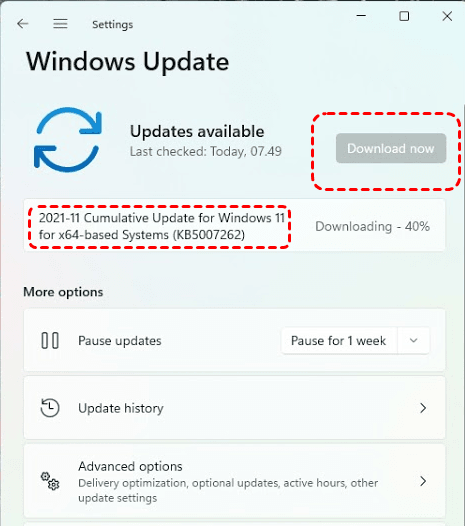
3. Once the installation process is complete, click on Restart now for the changes to take effect.
Tips:
☄ If the update is not available in Windows Update, you may also be able to download it manually from Microsoft's official update catalog.
☄ If you're told that the update doesn't apply to your computer, it means it's already installed.
Fix 2: Delete USN journal
The update to Windows 11 may have caused the NTFS partition of your hard drive (HDD or SSD) to slow down significantly in read/write speed, potentially due to an unclear USN journal. To improve SSD performance on Windows 11, you can try deleting this USN journal, which may resolve the issue.
1. In the Windows search box, type "Command Prompt" and choose "Run as administrator".
2. The `fsutil usn` command is used to query and manage the USN (Unique Sequence Number) journal, which is a feature in Windows that tracks changes to files and directories. By running `fsutil usn` and pressing Enter, you can view a list of available commands related to the USN journal, such as creating a new journal, querying the current journal, and clearing the journal.
3. Type in deleteJournal and click Enter to complete this operation.
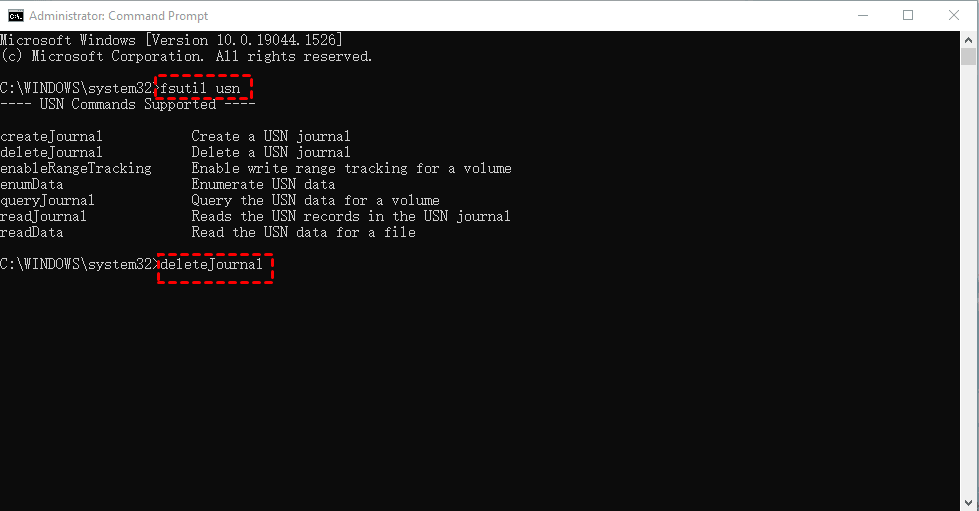
4. Reboot your computer and test the read speed again with HD Tune, you will see that the SSD speed is back to normal.
Fix 3: Enable SSD TRIM command
TRIM is an advanced feature of SSDs that requires both SSD hardware and operating system support, specifically designed for SSD performance and operational speed. Most SSDs now have the TRIM feature enabled by default, but you can check if your SSD has it enabled manually.
1. To open Command Prompt as an administrator, start by clicking on the Start menu, then select "Command Prompt" from the list of available options, and finally choose "Run as Administrator" to open the Command Prompt with elevated privileges.
2. When the command window appears, type "fsutil behavior query disabledeleteNotify" and press Enter.
3. If TRIM is enabled, it displays "DisableDeleteNotify=0". If it displays "DisableDeleteNotify=1", it means TRIM is disabled.
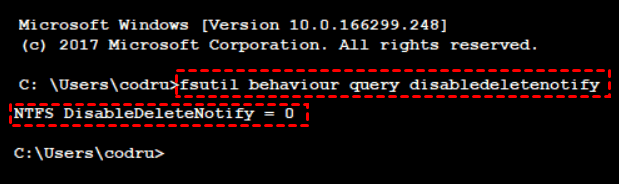
4. To enable the TRIM feature, run the command "fsutil behavior set DisableDeleteNotify 0" in an Administrator Command Prompt window.
Bonus tip: Migrate Windows 11 to a faster SSD
If you've already addressed the Windows 11 slow boot issue on your SSD, your computer should now boot faster. To further resolve slow performance on Windows 11, consider cloning your operating system to an NVMe SSD using Qiling Disk Master, which is a top-notch cloning software offering a range of features.
▷ Clone methods. The software offers three paths for you to perform disk clone, partition clone and system clone according to your different needs.
▷ Clone different hard drives. With its help, you can clone HDDs, SATA SSDs, NVMe M.2 SSDs, USB flash drives, and SD cards, etc.
▷ Intelligent Clone. In default mode, it only clones used sectors, so you can easily clone a larger drive to a smaller drive and boot successfully from the cloned one.
▷ Sector by sector clone. It can clone all sectors, whether they are used or not.
First, download this software on your computer to have a try.
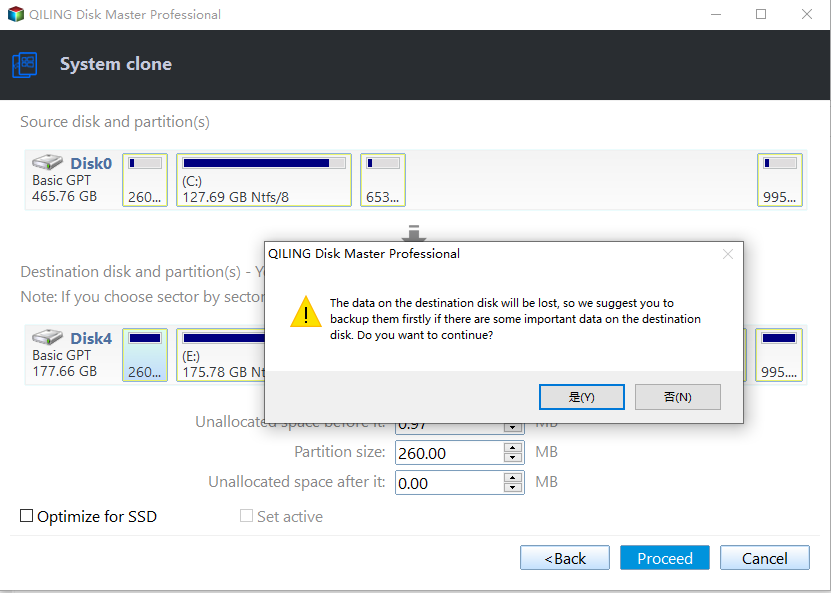
Step 1. Launch Qiling Disk Master, click Clone from the left side panel, and choose System Clone in the right side.

Step 2. It will automatically select the system related partitions by default. Select the SSD you wish to clone to as the destination disk and click Next to continue with the cloning process.

Step 3. Select SSD Alignment to accelerate the reading and writing speed of the SSD disk, confirm all settings and then click Proceed.
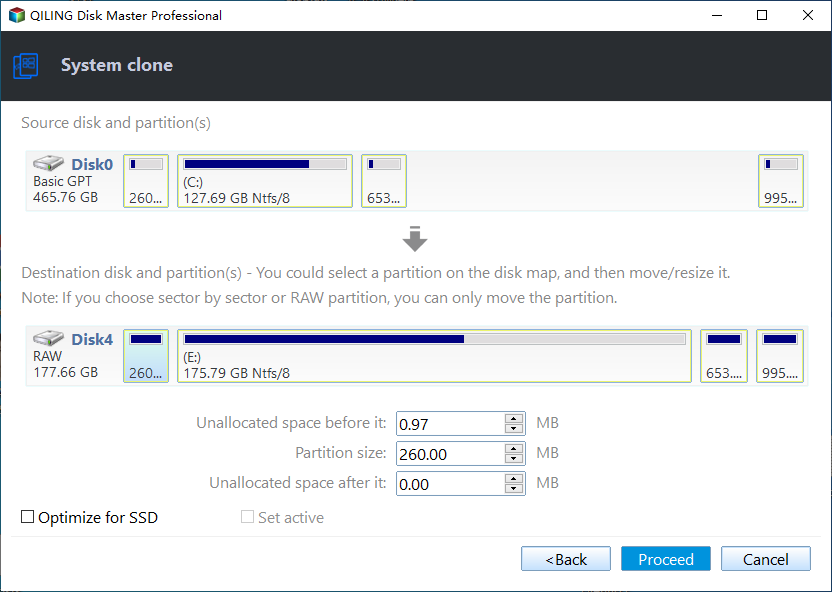
Step 4. When the process is complete, click Finish.
To boot from the cloned SSD on Windows 11, follow these steps: Insert the cloned SSD into the new computer, enter the BIOS settings, set the cloned SSD as the first boot device, save the changes, and restart the computer. This will allow you to boot from the cloned SSD and improve Windows 11 performance.
1. Reboot your computer and press F2/F10/Del (according to your computer manufacturer) to enter the BIOS.
2. To set the new hard drive as the first boot option in BIOS, go to the boot menu, navigate to the boot priority section, and select the new hard drive as the first boot option. This will ensure that the computer boots from the new hard drive instead of the old one.
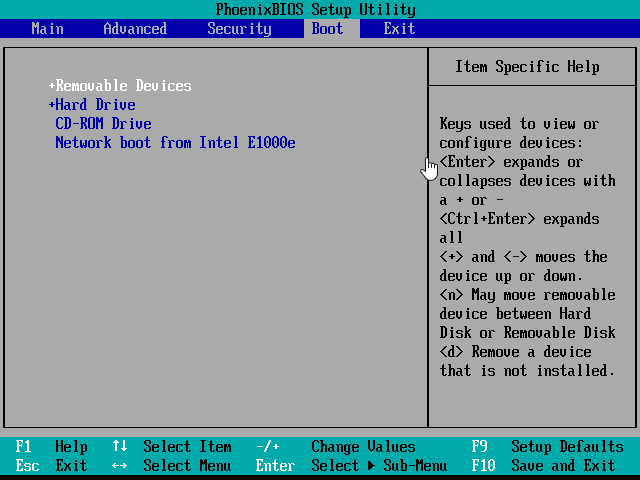
3. Press F10 to save all the changes and restart the computer.
Final words
To address the issue of a slow Windows 11 SSD, you can either update the Windows 11 KB5007262 patch or delete the USN Journal. Alternatively, you can take the bonus step of migrating your Windows 11 operating system to a faster SSD like NVMe SSD using a cloning software like Qiling Disk Master to significantly boost your PC's performance.
If you need to wipe an external hard drive on Windows 11, Qiling Disk Master Professional offers a disk wipe function, which can free up storage or eliminate viruses. It also serves as a sync software, allowing automatic syncing of local folders to external hard drives, USB drives, NAS devices, or cloud drives and vice versa.
There are many other powerful functions waiting for you to discover, so don't hesitate and try it now!
Related Articles
- Fix SSD Slow Boot on Windows 10 with 8 Effective Methods
Learn how to Fix SSD Slow Boot on Windows 10 with 8 Effective Methods with clear steps, key checks, and practical tips. - [Fixed] Apps and Features Move Greyed Out on Windows 10
When transferring files, you may encounter issues where Apps and features move greyed out. To solve this problem, follow these steps. First, ensure that the destination drive has enough free space to accommodate the files you're trying to transfer. - 3 Ways to Backup C Drive in Windows 10 [Step-by-Step Guide]
This guide explains 3 Ways to Backup C Drive in Windows 10 with clear steps, key checks, and practical tips. - How to Auto Backup Windows 11/10/8/7 on System Shutdown
How to Auto Backup Windows 11/10/8/7 on System Shutdown: this guide summarizes the key steps, practical tips, and safer options so you can finish the task clearly and avoid common mistakes. - 3 Ways to Shrink Volume in Windows 8 or 8.1 to Extend Another Volume
If you need to shrink a volume in Windows 8 or 8.1 to extend another volume, there are three methods you can try to shrink a basic volume. - Best Way to Backup Windows Server 2008 to NAS/Network Share
This article tells you how to get Windows Server 2008 automated backup to NAS or network share in simple steps. And you are able to keep multiple backups for disaster recovery. -
Windows 11 SSD Fix
Fix Windows 11 SSD issues such as not detected, slow performance, missing files, or boot failure.
Products
Articles & Tutorials
- Data Recovery
- Data Backup
- File Recovery
- File Backup
- File synchronize
- System Backup and Restore
- Disk and Partition Clone
- Technical articles
- Disk Master Help
- Windows Deleted File and Disk Recovery Tutorials
- Windows File and Data Recovery Tutorials
- More Windows Tutorials for Install, Security, Files, and PC Tips
- Windows Boot, Repair, and Recovery Environment Tutorials
- Windows Backup Tutorials
- Windows Restore Tutorials
- Windows Clone and Migration Tutorials
- Windows Server Backup, Recovery, and Management Tutorials
- Windows Disk, Partition, and Storage Management Tutorials