Fixed: Dropbox Smart Sync Not Working | 6 Solutions
- User Case: Smart Sync Not Showing Up
- Overview of Dropbox Smart Sync and Selective Sync
- Case 1. Dropbox Smart Sync not showing up
- Case 2. Dropbox Smart Sync online only not working
- Case 3. Dropbox Smart Sync not freeing up space
- Case 4. Dropbox Smart Sync unspecified error
- Case 5. Smart Sync is experiencing an issue
- Case 6. Dropbox Not Syncing
- Dropbox Selective Sync not Working Fix
- Dropbox Smart Sync Free Alternative - Qiling Disk Master Standard
- Conclusion
User Case: Smart Sync Not Showing Up
After upgrading to Dropbox Plus, with 2TB of space, I just transferred a lot of files and folders into my Dropbox. I thought they would automatically be online-only, but when they started to sync they almost totally filled my hard drive. I cannot change anything to "online-only." That option is not available to me. I have tried it after Pausing Sync and that did not change anything. And only have selective sync available under preferences, please help, thanks in advance.
Sometimes, users may experience issues with Dropbox Smart Sync not working, and the Selective Sync feature also not syncing files as expected. If you're facing this problem, don't worry, as we'll explain how to fix it.
Here are six solutions to fix the problem of syncing data and files to Dropbox, along with one all-in-one sync alternative tool:
Overview of Dropbox Smart Sync and Selective Sync
Dropbox Smart Sync allows you to view and access Dropbox files and folders from your computer without using much hard drive space, by selectively syncing only chosen folders, keeping the rest in the cloud.
Dropbox Smart Sync and Selective Sync differ in their functionality, with Smart Sync allowing users to access all files from their desktop without taking up hard drive space until they're opened, whereas Selective Sync only syncs selected folders to the device, making them fully available offline.
You may encounter issues with Dropbox Smart Sync not working or Selective Sync not working. To resolve these problems, you can refer to the provided solutions.
Case 1. Dropbox Smart Sync not showing up
Case 2. Dropbox Smart Sync online only not working
Case 3. Dropbox Smart Sync not freeing up space
Case 4. Dropbox Smart Sync unspecified error
Case 5. Smart Sync is experiencing an issue
Dropbox Selective Sync not Working Fix
Case 1. Dropbox Smart Sync not showing up
If you've connected a personal Dropbox account, you won't be able to use Smart Sync for that account, and it also won't be available for Dropbox Plus or other accounts.
Solution: If you upgrade your Dropbox account to Dropbox Plus or other editions on dropbox.com, you should also update the desktop app and Mac app to match.
Case 2. Dropbox Smart Sync online only not working
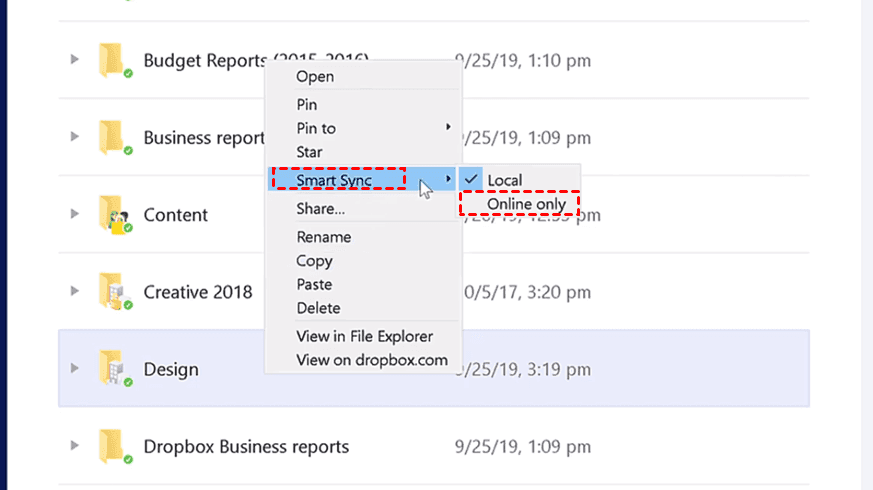
Sometimes, the Smart Sync online feature may not work due to unintended downloaded files.
Solution: To make a file online-only again, right-click the file and select "Smart Sync" > "Online Only".
Case 3. Dropbox Smart Sync not freeing up space
To free up space, you can delete unnecessary documents and files from your Dropbox account, or move them to a different location such as your computer's local storage. You can also consider upgrading your Dropbox plan to one with more storage space if needed. Additionally, you can use the Dropbox "Purge" feature to automatically delete files that are no longer needed or have been moved to a different location.
Solutions: To free up space on your hard disk, you can use the feature called Selective Sync, which allows you to choose which files and folders to sync between your computer and the cloud storage service, such as Google Drive or Dropbox. This way, you can remove synced files from your local drive, freeing up space, while still keeping them accessible through the cloud.
1. Click the Dropbox icon on the Windows tray, click your account profile icon, and select Preferences.
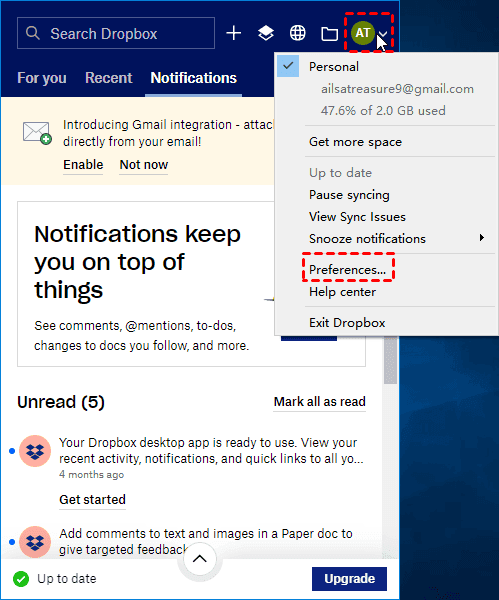
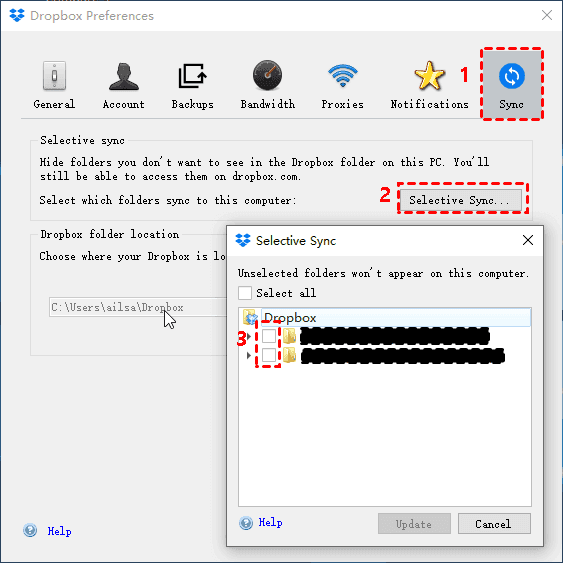
2. At the Sync tab, select Selective Sync and uncheck the folders and files you want to remove from your computer but keep on Dropbox. Press Update to confirm.
Case 4. Dropbox Smart Sync unspecified error
Dropbox Smart Sync issues often occur when trying to open Microsoft Office files, such as Word, Excel, and PowerPoint.
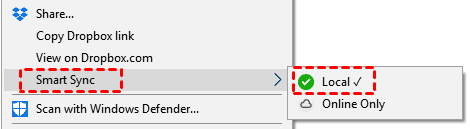
Solution: To set a file or folder to local sync, right-click on it, select Smart Sync, and choose Local. This will allow you to open the file or folder once it's been downloaded.
Case 5. Smart Sync is experiencing an issue
The issue with Dropbox may be caused by several factors, including recent updates to the service, lack of Windows security updates, antivirus or security software interfering with Dropbox, or issues with the Smart Sync feature requiring specific software to be installed and running properly, as well as potential software conflicts.
Solutions:
1. To resolve the issue, add Dropbox to the white list or exceptions in your antivirus or security software. This will allow Dropbox to function properly without being flagged as a threat.
2. Install Windows latest updates.
3. Restart the computer and Dropbox desktop app.
4. Reinstall Dropbox with Admin privileges.
5. Disable all running software to fix the conflict, such as HIBUN software, and others.
Case 6. Dropbox Not Syncing
If you're experiencing issues with Dropbox not syncing, ensure your device is connected to the Internet, signed in to the same Dropbox account, and the files or folders are located in the Dropbox folder. If all is right, try the following solutions.
1. Please rename the file name to something shorter than 255 characters, excluding special characters like /, \, <, >, :, “, |, ?, and *. This will make it easier to work with and avoid any potential issues.
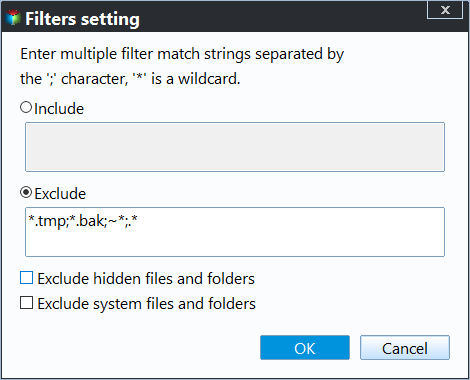
2. To prevent syncing certain system files and temporary files, you can exclude them from syncing by adding specific file patterns to your sync settings. This can include files like desktop.ini, thumbs.db, and various temporary files denoted by extensions such as *.tmp, ~file, etc.
3. The file location can be changed to reduce the number of file components. This can be done by adjusting the file path to make it more concise and efficient.
Dropbox Selective Sync not Working Fix
Dropbox Selective Sync may not work due to various reasons such as outdated software, insufficient permissions, corrupted cache, network issues, conflicts with other applications, configuration errors, account issues, or problematic file paths. To fix the issue, consider trying two easy solutions.
Solution 1: Restart the Dropbox sync process
Step 1. Press Ctrl + Shift + Esc to open the Task Manager.
Step 2. Find the Dropbox process in the list.
If Dropbox is listed under the Processes tab, select it and click End Task. If it's not listed or the sync task has already ended, click the desktop icon to restart Dropbox.
Solution 2: Clear the Dropbox cache
Step 1. Open File Explorer (Windows) or Finder (Mac) and navigate to the path ~/Dropbox/.dropbox.cache, or for Windows users, C:\Program Files\Dropbox, and for Mac users, select "Go to Folder..." and enter the path.
Step 2. Select all files in the cache folder and delete them.
Dropbox Smart Sync Free Alternative - Qiling Disk Master Standard
If you're experiencing issues syncing files to Dropbox using Smart Sync or Selective Sync, you may want to consider using Qiling Disk Master Standard, a powerful file sync software for Windows computers, to sync files to the cloud or other devices with ease.
Millions of users worldwide rely on this freeware due to its reliable synchronization, user-friendly interface, and impressive performance. You can now download it to enjoy the file sync feature.
You could enjoy the following sync features:
1. Schedule sync allows you to sync files to Dropbox or other clouds via various schedules such as daily, weekly, monthly, or even via a USB plug-in.

2. Sync Settings allows you to customize the sync task by adding a comment, enabling email notifications, running a specified program before the sync, and more, making each sync task unique and tailored to your needs.
3. The one-way sync function can securely transfer data from the source path to another location, protecting the original data on the source path.
4. The Multiple Sync destination selection feature allows users to sync files not only to cloud storage services, but also to external hard drives, USB drives, SD cards, network shares, NAS, and local disks, among other options.
5. You can trigger the sync task by four events: user logon, user logoff, system startup, and system shutdown, allowing you to sync files to Dropbox without taking up your working time.
6. File Sync allows you to monitor the source directory in real-time, syncing any changes to files or folders to Dropbox immediately.
The last two are premium features, please upgrade to Qiling Disk Master Professional or other advanced editions to enjoy.
Bonus Tip: Backup Files to Qiling Cloud
Besides Dropbox, you can also sync your files to Google Drive, OneDrive, and other cloud drives using the above method, but most of them only offer a limited amount of free storage space.
Conclusion
If you're experiencing issues with Dropbox's Smart Sync or Selective Sync, consider using Qiling Disk Master Standard as a reliable Dropbox alternative to sync files seamlessly, ensuring your files and folders are safely backed up, and even syncing open files with ease.
Qiling Disk Master is not only a disk cloning software but also a backup and restore tool that allows you to create a backup of your data to an image file, create a system backup to prevent system boot failure, and backup your entire hard disk to other locations for easy restoration.
Related Articles
- How to Sync Local Folder to Dropbox? (3 Ways Included)
You can easily sync local folder to Dropbox with 3 practical methods, even if you make changes in the original folder or it's outside the Dropbox folder. Learn more about it below! - Can I Backup Dropbox to External Hard Drive Safely?
Back up Dropbox files to an external hard drive with practical methods for local copies, sync folders, and safer file protection. - 2 Ways to Backup Specific Folders That Change Often in Windows 10
You will learn how to easily backup specific folders that change often in Windows 10 with File History or Qiling Disk Master Standard. Pick up one to protect your data now! - Dropbox Not Syncing in Windows 10 - Fix or Replace It!
Fix Dropbox not syncing in Windows 10 or choose a reliable sync alternative when files stop updating correctly. - How to Move Folders from C Drive to D Drive in Windows 11/10/8/7?
Move folders from C drive to D drive in Windows to free system space while keeping files accessible. - Windows 11 File History Not Working? All You Need to Know
Fix Windows 10 File History problems by checking backup drives, service settings, and safer file backup options.
Products
Articles & Tutorials
- Data Recovery
- Data Backup
- File Recovery
- File Backup
- File synchronize
- System Backup and Restore
- Disk and Partition Clone
- Technical articles
- Disk Master Help
- Windows Deleted File and Disk Recovery Tutorials
- Windows File and Data Recovery Tutorials
- More Windows Tutorials for Install, Security, Files, and PC Tips
- Windows Boot, Repair, and Recovery Environment Tutorials
- Windows Backup Tutorials
- Windows Restore Tutorials
- Windows Clone and Migration Tutorials
- Windows Server Backup, Recovery, and Management Tutorials
- Windows Disk, Partition, and Storage Management Tutorials