Transfer Everything from One Computer to Another (5 Ways)
Why transfer everything from one computer to another?
Users want to transfer everything from one computer to another because they want to use the new computer just like the old one, without having to reinstall all their programs, configure settings, and copy personal files, making the process smoother and more convenient.
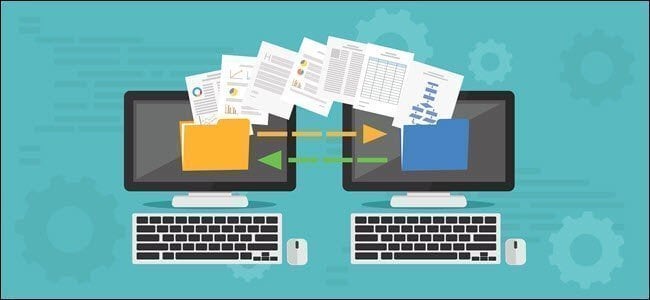
- The reinstallation is a lengthy and problematic process. It's frustrating to spend a lot of time reinstalling programs and transferring files, especially when you can't recall what programs you had installed or what settings you had configured.
- Assembling a computer can be intimidating, but with the right guidance, it becomes a breeze. Whether you're an IT pro or a newcomer to computer building, our simplified process makes it easy to get started.
- Prevent reinstalling Windows OS and all the applications in the new PC, time-saving and hassle-free.
Multiple ways to Transfer Files from PC to PC
Here are the most popular ways to transfer data from one computer to another:
- Copy and paste: Transferring files from one PC to another can be easily done using an external device, such as a high-speed external drive or flash drive. However, this method is only suitable for small amounts of file transfer, as it requires manual copying and pasting of files, making it a time-consuming process.
- Connect old drive internally via SATA slot. The fastest way to transfer files is via a cloud service, but if you're transferring a system disk, it's recommended to copy the boot drive to a new drive and then use it as storage.
- Sync file with cloud storage: Transferring files between computers over a network can be convenient, especially if you can access them on a new PC by signing in with the same account. Cloud drives like Microsoft OneDrive, Google Drive, and Dropbox offer a popular solution, allowing you to scale your storage space as needed.
- Windows Easy Transfer: It's a file transfer software that enables users to transfer various types of data, including files, photos, music, emails, settings, and other personal files, between devices.
- Disk migration software: WimBoot allows you to transfer all files, including the operating system, settings, installed programs, and personal data, to a new computer, enabling you to use it directly without reinstallation and file transfer.
How to transfer everything from old computer to new computer
If you want to transfer data from one computer to another, or just personal files and settings, there are several methods you can try.
Copy and Paste
To transfer data between computers, you can use copy and paste for a few files, or use external storage media like an external hard drive or USB flash drive to transfer data from one computer to another.

Copy files from the old computer and transfer them to an external hard drive or USB flash drive. Extract the external device from the old computer and plug it into the new computer, then paste all the data from the old computer.
- Note:✎...
- You can also choose to sync all your files to the new computer with file sync software.
Connect old drive internally via SATA slot
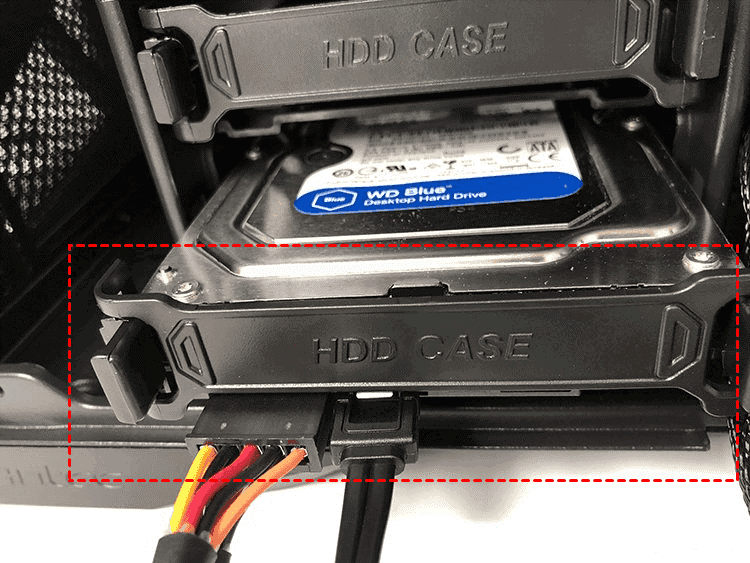
If you don't want to manually copy files, check if the new computer has a SATA slot. If it does, connect the old computer's hard drive to the new one. This will allow you to see the old drive in Windows Explorer and access its files. For more information, see the article on installing a second hard drive in Windows 10.
Sync files with cloud storage
Cloud drives allow users to sync files across multiple devices, providing seamless access to their files from anywhere. This is achieved through the use of cloud storage services like Microsoft OneDrive, Google Drive, and Dropbox, which enable users to access and share their files from any device with an internet connection.
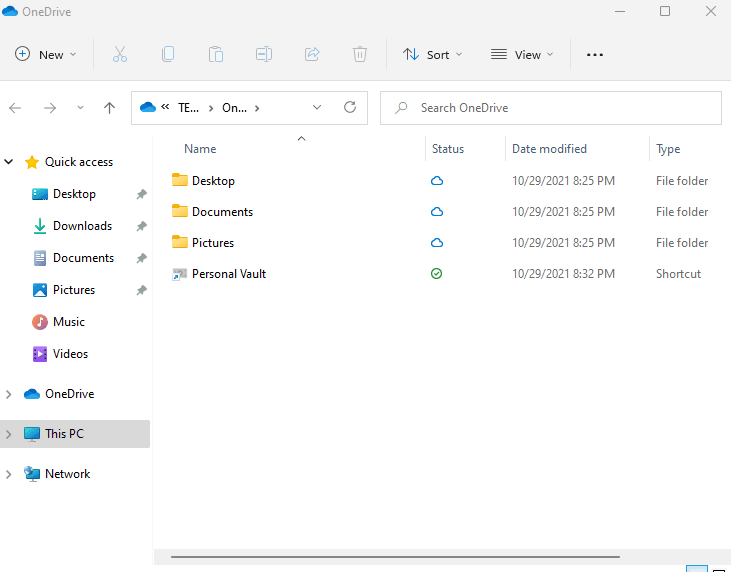
#1: Sync files with desktop app. Windows 10 has OneDrive pre-installed, allowing users to sign in with their account and sync files to OneDrive by dragging and dropping them into the OneDrive folder.
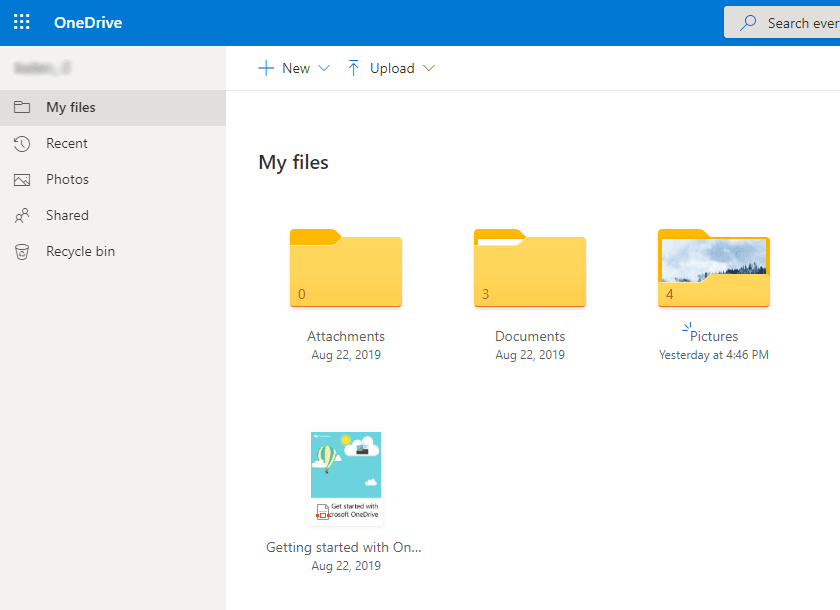
#2: Upload files from webpage. To sync files with OneDrive, sign in to the OneDrive website, click "Upload" and select the files or folders you want to sync, then click "Open".
Transfer data and settings with Windows Easy Transfer
If you have a large number of data and settings, use the built-in Windows Easy Transfer software to transfer files from Windows XP to Windows 7, which is only compatible with Windows 7 and previous systems.
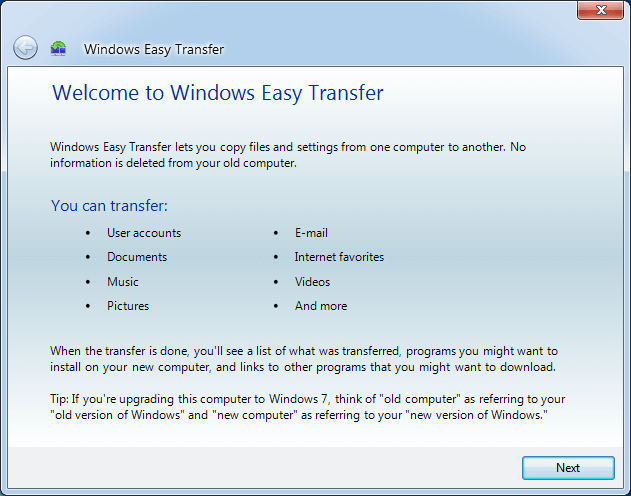
Step 1. Type Windows Easy Transfer and hit enter to open this program. Or Start -> Transfer your files.
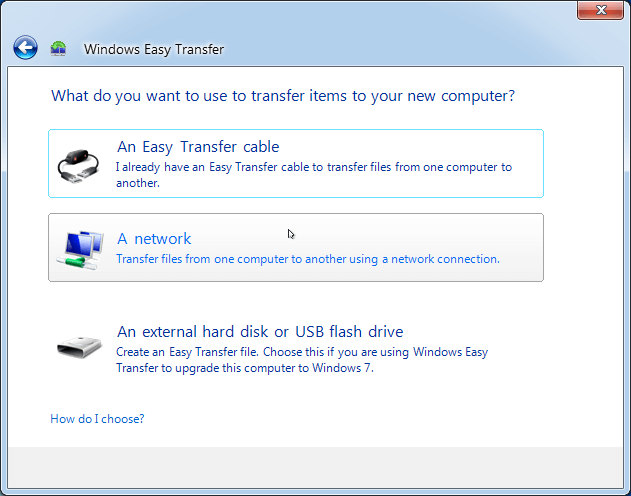
Step 2. Choose a way to transfer the items to your new computer: USB Easy Transfer Cable, A network, An external hard disk or USB flash drive. Here we select An External hard disk or USB flash drive.
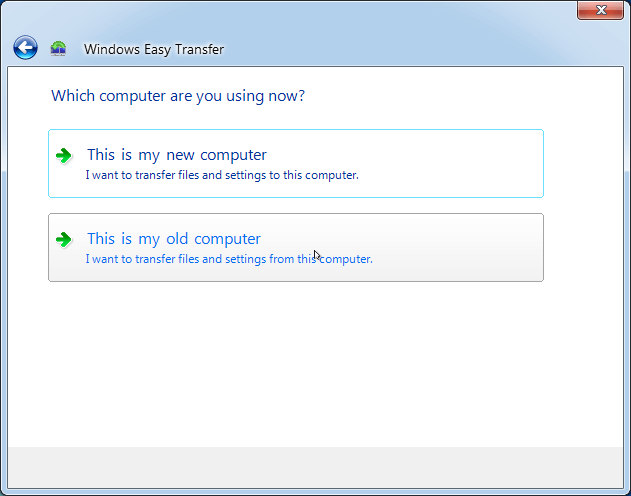
Step 3. Tap This is my old computer.
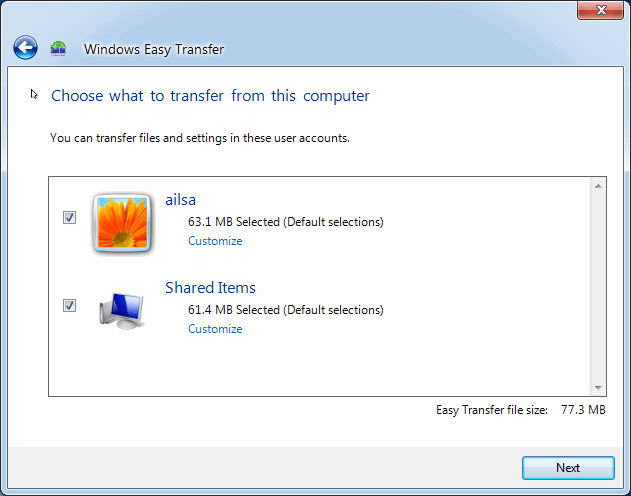
Step 4. The program will automatically detect all the data that can be transferred, or you can click "Customize" -> "Advanced" to choose what data should be transferred and then hit Next.
Step 5. Set the password to protect the backup or leave it blank, then click Save to select a destination to save the file named Windows Easy Transfer - Items from old computers (suffix with .MIG).
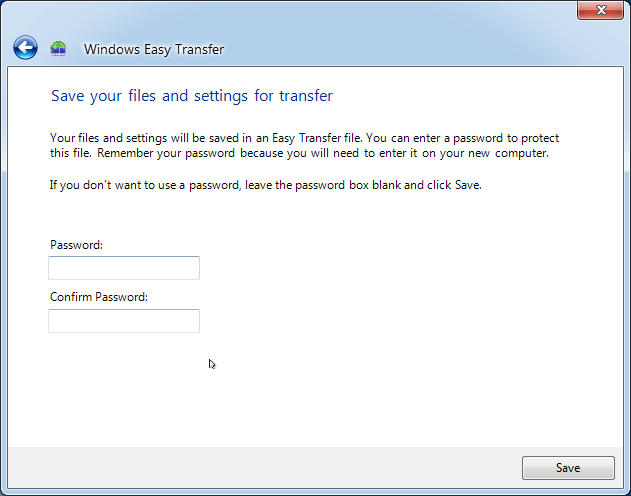
The selected files and settings will be backed up to the external hard drive, creating a complete backup of the chosen items.
Now unplug the external hard drive from your old computer and plug it into your new computer. Using Windows Easy Transfer, restore the files by following the steps 1-4, but this time choose "This is my new computer" instead of "This is my old computer" in step 3, and click "Transfer" to initiate the transfer.
◉Note: Windows Easy Transfer do not transfer the installed programs and operating system on the old computer. It's not available for Windows 8.1 and Windows 10 as well.
Transfer Everything from PC to PC with Disk Migration Software
With the above methods, you can easily transfer files from PC to PC, but not everything. For a complete transfer or building a new computer, try Qiling Disk Master Standard, which offers Disk Clone or Partition Clone features to transfer the operating system, programs, data, and files on a specific partition, making it the easiest way to migrate everything.
Before migrating the disk and everything on it, please:
- Connect the new computer's hard drive to the old computer using a SATA cable, allowing for the transfer of data from the new computer to the old one.
- Check the disk capacity of both and its disk types (MBR or GPT) in disk management, noting that the free version only supports cloning all data disks and MBR system disks.

- To fix the issue with the old computer, download and install Qiling Disk Master Standard, which supports Windows 11, 10, 8, 7, XP, and Vista. Alternatively, server users can try Qiling Disk Master Server.
To transfer everything from one computer to another, you can use a variety of methods, including using an external hard drive, cloud storage services like Google Drive or Dropbox, or even a USB drive. Simply connect the external device to both computers, select the files you want to transfer, and copy them over.
Step 1. Launch Qiling Disk Master on the old computer after the installation. Click Clone -> Disk Clone.

- ★Tip:
- If the new hard drive or SSD doesn't have enough space to hold everything from the old computer, try using the System Clone feature.
Step 2. Select the system disk in the old computer you want to transfer everything from, and click Next.

Step 3. Tap the new HDD or SSD to save files, and click the Next button.

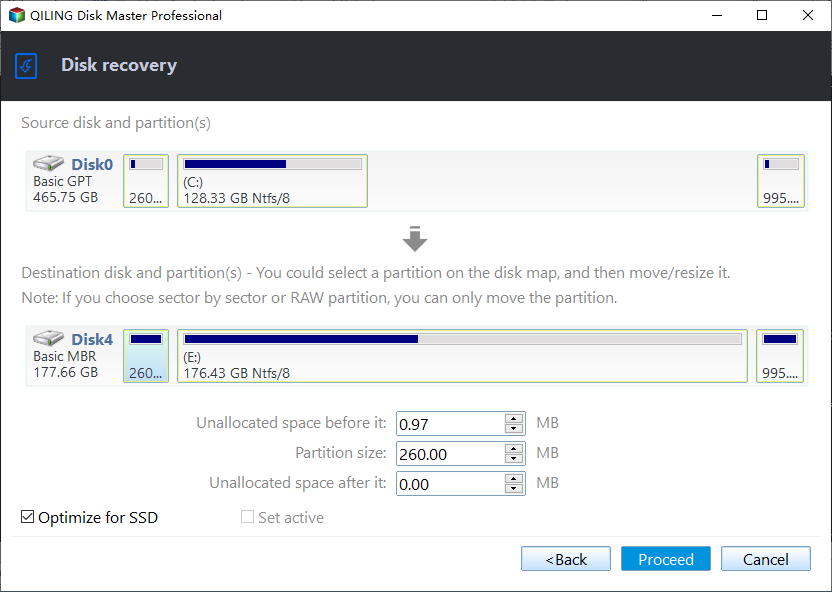
Step 4. Tick SSD Alignment to improve the SSD disk performance. Then, click Proceed to transfer everything from old PC to new PC.

Except for SSD Alignment, you can still use Edit Partitions (require an upgrade) or Sector by Sector Clone. The former is recommended when cloning to a larger disk, helping to resize the disk and convert partition style if different.
- Copy without resizing partitions: It will not resize the partition size.
- Add unused space to all partitions: It will reallocate the unallocated space to each partition of the target disk, appropriate for the disk size.
- Manually adjust partition size: You can extend unallocated space to any partition on the destination disk you want.
- Convert the destination disk from MBR to GPT: When cloning a GPT disk to an MBR disk, the process converts the MBR disk to a GPT disk, effectively treating the cloning as a GPT-to-GPT operation.
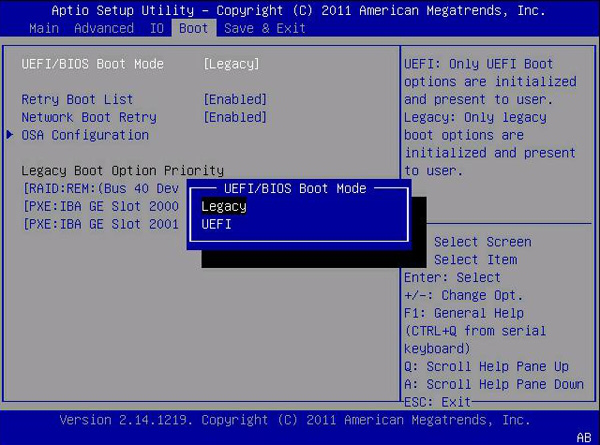
Step 5. Once the cloning process is complete, you can insert the newly cloned disk into your new computer and boot from it. If you're cloning a GPT disk to an MBR disk or vice versa, you'll need to switch the boot mode to Legacy or UEFI accordingly.
With the steps on transferring files between computers complete, you can now use the Windows OS and all other files on the new computer just like you did on the old one. The process is also applicable for transferring files from a laptop to another laptop. If you encounter any issues, such as a cloned drive that won't boot, you can refer to the provided link for assistance.
Tips on dissimilar hardware restore:
If you want to clone an old computer to a new one with different hardware, like a new CPU and motherboard, try the backup and restore method. This method compresses all files on the disk to an image file, which can then be restored to a new hard drive or SSD. If the hardware is different, check the "Universal Restore" feature before proceeding.
For one or two computers, the backup and restore steps are relatively complicated, making it suitable for data migration. However, for multiple computers, it's recommended to use image deployment software like Qiling Image Deploy, which is supported on technician or techplus edition. This software enables you to deploy images to multiple computers over a network, and also allows you to preset computer name, IP address, and universal restore for computers with dissimilar hardware.
Summing It Up
This article explains the 5 ways to transfer data from one computer to another, including personal files, operating systems, and installed programs. You can choose the method that suits your needs, with the most direct option being to migrate the entire disk, eliminating the need for reinstallation.
Qiling Disk Master allows file syncing from one location to another, with options for basic sync and premium features like real-time sync, mirror sync, and two-way sync, all of which can be scheduled for daily, weekly, or monthly protection.
If you create a Qiling account, you can backup files to Qiling Cloud, which offers 1TB free storage for 15 days after signing up.
Related Articles
- Transfer Windows 7/8/10 OS from One Computer to Another
- Transfer System to Different Computer by Qiling Disk Master
- Top 2 Ways to Copy Data from One Hard Drive to Another
- How to Copy Windows 7 from One Computer to another Safely
- What Is WannaCry Ransomware Attacks 2017?
WannaCry Ransomware attack 2017 causes huge losses, not only money, but also important data. You definitely don't want to experience this or similar error again, learn more and take precautions. - How to Backup Files to Google Drive Automatically
You will learn how to auto backup files to Google Drive and protect your data now and later. Two ways are included.
Products
Articles & Tutorials
- Data Recovery
- Data Backup
- File Recovery
- File Backup
- File synchronize
- System Backup and Restore
- Disk and Partition Clone
- Technical articles
- Disk Master Help
- Windows Deleted File and Disk Recovery Tutorials
- Windows File and Data Recovery Tutorials
- More Windows Tutorials for Install, Security, Files, and PC Tips
- Windows Boot, Repair, and Recovery Environment Tutorials
- Windows Backup Tutorials
- Windows Restore Tutorials
- Windows Clone and Migration Tutorials
- Windows Server Backup, Recovery, and Management Tutorials
- Windows Disk, Partition, and Storage Management Tutorials