How to Enable APP Password to Send Email Notifications in Qiling Disk Master?

Introduction
The Email Notification feature in Qiling Disk Master enables users to send a report of the backup or sync execution result to a specified email address, providing a convenient way to stay informed about the outcome of these operations.
After email notification is configured, you can pair it with scheduled jobs such as cloud backup or file sync to track task results more easily.
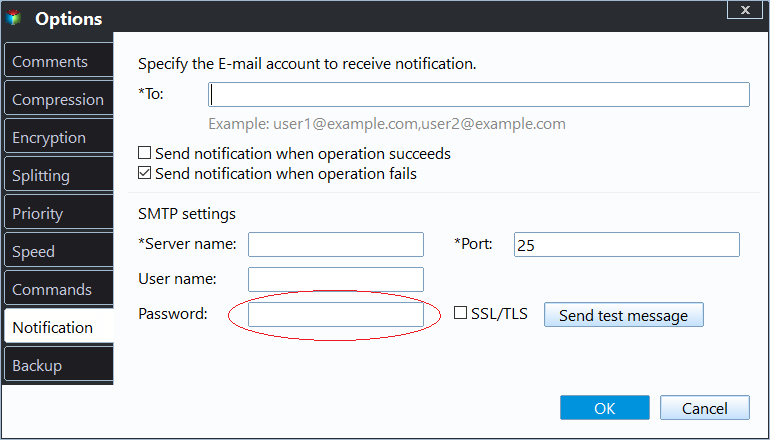
To configure Gmail Server for email notifications in Qiling Disk Master settings, you'll need to enable an app password. This is a requirement for using Gmail Server to send email notifications, and it's a common choice among the four available SMTP servers (Hotmail Server, Gmail Server, Qiling Server, and Custom Server).
How to enable app password
To enable the app password, please follow the steps below:
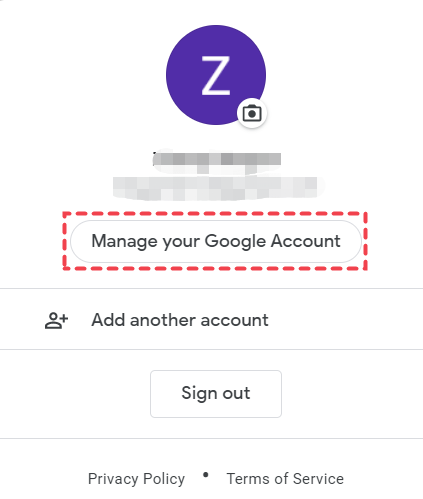
1. To access your Google account settings, start by logging in to your Google account first. Once you're logged in, click on the "Manage your Google Account" option.
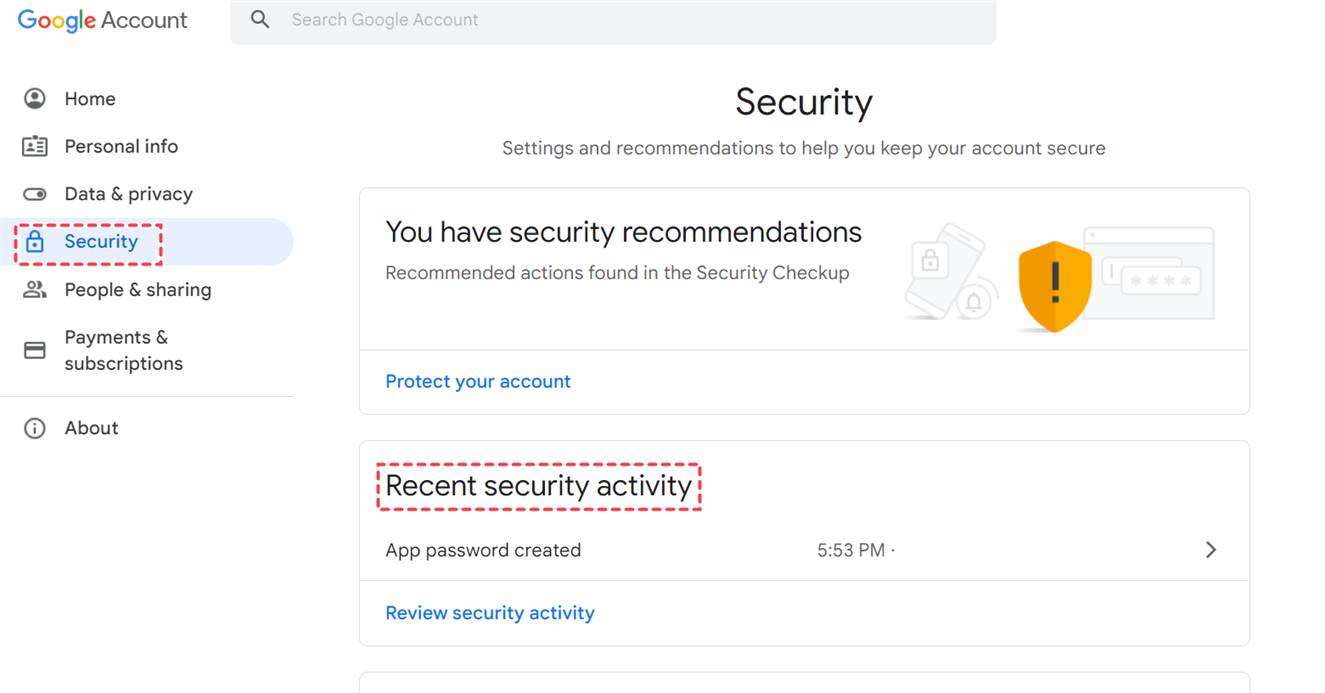
2. Click "Security"-->"Recent security activity".
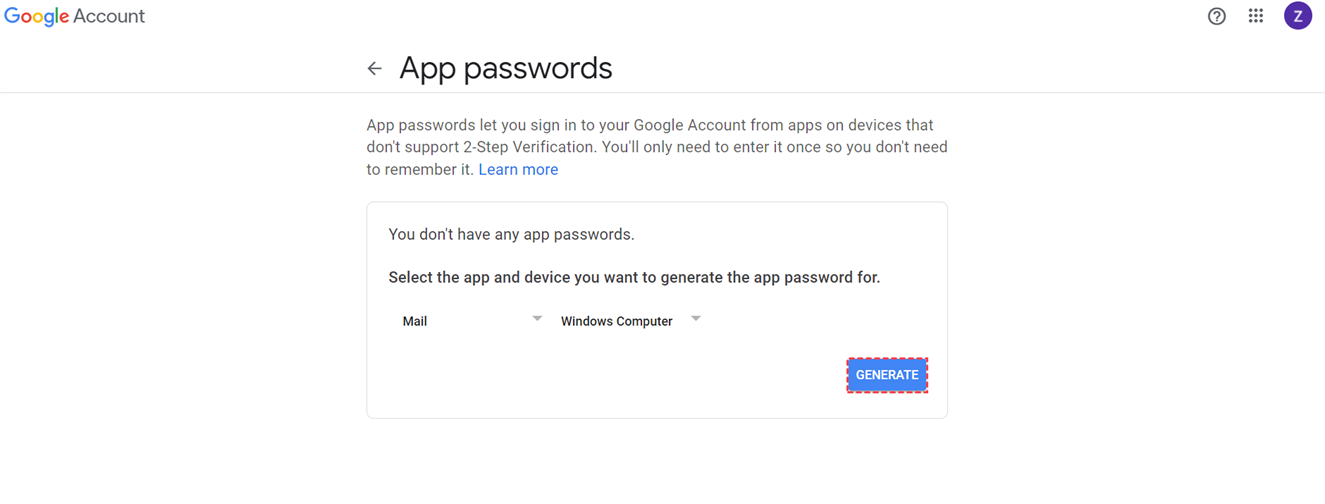
3. To generate an app password, select the app and device you want to use it with. This is usually done from a website or the account settings on your device.
Tips: To add an extra layer of security, enable Two-factor verification if you haven't already.
4. Once the app password is generated, it can be checked for accuracy and verification. This step is crucial to ensure the password is correct and can be used to access the associated account securely.
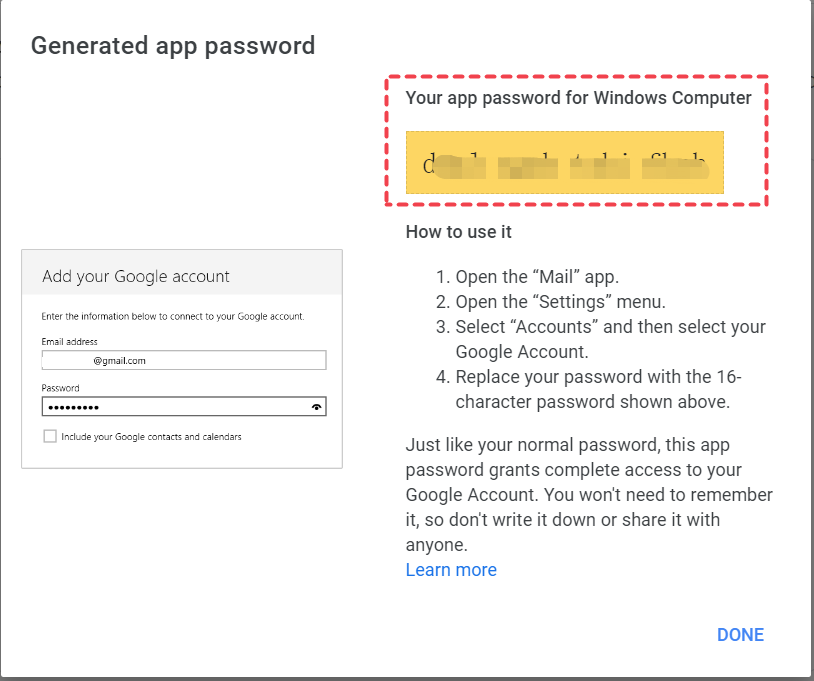
After generating the app password, you can enter it along with your email address in the email notification settings of Qiling Disk Master to configure email notifications.
Related Articles
- Wipe Hard Drive for Clean Install Windows 11 Safely and Easily (3 Ways)
You will learn 3 easy ways to wipe hard drive for clean install windows 11. You can choose to use the built-in tool, installation media or free third-party tool based on your own needs. - Best Client-Server Backup Software for Windows | Download
To backup client computers from a central server, you can use client server backup software to save backup time and administrative cost. Go and have a try. - Two Ways to Backup PS3/4 Hard Drive Step by Step
Learn the two simple methods to backup PS3 or PS4 hard drive to removable storage device or PC in case of hard drive failure. - How to Do Gateway System Recovery in Windows 7/8/Vista?
Learn how to Do Gateway System Recovery in Windows 7/8/Vista with clear steps, key checks, and practical tips. - How to Copy Windows Operating System to USB Flash Drive Easily
Learn how to Copy Windows Operating System to USB Flash Drive Easily with clear steps, key checks, and practical tips. - How to Defragment External Hard Disk in Windows 10
Learn how to defragment external hard disk with Windows tool and with an external hard drive defrag software.
Products
Articles & Tutorials
- Data Recovery
- Data Backup
- File Recovery
- File Backup
- File synchronize
- System Backup and Restore
- Disk and Partition Clone
- Technical articles
- Disk Master Help
- Windows Deleted File and Disk Recovery Tutorials
- Windows File and Data Recovery Tutorials
- More Windows Tutorials for Install, Security, Files, and PC Tips
- Windows Boot, Repair, and Recovery Environment Tutorials
- Windows Backup Tutorials
- Windows Restore Tutorials
- Windows Clone and Migration Tutorials
- Windows Server Backup, Recovery, and Management Tutorials
- Windows Disk, Partition, and Storage Management Tutorials