5 Effortless Ways to Backup Data in Windows 10
Why should you backup data in Windows 10?
You may never encounter a data loss problem, but it's essential to be aware of the various threats your computer faces, even if you don't experience them firsthand.
A recent study found that in the US, around 12,000 laptops are lost or stolen weekly, 1 in 10 computers are infected with a virus each month, and 5% of new computers experience hardware failure within the first year.
If you're lucky, none of these issues have affected you yet. Don't wait until it's too late - start backing up your Windows 10 data today. A simple backup can save you in case your computer experiences problems, allowing you to restore all your valuable files and data.
Method 1: Backup data with File History in Windows 10
File History in Windows 8 is a feature that allows users to back up their files, providing a way to recover lost data.
- To access File History, click on Start, then Settings, followed by Update & Security, and finally Backup. Alternatively, you can open File History from the Control Panel. This will allow you to view and manage your backups.

- To save backup files, you need an external hard drive or a USB flash drive. If you have an external storage device connected, you can select it by clicking "Add a drive". This will allow you to save your backup files on the external drive.
- After selecting the backup drive, File History will start backing up the first version of your files.
To save backups to your local disk without an external storage device, you can create a shared folder on your internal hard drive, find its network address, and configure File History to save backups to that network location. This way, you can still have a local backup on your internal hard drive.
Method 2: Enable system restore point in Windows 10
System restore point allows you to restore Windows 10 system to an earlier date when it wasn't running well, but it's disabled by default and needs to be configured first.
To turn on system protection, right click on "This PC", select "Properties", then "System Protection", click "Configure", and choose which drives to protect, with the system drive being the recommended choice.
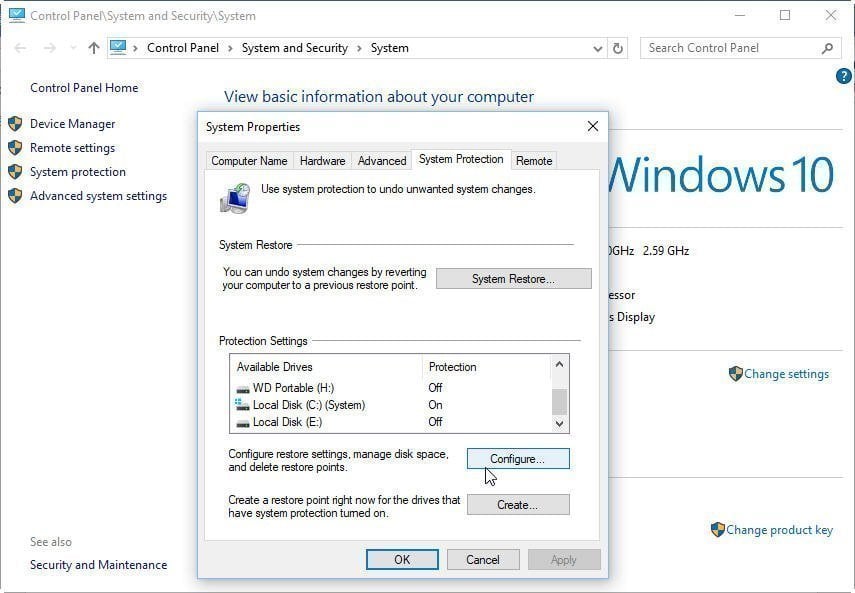
When you enable system restore in Windows 10, it will automatically create system restore points, typically every time the system is changed or every 7 days.
If system restore points have taken up a lot of disk space, you can use Disk Cleanup to remove older restore points and free up some disk space.
Method 3: Backup data with Backup and Restore (Windows 7)
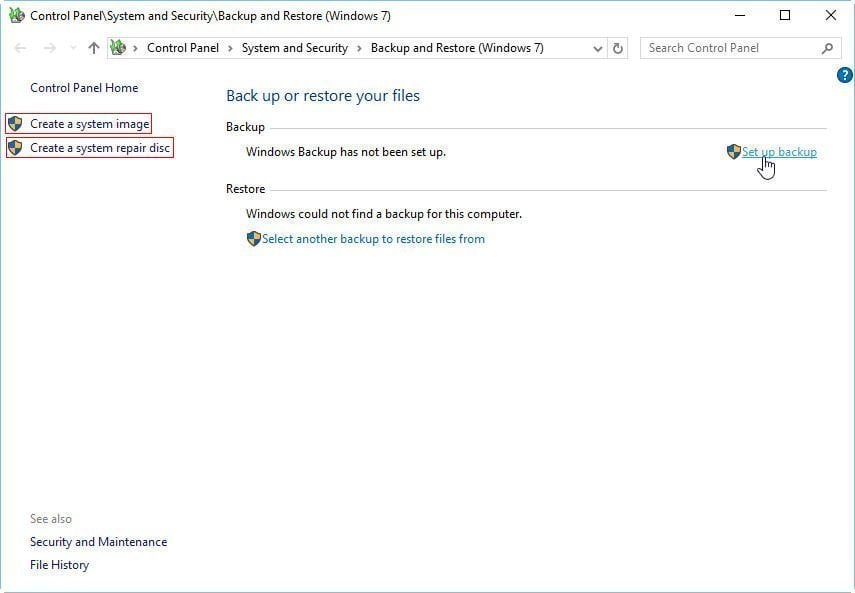
To create a system image backup in Windows 10, you can use the built-in Backup and Restore (Windows 7) tool to back up your system and include valuable files in the process, which can help you restore your Windows 10 in case of system crashes or major problems.
In Settings -The Backup tool can be found under File History, and by clicking "Go to Backup and Restore (Windows 7)", you can access it.
To set up a backup, you click on "Set up backup" and follow the on-screen instructions to complete the backup process.
The software allows users to select specific files and volumes to include in the backup, and also enables scheduled backups for automatic data backup in Windows 10. However, the image backup is not compressed, requiring a larger drive for storage.
Method 4: Perform data backup using Windows 10 OneDrive
You can backup Windows 10 to OneDrive by selecting files and saving them to a local OneDrive folder, which will automatically sync to the cloud drive.
To use File History to back up to OneDrive, you can mount OneDrive as a network drive, allowing you to choose OneDrive as the backup location.
Method 5: Backup files with Windows 10 free backup software
In addition to the Windows 10 built-in backup tool, you can also choose a free professional backup software to backup your data or system, such as Qiling Disk Master Standard, which is compatible with Windows 10 and other versions.
◑ This freeware provides a user-friendly interface and can complete backups in just three steps, making it suitable for various backup needs, including file backup, folder backup, disk backup, partition backup, and system backup.
◑ External hard drives, internal hard drives, NAS, USB/DVD/CD can store backup images, or you can backup files to Qiling Cloud by creating an account.
◑ During backup, you can set automatic backup for day by day, week by week, and month by month backup.
◑ You can also use this freeware to do incremental and differential backup for some new increased and modified data in addition to scheduled backup.
◑ Besides other backup options, you can add a comment, compress data, split images, encrypt backups, and enable email notifications.
The user-A user-friendly interface allows you to set up a data backup task in just a few clicks. For instance, to backup data on Windows Servers, you can refer to Qiling Disk Master Server.
- Free download this software and install it.
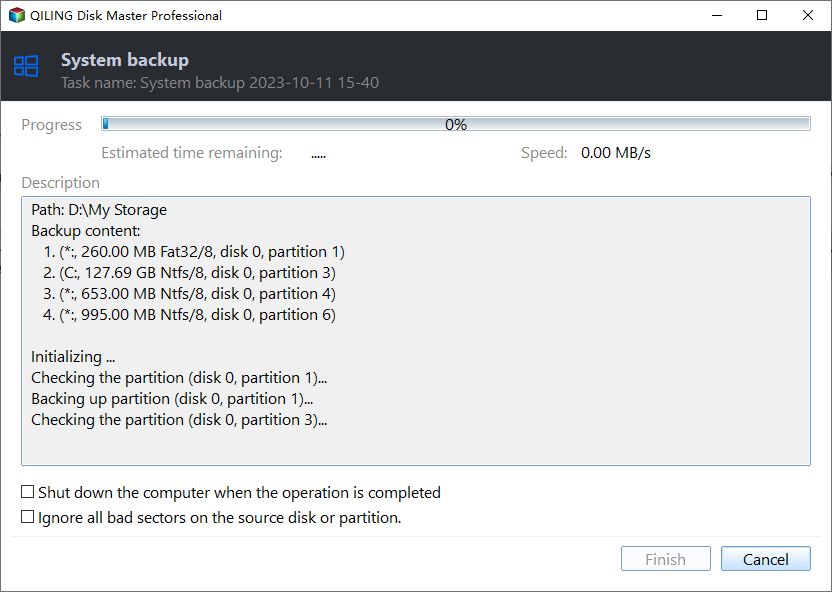
- In its Home screen, click Backup and select System Backup.

Tip: Choose Disk Backup if you want to back up all the data on the hard drive, not just the operating system.
- To save the backup image file, select a location such as an external hard drive, internal drive, or network location by clicking the second box. This allows you to choose where the backup will be stored.

- Click Proceed to start the backup.
✍ Tips:
>> Options: Here, you can write comments, modify the compression level of your backups, and upgrade to encrypt your backups for added security.Qiling Disk Master Professional edition.
>> Schedule: You can set up automatic data backups to occur at regular intervals, such as daily, weekly, or monthly, or even trigger backups based on specific events. Additionally, you can also back up data when a USB device is plugged in.
>> Backup Scheme: You can choose backup methods here. Differential backup Qiling Disk Master is preferable to incremental backup because it allows for automatic deletion of old image files, saving disk space, whereas incremental backup requires all backups to be complete before a backup can be restored. Upgrading to the Professional version is required to access this feature.
Final Words
Backing up data on Windows 10 can be done through various methods, but using Qiling is the best choice, offering the easiest operation and most reliable data security among the five methods provided.
If you don't prefer image backup, you can also choose to clone the hard drive or system as a way to backup data in Windows 10 using Qiling Disk Master Professional.
Related Articles
- Backup Specific Folders in Windows 10 Easily | 2 Ways
- Create Schedule Automatic Backup in Windows 10 [3 Ways Included]
- Backup Data Offsite on Windows 10 to Protect Data | 3 Ways
- How to Make Partition in Windows 7/8/10 After Installation?
Making partition can separate your OS from your data. In this post, you'll learn how to make partitions in Windows 7 in 2 ways. - How to Remove Windows Installation Media in Windows 7, 8, 10, 11
Learn how to Remove Windows Installation Media in Windows 7, 8, 10, 11 with clear steps, key checks, and practical tips. - How to Repair EFI Bootloader on a GPT HDD in Windows 7/8/8.1/10?
If you are troubled by how to repair EFI bootloader on a GPT HDD in Windows 11/10/8.1/8/7, here you can learn 3 methods, all of which can help you repair EFI/UEFI bootloader on GPT hard drive.
Products
Articles & Tutorials
- Data Recovery
- Data Backup
- File Recovery
- File Backup
- File synchronize
- System Backup and Restore
- Disk and Partition Clone
- Technical articles
- Disk Master Help
- Windows Deleted File and Disk Recovery Tutorials
- Windows File and Data Recovery Tutorials
- More Windows Tutorials for Install, Security, Files, and PC Tips
- Windows Boot, Repair, and Recovery Environment Tutorials
- Windows Backup Tutorials
- Windows Restore Tutorials
- Windows Clone and Migration Tutorials
- Windows Server Backup, Recovery, and Management Tutorials
- Windows Disk, Partition, and Storage Management Tutorials