Clone Windows 10 Partition to SSD in Two Ways
A partition on a hard drive is a logical division that enables a PC to have different drives, dividing the hard drive into several logical storage units on one drive. This can be thought of like a bookshelf, where a partition is like a wooden clapboard that can be adjusted to a desired size using software like Disk Management or third-party tools like Qiling Disk Master. Before cloning a partition on Windows 10, understanding this concept can be helpful.
Why clone partition on Windows 10?
Cloning a partition, including cloning a Windows 10 OS and data drive, is a useful process for upgrading PC hard drives. It allows users to create an exact replica of their operating system and data, which can be helpful in various situations. Some users may want to clone their Windows 10 partition, which includes the operating system, to transfer it to a new hard drive. Others may prefer to clone their data partition only, which contains their personal files and documents. This process can be useful for upgrading PC hardware or in cases where the operating system needs to be reinstalled.
Hard drives are divided into multiple partitions, with the OS and personal files typically stored separately. Some users store all important data on the same partition, but this can be disastrous if the drive becomes corrupted. Regular backups or cloning the vital partition to another disk can prevent data loss.
Windows 10 clone partition with professional software
Unfortunately, Windows 10 Disk Management does not allow cloning of partitions. However, there are many powerful cloning software programs available that can assist with this task, such as Qiling Disk Master Professional. This software offers three types of cloning: Disk Clone, System Clone, and Partition Clone, and also allows cloning only the used part of a drive if the target drive is smaller. The user interface is user-friendly, and you can download a free trial or purchase the software to try it out. Download it now.
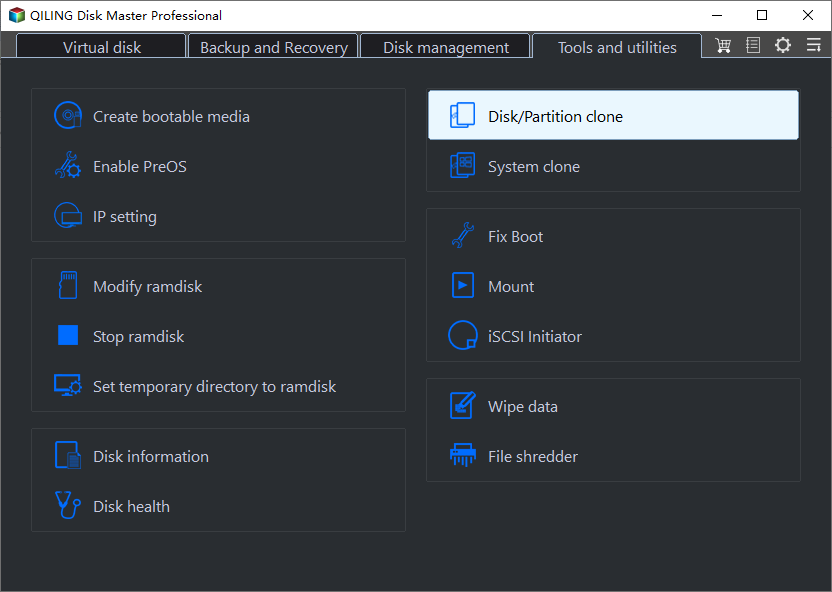
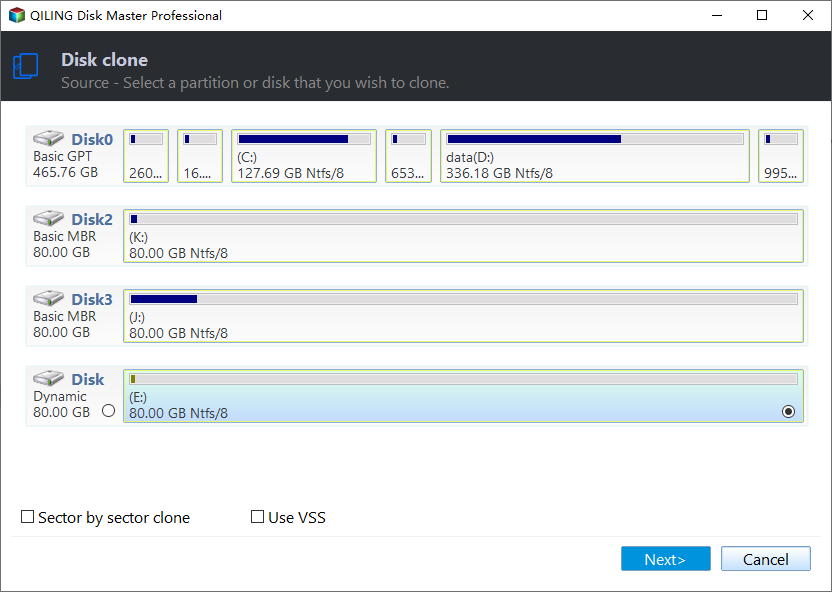
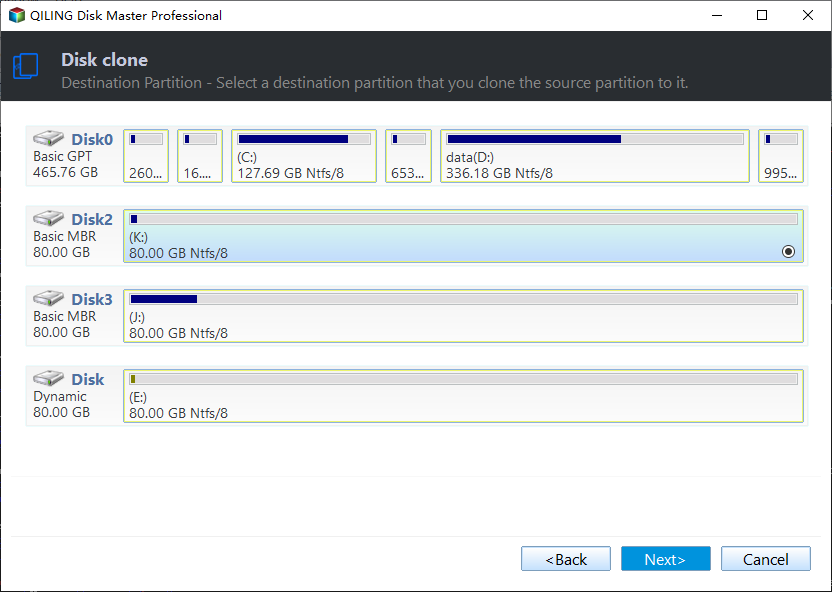
Step1. Install and launch Qiling Disk Master, then go to Clone > Partition Clone. Select the source partition and destination partition in separate windows, being cautious not to overwrite the wrong partition.
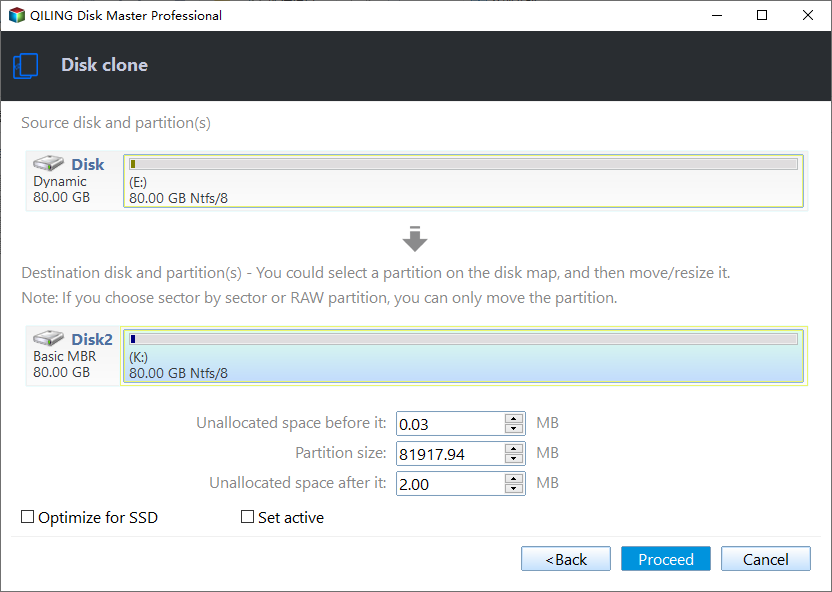
Step2. At the operation summary interface, you can configure customized settings in the red frame box based on your needs, then click Proceed to execute the operation.
Tips:
If you want to clone a Windows 10 partition to an SSD, it's recommended to select the option to "Align partition to optimize for SSD" to ensure optimal performance.
The Sector by sector clone box is unchecked since the destination drive is smaller than the source.
Qiling Disk Master Professional supports Windows 8, 8.1, 7, XP, and Vista, allowing users to clone Windows 7 partitions as well.
Cloning the Windows 10 system partition to a USB drive is not recommended, but if necessary, refer to the instructions on installing Windows 10 on an external hard drive.
Windows 10 clone partition via command line
For users who prefer a graphical interface, the above method is suitable. However, advanced users may find command line operations more convenient, and Qiling Disk Master Professional also allows cloning a Windows partition to another drive in Command Prompt.
To clone the D drive to the E drive, first open Command Prompt as administrator. Then type the installation path of DiskMasterUI.exe, for example, "cd C:\Program File (x86)\Qiling Disk Master". After that, input the command "DiskMasterX /c /t part /s D /d E /a /f fill /w 1" and press Enter. This will clone the D drive to the E drive.
Interpretation:
[/c]: clone.
[/t]: clone type. [/t part]: clone partition or volume. If clone system, input [/t system]. If clone disk 0, input [/t disk 0].
[/s D]: This command copies the contents of the source partition (D) to the destination partition. If you're cloning the system, you can skip this parameter.
[/d E]: Clone the contents of the current partition to the E partition. The E partition will be the destination.
[/a]: specify to use partition alignment to optimize for SSD.
[/f fill]: adjust the size of the destination partition. "fill" means to fill the entire destination partition after cloning. The other option is [/f original] which means keep the same size after cloning.
[/w 1]: Wait for the operation to complete, it could be desided by one of thers two parameters: 0 or 1.
Tips: There are many other parameters that allow you to configure more, for instance, specify a drive letter if you clone partition to an unallocated space. Click command line clone to learn more.
Summary
Qiling Disk Master Professional is a reliable choice for cloning partitions, and its features make it suitable for both beginners and experts. The software offers a great backup and restore solution, and its Windows Server edition makes it a valuable tool for users of Windows Server. Additionally, it allows you to deploy Windows 10 via a WinPE USB disc to multiple computers if needed.
Related Articles
- How-To | Copy Partition to Another Drive on Windows 10, 11
- Clone Windows 10 Partition to SSD in Two Ways
- Best Way to Clone Only OS Partition to SSD in Windows 11, 10
- How to Extend System Partition for Windows 10/8/7 and Windows Server?
Learn the key steps, checks, and practical tips for this related guide. - NTBackup Server 2012: How to Back up Files in Windows Server
In this post, you will learn how to back up files through NTBackup Server 2012. Besides, we will also share another better backup tool to back up anything more easily in Windows Server 2003, 2008 (R2), 2012 (R2), 2016, 2019 and 2022. - What is NTBackup and How to Use It in Windows 10/8/7?
NTBackup is a built-in tool in early Windows OS and has been replaced since Vista. But you can still use it in Windows 10 if you have BKF files to restore.
Products
Articles & Tutorials
- Data Recovery
- Data Backup
- File Recovery
- File Backup
- File synchronize
- System Backup and Restore
- Disk and Partition Clone
- Technical articles
- Disk Master Help
- Windows Deleted File and Disk Recovery Tutorials
- Windows File and Data Recovery Tutorials
- More Windows Tutorials for Install, Security, Files, and PC Tips
- Windows Boot, Repair, and Recovery Environment Tutorials
- Windows Backup Tutorials
- Windows Restore Tutorials
- Windows Clone and Migration Tutorials
- Windows Server Backup, Recovery, and Management Tutorials
- Windows Disk, Partition, and Storage Management Tutorials