D Drive Missing in Windows 10 or 11? Now Recover It Easily!
- Why is D drive not showing up in Windows 10/11?
- How to Restore Local Disk D Drive in Windows 10/11 Easily?
- Method 1. Rescan Disks
- Method 2. Restore System
- Method 3. Unhidden the hidden D drive
- Method 4. Recover lost partition with professional tool
- Tips to avoid D drive missing Windows 10 in the future
- Summary
- FAQs about D drive missing Windows 10
D Drive missing in Windows 10
You installed Windows 10 on your Alienware and now your D drive is missing, and you have important data saved on it. This is likely due to the Windows 10 installation process, which sometimes reconfigures disk partitions. To recover your data, try booting from a Windows 10 installation media, accessing the Disk Management tool, and checking if your D drive is listed as an unallocated space. If so, you can try to assign a drive letter to it. If not, you may need to use a data recovery software to retrieve your files. Be cautious when using such software, as it may overwrite existing data. Consider seeking professional help if you're unsure.
--Question from Microsoft Community
In Windows 10, users may find their local disk D missing after installing it, and this issue can also occur in Windows 7 with the E drive missing at times. Typically, the C drive is used for the operating system, while D or E drives are used for third-party software and personal data. Losing access to these files can be frustrating, so it's essential to understand why this happens and how to recover the lost partition. Let's explore this further.
Why is D drive not showing up in Windows 10/11?
In general, there are three most possible reasons accounting for the D drive suddenly missing problem. The first reason is that the D drive is hidden, the second reason is that the D drive is removed or dismounted, and the third reason is that the D drive is corrupted or deleted. Finding the reason will help us find the cure.
♦The CD or DVD drive takes up the drive letter D.
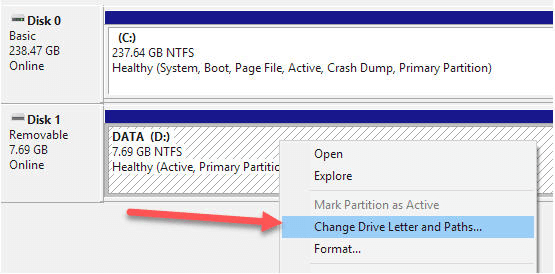
The DVD drive may occupy the drive letter after a reboot or reconfiguration, preventing it from being changed to the D drive. This issue can be verified in Windows Disk Management, where the DVD drive is assigned a drive letter. To resolve this, right-click the DVD drive and select "Change Drive Letter and Paths" to assign a different drive letter.
♦D drive disappeared after Windows 10 update.
The issue may arise after a Windows 10 update or installation, potentially due to system settings being altered by inappropriate operations or unknown reasons.
♦D drive is hidden.
If your system hides the D drive, then the D drive will not be visible in Windows File Explorer.
♦D drive has been formatted or deleted accidentally.
When performing operations on partitions or hard drives, such as resizing a partition or reformatting a hard drive, there is a risk of losing access to the drive due to mistaken operations.
In some instances, the D drive may be present but its drive letter is missing. To resolve this, you can use Diskpart or Disk Management to assign a drive letter to the partition marked with an asterisk. Alternatively, there may be other underlying reasons for the missing D drive that are not listed, and additional troubleshooting steps may be necessary.
How to Restore Local Disk D Drive in Windows 10/11 Easily?
If your drive is missing, try rebooting your PC as it may resolve setting errors causing the issue. If rebooting doesn't work, you can proceed with the next methods.
Method 1. Rescan Disks
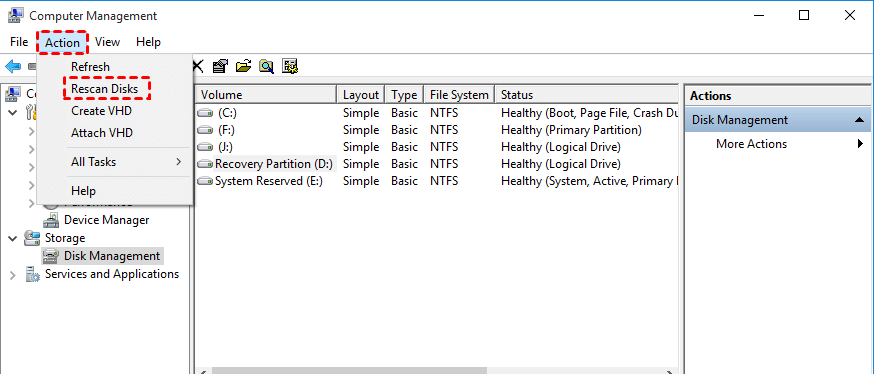
To resolve the issue of the D drive not being recognized, go to Disk Management, click on the "Action" button on the toolbar, and select "Rescan disks" to let the system re-identify all connected disks. This might make the D drive appear after the process is complete.
Method 2. Restore System
If we've created system restore points regularly, it's easier to restore the PC to a state where the D drive is still present, as long as there are sufficient restore points available.
1. To perform a system restore on the Search box in Windows 10, click on the Start menu, type "system restore" in the Search box, and click on the "Create a restore point" option from the list that appears.
2. In the pop out window, click "System Restore" to start.
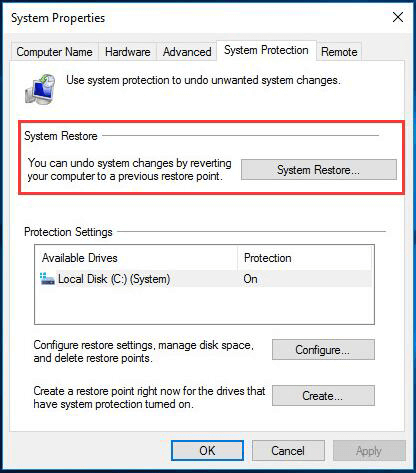
3. To restore your system, follow the wizard to select the correct system point for restoring, which may take around 10 to 30 minutes.
If the missing D drive cannot be found through the Disk Management and Diskpart commands, you may need to recover it with a professional partition recovery tool.
Method 3. Unhidden the hidden D drive
To unhidden the D drive, just take the following steps:
Step 1. To change folder and search options in Windows File Explorer, double-click the "This PC" icon on the desktop to open the File Explorer. Then, in the window, click on the "View" tab and select "Options" followed by "Change folder and search options".
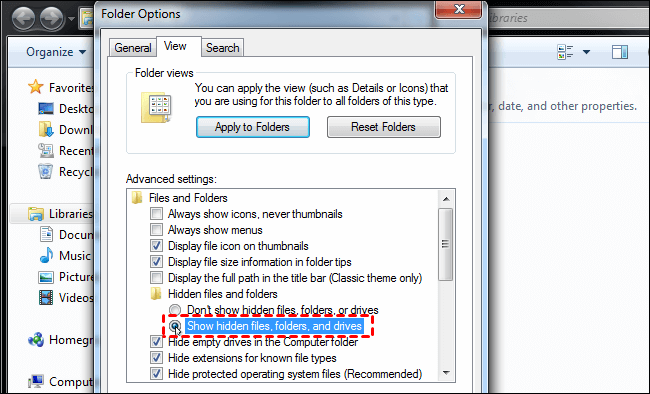
Step 2. To access the "View" tab in the popout window, select it. Under "Advanced settings", select "Show hidden files, folders, and drives" and then click OK.
Method 4. Recover lost partition with professional tool
If you've lost a drive in Windows, there are many software options available to help you recover it. However, for most users, the priority is finding a powerful yet easy-to-use tool, such as Qiling Disk Master Professional, which can restore deleted partitions in Windows 11/10/8/7, as long as you don't overwrite or modify the missing partition.
It has a lucid and user-Want to get your missing D drive back in Windows 11, 10, 8/8.1, 7, XP or Vista? Don't worry, it's easy! Our user-friendly interface makes it simple for most users to learn how to use it. Even if you're using Windows Server, you can still employ our Server edition. Just follow the simple steps and you'll be able to restore your missing D drive in no time, even in a Windows 10 computer.
1. Install and run Qiling Disk Master, select Disk management > Partition Recovery on the main interface.

2. Select the disk where the original D drive was located.
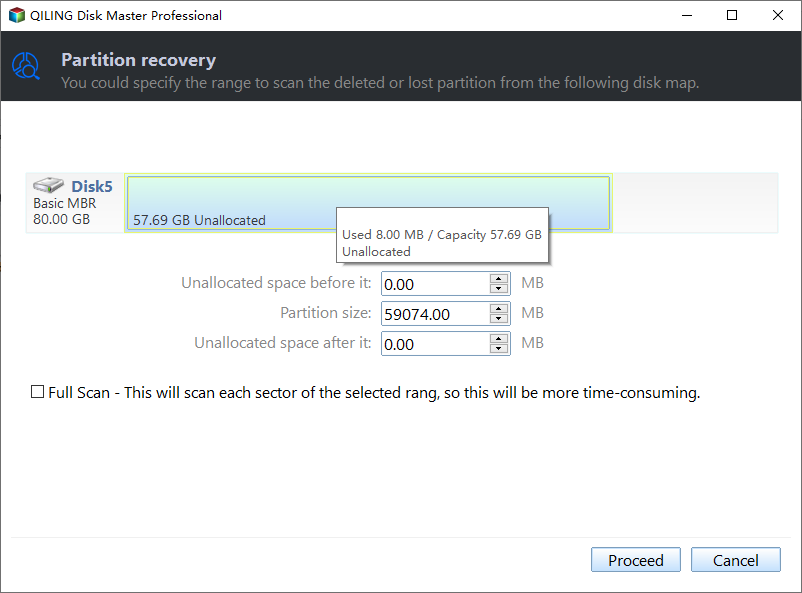
3. To quickly find a drive, select the "Fast Search" option, which is recommended as it takes less time. If the drive is not found using this method, you can try the "Full Search" option instead.

4. Select the drive and click "Recover" to start recovering. When it is completed, click "Finish".
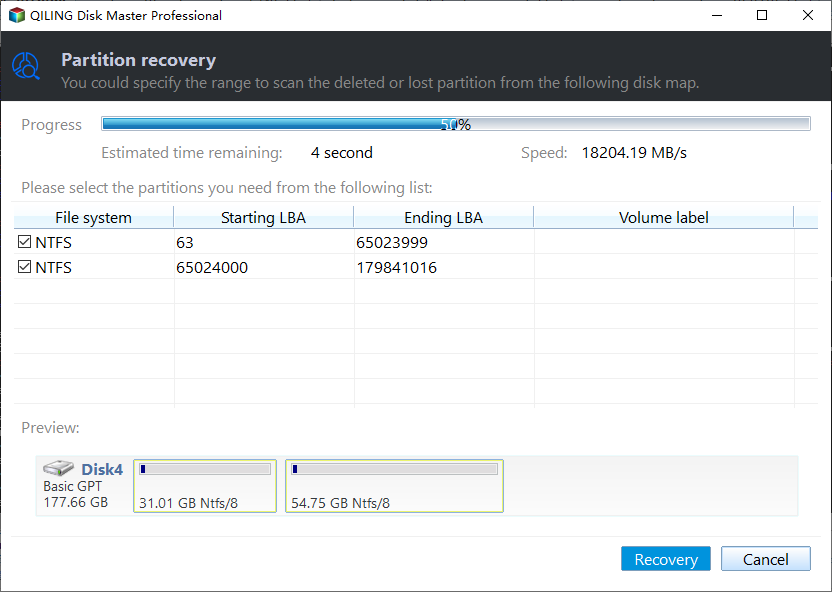
The D drive is back in the main interface, Disk Management, and Windows File Explorer.
Notes:
1. You may need to assign a drive letter to the recovered partition.
2. This method is primarily used to recover a lost partition that has been deleted.
3. You can recover a deleted file by using a data recovery software or a file recovery service. These tools can scan your computer's hard drive and retrieve the deleted file, even if it has been overwritten by new data.
Tips to avoid D drive missing Windows 10 in the future
Data loss is a common issue caused by various factors such as hard drive failure, virus attacks, human error, and natural disasters, making it essential to develop a habit of backing up important data to prevent loss.
Continuous data backup is the most ideal solution for our daily work. Qiling Disk Master, a product of Qiling Disk Master, provides an easy way to back up everything, including system drives, data drives, and individual files/folders. This way, when disaster strikes, all we need to do is restore the backup image.
Summary
If your D drive is missing in Windows 10/11, don't worry, there are three simple ways to fix the issue. Choose the most suitable one for yourself based on your situation. Apart from recovering missing drives, Qiling Disk Master Professional also offers other helpful features, such as "Migrate OS to SSD", which allows you to move your OS from a GPT disk to an SSD without reinstalling.
FAQs about D drive missing Windows 10
Why is my D drive missing in Windows 10?
Your D drive might be missing due to various reasons such as issues with drive letter assignment, problems with the drive's driver, disk management errors, or physical connection issues with the drive itself.
What should I do if the D drive is not showing up in File Explorer?
To resolve the issue, check if the D drive is visible in Disk Management. Right-click on the Start button, select "Disk Management," and look for your D drive. If it's there, right-click on it and assign a drive letter. If it's not visible, there might be an issue with the drive itself or the connection.
Can a drive letter conflict cause the D drive to go missing?
If another drive or network mapping is using the same letter, it can cause the D drive to disappear. Ensure no other device or network drive is using the same letter.
Could malware or antivirus software cause the D drive to be missing?
Malware or overly aggressive antivirus programs might be interfering with drive visibility. Run a thorough antivirus scan and ensure your security software isn't blocking the drive.
Related Articles
- How to Easily Add Unallocated Space to D Drive in Windows 10/8/7?
Learn how to Easily Add Unallocated Space to D Drive in Windows 10/8/7 with clear steps, key checks, and practical tips. - 6 Quick Ways: How to Free Up Space on D Drive in Windows 10/8/7?
This guide explains 6 Quick Ways: How to Free Up Space on D Drive in Windows 10/8/7 with clear steps, key checks, and practical tips. - How to Remove Windows Installation Media in Windows 7, 8, 10, 11
Learn how to Remove Windows Installation Media in Windows 7, 8, 10, 11 with clear steps, key checks, and practical tips. - How to Repair EFI Bootloader on a GPT HDD in Windows 7/8/8.1/10?
If you are troubled by how to repair EFI bootloader on a GPT HDD in Windows 11/10/8.1/8/7, here you can learn 3 methods, all of which can help you repair EFI/UEFI bootloader on GPT hard drive. - 7 Ways to Fix Samsung Magician This Drive Is Not Supported
You will get the cause and solutions to fix Samsung Magician this drive is not supported on 840 Evo/850 Evo/860 Evo/960 Evo/970 Evo/970 Evo Plus. Start acting now! - Top 2 Ways for Samsung SSD Secure Erase – Unrecoverable
This page presents 2 easy ways to perform Samsung SSD secure erase. Once the SSD has been wiped, it can never be recovered by anyone else.
Products
Articles & Tutorials
- Data Recovery
- Data Backup
- File Recovery
- File Backup
- File synchronize
- System Backup and Restore
- Disk and Partition Clone
- Technical articles
- Disk Master Help
- Windows Deleted File and Disk Recovery Tutorials
- Windows File and Data Recovery Tutorials
- More Windows Tutorials for Install, Security, Files, and PC Tips
- Windows Boot, Repair, and Recovery Environment Tutorials
- Windows Backup Tutorials
- Windows Restore Tutorials
- Windows Clone and Migration Tutorials
- Windows Server Backup, Recovery, and Management Tutorials
- Windows Disk, Partition, and Storage Management Tutorials