Fixed: Encrypt Contents to Secure Data Greyed Out Windows 10
What is "Encrypt contents to secure data" option?
Windows 10 has a feature called Encrypting File System (EFS) that allows you to encrypt a specific folder or drive, keeping your data private and accessible only from your Windows account.
👉 How to encrypt a folder in Windows 10
- Right-click a file or folder and select Properties.
- Select the Advanced button in the Attributes section and check the Encrypt contents to secure data checkbox.
- To close the Advanced Attributes window, select "OK" or apply the changes and then select "OK".
👉 Why is "Encrypt contents to secure data" greyed out?
The "Encrypt contents to secure data" option may be disabled in Windows 10/8/7, preventing you from encrypting your data.
This problem usually arises due to misconfigured registry values and may occur to anyone. But don't worry, try the following solutions to fix it!
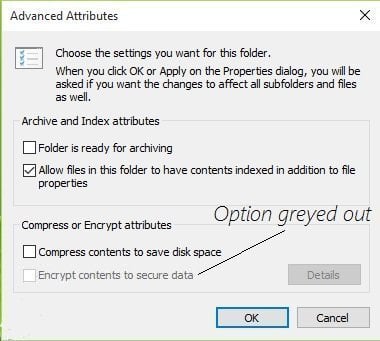
How to fix "Encrypt contents to secure data" greyed out
If the "Encrypt Contents To Secure Data" option is grayed out in Windows 7/8/10, you can try resetting registry values to make it work again. There are two methods that may be helpful: one involves resetting the registry values directly, and the other involves using the built-in Windows feature to reset the encryption settings. By following these methods, you may be able to restore the functionality of the "Encrypt Contents To Secure Data" option.
👉 Method 1: Enable EFS Using Windows Registry
👉 Method 2: Enable EFS using Command line
👉 Further reading: a better way to keep data safe🔥
Method 1: Enable EFS Using Windows Registry
To resolve the issue where the encryption option is grayed out, follow the steps below. Some registry values may not be set properly, which is causing the encryption option to be unavailable.
1. To open the Registry Editor, press the Windows key + R on your keyboard to open the Run dialog, then type "regedit" and press Enter. This will open the Registry Editor window.
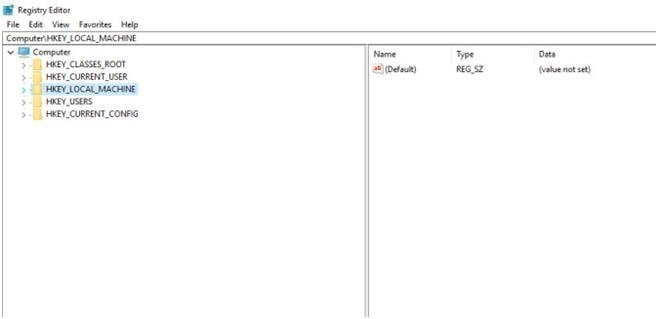
2. Now move into following entry in the Registry Editor window.
HKEY_LOCAL_MACHINE\System\CurrentControlSet\Control\FileSystem
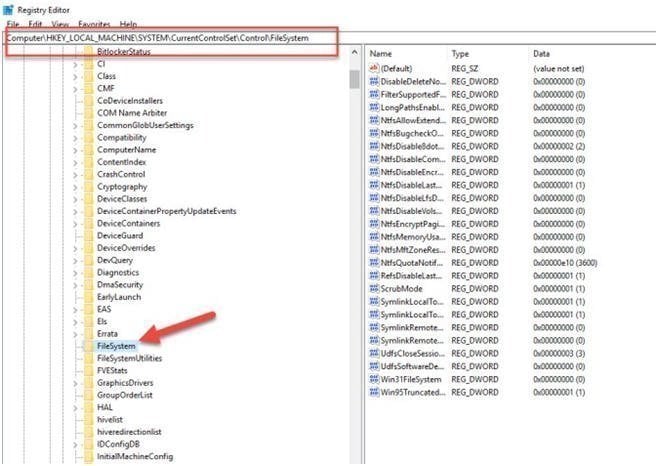
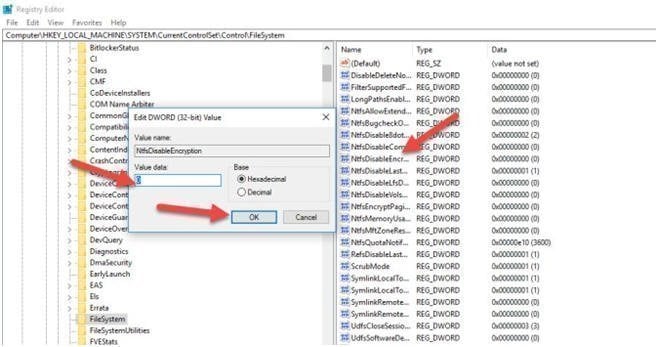
3. To disable NTFS encryption, expand the File System key in the right-hand window, locate the NtfsDisableEncryption key, double-click on it, and set its value to 0.
4. To enable encryption for a folder, go to the folder's properties, click on the "Advanced" tab, then click on "Advanced Attributes". This will allow you to select the encryption option, which was previously grayed out. After making this change, you can click OK to save the settings. Once you've done this, you can go back to the folder and click on "Properties" again, and the encryption option should now be available.
Method 2: Enable EFS using Command line
You can also use Windows Command line to make the encryption option available to you for any of folders on your machine. You just have to run a simple and easy command. And your problem will resolve quickly. To do this, go with few below steps.
1. Open Command Prompt window as an administrator. Press the following command in it and hit Enter key.
fsutil behavior set disableencryption 0
*This command means to set NtfsDisableEncryption value to 0.
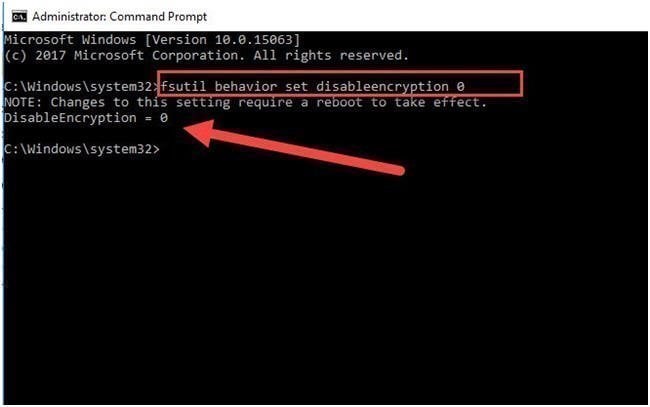
2. If the command runs successfully, it will prompt you to reboot your system to apply the changes. After rebooting, the encryption option will be available in the Properties of any folder.
To encrypt specific files or folders, you can use the Encrypting File System, however, it's not available for Windows 10 Home edition and may not be the most secure way to protect sensitive data.
Further reading: a better way to keep data safe
To protect data security, file and folder encryption is only a small part. Making a backup of your important data is also a good and commonly used way, especially in case of accidental deletion or critical system failure.
Qiling Disk Master Professional offers a combination of backup and encryption features, providing double protection for your data.
- Qiling Disk Master allows you to back up files, partitions, operating system, and disk to various locations, such as external hard drives, network share, or cloud drives.
- 3CX Backup Manager allows you to encrypt backups to protect your data and has no storage limits, unlike EFS.
- It applies to all editions of Windows (Win 11/10/8.1/8/7/XP/Visa).
- The software offers various useful features, including scheduled automatic backup, file filter, backup compression, and auto-deletion of old backups, among others.
To encrypt files in Windows 10, you can use the built-in BitLocker feature. To start, go to the Control Panel and click on "System and Security".
1. Download Qiling Disk Master and open the software. Select a backup type under the Backup tab and then click on the File Backup feature.

2. To set the source, click on either the "Files" or "Folders" option to select the desired destination path.

3. To enable encryption for backups, go to the bottom of the screen and click on "Options". Then, toggle on the "Enable encryption for backups" option in the "General" tab. Next, enter a password and confirm it to secure your backups.
To save disk space, you can set the compression level in the Advanced tab of Backup Settings.
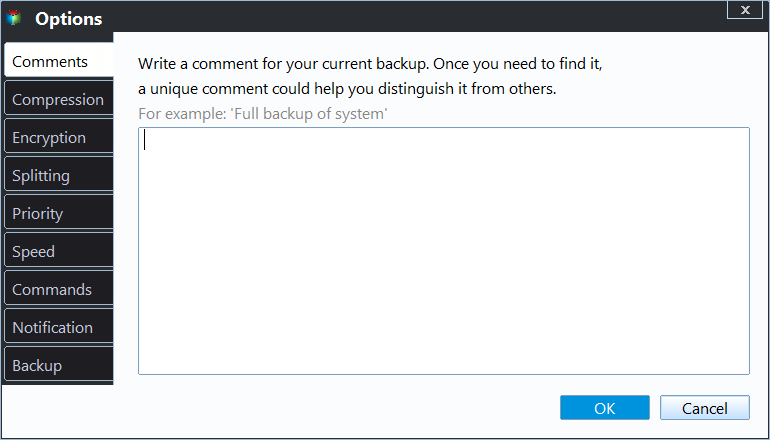
4. After confirmation, click Proceed to execute the task.

Schedule Backup: You can set up automatic backups on your device based on various triggers, including daily, weekly, or monthly intervals, as well as specific events like when a USB drive is plugged in. This feature allows you to schedule backups to run at regular intervals, ensuring that your important files are safely backed up and protected from data loss.
Backup Scheme: To maintain a reliable backup system, consider implementing a schedule that automatically deletes old backups and retains the most recent ones. This approach ensures you always have access to the latest backup while freeing up storage space. Additionally, you can opt for incremental or differential backups, which only save modified files, further reducing storage needs and backup times.
Tips:
- If you have encrypted files or folders and want to make a backup, you may face a problem since you can't access the drive. However, Qiling Disk Master can help you overcome this issue.
- If you're looking to back up files to cloud drives with limited free space, consider using Qiling Cloud. It provides 1TB of free storage for the first 15 days after signing up.
- Qiling Disk Master is a top-notch C drive cloning software that allows users to clone their C drive to a larger SSD or HDD, making it the best option for those looking to upgrade their storage capacity.
Conclusion
Qiling Disk Master provides data security by encrypting contents, making it a reliable tool to secure data in Windows 10/8/8.1/7. It also offers a VSS backup feature without interruption and serves as a professional USB duplication software, allowing users to clone their USB drive to another drive.
You can protect unlimited computers within your company using Qiling Disk Master Technician, which also allows deploying or restoring system image files to multiple client-side computers over a network using its built-in Qiling Image Deploy tool.
Related Articles
- Windows Server Backup Encryption – Double Protection for Your Data
You can set Windows Server 2008/2008 R2/2012/2012 R2/2016/2019/2022 backup encryption using BitLocker or third-party backup software - Qiling Disk Master. - Set Windows 10 Backup Encryption to Protect Data Easily
This guide explains Set Windows 10 Backup Encryption to Protect Data Easily with clear steps, key checks, and practical tips. - File History Cleanup – Delete Older Versions in Windows 10/8
You will get 3 ways for File History cleanup and one professional software to prevent backup disk full issues. - How to Run a Disk Defragment on Windows 10, 8, 7?
Fragmentation will make your hard drive do extra work, slowing down your computer. In this article, you will know what is disk fragmentation, what is defragmentation and how to run disk defragmentation on Windows 11, 10, 8, 7. - SSD Reports Wrong Size in Windows? Why and How to Fix it Easily!
Manage sSD Reports Wrong Size in Windows Why and How to Fix it Easily with safer disk and partition steps to avoid data loss or boot problems. - SSD Slowing Down? 7 Quick Tricks to Make SSD Run Faster!
Manage sSD Slowing Down 7 Quick Tricks to Make SSD Run Faster with safer disk and partition steps to avoid data loss or boot problems.
Products
Articles & Tutorials
- Data Recovery
- Data Backup
- File Recovery
- File Backup
- File synchronize
- System Backup and Restore
- Disk and Partition Clone
- Technical articles
- Disk Master Help
- Windows Deleted File and Disk Recovery Tutorials
- Windows File and Data Recovery Tutorials
- More Windows Tutorials for Install, Security, Files, and PC Tips
- Windows Boot, Repair, and Recovery Environment Tutorials
- Windows Backup Tutorials
- Windows Restore Tutorials
- Windows Clone and Migration Tutorials
- Windows Server Backup, Recovery, and Management Tutorials
- Windows Disk, Partition, and Storage Management Tutorials