3 Best Free Disk Imaging Software for Windows 10
Why is Windows 10 disk imaging software needed?
Computer users often face issues like system crashes, virus attacks, and bad sectors, which can lead to data loss and even render the computer unbootable. To resolve these problems, users typically need to reinstall the system, programs, and reconfigure everything, a time-consuming and labor-intensive process.
To resolve the situation, you can use a free disk imaging software on Windows 10 to create a disk image in advance. This involves backing up the entire hard drive to a compressed image file, including the operating system, configuration, programs, and data. When issues arise, the software can help restore the system and data to their previous state.
What is the best free disk imaging software for Windows 10?
Here I'll list the top 3 free Windows 10 imaging software: Qiling Disk Master Standard, Clonezilla and DriveImage XML. Please get details below.
1. Qiling Disk Master Standard🏆
Qiling Disk Master Standard is a powerful and popular backup freeware that offers a range of solutions for backing up and restoring systems, disks, partitions, and individual files/folders.
With the best free disk imaging software for Windows 10, you can enjoy the convenience of creating a complete backup of your system, including all installed applications, settings, and files, allowing you to easily restore your computer to its previous state in case of a crash or failure, and also enabling you to create a duplicate of your system on another computer or storage device, making it easy to transfer your data and settings to a new machine.
- Free and Easy to Use. This Windows 10 disk imaging tool is completely free and features a simple, user-friendly interface that makes it easy to use.
- Supports Various Destinations. You can save a backup image of your computer to various storage devices, including internal/external hard drives, USB flash drives, cloud drives, or network shares.
- Fast Backup Speed. Qiling Disk Master is the best disk imaging software, offering the highest speed among all backup tools, which will undoubtedly save your precious time.
- Backup Compression. It helps you save storage space by compressing the backup image, and you can choose the compression level as you like.
- Backup Schedule. You can schedule a daily/weekly/monthly disk image backup, which runs as an incremental backup by default, only backing up changed files since the last backup, thus saving storage space and backup time.
2. Clonezilla
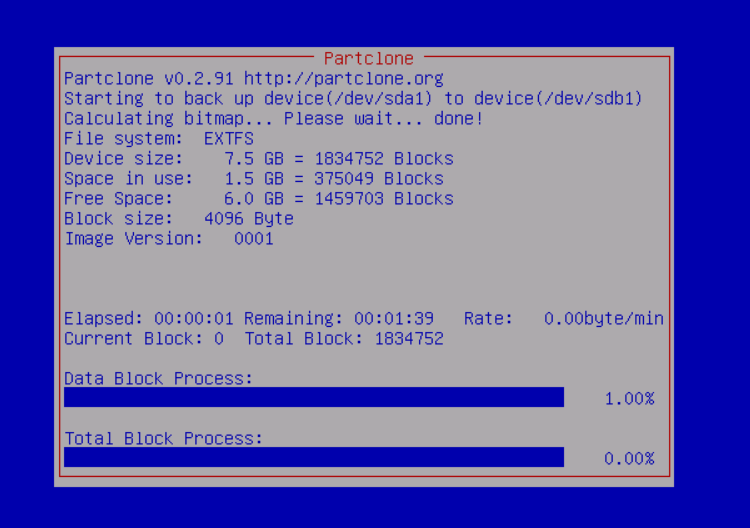
Clonezilla is a free and open source partition and disk imaging program that comes in three versions: Clonezilla live, Clonezilla lite server, and Clonezilla SE. It's designed for individual computer backups with Clonezilla live, and for large-scale computer deployments with the other two versions, boasting a reported cloning speed of 8GB per minute.
3. DriveImage XML
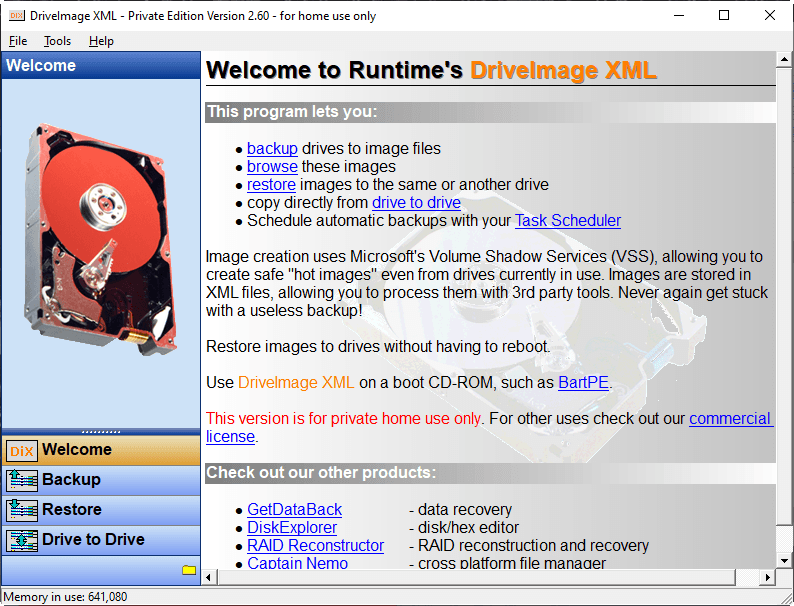
DriveImage XML is a free disk imaging software that creates reliable backups of your hard drive using Microsoft's Volume Shadow Services (VSS). The software saves the images in an XML file format, allowing users to browse and extract files. This makes it a useful tool for creating systematic backups of your hard drive.
Qiling Disk Master Standard is recommended for its all-around backup solutions, including incremental backup, automatic backup, and more.
How to make a disk image with Windows 10 imaging software
You'll learn how to make a disk image using Windows 10 disk imaging software - Qiling Disk Master Standard, with both video and graphic tutorials. If you're new to this software, start with the video tutorial for a quick understanding, and then follow the graphic tutorial for more detailed instructions.
Video Tutorial:
Graphic Tutorial:
Step 1. Download, install and launch Qiling Disk Master Standard. Click Backup and then select Disk Backup.

Step 2. To distinguish the disk imaging task from others, give it a new name at the right side of Task Name. Then, click Add Disk and select the disk you want to back up.

Step 3. Choose a destination path to save your Windows 10 image, such as a USB drive, external hard drive, or network location.

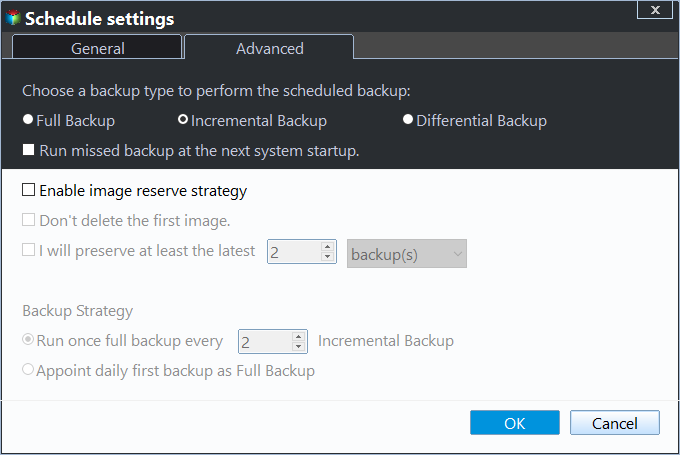
Step 4. (Optional) Set the backup settings as follows.
>> Schedule Backup: To run the backup task automatically, select the desired schedule mode from the options provided: Daily, Weekly, or Monthly. This will allow the task to execute at the chosen frequency without requiring manual intervention.

>> Backup SchemeTo set up automatic backups, choose the type of backup you want (full, incremental, or differential), and enable automatic cleanup of old backups. Note that higher editions of the software may offer additional features such as differential backup and automatic backup deletion.
Step 5. Finally, click the Proceed button.
Tips:
👉 You can avoid the frustration of a full backup disk by upgrading to a higher edition that automatically deletes old backups.
👉 To prepare for the worst situation where your computer won't start normally, you should create bootable media or a recovery environment using this software.
Summary
To ensure data safety, Windows 10 users can use disk imaging software such as Qiling Disk Master Standard, Clonezilla, and DriveImage XML. Qiling Disk Master is a recommended choice as it allows for regular disk imaging backups and quick restoration of data in case of damage.
Besides being a perfect Windows 10 disk image tool, this software is also the best free disk cloning software in Windows 10, allowing you to clone a hard drive to a solid state drive, clone a solid state drive to a new one, and more.
The Standard edition is only suitable for home users, while technicians can use Qiling Disk Master Technician to protect unlimited computers within their company. This edition also includes the Qiling Image Deploy tool, which allows for deploying or restoring system image files on multiple client-side computers from a server-side computer over a network.
Related Articles
- Use Free SSD Imaging Software to Backup SSD Data in Windows 7/8/10
- Best UEFI Disk Imaging and Cloning Software
- How to Delete Backup Files in Windows 10 When Backup Disk Full?
- The Best Disk Imaging Software for Windows Server 2016 (Easiest Way to Create Disk Image)
- How to Upgrade to SSD in Windows 11/10/8/7 [without Reinstalling]
Upgrading to an SSD without reinstalling your operating system can be achieved through two effective methods provided by a professional SSD upgrade tool. - How to Upgrade Windows 7, 8 or 8.1 to Windows 10?
The best free disk imaging software allows you to create complete system images, clone disks, and perform bare metal recovery. Qiling Disk Master Standard offers disk imaging, incremental backups, and scheduled backups for free.
Products
Articles & Tutorials
- Data Recovery
- Data Backup
- File Recovery
- File Backup
- File synchronize
- System Backup and Restore
- Disk and Partition Clone
- Technical articles
- Disk Master Help
- Windows Deleted File and Disk Recovery Tutorials
- Windows File and Data Recovery Tutorials
- More Windows Tutorials for Install, Security, Files, and PC Tips
- Windows Boot, Repair, and Recovery Environment Tutorials
- Windows Backup Tutorials
- Windows Restore Tutorials
- Windows Clone and Migration Tutorials
- Windows Server Backup, Recovery, and Management Tutorials
- Windows Disk, Partition, and Storage Management Tutorials