How to Securely Delete Multiple Recovery Partitions in Windows 10?
Scenario
Windows 10 Insider Builds often create multiple Recovery Partitions to ensure a smooth recovery process. While it's possible to delete some of them, it's not recommended to remove all of them, as they may be used for different purposes, such as system restore points or bootable recovery environments. To determine which ones are important, you can check the properties of each Recovery Partition in Disk Management or using third-party tools like AIDA64. If you're unsure, it's best to leave them alone to avoid any potential issues.
Why there are multiple recovery partitions in Windows 10/11?
To avoid Windows creating a new recovery partition every time you upgrade, increase the size of the system reserved or system recovery partition before upgrading your Windows. This will prevent the upgrade programs from creating a new partition, especially useful when upgrading to a new version of Windows 10/11 with Insider Builds.
Can I delete the extra recovery partitions?
Upgrading to a new version of Windows, like Windows 11, renders the previous Windows recovery partition nonfunctional. This means you can safely delete these partitions to free up disk space, as the upgrade program creates a new recovery partition by shrinking the C drive from its right side.
Looking at the screenshot, it's clear that the 500MB recovery partition is newly created, making the other two nonfunctional recovery partitions redundant. To determine which one to delete, you can back up the recovery partition first and then proceed with deletion, ensuring you don't inadvertently remove a necessary partition.
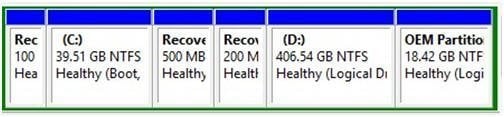
How to remove multiple recovery partitions in Windows 10/11?
Windows 10/11 Disk Management can't delete recovery partition if it has crucial files, but you can use diskpart.exe or a third-party software to delete it.
Delete recovery partitions with diskpart
Step 1. Type "diskpart" in the search box, then in the best match results, right-click on "diskpart" and select "Run as administrator".
Step 2. At Diskpart prompt, type the following commands in order, each one should end up with the Enter key:
- To display all the disks, type "list disk". Be aware of the disk number that contains the recovery partition.
- To select a disk, you would type "select disk n", where "n" is the number of the disk you want to work with. For example, if you want to work with the second disk, you would type "select disk 2".
- To determine which partition to delete, type "list volume" to view all partitions on the selected disk. This will show the partition label and information, helping identify the recovery partition to be deleted.
- Run the command "select partition n" in the terminal, replacing "n" with the partition number of the recovery partition. This will allow you to interact with the recovery partition.
- Type "delete partition" to delete the recovery partition.
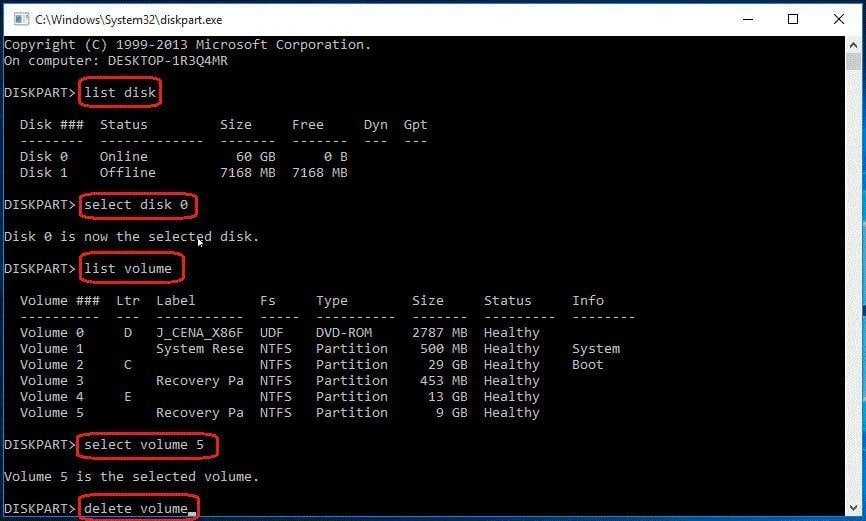
After deleting the recovery partitions, you can use the unallocated space to create a new partition or extend other partitions. However, if the recovery partition is before the C: drive, you still cannot extend the remaining partition with the new unallocated space.
Delete recovery partitions with Qiling Disk Master
To delete the recovery partition and extend the partition after deletion, consider using Qiling Disk Master, a free partition software that can accomplish these tasks as long as there is unallocated space on the disk.
Step 1. Download this free software. Install and launch it.
Step 2. Right-click the recovery partition you want to delete and select "Delete Partition".
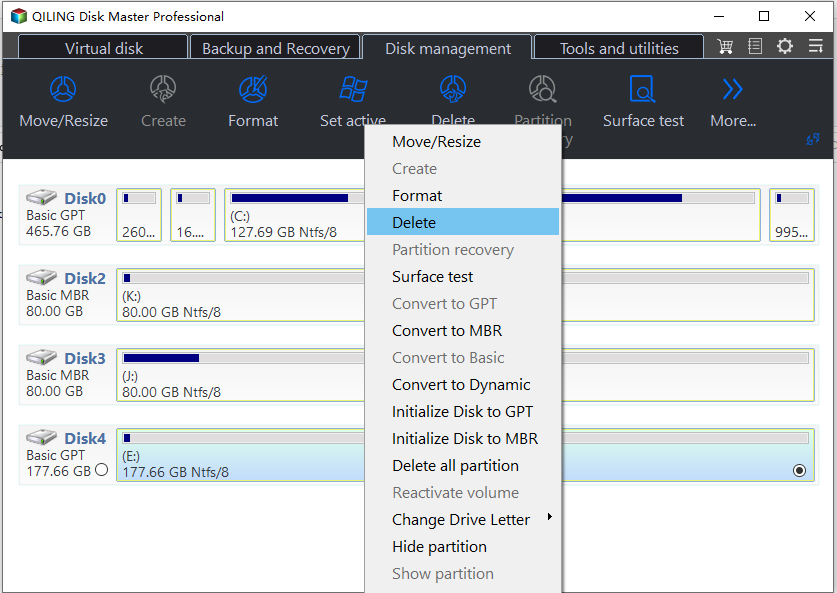
After deleting the recovery partition, you can use Qiling Disk Master to create a new partition on this unallocated space or add this unallocated space to any partition on this disk by using merge partitions.
Qiling Disk Master offers a range of powerful features beyond deleting multiple partitions in Windows 10/11, including converting disks between MBR and GPT without data loss, creating bootable media, and formatting partitions.
Related Articles
- Solved - "Virtual Disk Service Error: The Volume Size Is Too Big"
This guide explains Solved - "Virtual Disk Service Error: The Volume Size Is Too Big" with clear steps, key checks, and practical tips. - 2 Ways: Upgrade RAID 5 Drives to Larger Capacity without Data Loss
This guide explains 2 Ways: Upgrade RAID 5 Drives to Larger Capacity without Data Loss with clear steps, key checks, and practical tips. - How to Format an External Hard Drive with Reliable Software?
Free download powerful formatting tool to help you format an external hard drive excellently, easily and securely. - How To Convert Guid Partition Table (GPT) To Master Boot Record (MBR)?
How to convert guid partition table to MBR is a problem that many computer users may be encountered. You can find three ways to solve the problem from here. - Can Windows 10 Be Cloned [2024 Fullest Guide]
This article covers the theme Can Windows 10 Be Cloned and introduces a professional tool to clone Windows 10. - 4 Ways to Fix "Can't Burn ISO File to USB on Windows" Error
You may encounter issues burning an ISO file to a USB drive due to various reasons. This guide will explore the possible causes and provide four methods to help you successfully burn ISO files to USB on Windows.
Products
Articles & Tutorials
- Data Recovery
- Data Backup
- File Recovery
- File Backup
- File synchronize
- System Backup and Restore
- Disk and Partition Clone
- Technical articles
- Disk Master Help
- Windows Deleted File and Disk Recovery Tutorials
- Windows File and Data Recovery Tutorials
- More Windows Tutorials for Install, Security, Files, and PC Tips
- Windows Boot, Repair, and Recovery Environment Tutorials
- Windows Backup Tutorials
- Windows Restore Tutorials
- Windows Clone and Migration Tutorials
- Windows Server Backup, Recovery, and Management Tutorials
- Windows Disk, Partition, and Storage Management Tutorials