6 Ways to Repair Windows 10 When Your PC Has Issues
- Repair Windows 10 with effective solutions
- Solution 1: Fix Windows 10 with Startup Repair
- Solution 2: Restore Windows 10 to previous version
- Solution 3: Run SFC scan to fix Windows 10
- Solution 4: Repair upgrade Windows 10
- Solution 5: Reset or refresh Windows 10
- Solution 6: reinstall Windows 10 from scratch
- Had a valid system backup, things would become much more easier
- Conclusion
Repair Windows 10 with effective solutions
Windows 10 remains a popular operating system, despite the growing adoption of Windows 11. It offers a powerful and feature-rich platform that caters to a wide range of needs, from office work to entertainment.
Using a Windows 10 computer can be frustrating due to common system failures such as freezing, BSOD (blue screen of death), and reboot loops. These issues can be time-consuming and annoying to troubleshoot, requiring significant effort to identify the root problem.
Here are 6 effective ways to help you fix Windows 10: you can develop a good backup habit, use System Restore, run the built-in troubleshooter, reset Windows 10, use the SFC and DISM tools, or reinstall Windows 10. This will help you recover your computer to a proper state when something goes wrong.
Solution 1: Fix Windows 10 with Startup Repair
If Windows 10 won't boot normally, you can use Startup Repair to troubleshoot and potentially fix the issue, allowing it to load normally.
1. To boot your PC into recovery mode, click "Restart" while holding the Shift key, or press F11 at startup if you're unable to boot into Windows 10, or use a Windows 10 recovery drive.
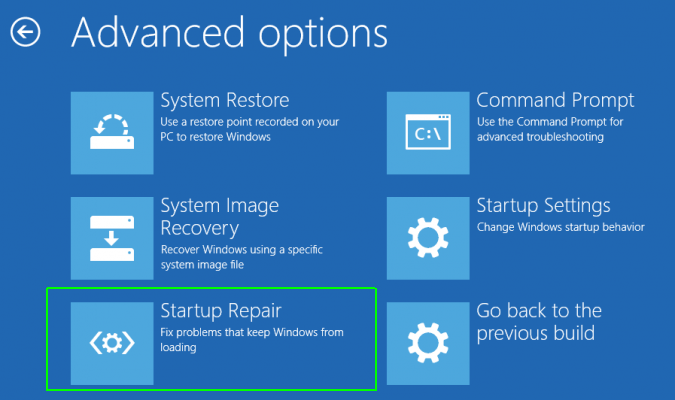
2. To fix startup problems, go to the Troubleshoot menu, select Advanced options, and then choose Startup Repair. This process may take a few minutes and will automatically reboot your computer. If Startup Repair fails to resolve the issue, proceed to the next solution.
Solution 2: Restore Windows 10 to previous version
Windows 10 creates system restore points on the C: drive by default, often resulting in multiple restore points that may go unnoticed.
1. You can boot into Windows 10 recovery mode and navigate to the Advanced Option menu.
2. Select the option System Restore.
3. Select your username and enter your password.
4. To restore your system, select a restore point from the list and click Next to start the System Restore.
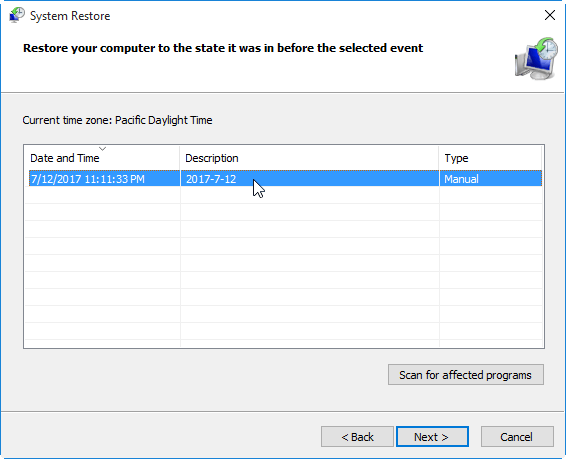
✎Before starting System Restore, you can scan for affected programs. System Restore will uninstall programs and updates installed after the selected restore point, so it's a good idea to scan first. If only Command Prompt is available, you can type "rstrui.exe" to access System Restore.
Solution 3: Run SFC scan to fix Windows 10
Corrupted files may be the reason for your system issue. You can run a disk scan to find and fix the corrupted files.
1. If you can boot Windows 10 or safe mode, you can type "cmd" in the search box to open the Command Prompt.
2. Right click on the result "Command Prompt" and select "Run as Administrator".
3. Type "sfc /scannow" (without quotes) and press Enter.
If you're unable to boot Windows or even Safe Mode, you can access a command prompt from the Advanced Options menu.
Solution 4: Repair upgrade Windows 10
If you're pretty sure that the system issue wasn't caused by any of the programs you installed, you can run a Windows 10 repair upgrade to fix system issues without losing anything.
1. To install Windows 10, download the latest installation ISO file from the official website and save it on your hard drive.
2. Double-click on the ISO file to mount it as a virtual drive, or use a third-party tool if using Windows 7 or an older version of Windows.
3. Locate the Setup.exe file and double-click to run it.
4. In a short while, a window will pop up asking if you want to download and install Windows updates. Select the option that suits you and click Next.
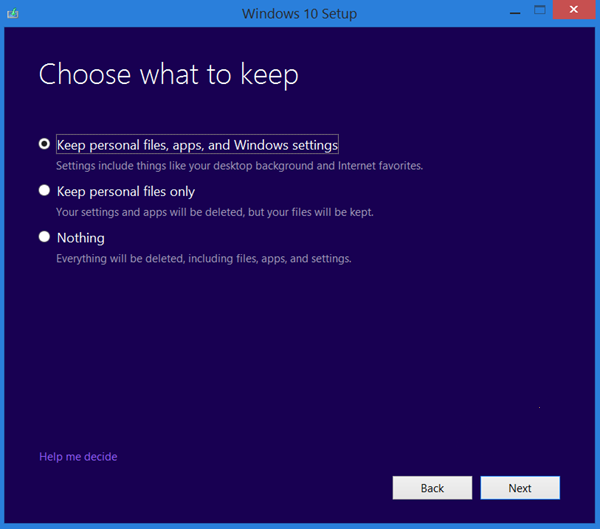
5. To proceed with installing Windows 10, click on the link "Change what to keep". From there, you can select what to keep: files and apps, personal files, or nothing, and then continue with the installation.
If Windows 10 boots normally, you can reset it from within Windows. However, if Windows fails to boot, you can reset it from the Windows Recovery Environment.
Solution 5: Reset or refresh Windows 10
Windows 10 has a built-To reset your PC, go to Settings > Update & Security > Recovery > Reset this PC. This feature restores your computer back to its original state, removing any software, devices, or data that were added later.
To refresh Windows 10 and install updates, run the command "systemreset -cleanpc" from an elevated command prompt.
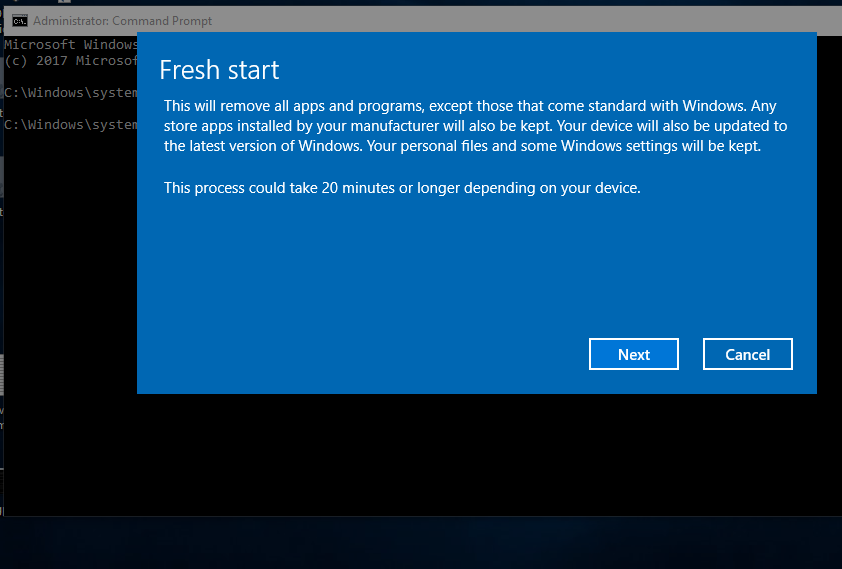
If your system won't boot, go into recovery mode and choose Troubleshoot > Reset this PC.
Solution 6: reinstall Windows 10 from scratch
If Reset Windows 10 is not available, consider reinstalling Windows 10. This will store your personal data in a Windows.old folder on the C: drive. After installation, you can copy your files from the Windows.old folder.
Had a valid system backup, things would become much easier
If you've made system image backups before a problem occurs, you can simply restore your system from one of those backups, which will return everything to its previous state.
To prevent system issues and data loss, create backups at regular intervals. Consider performing incremental or differential backups to save disk space and reduce backup time, focusing on newly added or modified files.
Qiling Disk Master Standard is a free tool that can do backups in an easy and effective way, making it a good option for those looking for a simple and free backup solution.
You can refer the following to see how easily a backup can be created by Qiling Disk Master.
Step 1. Download and install this free software on your computer.
Step 2. To initiate a backup, click the Backup tab and select the desired backup option, such as System Backup, Disk Backup, File Backup, or Partition Backup, based on the specific data you wish to save.

Step 3. In the next screen, all related partitions are automatically included in the backup. You can then select a location to save the image backup by clicking Step 2, where you can choose to save to an external hard drive, local disk, or NAS network location.

Step 4. To schedule a backup, click the "Schedule" link below the button and configure the desired time point or event. Then click "Proceed" to initiate the backup.
When the backup is complete, you can create a bootable media using a USB drive or CD/DVD. If Windows 10 fails to boot, you can boot from the media and restore the system from the backup.
Conclusion
Repairing Windows 10 using a backup is a more efficient option than troubleshooting, making it essential to keep multiple system backups available in case of system issues.
Related Articles
- How to Repair Windows 10 Using Command Prompt (5 Ways)?
You can easily fix Windows 10/11 computer error like startup error or BSoD using command prompt with the help of SFC, DISM, System Restore, etc. - Windows 10 Startup Repair Not Working: Solved
When you encounter Windows 10/11 Startup Repair not working problems, you can refer to this article and find effective solutions here. - Repair Windows 10: Create Repair Boot USB Drive
A Windows 10/11 repair boot USB drive can fix system errors and reset computer to a normal state. In this post, you will find how to create bootable USB and repair Windows 10 with it. - Reimage Windows 10—the Always-Work Way to Repair Windows 10
If you want to reimage Windows 10 when the system is infected or damaged, you can find the complete guide in this article. Remember to back up your data before reimaging. - Imaging Software Disadvantages VS Advantages, Show I Have It [2022 Thorough Reviews]
To repair Windows 10 startup issues, you can use the built-in Startup Repair tool or bootrec commands. Qiling Disk Master can also help with system recovery, bootable media creation, and bare metal restore for Windows 10. - How to Install an SSD without Reinstalling Windows
This article provides a simple method for installing an SSD on a laptop or PC without having to reinstall Windows.
Products
Articles & Tutorials
- Data Recovery
- Data Backup
- File Recovery
- File Backup
- File synchronize
- System Backup and Restore
- Disk and Partition Clone
- Technical articles
- Disk Master Help
- Windows Deleted File and Disk Recovery Tutorials
- Windows File and Data Recovery Tutorials
- More Windows Tutorials for Install, Security, Files, and PC Tips
- Windows Boot, Repair, and Recovery Environment Tutorials
- Windows Backup Tutorials
- Windows Restore Tutorials
- Windows Clone and Migration Tutorials
- Windows Server Backup, Recovery, and Management Tutorials
- Windows Disk, Partition, and Storage Management Tutorials