How to Make Exact Copy of Hard Drive in Windows 11 (2 Ways)
Make an Exact Copy of Hard Drive in Windows 11: Clone vs. Backup
If you want to make an exact copy of your hard drive in Windows 11, you can use either backing up a drive or cloning a drive, both of which copy data from one drive to another. However, backing up a drive typically involves selecting specific files to keep, such as documents, photos, videos, and music, while cloning a drive creates an exact replica of the original drive, including all data and settings.
Cloning a drive means copying everything from one disk to another, including the operating system, settings, apps, and data, allowing you to boot and use the cloned drive just like the original.
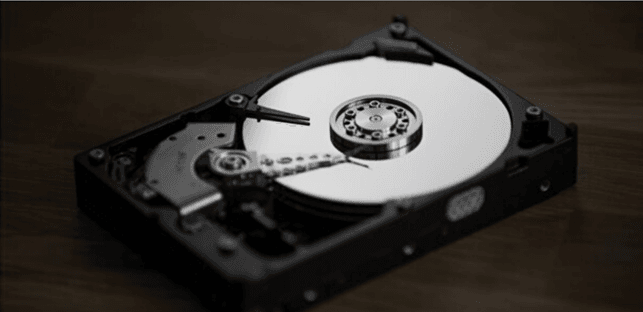
How to Make an Exact Bootable Copy of Hard Drive in Windows 11
Unfortunately, Microsoft doesn't offer a built-in disk cloning software, so users may need to rely on third-party tools. One such option is Qiling Disk Master Professional, which allows users to clone their hard drive to another one, offering several benefits in the process.
- Secure boot: It allows you to boot your computer directly with the cloned hard drive after cloning.
- Intelligent clone: Clone a larger HDD to a smaller SSD while skipping bad sectors, copying only used sectors by default.
- Live Clone: The cloning process can run in the background, allowing you to use your computer normally while it's running, making it a convenient and non-intrusive process.
- Multiple storage paths: You can clone a disk to not only a hard drive but also other storage devices such as an SSD, external USB drive, or a NAS. Additionally, you can also clone a disk to the cloud, allowing you to back up and transfer your data to a remote location.
The software has an intuitive interface, making it easy for users to understand and use. It supports Windows 11/10/8/7/XP/Vista and also has a server version, Qiling Disk Master Server, for server users.
Then you can follow the steps below to make exact copy of hard drive in Windows 11. Before that, you need to backup your important files on the target disk because all the data will be removed after cloning.
Step 1. Ensure the target disk is connected to your computer and can be detected, then open the software and click "Tools > Disk Clone".

- Note:✎...
- If you want to only copy Windows to a new hard drive, you can use System Clone.
Step 2. Choose the original hard drive you want to clone as the source disk.

Tip: The Professional edition allows cloning of both data and system disks from MBR to MBR/MBR to GPT, or GPT to GPT/GPT to MBR. If only data disk cloning is needed, the Standard edition is available for free.
Step 3. Choose the other hard drive as the destination disk.

Step 4. To make a precise copy of a hard drive in Windows 11, confirm your operations and click "Proceed". If the target disk is an SSD, select "SSD Alignment" to optimize reading and writing speed.

- Notes:✎...
- Sector By Sector Clone: The cloning process will include all sectors, regardless of whether they are being used or not, including blank or logically bad sectors.
- Edit Partitions: When the target disk is larger than the source disk, it allows for automatic or manual partition resizing. Additionally, the destination disk type is converted to match the source disk type, whether it's MBR or GPT.
Boot your computer from the cloned hard drive in Windows 11
After the cloning is completed, you can follow the steps below to modify the boot sequence and then boot your computer directly from the cloned disk.
1. To reset your computer and access the BIOS settings, restart your computer and ensure the cloned hard disk remains connected. Press the F2, F12, or Del key to enter the BIOS settings.
2. To access the boot menu and set the target disk as the first boot order, navigate to the boot menu and select the target disk as the first boot order. Then, press F10 to save the changes and exit the BIOS.
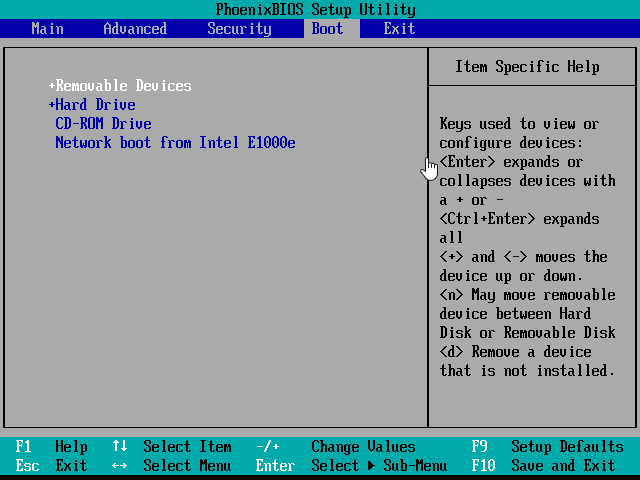
3. The computer will automatically start after you press F10, booting directly from the cloned disk and allowing you to use it as usual.
Traditional Way: Backup System and Restore It with Built-in Tool
To backup and restore your system without installing extra software, you can use built-in tools. To do this, you'll need to backup your system first, then restore it to a new one. If you want to backup your entire hard drive, you'll need to manually select a non-system partition to backup.
To make your backup more secure, we recommend storing it on an external hard drive. You can get started by following the accompanying graphic tutorial.
How to Create System Image
Step 1. To open the Backup and Restore window in Windows 7, press the Windows key + R to open the Run dialog, type "control" and press Enter, then click on "Backup and Restore (Windows 7)" under System and Security.
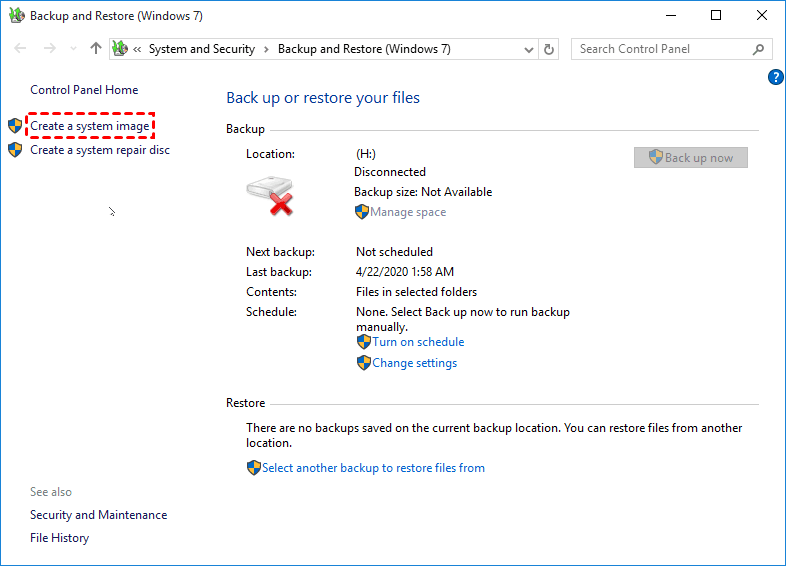
Step 2. Click the Create a System Image link on the left.
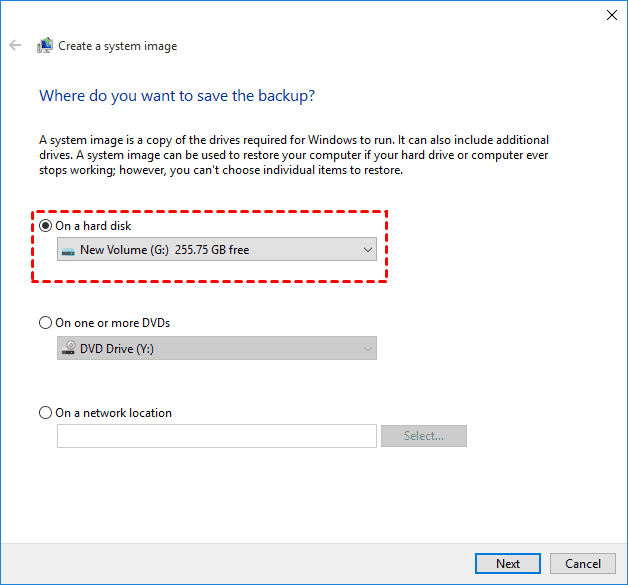
Step 4. Select the external hard disk as the system image destination and click Next.
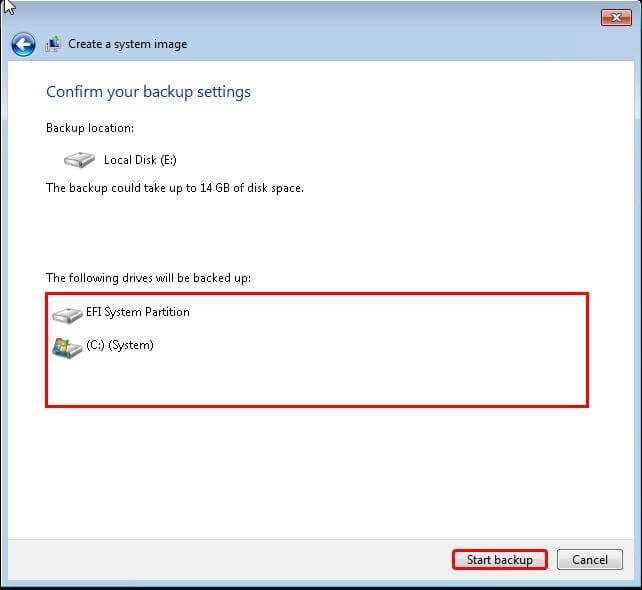
Step 5. Confirm the backup drives and EFI system partition, then click Proceed and wait for the process to complete.
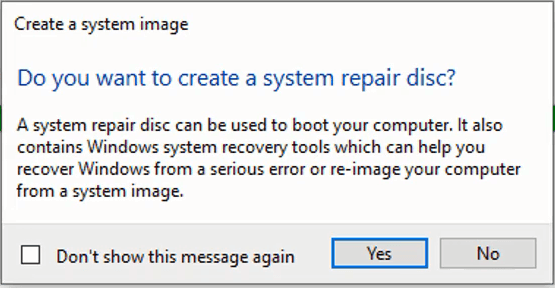
Step 6. After completing the process, you will be prompted to create a system repair disc, which requires a CD/DVD. If you don't have one, you can create a bootable USB using the built-in Recovery Drive tool or a third-party media creator, as a bootable disk is needed to boot the computer if it cannot boot normally.
How to Restore the System Image to Another Disk
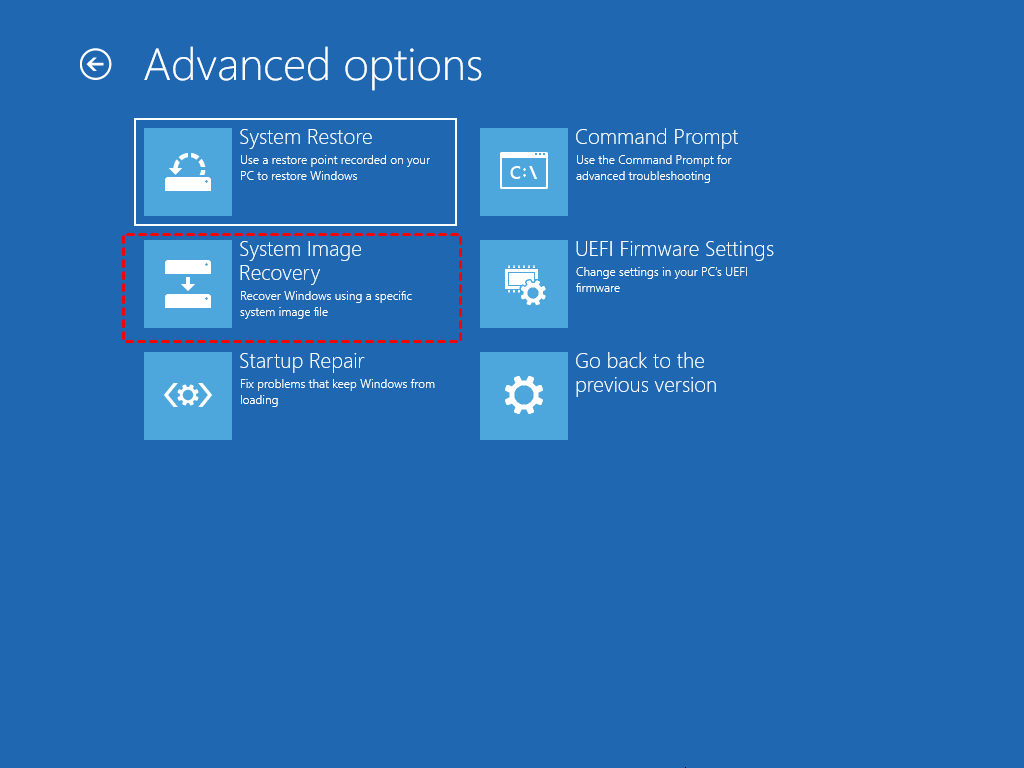
To boot the PC into Advanced Recovery, insert a bootable USB drive. Navigate to Troubleshoot > Advanced options > System Image Recovery. Connect an external drive and select to recover the PC, allowing the Windows System Image Recovery process to use your system image and start the restoration.
Summary
To make an exact copy of a hard drive in Windows 11, you can use disk cloning software like Qiling Disk Master Professional, which allows you to directly boot from the cloned drive. Alternatively, you can use Windows' built-in tool, but it only backs up the system partition, and you'll need to manually select other non-system partitions to include in the backup. However, this tool cannot restore the entire disk.
Using Qiling Disk Master to clone a hard drive directly is a suggested approach. This tool clones only used sectors by default, making it easy to clone a large HDD to a smaller SSD. Additionally, its Edit Partition feature allows for easy cloning to a larger drive, ultimately boosting the performance of the SSD disk.
Related Articles
- Easily Migrate Windows 11 to SSD without Reinstalling
You can learn two easy ways of migrating Windows 11 to SSD. It's using professional disk clone software. - How to Convert Dynamic Disk to Basic in Windows 10 without Losing Data?
Learn how to convert a dynamic disk to basic disk without losing data on Windows 10 with Qiling Disk Master. - Custom Refresh Image in Windows 10 for Reset This PC
This article will show you how to custom refresh image in Windows 10 as the image to reset your Windows 10 PC without losing installed programs. - Factory Reset Dell Laptop for Windows 10 without Password – 2 Ways Included
This article tells you how to factory reset Dell laptop for Windows 10 without password. Read on for more details. - Settle Slow File Transfer in Windows 11 (7 Fixes and 1 Tip)
This article will show you 7 fixes to tackle slow file transfer in Windows 11, as well as a fast file transfer tool to increase your file transfer speed. - How to Easily Sync Local Folder to OneDrive in Windows 11 (2 Ways)
You can learn how to easily sync local folder to OneDrive in Windows 11 with 2 effective methods. You can read on to catch more details.
Products
Articles & Tutorials
- Data Recovery
- Data Backup
- File Recovery
- File Backup
- File synchronize
- System Backup and Restore
- Disk and Partition Clone
- Technical articles
- Disk Master Help
- Windows Deleted File and Disk Recovery Tutorials
- Windows File and Data Recovery Tutorials
- More Windows Tutorials for Install, Security, Files, and PC Tips
- Windows Boot, Repair, and Recovery Environment Tutorials
- Windows Backup Tutorials
- Windows Restore Tutorials
- Windows Clone and Migration Tutorials
- Windows Server Backup, Recovery, and Management Tutorials
- Windows Disk, Partition, and Storage Management Tutorials