Settle Slow File Transfer in Windows 11 (7 Fixes and 1 Tip)
- Scenario
- What exactly causes Windows file transfer slow issues?
- 7 Fixes to solve slow file transfer in Windows 11
- Fix 1: Change the limit reservable bandwidth
- Fix 2: Disable Windows Auto-Tuning
- Fix 3: Disable RDC (Remote Differential Compression)
- Fix 4: Update the USB drivers
- Fix 5: Convert format from FAT32 to NTFS
- Fix 6: Change device for Better Performance
- Fix 7: Disable drive indexing
- Bonus tip: Speed up file transfer in Windows 11 with fast file transfer tool
- Summary
Scenario
Need to speed up file transfer
You're experiencing intermittent and slow file copy speeds when transferring files between storage spaces on your new PC, with speeds initially high (40-50MB/s) but rapidly dropping and fluctuating between 50KB/s and 800KB/s, sometimes even reaching 0KB/s for a few minutes.
I was wondering if someone could point me in the right direction on troubleshooting this issue and help me find out what is causing the bottleneck. If anyone can help me with this issue, I would greatly appreciate it!
- Question from Microsoft Community
What exactly causes Windows file transfer slow issues?
The rapid development and stabilization of information technology have led to a significant increase in file transfers, resulting in a noticeable slowdown in transfer speeds. Large files or multiple files can take several hours or even a day to transfer, causing frustration for those who value efficiency.
Many Windows 11 users have reported experiencing slow file transfer speeds, affecting transfers between internal drives, internal and external drives, or between PCs over a network. This issue has left users puzzled and seeking practical solutions to resolve it.
The slow file transfer issue in Windows 11 can be caused by various factors such as network problems, external drive issues, or computer problems. To resolve these issues, you can try simple methods such as checking your network connection, verifying the external drive's compatibility, running a disk check, updating drivers, and disabling any unnecessary startup programs. By implementing these solutions, you can improve your file transferring ability and resolve the slow file transfer issue in Windows 11.
7 Fixes to solve slow file transfer in Windows 11
If you frequently need to transfer files, try the following 7 methods to troubleshoot the issue. Alternatively, you can use third-party file transfer freeware to transfer numerous files at once at a fast speed, which will greatly improve your efficiency.
- Fix 1: Change the limit reservable bandwidth
- Fix 2: Disable Windows Auto Tuning
- Fix 3: Disable RDC (Remote Differential Compression)
- Fix 4: Update the USB drivers
- Fix 5: Convert format from FAT32 to NTFS
- Fix 6: Change device for Better Performance
- Fix 7: Disable drive indexing
- Bonus tip: Speed up file transfer in Windows 11 with fast file transfer tool
Fix 1: Change the limit reservable bandwidth
Microsoft reserves the right to limit network bandwidth by up to 80% to accommodate system activity, which may cause Windows file transfer to be slow. To avoid this, you can follow a tutorial to limit or disable this default setting.
1. To open the Group Policy Editor, press Windows+R to open the Run dialog, type gpedit.msc, and tap Enter. This will launch the Group Policy Editor on your Windows computer.
2. Select Computer Configuration>Administrative Templates>Network>QoS Packet Scheduler in turn.
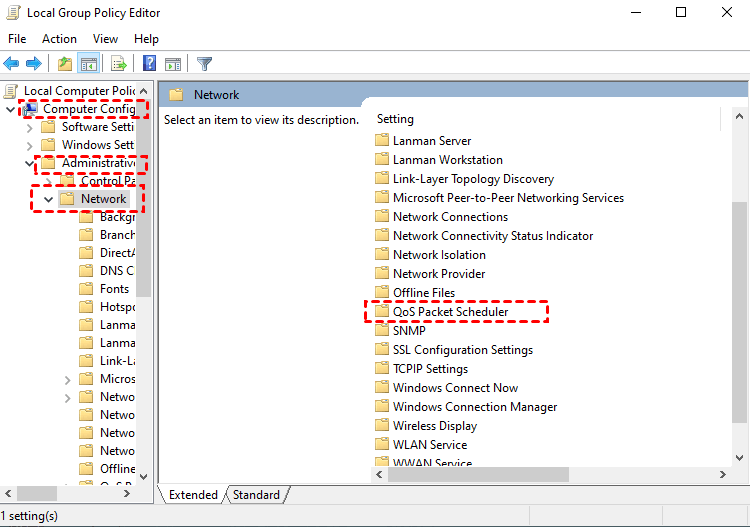
3. To configure the QoS Packet Scheduler, double-click the "Limit Reservable Bandwidth" option from the right list under the QoS Packet Scheduler.
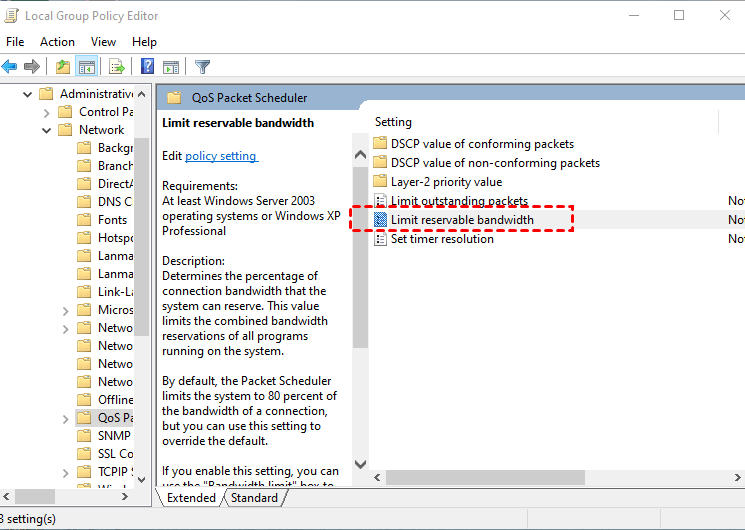
4. In the pop-up window, click Enabled, then adjust the default Bandwidth limit values to a smaller percentage or to zero.

Fix 2: Disable Windows Auto-Tuning
Enabling the auto-tuning feature can enhance the performance of programs that receive TCP data over the network, making file transfers more efficient, but in some cases disabling it may speed up the transfer process.
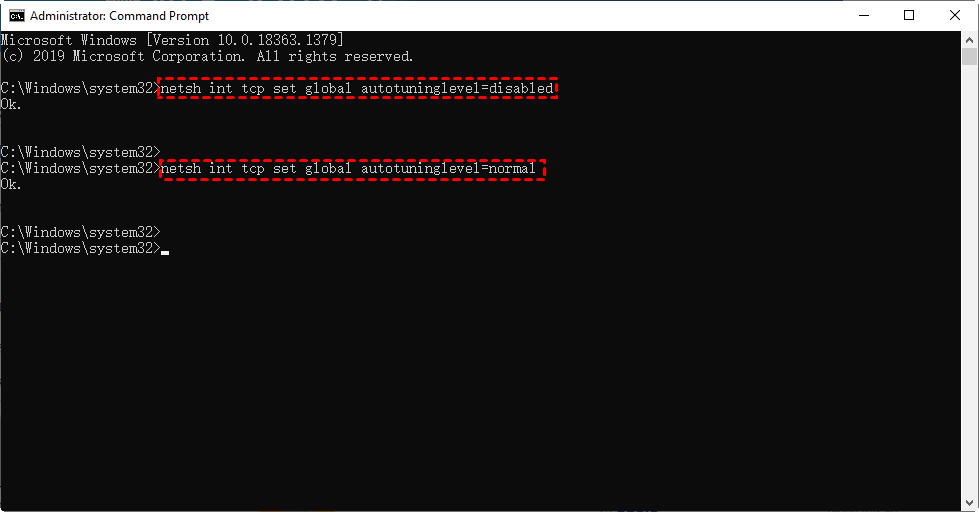
1. To access the Command Prompt as an administrator, start by searching for "Command Prompt" in the search bar. Once the result appears, select it and choose the option to "Run as administrator". This will open the Command Prompt with elevated privileges, allowing you to run commands that require administrative access.
2. Type the following command and press Enter to execute it:
netsh int tcp set global autotuninglevel=disabled
3. Now, try to transfer the file again to see if the speed is back to normal. If not, type following command to try it again.
netsh int tcp set global autotuninglevel=normal
Fix 3: Disable RDC (Remote Differential Compression)
1. To turn Windows features on or off, start by searching for "Turn Windows features on or off" in the Windows search bar, and then click on the result that appears. This will open the "Turn Windows features on or off" window, where you can select the features you want to enable or disable.
2. Uncheck the box for Remote Differential Compression API support and click on OK to save the settings.
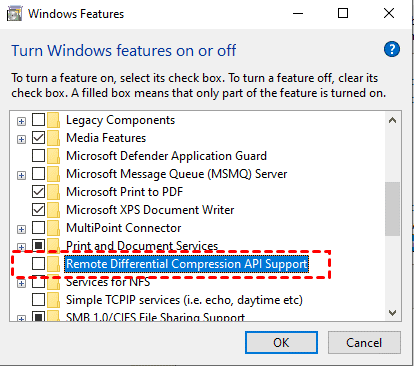
3. Restart your PC to see if it works.
Fix 4: Update the USB drivers
To update the USB drivers, first, ensure your computer is connected to the internet. Then, go to the Device Manager, which can be accessed by searching for it in the Start menu.
1. Right-click Start icon, and select Device Manager from the list.
2. Locate the Universal Serial Bus Controllers, right-click on them one by one, and select Update driver.
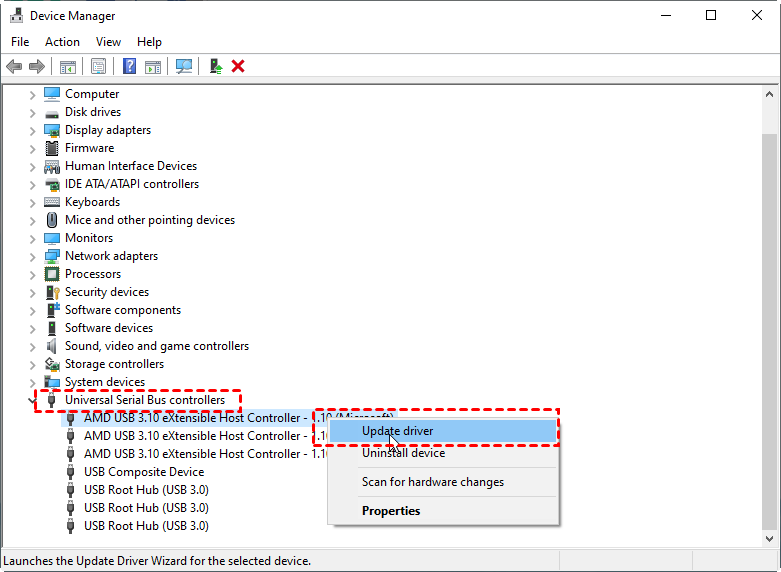
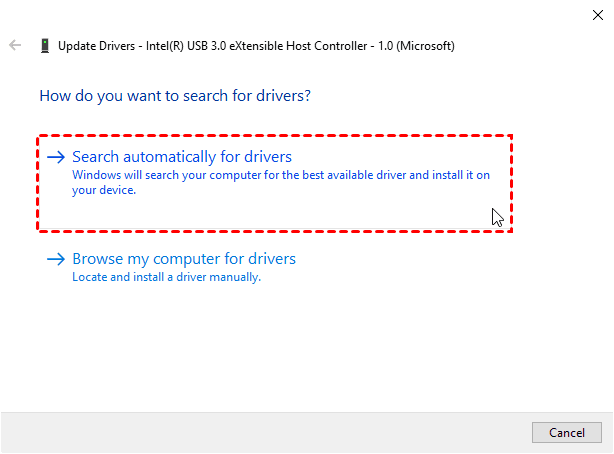
3. Select the "Search automatically for drivers" option and let the computer search for and install the necessary drivers. Wait for the process to complete before proceeding.
Fix 5: Convert format from FAT32 to NTFS
To improve the performance of a USB drive, it's recommended to update its formatting from the default FAT32 to the latest NTFS format. This can be done by following the steps to format the drive with NTFS.
Note: Backup the USB drive before formatting it to prevent data loss.
1. To open Command Prompt as an administrator, first type "Command Prompt" in the search box, select it, and then click on "Run as administrator".
2. Type convert F:/fs:ntfs ( F refers to the drive name, set according to yours), then tap Enter.
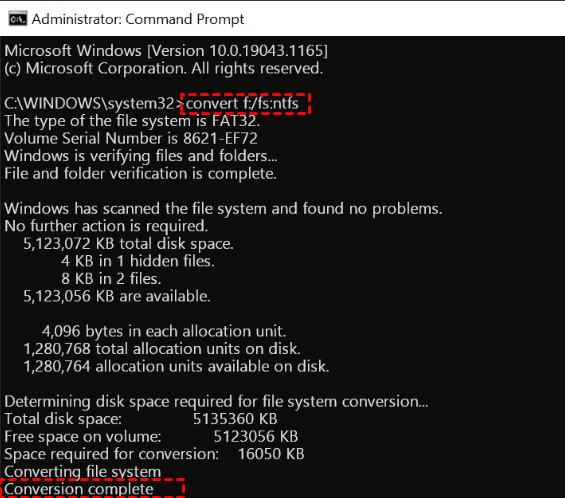
3. Wait for the process to successfully complete until you see Conversion complete. Once the process is complete, you can proceed with the next step.
Fix 6: Change device for Better Performance
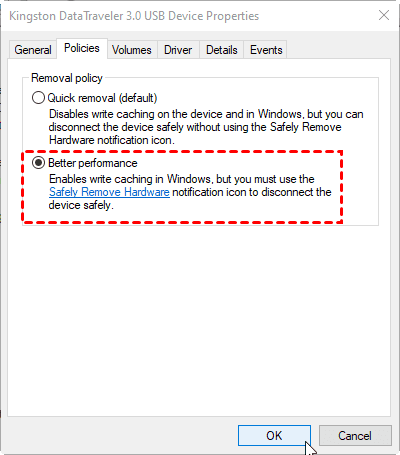
When transferring files using a USB flash drive, many users experience slow speeds and long wait times. To optimize the performance of the USB drive, follow these steps.
1. Right-click the Start icon and select Device Manager from the list.
2. To access the properties of a USB drive, locate the Disk drives section, select the desired USB drive, and click on the Properties option.
3. Click on Policies, tap Better Performance, and enter OK in the newly opened window.
Fix 7: Disable drive indexing
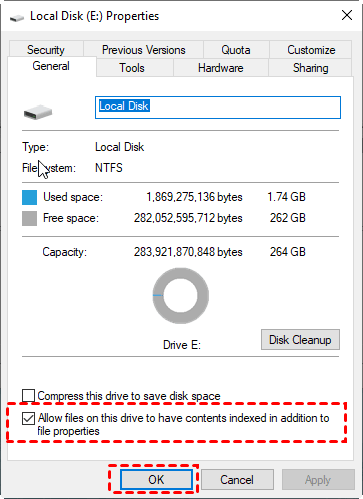
1. Right-click on the drive you want to perform file transfer, and click on Properties.
2. Under the General tab, uncheck the option "Allow files on this drive to have contents indexed in addition to file properties" and click Apply.
3. Restart your PC to make sure whether it works.
Bonus tip: Speed up file transfer in Windows 11 with fast file transfer tool
If the above methods don't work or meet your needs, consider using a third-party solution. For efficient file transfers in work and life, or transferring large quantities at once, a fast file transfer tool like Qiling Disk Master Standard can be helpful. This free software offers professional features.
❀ It offers you an easy-The interface is user-friendly, making it easy to navigate and use. The operation steps are simple, allowing for a seamless syncing experience.
❀ You can set up a schedule to run the file sync task daily, weekly, or monthly, allowing for regular and consistent synchronization of files across different locations or devices.
❀ This software supports a variety of devices, including internal and external hard drives, USB drives, network attached storage (NAS), network shares, and cloud drives.
❀ In addition to File Sync, it offers other 3 sync modes: File Sync, File Sync, File sync. Upgrading to the advanced edition allows you to enjoy these features.
To speed up file transfer in Windows 11, you can download a free software and follow these steps. Just download the freeware to your PC and give it a try.
Step 1. Click File Sync under the Backup tab page.

Step 2. To start a sync task, choose a task name, select the desired folders, and add more folders if needed, all at once.

Step 3. Select the target directory to store the files.
Tip: If you want to transfer files from external hard drive to PC, connect a removable device first.

Options: You can add comments to your task and set up email notifications for when the task is updated or completed.
Schedule Sync: You can schedule syncs at daily, weekly, or monthly frequencies, or use event triggers and USB plug-ins with the Professional version upgrade.

Step 4. Please confirm your settings and then click Proceed to perform the operation.
Summary
Slow file transfer in Windows 11 is a common issue that can be caused by various reasons. To troubleshoot the problem, you can try the 7 solutions provided above, which may resolve the issue. However, if these fixes don't work for you, you may want to consider using Qiling Disk Master, which has an easy-to-use interface and can quickly transfer files, especially when dealing with a large number of files.
Qiling Disk Master offers integrated powerful features and tools to ensure the security of your important data, making it a top choice for tasks such as backing up Windows 11. It also serves as a reliable free WD Green clone software, allowing you to clone a whole disk without data loss. With its robust features, Qiling Disk Master is worth exploring.
Related Articles
- Solved | Windows 10 File Copy/Transfer Very Slow (8 Methods)
This guide explains Solved | Windows 10 File Copy/Transfer Very Slow (8 Methods) with clear steps, key checks, and practical tips. - How to Build Windows 8 Bootable USB with Win To Go Creator?
Building a Windows 8 bootable USB with Windows To Go Creator allows you to run a Windows 8 environment on any computer. - Powerful Cloner: Clone OS to New Hard Drive without Reinstallation
If you need to clone an OS to a new hard drive on Windows 11, 10, 8, or 7, you can refer to this post for a safe and easy way to do so. - How to Convert NTFS to FAT32 without Losing Data?
You can convert NTFS to FAT32 without losing data using Qiling NTFS to FAT32 Converter, which allows you to change the file system without formatting. - (Top 3 ways) How to Wipe an External Hard Drive on Windows 11
You will learn how to wipe an external hard drive on Windows 11 via built-in tools or with a reliable disk wipe tool. Hope one of either way can satisfy your own needs. - Secure & Easy: Wipe Free Space on Windows 11 in Top 3 Ways
This article is here with top 3 solutions to help you wipe free space on Windows 11 securely in a few simple steps. You can check the details as follows by yourself.
Products
Articles & Tutorials
- Data Recovery
- Data Backup
- File Recovery
- File Backup
- File synchronize
- System Backup and Restore
- Disk and Partition Clone
- Technical articles
- Disk Master Help
- Windows Deleted File and Disk Recovery Tutorials
- Windows File and Data Recovery Tutorials
- More Windows Tutorials for Install, Security, Files, and PC Tips
- Windows Boot, Repair, and Recovery Environment Tutorials
- Windows Backup Tutorials
- Windows Restore Tutorials
- Windows Clone and Migration Tutorials
- Windows Server Backup, Recovery, and Management Tutorials
- Windows Disk, Partition, and Storage Management Tutorials