Easiest | Transfer Files from External Drive to PC on Windows 11
Scenario
The best way to transfer files from external hard drive to PC on Windows 11
To transfer files from your old computer to your new one using a hardwired connection, you can follow these steps: Connect both computers with an Ethernet cable, ensure both computers are on the same network, and enable file sharing on both devices. Then, on your old computer, go to the file explorer, select the files you want to transfer, and right-click to select 'Copy'. On your new computer, go to the file explorer, navigate to the desired location, and right-click to select 'Paste'. Alternatively, you can use a USB drive or an external hard drive to transfer files, but using a hardwired connection is likely the most efficient method for large file transfers. You can also use software like 'Robocopy' or 'File Explorer' to automate the transfer process. Ensure both computers are running the same version of Windows or have the same file system compatibility for a smooth transfer.
- Question from Tom's HARDWARE
To avoid data loss, it's recommended to transfer files from an old hard drive to a new computer on Windows 11/10 by using a transfer cable or external hard drive, or by creating a system image and restoring it on the new computer. This ensures that all important data is safely transferred and prevents loss due to unforeseen circumstances.
In this post, I will show you how to finish this task via File Explorer and an easier file transfer tool. Well, let's get started now.
Need to copy files from external drive to PC on Windows 11
Before we jump to the solutions, let's find out in what situations should we transfer files.
♨ Case 1. To restore your lost data, you can try copying the backed-up files from the external hard drive back to your computer. This can be done by plugging the external hard drive into your computer and using the operating system's file transfer feature to copy the files from the external hard drive to your computer.
♨ Case 2. You want to transfer data from your old computer to your new one by connecting the old computer's disk to the new PC externally.

You're likely here for a specific reason, but regardless of that, you might want to know about a reliable tool for file transfer and how to use it. Let's explore this together.
👉 To transfer files from an external hard drive to your PC using File Explorer, first ensure the external hard drive is connected to your PC. Open File Explorer, then navigate to the external hard drive's contents.
👉 To transfer data from an external drive to a PC using a free transfer software, you can use software such as Qiling Disk Master. These programs allow you to select the files and folders you want to transfer and then transfer them to the PC.
Method 1: Transfer files from external hard drive to PC via File Explorer
To troubleshoot the issue, try copying files from the external hard drive to the computer by following these steps: Connect the external hard drive to the computer, open the File Explorer, navigate to the external hard drive, select the files you want to copy, right-click on them, and choose the "Copy" option. Then, navigate to the desired location on the computer, right-click, and select "Paste" to copy the files.
1. As you connect the external hard drive to the PC, press Windows + E to open File Explorer.
2. Click on "This PC" on the left side of the File Explorer.
3. You can view the external drive, double-click it to navigate through the files and folders on it.
4. To transfer files, select the desired files, right-click and choose either Cut or Copy from the context menu, then paste them to the desired location on this PC.
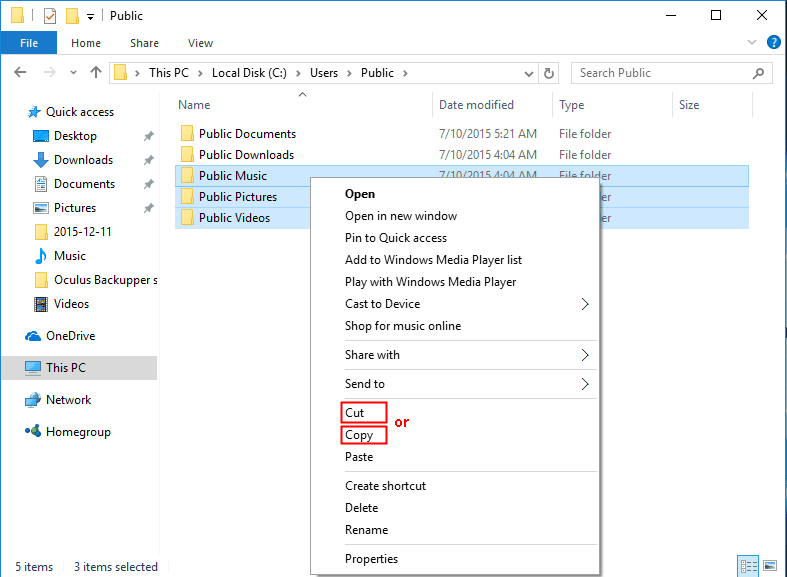
Tips: To transfer files from an external hard drive to a PC on Windows 11, you can use the following shortcuts: select all data files with Ctrl + A, copy files with Ctrl + C, and paste them with Ctrl + V.
5. Once the file transfer process is complete, navigate to the new location to verify that the files were successfully copied over.
To transfer files from PC to external hard drive faster, you can use the second method, which is not specified in the provided text. However, a general approach to improve file transfer speed is to use a high-speed data transfer protocol, such as USB 3.0 or Thunderbolt 3, and ensure the external hard drive is connected to the PC via the fastest available interface. Additionally, closing unnecessary programs, disabling any resource-intensive background processes, and ensuring the external hard drive has sufficient storage space can also help to speed up the file transfer process.
Method 2: Transfer data from external drive to PC with a free transfer software
To transfer data from an external hard drive to a PC, consider using a third-party utility like Qiling Disk Master Standard, a professional sync tool for Windows that can help sync files from the external hard drive to the computer.
👣 File Sync, The feature you're describing is similar to Windows's "copy" feature, but instead of copying files, it syncs data between two devices, and it doesn't create an image file after the sync process is complete, allowing you to access your contents at any time.
👣 The software offers advanced sync modes, including File Sync, and you can upgrade to the paid version to enjoy these features.
👣 You can synchronize files from a PC to external hard drives, USB flash drives, NAS devices, or cloud drives, and also synchronize files from those devices back to the PC.
👣 The tool enables you to schedule a sync task, which will synchronize files at a set time, such as daily, weekly, or monthly, according to your specified schedule.
To copy files from an external hard drive to your PC, you can use the File Sync feature. This process involves selecting the external hard drive as the source, choosing the destination on your PC, and initiating the sync. You can follow a graphic tutorial to guide you through this process.
To sync your files, please download and install the free file sync software Qiling Disk Master Standard on your computer.
Step 1. Insert your external hard drive into your PC, ensuring it's detected. In the main interface, click the "Sync" tab on the left and select "File Sync".
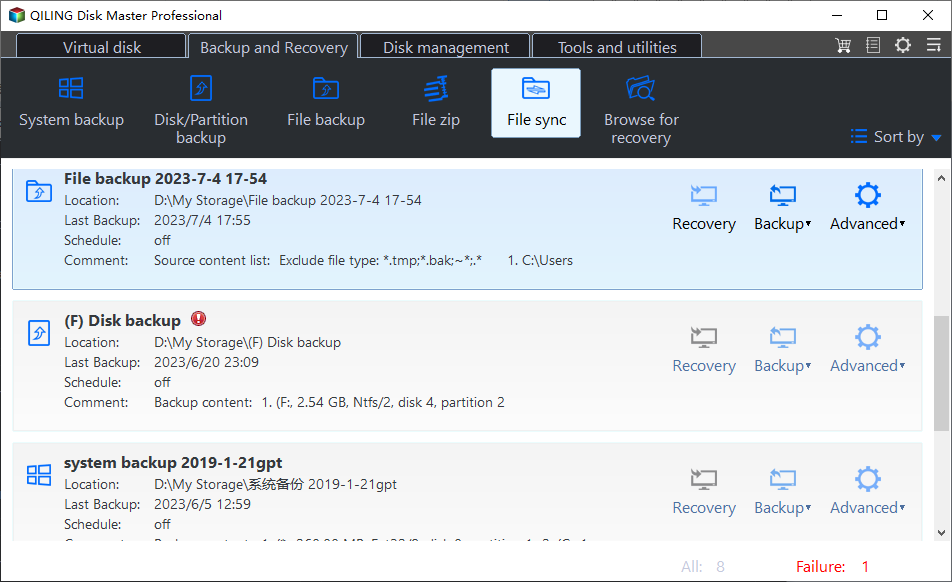
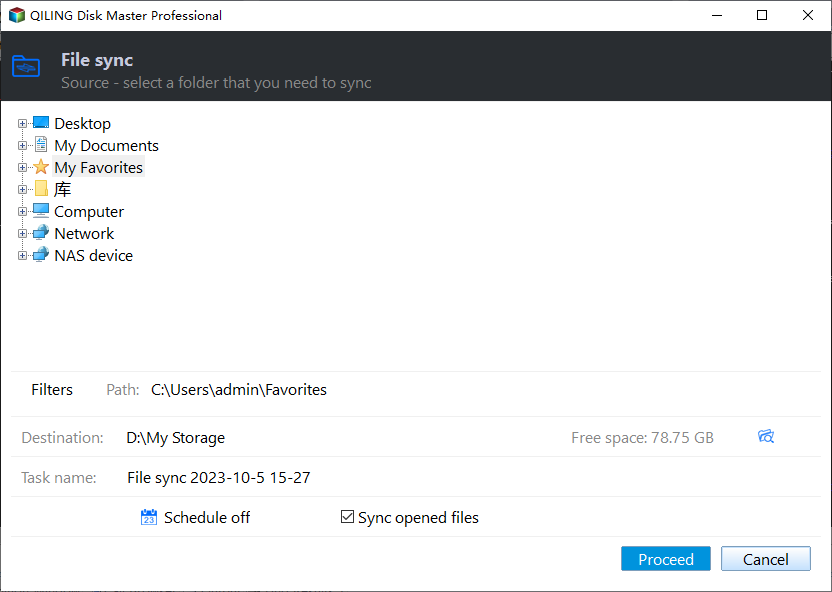
Step 2. To synchronize a folder from an external hard drive to your PC, click on the "Folder" option and select the desired folder from the external hard drive. You can also add more folders to sync by clicking the plus icon.
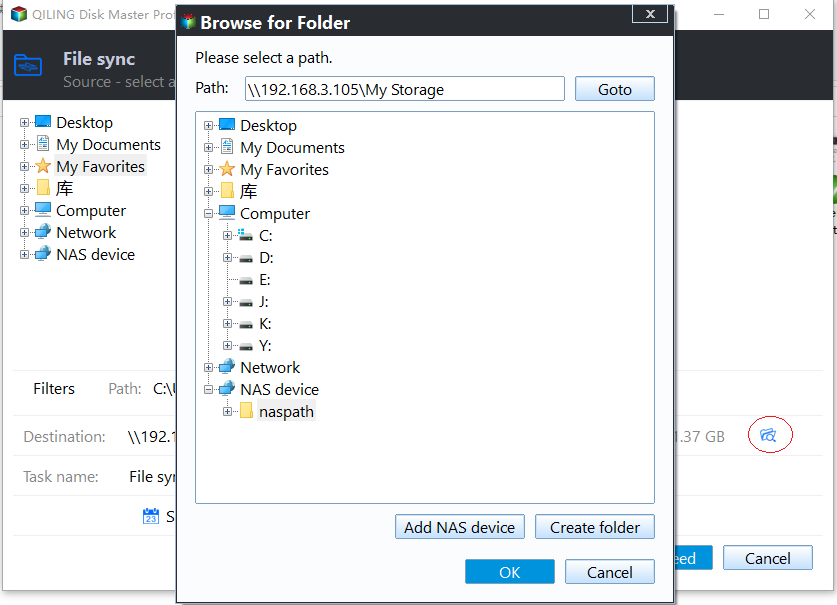
Step 3. Click the drop-down menu of the second bar, select "Select a local path", and choose a destination location to store the folder.
Notes:
♧ You can tap Options to add a note to your task to differentiate it from other backup tasks. Additionally, in unattended operations, a notification can be sent via email with the result of each backup.
♧ To set the automatic sync frequency, click on the "Schedule Sync" option and select the desired frequency from the options provided, which include daily, weekly, or monthly.
Step 4. Confirm your settings and then click Proceed to operate. The process can also apply to how to transfer files from flash drive to computer on Windows 11.
FAQs about transferring files on Windows 11
#1. Does Windows 11 support external hard drive?
Windows 11 supports external hard drives, which can be connected via USB, Thunderbolt, or other compatible ports. Once connected, Windows 11 recognizes the external hard drive and allows access to its contents through File Explorer.
#2. Why is Windows 11 not detecting my external hard drive?
If your external hard drive is not showing up on Windows 11, check the physical connections, power-cycle the drive, update the device manager, and try other troubleshooting steps.
#3. Can you transfer files directly between computers?
You can transfer files directly from one computer to another using professional transfer software like Qiling Disk Master. This tool allows you to select a shared folder on the new device as the target sync location, making it easy to transfer files to a new computer.
To sum up
To transfer files from an external hard drive to a PC on Windows 11, you can use File Explorer to browse and copy files, or use a free sync tool like Qiling Disk Master Standard to simplify the process and ensure data integrity.
Qiling Disk Master is more than a sync tool, it is also the best WD Green clone software for cloning hard drives and SSDs, allowing you to transfer hard drive to new computer on Windows 10/11 without reinstalling. It's your best assistant to safeguard your files and data, with comprehensive features to help you manage your storage needs. Try it yourself now!
Related Articles
- Transfer Files from Windows 10 to Windows 11 Easily (3 Ways)
You will learn 4 effective ways to transfer data from Windows 10 to Windows 11 over network or without network. And this article also helps with free Windows 11 upgrade. - How to Transfer Files to a New Computer Using an External Drive
After getting a new PC, you may wish to transfer your documents, pictures, music and so on from the old PC to the new PC. This page will show you how to move files to a new computer using an external hard drive and a free transfer tool. - Auto Sync Two External Hard Drives in Windows 11/10/8/7
This guide explains Auto Sync Two External Hard Drives in Windows 11/10/8/7 with clear steps, key checks, and practical tips. - How to Shrink Volume in Windows 7?
Learn how to Shrink Volume in Windows 7 with clear steps, key checks, and practical tips. - Solved: Clone to New Computer Windows 7 Won't Boot
If you are troubled with the error that cloned to new computer Windows 7 won't boot, you can learn how to fix the error and restore Windows 7 image to different hardware stably from this page. - How to Create A Partition in Windows 7 without Formatting?
Learn how to Create A Partition in Windows 7 without Formatting with clear steps, key checks, and practical tips.
Products
Articles & Tutorials
- Data Recovery
- Data Backup
- File Recovery
- File Backup
- File synchronize
- System Backup and Restore
- Disk and Partition Clone
- Technical articles
- Disk Master Help
- Windows Deleted File and Disk Recovery Tutorials
- Windows File and Data Recovery Tutorials
- More Windows Tutorials for Install, Security, Files, and PC Tips
- Windows Boot, Repair, and Recovery Environment Tutorials
- Windows Backup Tutorials
- Windows Restore Tutorials
- Windows Clone and Migration Tutorials
- Windows Server Backup, Recovery, and Management Tutorials
- Windows Disk, Partition, and Storage Management Tutorials