How to Transfer Files to a New Computer Using an External Drive
Need to transfer files from old PC to new PC
You're considering buying a new computer because your current one is slow and outdated, and you'd like to have a laptop and a desktop for different tasks.
When you get a new PC, you have the option to use the preinstalled OS or transfer your existing Windows image to the new PC, allowing you to maintain your old configuration. However, another crucial aspect to consider is transferring your personal data, such as files, photos, music, and other important documents, from your old PC to the new one. This is where the real challenge lies, and we'll explore the best ways to do this.
- Transfer files to a new computer using an external hard drive
- Transfer files to another computer with a free transfer tool
Transfer files to a new computer using an external hard drive
When transferring files using an external hard drive, start by selecting an appropriate drive that suits your needs. Consider factors such as the size and capacity of the drive, the type of files you need to transfer, and any additional features you may require, such as USB compatibility or password protection. This will ensure that you choose a drive that can efficiently and securely transfer your files.
- Storage capacity: The drive should be large enough to hold all your data, allowing for a comprehensive backup of your files and ensuring that you have a complete copy of your important information. This will provide peace of mind and protection against data loss in case of a system failure, hardware malfunction, or other unforeseen events.
- Transfer speed: SSDs generally outperform HDDs in data processing, and newer USB connectors like USB-C and USB 3.1/3.2 are faster than older USB-A and USB 2.0.
- USB port: Check the specifications of your old and new PC to find out what USB ports and connectors they have.
To transfer files from an old hard drive to a new computer, simply connect the right external hard drive to the new computer and follow the steps to transfer the files.
1. Copy files from your current PC to the external drive
1.1. Connect the external hard drive to your current PC via a USB cable.
1.2. On the taskbar, select File Explorer.
1.3. To transfer files or folders to an external hard drive, locate the desired files or folders, and then copy them to the external hard drive using either the copy-and-paste method or the drag-and-drop method.
Tip: To copy multiple files or folders at once, hold the CTRL key while selecting them.
2. Verify your files are correct and safely remove the external drive.
Tip: To safely remove the device, right-click on it and select Eject before unplugging it from your PC.
3. Transfer files from external hard drive to your new computer
3.1. Connect the external hard drive to your new PC via a USB cable.
3.2. Select File Explorer from your taskbar.
3.3. To relocate the files or folders on the external drive, first, you need to locate them. This can be done by navigating through the file system on your computer and finding the external drive.
3.4. Select "Copy to" under the "Home" tab at the top of the window, then choose the folder you'd like to copy the files/folders to or select a custom location by choosing "Choose location...".
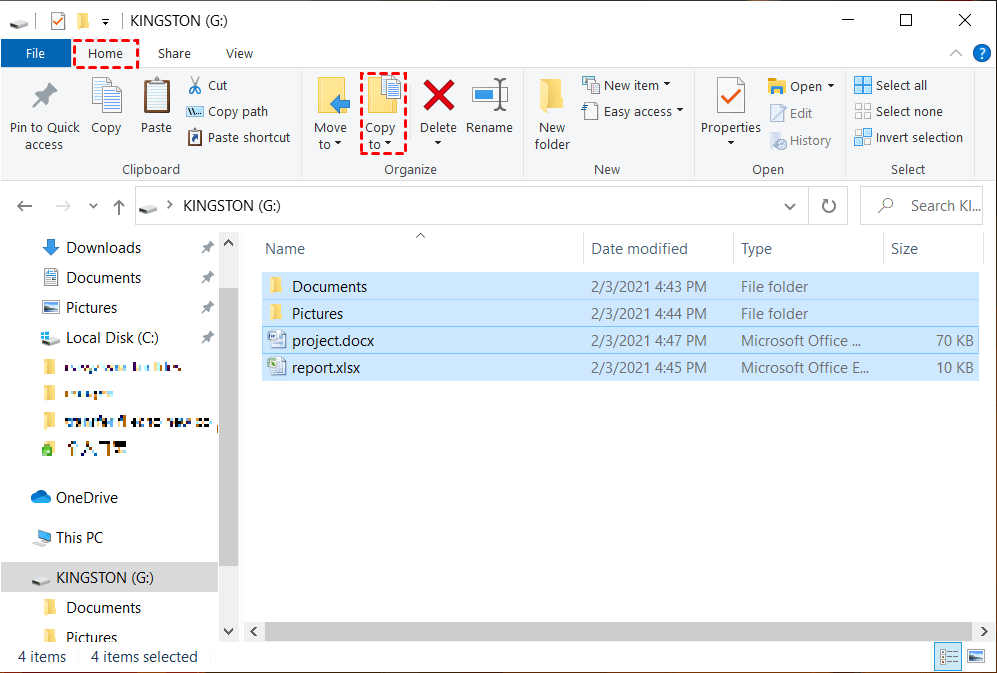
3.5. Once the files have been transferred, you can verify that they were successfully copied over by navigating to their new location.
3.6. Safely remove the external drive.
Transferring files using an external hard drive is a straightforward process. However, if you don't want to invest in an external hard drive and a USB cable, you can opt for a free file transfer tool instead.
Transfer files to another computer with a free transfer tool
Qiling Disk Master Standard is a free file sync software that allows easy transfer of files to a new computer, compatible with Windows 11/10/8.1/8/7/Vista/XP.
✦ File Sync: It allows you to synchronize files from one folder, disk, or computer to another.
✦ NAS/cloud sync: It supports a wide range of NAS devices and cloud drives, allowing users to sync files to Synology NAS or mirror folders to Dropbox and other cloud services.
✦ Automatic sync: This feature allows you to set a schedule to run file sync automatically.
To transfer files to a new computer in Windows 11/10/8/7 without an external drive, you'll need to prepare your old computer by creating a Windows Backup, using a cloud storage service like OneDrive or Google Drive to upload your files, or using a USB drive if you have one available. Once you've chosen your method, you can then transfer the backed-up or uploaded files to your new computer, either by restoring the backup or downloading the files from the cloud storage or USB drive.
● Create a shared folder on your old computer.
To share files with others, create a new folder and right-click on it. Then, select "Give access to" > "Specific people" to specify the individuals you want to share files with and set their permission level.
● Turn on network discovery on both computers.
To enable network discovery and file sharing, open File Explorer, go to the "Network" section, and click on the "Network discovery is turned off" banner. Then, select the option to "Turn on network discovery and file sharing".
★ Transfer files from old PC to new PC over network
Step 1. Download and install a free file transfer tool on your old computer, run the program, click "Backup and recovery" and select "File Sync".

Note: To enjoy more advanced sync modes, such as File Sync, File Sync, and File sync, you may upgrade to Qiling Disk Master Professional.
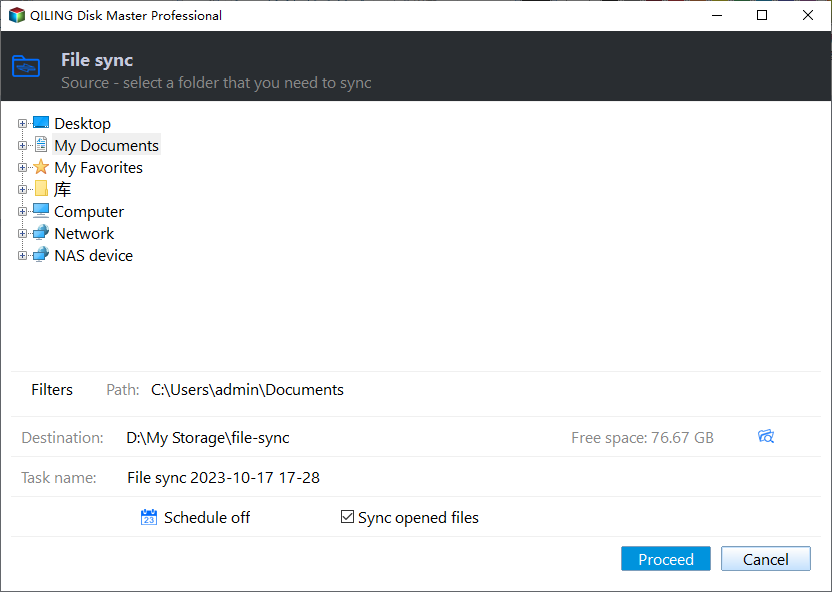
Step 2. Edit the task name based on your need. Click Folder to select the folders you want to transfer to your new computer.

Step 3. Expand the second bar's drop-down menu and choose "Add Share or NAS Devices".
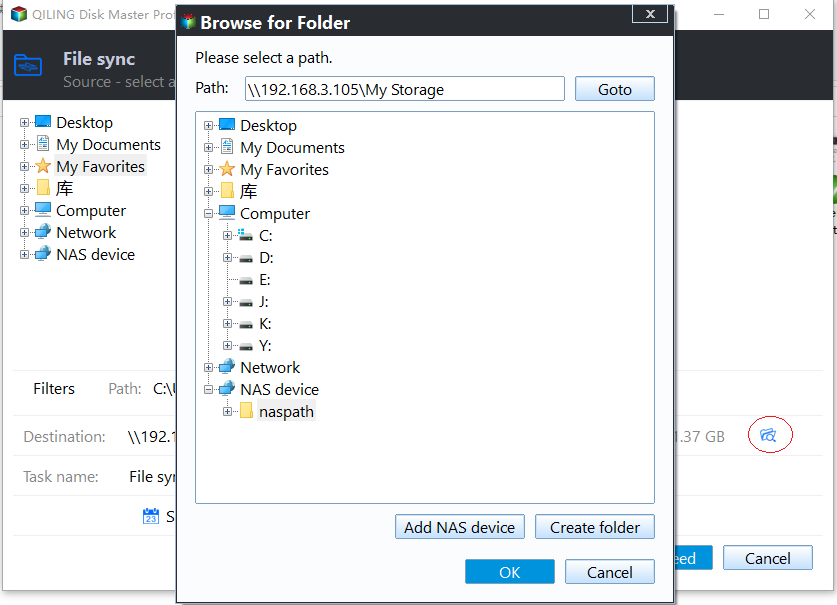
Step 4. To access the old computer, type its IP address into the pop-up window and click the blue button. You may be prompted to enter a username and password if necessary.

Step 5. Create a shared folder, select the folder to be transferred, click Share, choose the shared folder and click OK.
Step 6. Confirm the operation and click Proceed to start the syncing process.
★ Copy files to new computer from the shared folder
1. To access a shared folder on an old computer, open File Explorer, navigate to the Network section, find the old computer's name, and double-click it to access the shared folder.
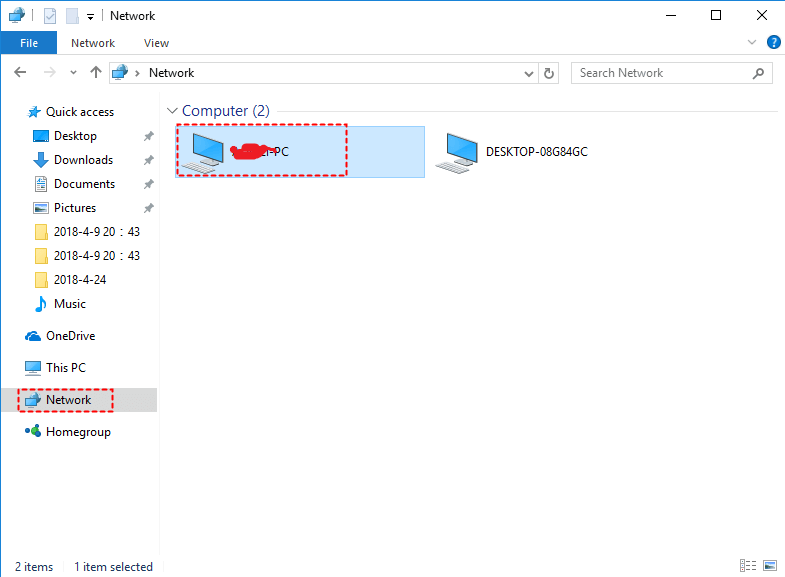
2. Copy the folders from the shared folder and paste them to the corresponding location on your new computer.
Bonus Tip:
Backing up your files to the cloud not only ensures their security but also makes it easy to transfer them. Many cloud drives, such as OneDrive, Google Drive, and Dropbox, offer free storage space, allowing you to store and access your files from anywhere while keeping them safe.
Verdict
You can transfer files to a new computer using an external hard drive and USB cable, but if you don't want to purchase these, you can use Qiling Disk Master to transfer files from your old PC to your new PC over a network.
Qiling Disk Master offers features beyond syncing, including backup, restore, and clone capabilities. It allows users to backup an external hard drive to another, upgrade an HDD to an SSD, and more. Give it a try!
Related Articles
- 5 Ways to Easily Transfer Files from Old PC to New PC
This article will show you 5 methods to transfer files from old PC to new PC in Windows 7/8/10. Scroll down to learn more. - How to Transfer Everything from One Computer to Another for Free
Try the 5 practical ways to transfer everything from one computer to another, not only personal files, but also the operating system, installed programs, settings, etc. - Simple Way to Move a Windows 10 Hard Drive to a New Computer
In this article, you'll learn how to move your old hard drive to a new computer without losing secure boot or your Windows 10/11 activation. The greatest thing is that you won't need to reinstall Windows 10/11 on your PC. - Windows 11 File History Not Working? All You Need to Know
Fix Windows 10 File History problems by checking backup drives, service settings, and safer file backup options. - Easy Way to Mirror Folder to Network Drive in Real-Time
If you want to sync local folder to network drive safely, try to mirror folder to network drive and run it automatically. - How to Monitor a Folder and Move Files Automatically?
Learn how to Monitor a Folder and Move Files Automatically with clear steps, key checks, and practical tips.
Products
Articles & Tutorials
- Data Recovery
- Data Backup
- File Recovery
- File Backup
- File synchronize
- System Backup and Restore
- Disk and Partition Clone
- Technical articles
- Disk Master Help
- Windows Deleted File and Disk Recovery Tutorials
- Windows File and Data Recovery Tutorials
- More Windows Tutorials for Install, Security, Files, and PC Tips
- Windows Boot, Repair, and Recovery Environment Tutorials
- Windows Backup Tutorials
- Windows Restore Tutorials
- Windows Clone and Migration Tutorials
- Windows Server Backup, Recovery, and Management Tutorials
- Windows Disk, Partition, and Storage Management Tutorials