Top 2 Ways to Stop Windows Backup Service in Server 2012
Why stop Windows backup service in Server 2012?
Windows Server Backup (WSB) is a lifesaver for many Windows Server users, providing backup and recovery options for their Windows Server environment. With WSB, administrators can easily image Server 2012, backup a full server, specific files, and the system state, giving them peace of mind and protecting their data in case of any disaster or system failure.
In Server 2012, the Windows Backup Service (WSB) can sometimes be annoying, requiring you to stop it in order to use the feature. Two common situations that WSB users often encounter.
- Stuck for a long time Windows Server Backup is running in the background, which can cause your computer to slow down. It's displaying a message indicating that it's reading data, so please wait. This might take some time, and you won't be able to perform other tasks until it's finished. You can try to close the backup task if you need to use your computer urgently.
- Run missing backup automatically after the system crash is fixed. If you've previously scheduled a backup, the default setting will automatically initiate a backup for missed events after a system crash, but in most cases, you likely don't want a backup to run immediately after a crash.
How to stop Windows backup service in Server 2012
You may also be troubled by the situations mentioned above. Luckily, two simple and proven ways will be shown below to help you disable Windows Server Backup, which also works for stopping the Windows backup service in Server 2012 R2. However, note that stopping the service will not backup any data created or changed after stopping the backup service.
In the short term, this might not be a significant issue, but from a long-term perspective, it could lead to data loss or the need to reinstall the OS and programs if the computer becomes corrupted due to errors like virus attacks, system crashes, or corrupted boot sectors.
Thus, you still need to create a system image backup for data protection. You can choose one more flexible backup software that allows you to customize backup service in Windows Server 2012. I'll introduce you such software in the next part.

To stop the Windows Backup service in Server 2012, you can use the Services console or the PowerShell command line. Here's a brief summary:
Solution 1. Stop Windows Server Backup via Server Manager
Step 1. To start the process, click on the "Start" button located in the lower left corner of your computer screen. Next, type "Server Manager" in the search box and select the Server Manager application to open it.
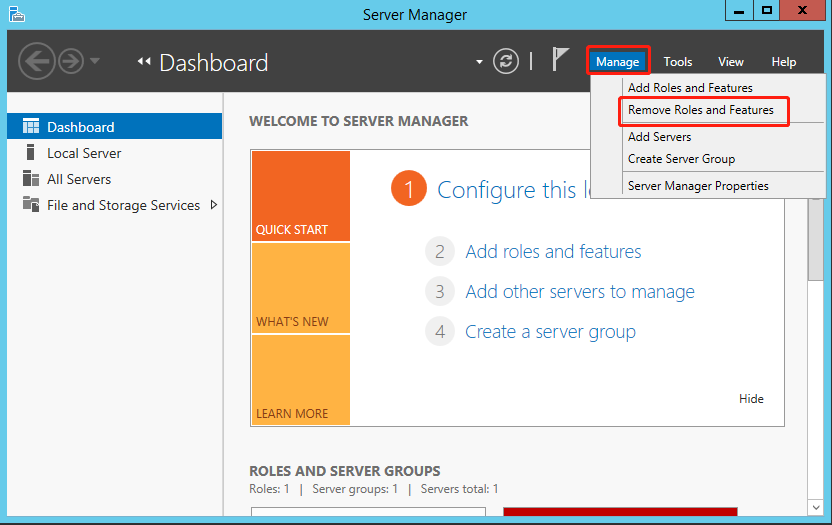
Step 2. Click Manage and Remove Roles and Features subsequently.
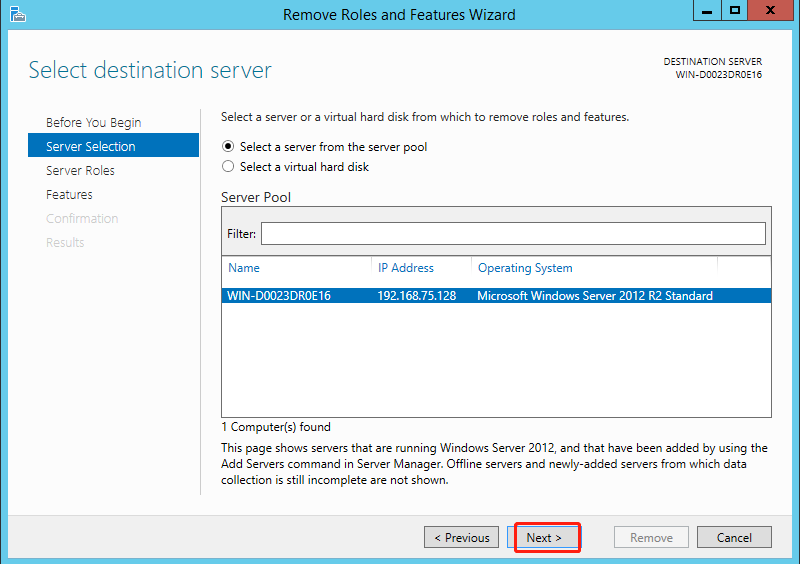
Step 3. Click Next to select a server you want to remove roles and features.
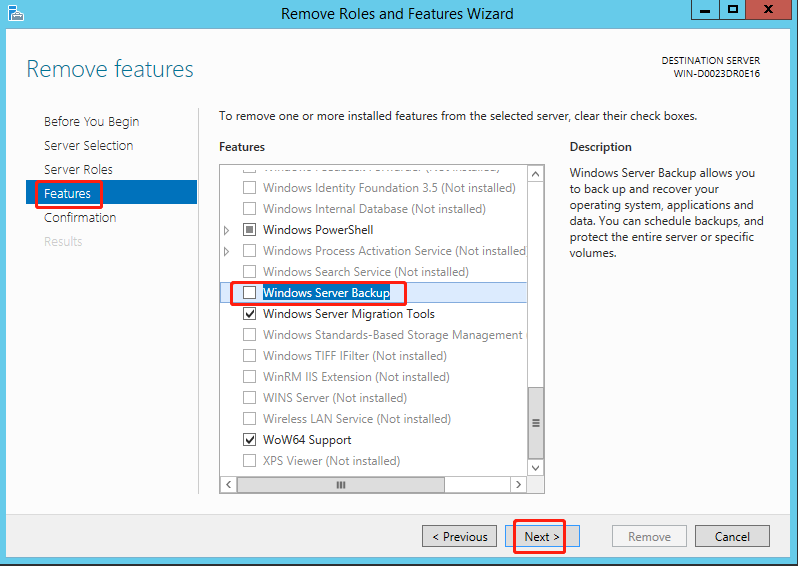
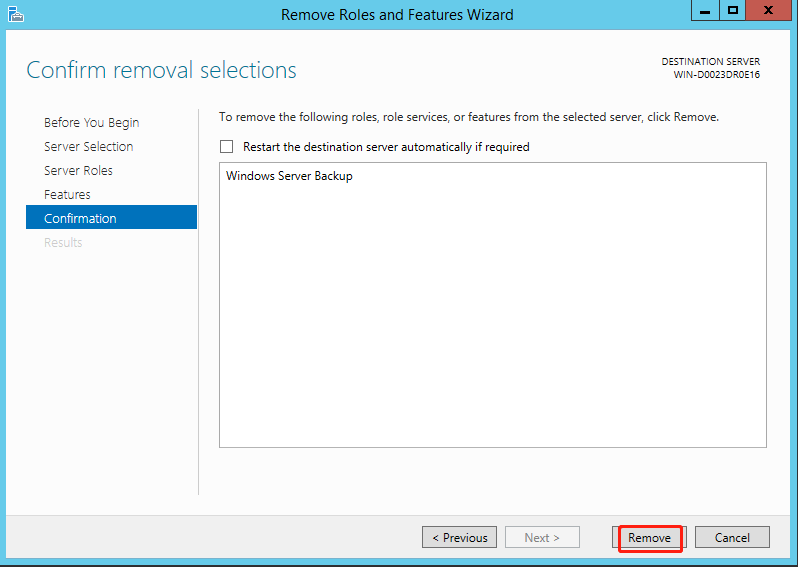
Step 4. Uncheck Windows Server Backup option box. Then press Next.
Step 5. Click Remove to turn off Windows Server Backup service.
Solution 2. Stop Windows Server Backup service via Command Prompt
To stop any backups that have already started using the command line, follow these steps: Run the following PowerShell command to stop the backup service.
Step 1. Sign in to the computer as an administrator. Open Server Manager, click Tools, and then select Command Prompt to run it as administrator.
Step 2. Type the command: wbadmin stop job and then press Enter.
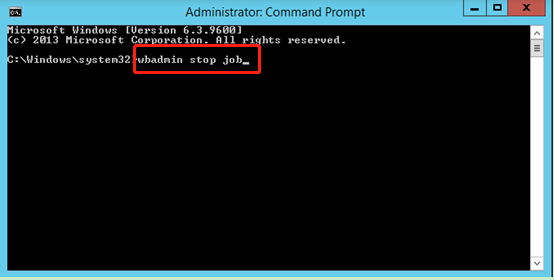
Step 3. If there is a backup running, select Y to stop it.
Now, you can successfully stop the Windows backup service in Server 2012, eliminating concerns that the backup software will interfere with your computer's use or run during unwanted times.
To stop Windows Server backup service, you can either directly stop the service or use third-party software like Qiling Disk Master Server, which allows for customization of the backup service.
Backup system in Windows Server 2012 flexibly
Qiling Disk Master Server is a professional Windows backup software that allows you to backup system, disk, partition or files without interrupting any operation in progress, supporting various Windows versions including Windows Server and PC systems.
You can customize backup settings by preference and choose not to run the missing backup after starting the computer next time.
- System Backup: This tool allows you to backup everything in the system partition, including the operating system, boot partition(s), system files, personal data, and installed programs, all in one go.
- Microsoft VSS or Qiling Disk Master Service: It allows you to use your computer while backing up.
- Schedule Backup: In Windows Server 2012, you can schedule backups using a built-in feature that allows daily, weekly, or monthly backups, as well as event-triggered backups. Additionally, you can set up USB plug-in backups to a server. The feature also enables you to wake the computer to run scheduled tasks, configure operations after task completion, and prevent the backup from running automatically after the next computer start.
- Backup Scheme: It's used to delete old backup images for a scheduled task to free up backup disk space.
The software has simple operating steps and is convenient to cancel scheduled tasks at any time after the backup is completed, making it easy to create a system image backup for Windows Server 2012.
This software offers a 30-day free trial, allowing you to use it without any limitations. To ensure continuous protection of your system, it's recommended to upgrade to the official version, which comes with a $100 discount.
Step 1. open this backup utility, click Backup and System Backup subsequently.

Step 2. You can modify the Task Name as you like. The related system partitions are selected by default. Just select the destination path.

Step 3. To customize backup settings, click Schedule Backup and select any desired settings. If you want to avoid backup at startup, click Advanced and uncheck Run the missing backup after starting computer next time. Once everything is correct, click Proceed.

- Notes:✎...
- Schedule Backup: You can choose from various backup frequencies, including daily, weekly, and monthly, or use the Event trigger feature, which allows you to initiate a backup based on specific events. Additionally, you can also use the USB plug in feature, which automatically backs up data to a USB flash drive when it's plugged in.
- You can change the backup method to incremental or differential backup. Additionally, the backup scheme can automatically manage disk space by cleaning up backups using methods such as by quantity, time, daily, weekly, or monthly.
- Option: To configure Windows Server backup, you can set up encryption to prevent unauthorized access, enable email notifications to receive timely backup results, and adjust compression levels to suit your needs.
To create a system image backup for Windows Server 2012, you can create one full backup and 6 incremental backups by default, allowing for easy system restoration in case of a disaster. Additionally, you can restore an image file without booting Windows by creating a recovery environment with Qiling Disk Master in advance.
To restore a system backup, go to Home, select the System Backup task, click Restore, and in the Image Information screen, tick "Restore this system backup" to complete the task.

★ More efficient way to run system backup & restore in Windows Server
Qiling OneKey Recovery is a powerful software that allows you to save system images to a custom recovery partition or removable devices, making it accessible from Windows PE. This enables you to launch the system recovery process by pressing the "F11" or "A" key during computer startup, providing a reliable recovery solution for both Windows PC and Server operating systems.
Verdict
Up to now, you have learned two efficient solutions to stop the Windows backup service in Server 2012. However, for data security, it is suggested to use Qiling Disk Master Server to protect data after canceling this backup service.
This backup utility allows you to customize backup settings and run backups in the background, enabling you to use your computer normally while continuously protecting it. Additionally, you can create system image backups for Windows Server 2016, 2019, 2022, and other previous operating systems.
This utility offers various practical features, including disk backup, partition backup, and file backup, which can be used according to individual needs. Additionally, Qiling Disk Master Technician Plus provides unlimited billable technical services for protecting multiple PCs and servers within a company, and allows for the creation of a portable version of the software.
Related Articles
- Get System State Backup of Windows 2012 R2 Domain Controller
You will learn how to create a system state backup and system backup of Windows Server 2012 R2 domain controller. The detailed steps are in each method. - Solutions to Windows Server Backup 2012 (R2) Not Showing
If you are experiencing the Windows Server Backup 2012 not showing error, please continue to read this article and learn how to fix them easily and quickly. - Create Windows Server 2012 (R2) Backup to USB Drive with an Easier Way
This article will introduce how to create Windows Server 2012 backup to USB drive or other external hard drives with detailed steps. - Easiest Solution to Backup Windows Server to Amazon Drive
This article shows how to backup Windows Server 2008/2012/2016 (R2) files to Amazon Cloud Drive with Qiling Disk Master, which also supports backup to hubiC, OneDrive,Dropbox, etc. - How to Fix Windows Defender Not Turning On | 7 Methods
Windows Defender not turning on can occur due to various reasons, and if not resolved quickly, it can risk the protection of your computer. To address this issue, you can refer to the post for guidance on how to turn on Windows Defender again. - How to Backup An External Hard Drive to Another External Hard Drive in Windows 10
Learn how to Backup An External Hard Drive to Another External Hard Drive in Windows 10 with clear steps, key checks, and practical tips.
Products
Articles & Tutorials
- Data Recovery
- Data Backup
- File Recovery
- File Backup
- File synchronize
- System Backup and Restore
- Disk and Partition Clone
- Technical articles
- Disk Master Help
- Windows Deleted File and Disk Recovery Tutorials
- Windows File and Data Recovery Tutorials
- More Windows Tutorials for Install, Security, Files, and PC Tips
- Windows Boot, Repair, and Recovery Environment Tutorials
- Windows Backup Tutorials
- Windows Restore Tutorials
- Windows Clone and Migration Tutorials
- Windows Server Backup, Recovery, and Management Tutorials
- Windows Disk, Partition, and Storage Management Tutorials