How to Mount an Encrypted Virtual Drive in Windows
A Safe Disk image stays encrypted as an .fvd file until you mount it with the correct password. Mounting gives it a temporary drive letter in File Explorer. This guide is for opening an existing image, including one copied from another PC; it does not create or format a new container.
Check the image before mounting
Step 1. Find the .fvd file and confirm its location and approximate size. If it is on a USB drive, connect the drive directly and wait until Windows can open its ordinary files. Make a separate copy of the image before troubleshooting a damaged or irreplaceable original.
Step 2. Make sure you know the image password and have a free drive letter. If this is a copied image, install a compatible Safe Disk edition on the computer that will open it. Do not use Windows' Format prompt on the image or host drive.
Mount the image in Safe Disk
Step 1. Open QILING Safe Disk Standard. Select the image already listed in the program. If it is not listed, use the add-existing-image control and browse to the .fvd file; adding a reference to an existing image is different from creating a new empty one.
Step 2. Open the mount settings, choose an unused drive letter, and enter the password set when the image was created. Select read-only mounting if you only need to inspect or copy files out; leave it off when you need to save changes.
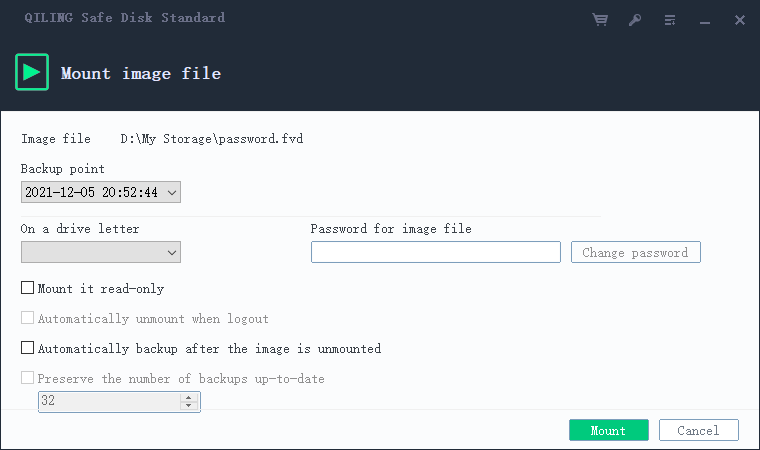
Step 3. Select Mount and wait for the virtual drive to appear in File Explorer. Open a known file from it. If the drive does not appear, return to Safe Disk to read the error rather than initializing or formatting anything in Disk Management.
Use read-only mode and unmount
Read-only mode helps prevent accidental edits to the mounted image. It does not make the host PC safe from screen capture or copying files elsewhere. When finished, close documents and applications using the drive, select its image in Safe Disk, and choose Unmount. Check that its drive letter disappears before unplugging a USB drive or copying the .fvd file for backup.
Safe Disk also has a remove-from-list operation for old images. Removing an entry is not the same as unmounting a drive, and it is not a substitute for deleting or backing up the actual image file. Confirm the image is unmounted before changing files or devices.
Fix common mounting problems
Wrong password: Re-enter the password carefully and check the keyboard layout. Do not assume a forgotten password can be reset without access to the encrypted data.
Drive letter already used: Return to the mount settings and pick another available letter. Do not remove a different disk's letter merely to match an old screenshot.
Image missing or on a disconnected USB drive: Reconnect the source and use the add-existing-image control to select the actual .fvd file. A shortcut or a Safe Disk list entry alone is not the encrypted data.
Image opens read-only or reports an error: Check whether read-only was selected, whether another program is using the file, and whether the host storage reports errors. Work from a copy if corruption is suspected. Formatting the virtual drive is not a repair step for an existing encrypted image.
Related Articles
- Create an Encrypted Container in Windows 11
Set up a new Safe Disk image, test its files, and keep a separate backup. - Protect Files on a USB Drive
Carry an encrypted container on removable storage and mount it on another Windows PC. - Mount an Encrypted Virtual Disk on Windows 11
How a container becomes a drive letter and how to fix the usual mount failures. - Move an Encrypted Virtual Disk to Another Computer
Carry a container to a new PC and open it without re-encrypting.
Products
Articles & Tutorials
- Data Recovery
- Data Backup
- File Recovery
- File Backup
- File synchronize
- System Backup and Restore
- Disk and Partition Clone
- Technical articles
- Disk Master Help
- Windows Deleted File and Disk Recovery Tutorials
- Windows File and Data Recovery Tutorials
- More Windows Tutorials for Install, Security, Files, and PC Tips
- Windows Boot, Repair, and Recovery Environment Tutorials
- Windows Backup Tutorials
- Windows Restore Tutorials
- Windows Clone and Migration Tutorials
- Windows Server Backup, Recovery, and Management Tutorials
- Windows Disk, Partition, and Storage Management Tutorials