How to Perform Hard Disk Image File Restore in Windows 10
- Need to recover files from disk image
- Method 1. Windows 10 hard disk image file restore with Backup and Restore (Windows 7)
- Part 1. Setting backup using Backup and Restore (Windows 7)
- Part 2. Hard disk image file recovery via Backup and Restore (Windows 7)
- Method 2. Recover files from disk image with Qiling Disk Master Professional
- Conclusion
Need to recover files from disk image
If you have created a hard disk image, you may want to recover files from it in case you need to restore your computer to a previous state, or if you want to extract specific files from the image for various reasons such as recovering lost data, transferring files to a new device, or creating a backup of important files.
❋ Computer suffered a serious error. In daily life, using computers often involves unexpected issues such as system crashes, hard disk damage, and virus attacks.
❋ Deleted files by mistake. When using a computer for an extended period, the C drive's storage space tends to dwindle, prompting users to clean up files to boost the computer's performance. Unfortunately, this process often leads to the accidental deletion of important files.
To retrieve a hard disk image file in Windows 10, you have two approaches. Firstly, you can use the built-in tool, Windows Backup, to create a system image of your hard drive, which can be used to restore your computer to its previous state in case of a system failure. Alternatively, you can use third-party software, such as Qiling Backup to create a disk image of your hard drive, providing a full backup of your system, including all installed applications, settings, and data.

Method 1. Windows 10 hard disk image file restore with Backup and Restore (Windows 7)
Need to perform hard disk image file restore? You should have a backup before problem happens. In windows 10, there is a built-in tool –Backup and Restore (Windows 7) which can help you backup and restore files. Below I will give instructions to show you how to use it to backup and restore hard disk image.
Part 1. Setting backup using Backup and Restore (Windows 7)
It's easy to set hard disk image via Backup and Restore (Windows 7), here it is:
Step 1. Search control panel and click Backup and Restore (Windows 7).
Step 2. Click Set up backup to create a new disk backup task.
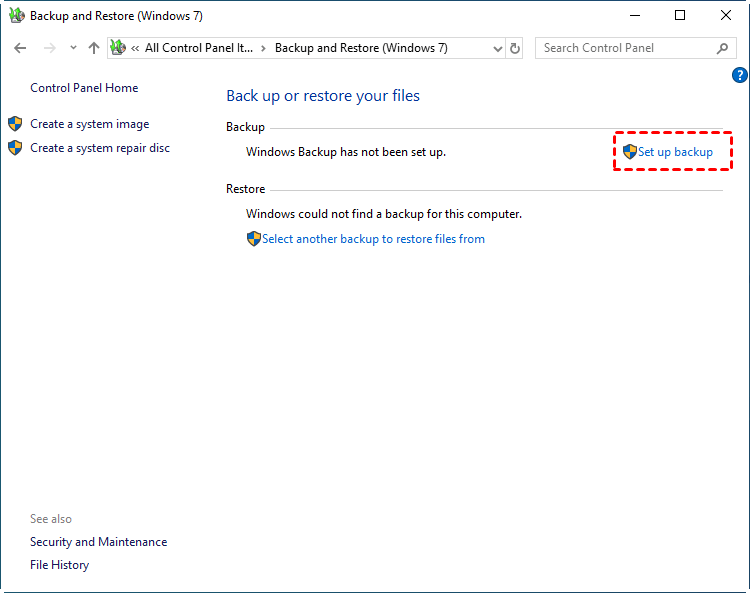
Step 3. Select where you want to save your backup, and click Next.
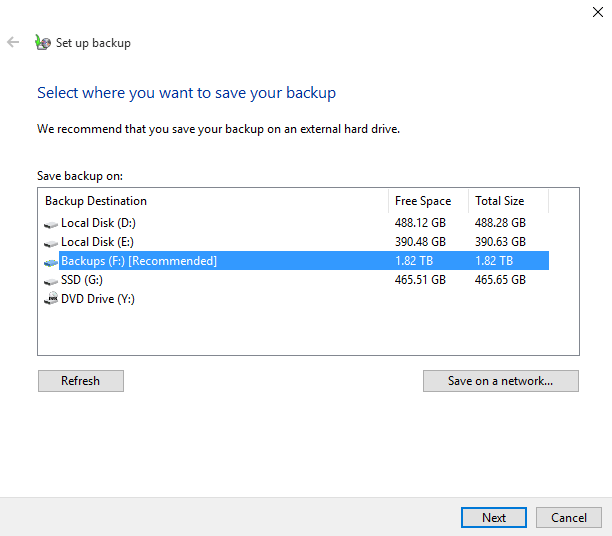
Step 4. Tick "Let me choose" option and click Next. Choose the hard disk that you want to backup, and click Next.
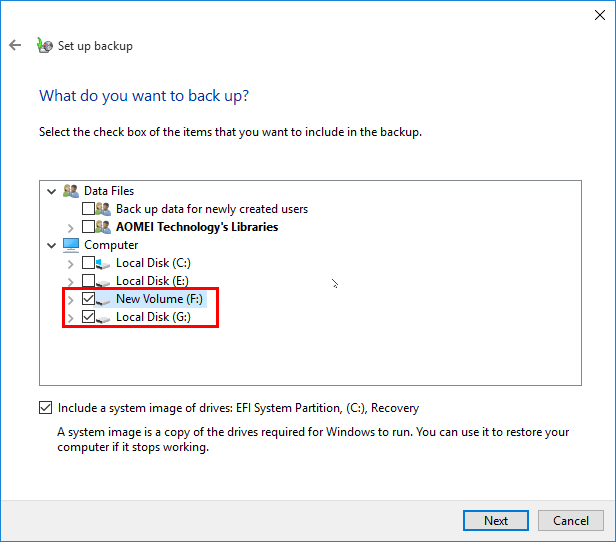
✍ Helpful tip: To create a system image backup, you can use the built-in Windows feature to include a system image of the drive, specifically the EFI System Partition, (C:), and Recovery option, which can be used to restore Windows 7, 8, or 10 in case of a system failure. This will allow you to create a backup of your entire system, including the operating system, programs, and data, which can be restored in time if needed.
Step 5. Then you can review your backup settings and change schedule. After confirmation, click Save settings and run backup.
Part 2. Hard disk image file recovery via Backup and Restore (Windows 7)
If your PC has experienced a problem, you can easily restore files from a backup in Windows 10 using the built-in tool. To do this, follow these steps:
Step 1. Enter into Backup and Restore (Windows 7) Center.
Step 2. Next click "Restore my files".
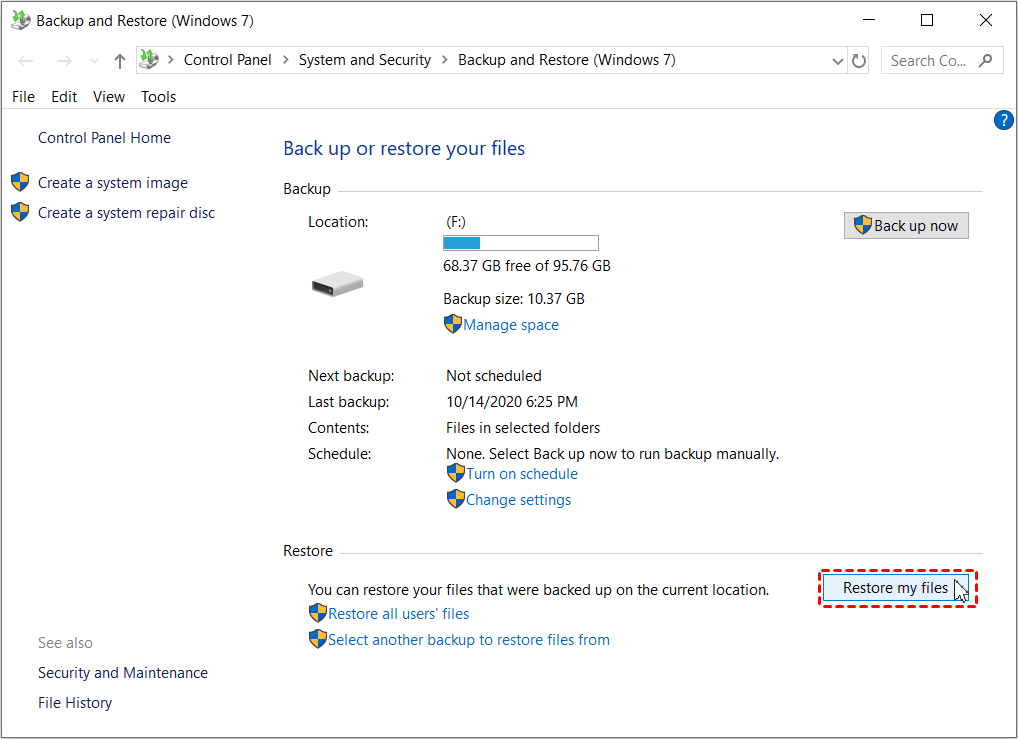
Step 3. In the Restore files page, click Search, Browse for files or Browse for folders to find files or folders you want to restore and select them.
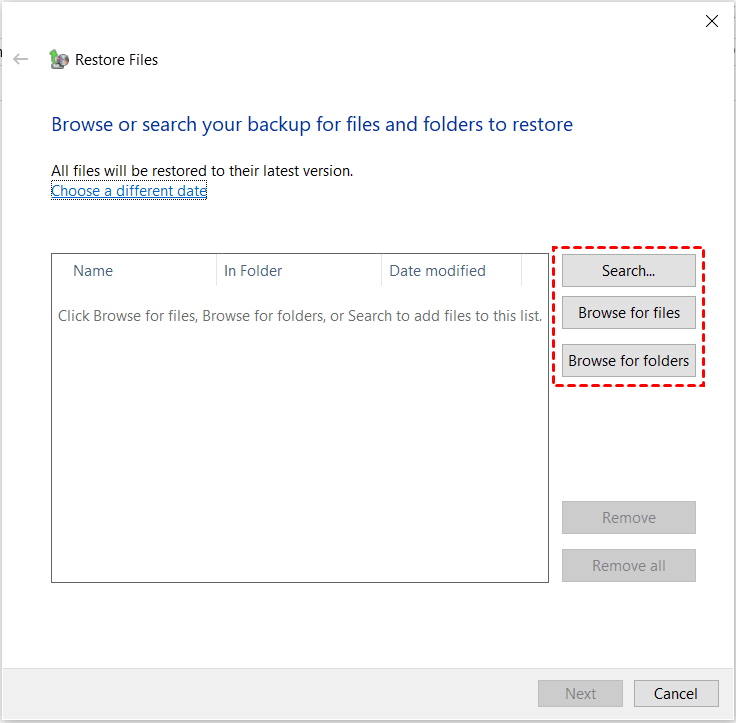
Step 4. Select "In the original location" or "In the following location" to store your files.
Step 5. Click Restore to start the pending operation.
Method 2. Recover files from disk image with Qiling Disk Master Professional
Although Windows has a built-in backup tool, I recommend using Qiling Disk Master Professional, a third-party software that can create disk images for various storage devices, including SD cards, USB drives, external hard drives, CDs, DVDs, and local disks. This tool also allows you to create a system image to restore the entire Windows operating system in case of a crash. With millions of users worldwide, Qiling Disk Master is a popular choice due to its ease of use and security features. It offers a range of tools, including backup, restore, sync, and clone, compatible with Windows XP, Vista, 7, 8, 8.1, and 10.
With the help of this software, you can easily create a disk image, which can then be restored as needed with just a few clicks. A free download is available.
Part 1. Create disk image with just a few clicks
Here are the steps to create a disk image in Windows 10:
Step 1. Launch Qiling Disk Master Professional, choose Backup -> Disk Backup on the main window.

Step 2. Tap Disks, select the Windows 10 disk that you would like to backup.

Step 3. To save the Windows 10 disk image file, select an external hard drive or network drive by clicking the folder icon or triangle icon, and then press the Proceed button.

Tips:
✍ The software allows you to schedule your backup tasks, with options such as Daily, Weekly, and USB plug-in, and also Event triggers for paid versions.
✍ The software allows for customizable settings, including enabling email notifications, choosing the compression level for the backup image file, and selecting between intelligent sector backup and sector-by-sector backup. Additionally, the Professional version offers the option to encrypt backups.
Part 2. Restore hard disk image file in Windows 10
After the disk backup finished, you will get an image file, suffix with .fvd, on your destination location, which can be restored for selective files or the entire hard drive.
❃ Selective files restore
Qiling Disk Master allows selective file restore by mounting image files as virtual partitions, similar to C:, D:, etc. This means you can access and copy files from the mounted image, just like from a real partition, using "Copy" and "Paste".
Step 1. Launch Qiling's software, and select a backed-up image file, two methods are mentioned.
To restore a backup task, click the "Backup and recovery" tab, and then select the backup task you want to restore. From the "Advanced" menu, select the "Mount" option.
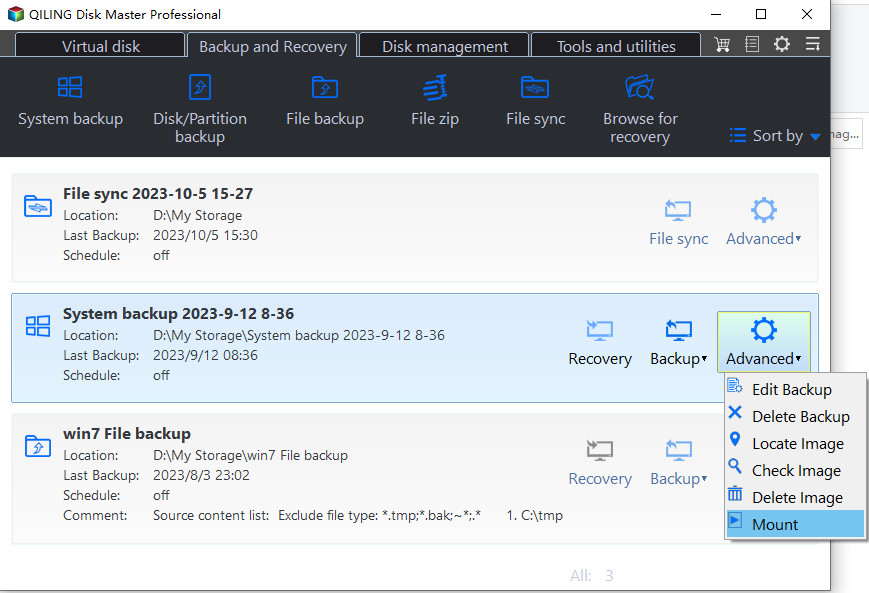
>>> Method 2: select "Recovery" option under the "Backup" tab.
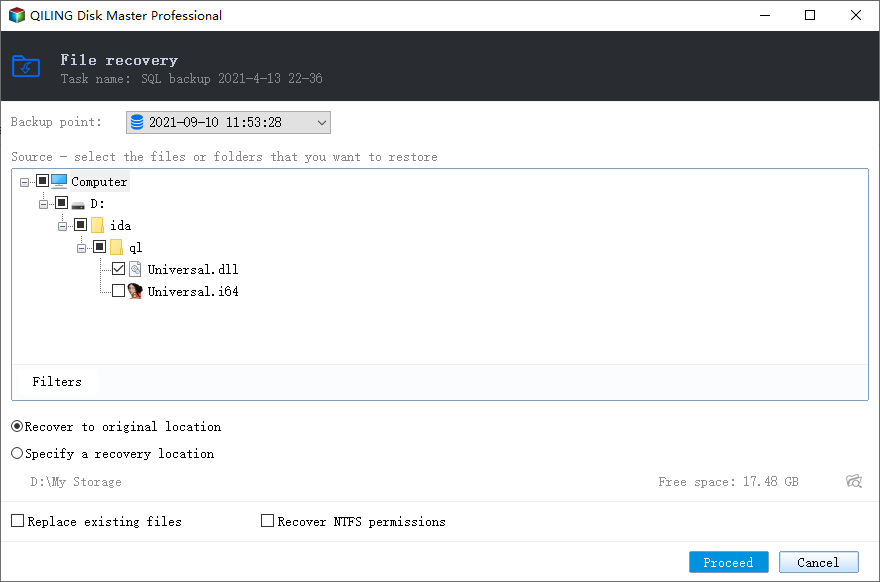
Step 2. Select a backup point in the "Backup Point" page, and then click "Next".
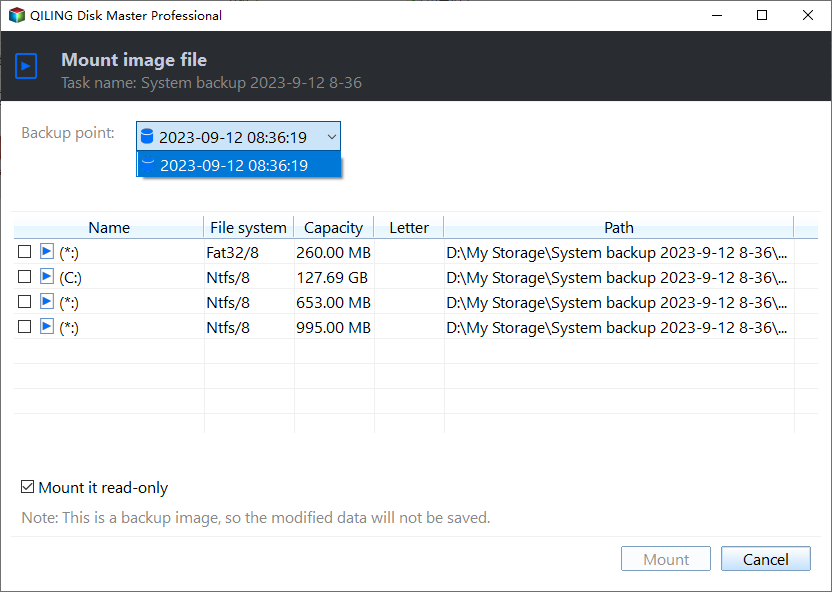
Step 3. In the "Mount Image" page, select the image you want to explore and assign a drive letter to it, then click "Mount".
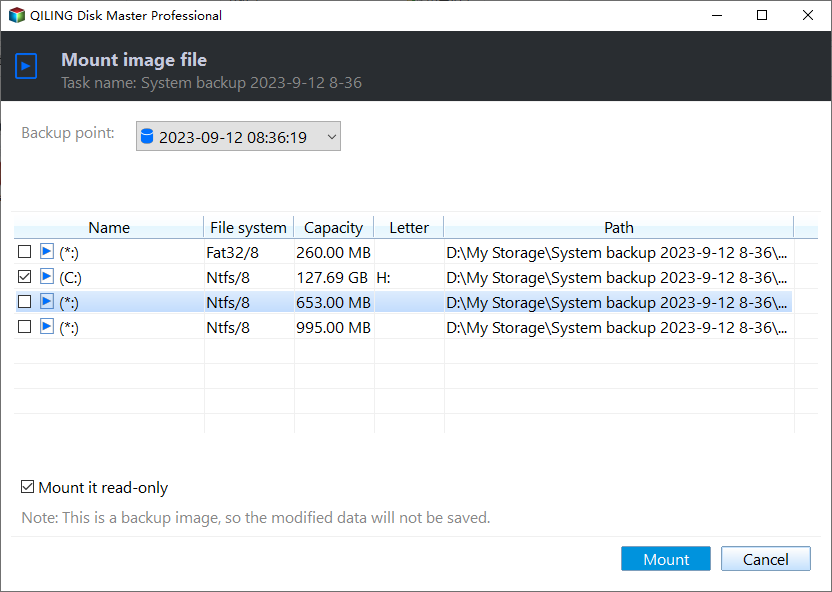
Step 4. Click "Finish" when the operation is done.
Step 5. You can access the virtual partition through "My Computer" and copy files to other existing partitions using Windows' built-in "copy" and "paste" functions.
❃ Disk restore
Step 1. You can begin restoration through two methods.
To restore your data, click the "Home" tab and select the "Restore" option from the corresponding backup task.
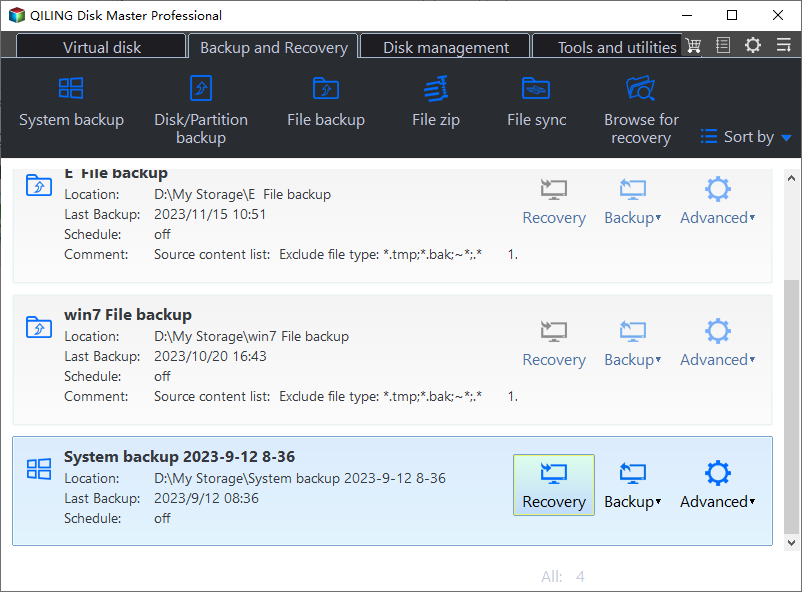
To recover a lost task, click "Restore" and then "Select Task" in the recovery software, and if the lost task is not found in the list, click "Select Image File" to browse the backed up image file.
In the next interface, you can select a backup image from the list and click "Next".

Step 2. You can choose how to restore the backup image, including restoring the entire disk or restoring a specific partition within the disk.
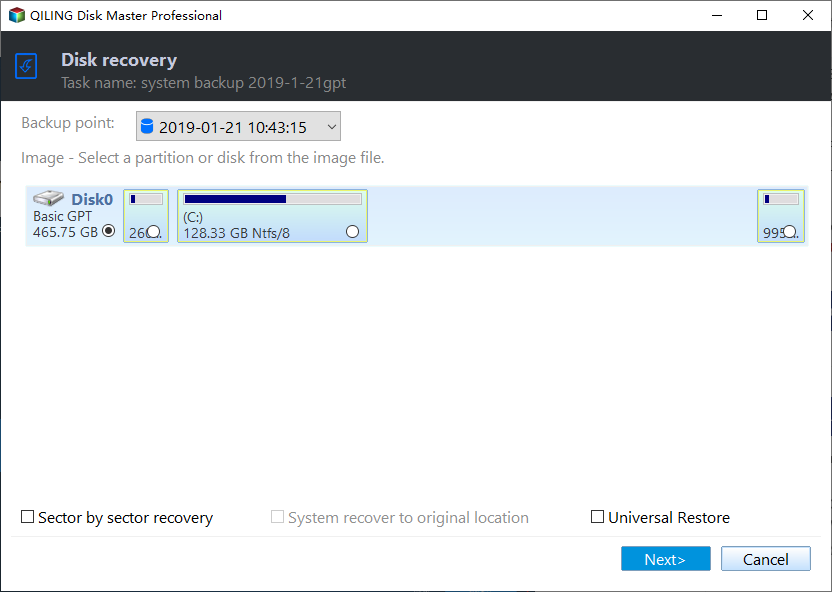
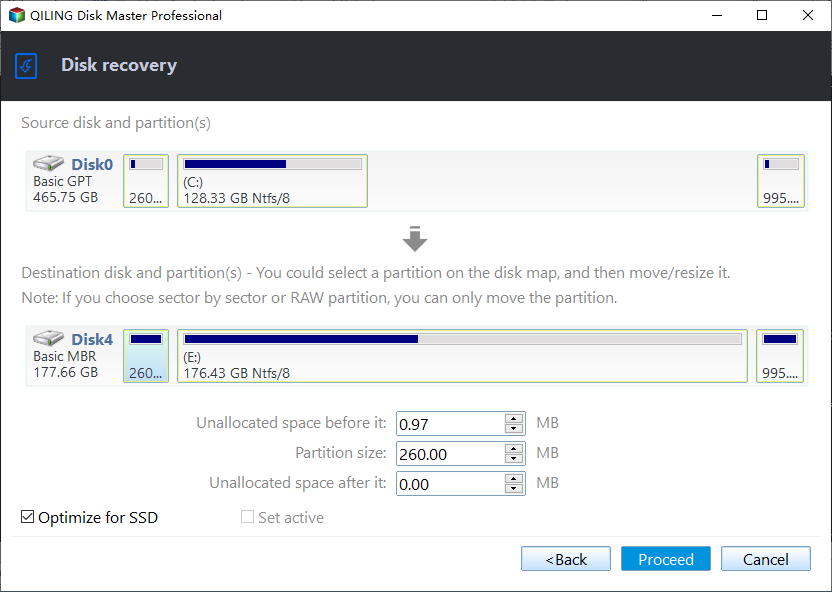
Step 3. The source disk and the destination disks will be listed in this step. Confirm the operations and click "Proceed".
Step 4. Click "Finish" when the operations have been completed.
💥 Notes:
- Edit Partitions: The partition size on the destination disk can be resized with three options: cloning without resizing partitions, fitting all partitions to the entire disk, or editing the partitions on the disk.
- SSD Alignment: If your destination disk is an SSD, it's recommended to check the option to accelerate reading and writing speed for SSD.
Conclusion
With Qiling Disk Master, you can easily backup and restore hard disk image files, and even schedule backups to save time and energy. The operations are simple, making it easy to get started quickly, and its powerful features protect your data from loss or damage.
Related Articles
- Restore Windows 10 System Image to New Hard Drive | 2 Ways
You will learn how to easily restore Windows 10/11 system image to new hard drive with Backup and Restore (Windows 7) or powerful backup software- Qiling Disk Master Standard. - How to Restore System Image from External Hard Drive?
Restoring system image from external hard drive is a popular way of restoring Windows 7/8/10. And this article will tell you the ways to restore Windows from external hard drive. - 2 Easy Ways to Transfer Disk Image to a New Hard Drive
This guide explains 2 Easy Ways to Transfer Disk Image to a New Hard Drive with clear steps, key checks, and practical tips. - 5 Best Free Windows 10 Imaging Software [Updated 2022]
This article will introduce some best free Windows 10 imaging software to you. Imaging software can help safeguard the safety of your data on a computer. After reading this post, you can know some knowledge about five free Windows 10 imaging software. - Top Two Ways to Do Lenovo Yoga 300/720 Factory Reset
Lenovo OneKey Recovery, Reset this PC or Qiling Disk Master can help you factory reset Lenovo Yoga/Thinkpad/Ideapad, the previous two option can bypass entering password while the last one applies to all branded computers. - Tested Solutions to No System Recovery Options in Windows 10/8/7
If you see no system recovery options available when you boot into Recovery Mode, you can find a solution to fix it.
Products
Articles & Tutorials
- Data Recovery
- Data Backup
- File Recovery
- File Backup
- File synchronize
- System Backup and Restore
- Disk and Partition Clone
- Technical articles
- Disk Master Help
- Windows Deleted File and Disk Recovery Tutorials
- Windows File and Data Recovery Tutorials
- More Windows Tutorials for Install, Security, Files, and PC Tips
- Windows Boot, Repair, and Recovery Environment Tutorials
- Windows Backup Tutorials
- Windows Restore Tutorials
- Windows Clone and Migration Tutorials
- Windows Server Backup, Recovery, and Management Tutorials
- Windows Disk, Partition, and Storage Management Tutorials