How to Centrally Back Up Systems of All Computers on a Network?
Can I centralize system backups within LAN?
You're looking for a centralized backup management solution. You can consider using a backup software that supports multiple machines, such as Veeam, Acronis, or Backup Exec. These tools allow you to manage backups from a single interface, monitor backup status, and even automate the process.
A system backup that includes system files, settings, applications, and personal data can be a lifesaver after a crash, data loss, or hardware replacement. Backing up one computer is usually simple, but protecting many computers takes more planning.
To avoid the hassle of backing up individual computers, especially in a workplace or school where multiple machines must be managed, centralized backup software can be used to back up all computers on the network from one console.
The benefits of centralized system backup software
Centralized backup software can back up all computers in a Local Area Network (LAN) from one place, helping organizations protect systems, recover faster after failures, and reduce downtime.
- Time-saving: Automating the backup process for multiple computers at once can significantly reduce the time and effort required for manual backups.
- Reduce human error: A centralized system backup strategy reduces the risk of data loss caused by incorrect operations, because one experienced administrator can create and manage the tasks.
- Reduce admin cost: The administrator can centrally manage all backups from one central console and create unattended backup tasks, reducing admin costs.
How to perform centralized system backup in Windows 10/8/7?
To perform centralized system backup for multiple computers, you can use Qiling Backup, which is designed for Windows users and supports laptops, desktops, and servers within a local area network (LAN).
This software provides backup and restore capabilities for files, partitions, disks, operating systems, and SQL databases. It also supports scheduling and automatic cleanup of old backup images.
All created backup tasks are displayed in the Tasks tab for centralized management, so you can monitor, edit, run, and restore backups with a few clicks. You can try this feature by downloading a 30-day free trial.
How to use the software to manage all computers on network:
- Download and install Qiling Backup on a central console computer, and install the Agent package on all client computers within the same local area network (LAN).
- To manage client computers, request control over all the devices you want to manage. Once confirmed, you can create a new backup task.
Steps to create centralized system backup task for multiple computers:
1. To create a system backup, navigate to Tasks > New Task > System Backup. This will back up all system partitions, including applications, drivers, configuration settings, system files, and boot files.

2. To start, click "Add Computers" to select all the controlled computers you want to protect.
3. The system will automatically select the partition, allowing you to proceed to Step 2, where you can add a storage destination, such as a share or NAS, by clicking "Add Storage". This path will be saved for future use.
4. Now, customize the backup as needed and click Proceed > Create and execute tasks.

◉ Schedule: You can set up a schedule to automatically execute the task at your preferred frequency, such as Once, Daily, Weekly, or Monthly. This feature allows for customization, enabling you to specify different schedules for various clients. Additionally, it supports full, incremental, and differential backup options.

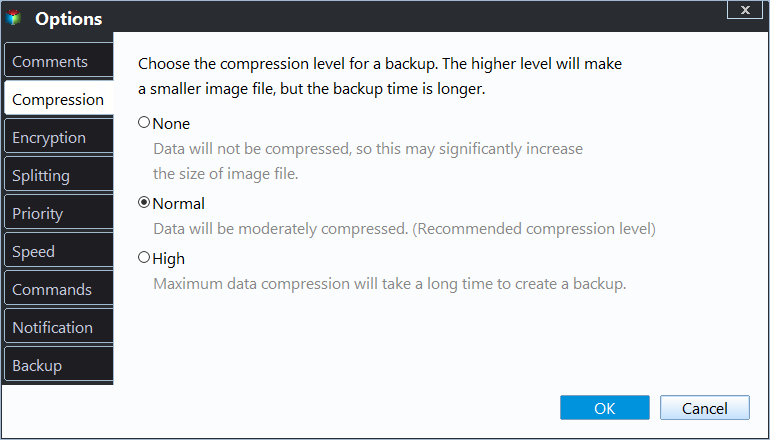
◉ Settings: You can customize various settings for your backup, including encryption, email notifications, compression level, image splitting, and backup method (intelligent-sector or exact), to suit your needs.
◉ Scheme: To save storage space, create a backup scheme that automatically deletes older backups, so you do not need to clean up old images manually.

Conclusion
Qiling Backup allows you to centrally back up multiple computers on a network and manage tasks simply. In addition to centralized system backup, it can automatically back up SQL databases and schedule backups for multiple databases at once.
The file sync feature allows for syncing folders over a network, either on a schedule or in real time, enabling intelligent data management across multiple computers. However, for tasks like cloning an HDD to an SSD with secure boot, it's recommended to use a professional disk clone software like Qiling Disk Master.
Related Articles
- How to Create Centralized Backup in Windows Server 2008/2012/2016?
Learn how to Create Centralized Backup in Windows Server 2008/2012/2016 with clear steps, key checks, and practical tips. - Best Server Centralized Backup Strategy for Multiple Windows Servers
This guide explains Best Server Centralized Backup Strategy for Multiple Windows Servers with clear steps, key checks, and practical tips. - Microsoft SQL | How to Back Up All Databases of an Instance?
This guide explains Microsoft SQL | How to Back Up All Databases of an Instance with clear steps, key checks, and practical tips. - Small Business Backup | Centrally Backup All PCs in Company
For small business, a backup strategy that protects critical business data is essential. Here's an example to help you centrally create and manage backups for all PCs within LAN. - Top 4 Fixes to The System Writer is Not Found in the Backup
You will get the causes and solutions to the "The system writer is not found in the backup" error. In addition, an easier way to backup system is included. Keep reading for more details. - Windows Complete PC Restore Server 2008 | How to Use It?
You will learn how to use Windows Complete PC Restore in server 2008 step by step. Also, you could use server backup software - Qiling Disk Master to achieve this goal, it's even easier.
Products
Articles & Tutorials
- Data Recovery
- Data Backup
- File Recovery
- File Backup
- File synchronize
- System Backup and Restore
- Disk and Partition Clone
- Technical articles
- Disk Master Help
- Windows Deleted File and Disk Recovery Tutorials
- Windows File and Data Recovery Tutorials
- More Windows Tutorials for Install, Security, Files, and PC Tips
- Windows Boot, Repair, and Recovery Environment Tutorials
- Windows Backup Tutorials
- Windows Restore Tutorials
- Windows Clone and Migration Tutorials
- Windows Server Backup, Recovery, and Management Tutorials
- Windows Disk, Partition, and Storage Management Tutorials