Clone PS4 Hard Drive to Larger Drive without Losing Data
Why clone PS4 hard drive to larger drive?
"Hello, my PS4 cannot work normally and I was told that my PS4 hard drive is merely full. So, I want to change it to a bigger drive, so that it can work well, and I can save more games on it. However, I want to keep my old data. So here is my question: how can I upgrade my PS4 hard drive to larger drive without losing data?"
The PS3 and PS4 hard drives can quickly fill up with games, leaving little to no space for additional installs. When the hard drive is nearly full, it can be difficult to install new games, as there is not enough storage capacity to accommodate the additional data.
To improve the performance of your PS3 or PS4, consider replacing the small hard drive with a larger HDD or SSD. The best way to do this is by making a disk copy using a tool like Qiling Disk Master, which offers features such as Disk Backup and Disk Restore, allowing you to clone your PS4 hard drive to a larger drive without losing any data.
Best disk imaging software for PS4 hard drive upgrade
Upgrading the PS4 hard drive to a bigger one is a solution to the low space problem, and cloning the PS4 hard drive with Qiling Disk Master is the best way to do it. Qiling Disk Master Professional, a powerful disk imaging software, can clone the PS4 hard drive without losing data in Windows 11/10/8/7.
|
💾 Disk Backup |
The PS4 allows you to create a disk image of the original hard drive with the Disk Backup feature, which can be used to restore the console to its original state. |
|
🎯 Disk Restore |
You can restore a disk image to a larger or smaller drive as long as the smaller drive has enough capacity to hold all the data. |
|
🧿 Universal Restore |
The software offers the Universal Restore feature, which helps avoid boot issues caused by dissimilar hardware. |
|
👍 Other Backup Types |
The program offers various backup options, including system, partition, file, cloud, and email backup, in addition to disk backup, catering to different needs. |
To get started, click the download button below to access the free trial edition, and then proceed with the installation process.
How to clone PS4 hard drive to larger drive safely
To upgrade your PS4's hard drive to a larger one using Qiling Disk Master, you'll need to prepare by following these steps. First, you'll need to purchase a larger hard drive that is compatible with your PS4, and then download and install Qiling Disk Master on your PS4. Next, you'll need to back up your data and then remove the old hard drive from your PS4.
- A larger HDD or SSD.
- A SATA-to-USB adapter.
- A PC installed with Windows 11/10/8.1/8/7/Vista/XP.
Backup PS4 hard drive for upgrading
Step 1. To back up your PS4 hard drive, connect it to your Windows PC using a SATA-to-USB adapter, then launch Qiling Disk Master Professional. Next, click on "Backup" and then select "Disk Backup" to create a backup of your PS4 hard drive.

Step 2. To back up the PS4 hard drive, first, go to Settings > System > Back Up and Reset. Then, click Disks to choose the PS4 hard drive to be backed up and click Add.

Step 3. To select a destination path for the backup image, click the second bar and choose a location such as a local disk, USB flash drive, or network share.

Step 4. The company's new product is a game-changer in the industry. It offers a unique combination of features that no other product has, making it a must-have for anyone in the field.
- Options: To receive the final result in a timely manner, you can enable email notification. Additionally, you can compress or split the backup image for easier handling.
- Schedule Backup: To create a scheduled backup, enable daily, weekly, or monthly backup, which will perform an incremental backup by default.
- Backup Scheme: To manage backup disk space, enable the backup scheme option, which automatically deletes old backups when a set value is reached.
Step 5. After setting up the task, you can click "Proceed" to execute it right away.

Upgrade PS4 hard drive without losing data
Step 1. Connect the prepared large hard drive to your computer and also the external drive where the disk image is saved. Launch the software, click "Select Image File" under the "Restore" tab.

Step 2. To restore the entire disk, click on "Restore the entire disk" and then click Next to proceed. If you have a scheduled full/incremental/differential backup task, you will be presented with a few backup images to choose from.
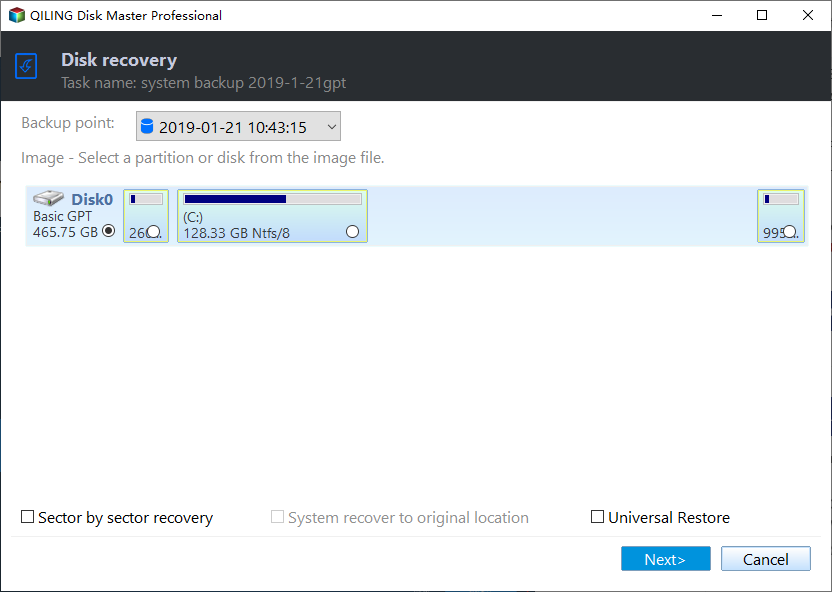
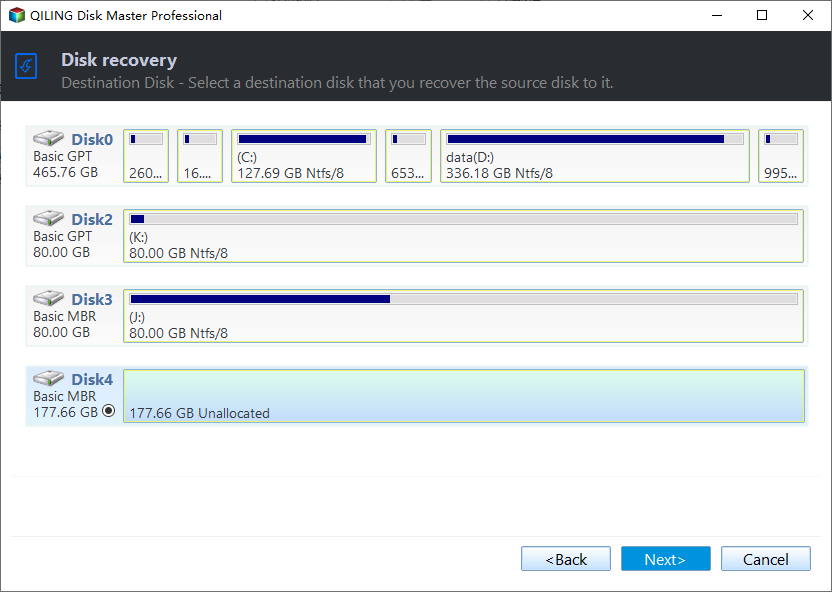
Step 3. Select the large hard drive as destination location and click Next.
Step 4. To ensure a secure boot after recovery, tick the Universal Restore option. Then, click Proceed to transfer everything from the old hard drive to the new drive.
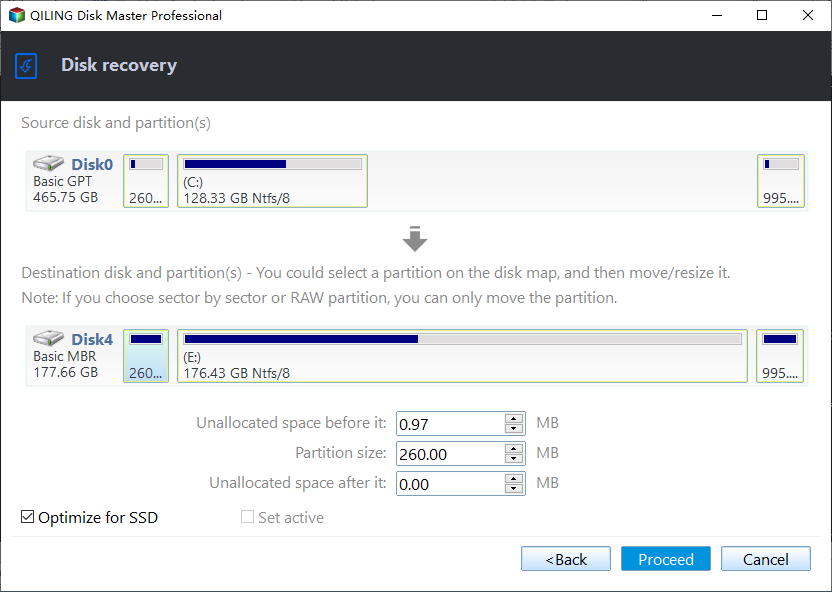
Note: Tick SSD Alignment to accelerate the reading and writing speed of SSD if the new drive is an SSD.
After the restoration process is finished, you can install the new larger drive to your PS4. If the new drive works well, you can wipe the old hard drive for reuse.
Summary
To clone a PS4 hard drive to a larger drive using Qiling Disk Master, you can create a backup of the original drive and then restore it to the new, larger drive, ensuring no data loss during the process. This method also works for cloning Samsung SSD to another SSD. Try Qiling Disk Master to discover more features and capabilities.
Related Articles
- How to Backup PS4 Game Save Data to the Cloud?
Learn how to back up PS4 Game Save Data to the PlayStation Plus Online Storage as well as to mainstream Cloud Storage like Google Drive and OneDrive step by step. - Easiest Way: Clone HDD to SSD without SATA to USB Cable
You can use the easiest way to effortlessly clone HDD to SSD without SATA to USB cable or try the other two methods. - Clone Internal Hard Drive to External Hard Drive within 6 Steps
Learn how to Clone Internal Hard Drive to External Hard Drive within 6 Steps with clear steps, key checks, and practical tips. - Clone mSATA SSD to mSATA SSD Safely in 5 Steps
In this article, you will learn the best way to clone mSATA SSD to mSATA SSD, and some useful tips to ensure successful cloning. - 4 Steps to Create Windows 7 Bootable Clone Disk
You will learn how to create Windows 7 bootable clone of hard drive and make it bootable with best disk cloning software - Qiling Disk Master. - How to Clone Hard Drive in Windows 8/8.1 to New HDD/SSD?
Learn how to Clone Hard Drive in Windows 8/8.1 to New HDD/SSD with clear steps, key checks, and practical tips.
Products
Articles & Tutorials
- Data Recovery
- Data Backup
- File Recovery
- File Backup
- File synchronize
- System Backup and Restore
- Disk and Partition Clone
- Technical articles
- Disk Master Help
- Windows Deleted File and Disk Recovery Tutorials
- Windows File and Data Recovery Tutorials
- More Windows Tutorials for Install, Security, Files, and PC Tips
- Windows Boot, Repair, and Recovery Environment Tutorials
- Windows Backup Tutorials
- Windows Restore Tutorials
- Windows Clone and Migration Tutorials
- Windows Server Backup, Recovery, and Management Tutorials
- Windows Disk, Partition, and Storage Management Tutorials