How to Copy Recovery Partition to USB in Windows 11, 10, 8, 7
About the recovery partition on your PC
The Recovery Partition, also known as the factory restore partition, is a reserved area on a disk drive that contains an image of the system, allowing users to restore their computer to its original state using specialized utilities provided by the manufacturer, such as Acer eRecovery Management, ASUS Recovery Partition, Dell Factory Image Restore, Gateway Recovery Management, HP PC System Recovery, or Sony VAIO Recovery Wizard.
Accessing the built-in recovery partition is relatively straightforward, as pressing Ctrl+F11 at boot time initiates the recovery procedure. However, some users may prefer to clone the recovery partition to a USB drive, effectively creating a portable backup or recovery solution for their computer.
Let's talk about it in detail.
- Why clone Recovery Partition to USB drive
- How to copy Recovery Partition to USB in Windows 7/8/10
- How to copy Recovery Partition to USB using CMD
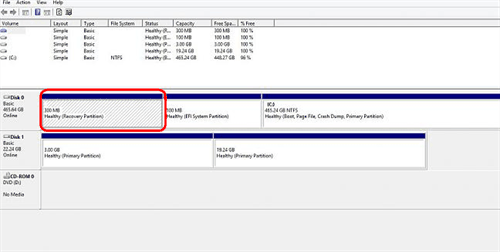
Why clone recovery partition to USB drive?
To clone the HP Recovery Partition to a USB drive and upgrade your slow HDD to a fast SSD, you can use the HP Recovery Manager or a third-party tool like HP Recovery Manager or Qiling Disk Master. These tools allow you to create a recovery drive on a USB drive, which can be used to restore your system in case of a problem. You'll need to connect the USB drive to your computer, run the recovery manager, and follow the prompts to create the recovery drive. Once you've created the recovery drive, you can clone the recovery partition from the HDD to the USB drive using a tool like Qiling Disk Master.
Users can copy recovery partitions to a USB drive, replace the old HDD with a new one, boot from the USB drive, and perform a recovery, which is similar to a clean install.
You may consider copying your recovery partition for various reasons, including creating a backup of your system configuration, ensuring a smooth upgrade or reinstallation process, and even for troubleshooting purposes. This can be particularly useful when you're upgrading your operating system or installing a new driver, as it allows you to revert to a previous state if something goes wrong.
🔹Free up space on your hard drive. You can free up valuable space on your small-capacity disk by moving the Recovery Partition to a flash drive, deleting it, and then using the newly freed space to extend other partitions or move it to your C drive to enlarge your system space.
🔹Creating bootable USB The recovery partition can be helpful in performing a system restore when the system crashes or when replacing a hard drive, similar to the situation described above.
🔹Cloning the partition as a duplication To ensure a backup of your Acer computer's recovery system, consider copying the Acer Recovery Partition to a USB drive. This way, you'll have a backup drive that can be used even if your computer's hard drive fails and the built-in recovery partition is no longer accessible. By doing so, you'll always have a reliable backup option at hand.
📑Tips:
- If you regularly back up your system and data, you can safely delete the Recovery Partition on your hard drive, as you already have a plan in place for disaster recovery.
- In case your computer fails, the Recovery Partition can serve as a last resort, but it's also recommended to copy it to other devices for added security.
How to clone recovery partition to USB in all the Windows systems
Cloning a recovery partition to a USB drive can be done using Windows' built-in tool, but it's not a straightforward process. For a quicker and easier method, consider using Qiling Disk Master Professional, a third-party cloning tool that can efficiently copy recovery partitions from Dell, HP, ASUS, and Lenovo systems to a USB drive or another hard drive.
Clone recovery partition to USB with Qiling Disk Master
Some users are unable to clone their recovery partition to a USB drive using Windows' built-in tool, due to the partition containing system programs, which may result in a warning that the drive is not a valid backup location.
Qiling Disk Master Professional can clone a recovery partition or copy a hidden Recovery Partition to a USB drive, another hard drive or SSD, supporting cloning between NTFS and FAT32 file systems.
The operation is straightforward and user-friendly. You can download the software on Windows 11/10/8/7/Vista/XP and follow the steps to copy the Recovery Partition along with the disk. Please note that the clone features in the trial version can only be demonstrated, and you'll need to upgrade for full functionality.
Step 1. Install and start Qiling Disk Master, plug in the USB drive and ensure it is detected by Windows. Then, click on the "Disk Clone" option under the "Clone" tab.

Step 2. Select the source disk containing the Recovery Partition.

Step 3. Select the USB drive as the destination disk, noting that all data on it will be erased, so back up any important files first.

Step 4. Tick Sector By Sector Clone To ensure the cloned Recovery Partition works normally, copy all sectors and create an intact copy of the disk. This guarantees the cloned Recovery Partition can function properly. Then click on the "Finish" button.Proceed to execute the operation.

📑Tips:
- When cloning the Recovery Partition to an SSD, checking the SSD Alignment can improve the reading and writing speed.
- The Professional Edition allows cloning system disks from one type of partition table to another, including MBR to MBR, GPT to MBR, MBR to GPT, and GPT to GPT.
- The Professional edition allows you to resize partitions or modify drive letters on the destination disk through the "Edit Partitions" feature.
How to create recovery USB drive for portable use
Creating a recovery USB allows you to have a bootable drive that can help you troubleshoot and recover your computer in case of system issues or failures, offering more flexibility than a recovery partition. I will outline two ways to create a recovery USB.
Create Windows 10 recovery USB with Qiling Disk Master
The recovery USB created by built-in tools may not work on computers running different systems or non-system computers. For a more flexible option, you can use Qiling Disk Master to create a recovery drive.
- With this tool, you can create a Windows 10/11 recovery USB for your current computer, as well as for another PC.
- It can be applied to all Windows PCs, including Windows 11/10/8/7, both 32-bit and 64-bit versions.
- This tool allows you to create a bootable DVD/CD or USB that can be used to start a crashed computer from various brands, including HP, Lenovo, Acer, ASUS, and Dell, among others.
- The created media is able to boot in both BIOS and UEFI mode.
- As a comprehensive data protection solution, it enables you to create scheduled backups of your system, disks, files, and partitions to various locations, including local disks, external drives, network shares, and the cloud.
Step 1. Prepare a USB drive with sufficient capacity, then connect it to your computer. Next, launch Qiling Disk Master.
Step 2. To recover Windows via this tool, you can create a regular system backup in advance, accessible from the "Backup" tab.
Click on "Tools" from the left panel, then select "Create Bootable Media".

Step 3. To create a Windows 10/11 bootable recovery media, select a CD/DVD or USB drive and click Next to run the process.

With Qiling Disk Master, you can create a Windows recovery USB that allows you to boot a computer into WinPE, from which you can restore your system from a previously created system image.
📑Tips:
- If you haven't made a system backup before the failure, you can create a system image on another working computer and restore it to the problematic one using the Universal Restore feature.
- If you don't have any USB or CD/DVD, you can simply enable the Qiling recovery environment for the same effect.
Copy recovery partition to USB with Windows built-in tool
Step 1. Click Start menu to access search box.
Step 2. Type recovery drive in the search box and select Create a recovery drive.
Step 3. When the recovery drive tool opens, select "Copy the recovery partition from the PC to the recovery drive" and then select "Next".
Step 4. Plug in your USB flash drive/external hard drive and select it and choose Next.
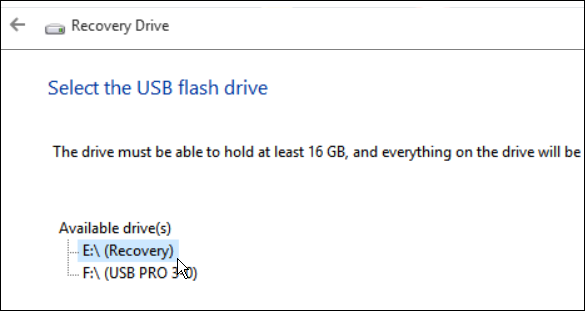
Step 5. Choose Create and then it will start to copy recovery partition.
Summary
Qiling Disk Master is a tool that allows users to create a bootable media, clone a bootable USB drive to a hard drive, and perform system, disk, partition, and file backups. It also supports cloning a hard drive with bad sectors. This software provides a reliable backup solution for users.
Related Articles
- How to Transfer Recovery Partition to New Hard Drive Easily?
- Safely Clone Hidden Recovery Partition to SSD in 5 Steps
- Easiest Way to Copy HP Recovery Partition to New Hard Drive
- How to Copy Dell Recovery Partition in Windows 10/8/7 Safely?
- Best Free Clone Software for Windows 8/8.1/10/11
Learn the key steps, checks, and practical tips for this related guide. - How to Migrate Windows 8/8.1 to SSD with Secure Boot
Learn how to Migrate Windows 8/8.1 to SSD with Secure Boot with clear steps, key checks, and practical tips.
Products
Articles & Tutorials
- Data Recovery
- Data Backup
- File Recovery
- File Backup
- File synchronize
- System Backup and Restore
- Disk and Partition Clone
- Technical articles
- Disk Master Help
- Windows Deleted File and Disk Recovery Tutorials
- Windows File and Data Recovery Tutorials
- More Windows Tutorials for Install, Security, Files, and PC Tips
- Windows Boot, Repair, and Recovery Environment Tutorials
- Windows Backup Tutorials
- Windows Restore Tutorials
- Windows Clone and Migration Tutorials
- Windows Server Backup, Recovery, and Management Tutorials
- Windows Disk, Partition, and Storage Management Tutorials