Samsung Series 9 SSD (NP900x4C) Upgrade - Complete Guide
Quick Navigation:
- About Samsung Series 9
- Best Samsung SSD Upgrade Software - Samsung Data Migration or Qiling Disk Master
- Before You Do Samsung Series 9 SSD Upgrade
- Perform Samsung NP900X4C SSD Upgrade with Secure Boot
- The Epilogue
About Samsung Series 9
The Samsung Series 9 is a line of ultra-thin notebooks that combines stunning appearance with impressive performance, aiming to compete with the MacBook Air for Windows users.
The Samsung Series 9 Ultrabook can be upgraded with a 128GB or 256GB MSATA SSD drive, which boots up faster than a traditional hard drive. To extend storage space and improve computer speed, upgrading the SSD is recommended, allowing for a faster and more efficient computing experience.
To upgrade the SSD on your Samsung Series 9 Ultrabook NP900X4C, you'll need to purchase a 256GB MSATA SSD drive that's compatible with your laptop. Before starting, back up all your important data to an external drive or cloud storage. Then, shut down your laptop, disconnect the power cord, and open the bottom panel to access the SSD. Carefully remove the old SSD, taking note of the screws and cable connections. Install the new 256GB SSD, reconnect the cable, and secure it with the screws.
Best Samsung SSD Upgrade Software - Samsung Data Migration or Qiling Disk Master
Samsung offers a data migration software called Samsung Data Migration, but it's not preinstalled on the computer. Users need to download Samsung SSD Integrated Installer from the official site to migrate data. However, some users have experienced limitations and errors while using Samsung Data Migration for Samsung np900x4c SSD upgrades.
- Samsung Data Migration cloning failed.
- Not responding while cloning.
- Samsung Data Migration cannot change source disk.
- Only support clone system disk, not the data disk.
- Cannot clone dynamic disk, etc.
If you're in a situation where you need to clone your hard drive to a Samsung SSD, such as upgrading your storage or replacing a faulty drive, try using Qiling Disk Master Professional, a reliable Samsung migration software that offers features similar to Samsung Data Migration, allowing you to clone your HDD to a Samsung SSD with added flexibility.
- Copy boot drive to another one with everything transferred, The Windows system, installed programs, settings, and files are all managed and secured by the Windows operating system, which takes care of the secure boot from different aspects, including hardware, software, and user authentication.
- The software supports cloning both system and data disks, including basic disks (HDD or SSD), dynamic disks, and RAID disks.
- To optimize the overall performance of the Samsung np900x4c SSD and prolong its lifespan, consider the following steps:
- Clone and resize a hard drive to make full use of disk space on the destination disk, allowing for disk type conversions if necessary.
- The software is widely used in various versions of Windows, including Windows 11, 10, 8.1, 8, 7, Vista, and XP, both 32-bit and 64-bit.
Before You Do Samsung Series 9 SSD Upgrade
To make the Samsung series 9 SSD replacement successful, please prepare the following: the original Samsung series 9 SSD, a screwdriver, a Torx T5 screwdriver, a Phillips #000 screwdriver, and a Torx T6 screwdriver, as well as the new Samsung series 9 SSD, the SSD mounting bracket, and the thermal pad. Ensure you have a clean and dust-free workspace, and consider grounding yourself to prevent static electricity damage.
✍ A new larger mSATA SSD drive. Before installing your new SSD drive, ensure it is compatible with your notebook. If you're unsure, consult your computer's manufacturer for guidance.
- For a larger Samsung SSD, consider the Samsung PM 851 or PM 871, and choose a capacity of 256GB or 512GB based on your data needs.
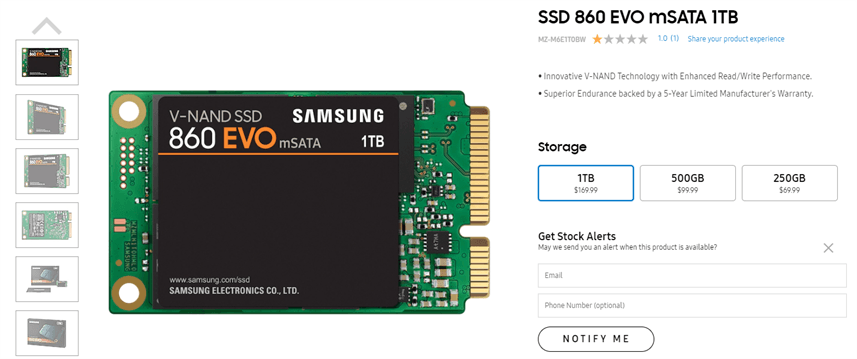
- For other SSD disks, you can choose from various options such as Crucial X8 portable SSD, Kingston KC600, Transend 230S, among others.
✍ Withdraw tools. To upgrade the SSD in a Samsung Series 9 laptop, you'll need to remove the original SSD and replace it with the new one, which requires some screwdrivers and other tools, as the laptop has a single hard drive slot.
✍ External hard drive. To transfer data from your current SSD to a new larger mSATA SSD, first back up your current SSD to an external hard drive. This will ensure that all your data is safely stored before you start the transfer process. Once the backup is complete, you can use the external hard drive to restore the data to the new larger mSATA SSD, effectively transferring all your data to the new drive.
✍ mSATA to USB enclosure.
After making preparations, download the Samsung SSD migration software - Qiling Disk Master Professional, noting that the free trial version only supports demonstration, and upgrade to the official version if you're sure you want to upgrade to Samsung SSD.
This version is applicable to Windows 11, 10, 8.1, 8, 7, Vista, and XP. For those running Windows Server 2003, 2008, 2012, 2016, 2019, SBS 2003, 2008, 2011, please try Qiling Disk Master Server.
Perform Samsung NP900X4C SSD Upgrade with Secure Boot
To upgrade a Samsung series 9 SSD using the best Samsung data migration software, Qiling Disk Master, there are two methods. Select one of them and follow the steps carefully.
- Way 1: Clone mSATA SSD to larger mSATA SSD with Disk Clone.
- Way 2: Create Disk image of the smaller mSATA SSD and restore to larger mSATA SSD. If your computer is unbootable or you want to restore an image without booting into Windows, you need to create a bootable media with Qiling Disk Master.
Way 1. Upgrade SSD for Samsung Series 9 with Disk Clone
Step 1. To enable the larger mSATA SSD to be detected by your Samsung Series 9 laptop, such as the NP900X4C, you can use an mSATA to USB enclosure. This enclosure allows you to connect the larger mSATA SSD to your laptop via a USB port, making it possible to access and utilize the SSD's storage capacity.
Step 2. Then, launch Qiling Disk Master Professional, and choose Clone > Disk Clone subsequently.

Step 3. Choose the original mSATA SSD as the source disk to clone, and press Next.

Step 4. Select the larger mSATA SSD as the destination disk, and press Next.

Step 5. To speed up the performance of the SSD and prolong its lifespan, click on SSD Alignment. Also, select Edit Partitions and choose to either Add unused space to all partitions or Adjust partition size manually to utilize the full space on the larger mSATA SSD. After that, confirm the cloning task and press Proceed to initiate the Samsung NP900X4C SSD Upgrade.

After upgrading the Samsung Series 9 SSD, you could shut down the computer, replace the original mSATA SSD with the new larger cloned SSD, and then boot from the cloned SSD. That's all.
Way 2. Upgrade Samsung Series 9 SSD with Backup and Restore
To replace the Samsung Series 9 SSD, you can back up the original drive to an external hard disk and then restore the image file to a new larger SSD drive. This process involves backing up the original SSD to an external hard disk, creating an image file, and then restoring that image to the new SSD drive. This method ensures that the new drive is identical to the original, with all data and settings intact.
Step 1. Backup Samsung Series 9 SSD
1. Connect the external hard drive via mSATA to the USB enclosure, ensuring it can be recognized. Launch Qiling Disk Master Professional and select "Backup" > "Disk Backup" in sequence.

2. To complete this task, select the original smaller mSATA SSD drive and larger mSATA SSD drive separately. You can edit the task name if desired.

3. Press Proceed when you are ready.
Step 2. Replace Samsung Series 9 original SSD with larger SSD
After backing up the smaller SSD drive, shut down the Samsung series 9 laptop. Use withdraw tools to remove the original SSD drive and replace it with the new larger SSD drive, ensuring a secure fit in the slot.

1. To start, remove the back panel of the laptop.
2. Remove the screws at the top of the smaller mSATA SSD disk, gently lift it up from the top using a plastic opening tool and pull away from the drive slot.
3. Gently install the larger mSATA SSD with the opposite operation.
4. After removing the old SSD and new SSD, you still need to remove the heat tape from the old SSD and install it on the new SSD. That's it.
Step 3. Restore Disk Image to Larger mSATA SSD Drive
1. Connect the external hard drive containing the disk image file to the Samsung Series 9 notebook. Insert the bootable media and boot the computer from it, which will automatically bring up the Qiling Disk Master interface.
2. Click the Restore tab, and choose Select Task or Select Image file to locate the disk image.

3. Tick Restore the entire disk and click Next.

4. To upgrade the SSD in a Samsung Series 9 notebook, click "Proceed" to replace the existing SSD with a larger one. Ensure that the "Edit Partitions" feature is selected to avoid unallocated space, and also check the "SSD Alignment" option to enhance disk performance.

★ Tip: The Universal Restore feature enables you to restore a disk image from one computer to another with different hardware installed, allowing for a seamless transfer of data and settings.
After upgrading the Samsung Series 9's storage, restart the computer, set the larger SSD as the first boot order, and then boot up the laptop. If everything goes smoothly, you should have successfully completed the SSD upgrade for your Samsung Series 9.
You can upgrade different Samsung SSDs, such as the NP900x3C, NP900x4D, NP900X4B, and others, using the same methods, except for the NP900x4C, which requires a specific upgrade.
The Epilogue
Upgrading the Samsung Series 9 SSD with Qiling Disk Master is a straightforward process, offering two methods: Disk Clone and Disk Backup and Restore. The primary distinction between these options lies in their migration speed and operational complexity, allowing users to choose the approach that best suits their needs.
The cloning method is easy to operate and helps users replace SSD quickly, while the backup and restore method focuses on continuous data protection, regularly backing up data and changes on the entire disk, allowing for daily, weekly, or event-triggered backups, as well as a backup scheme to free up disk space.
Related Articles
- Easiest Samsung Laptop SSD Upgrade Kit - Qiling Disk Master
- Tutorials: Clone Hard Drive to Samsung SSD (Secure Boot) in Windows
- Top Two Ways to Clone Samsung SSD to another SSD without Reinstalling
- How to Corrupt a PDF File so That It Can't Be Opened (Step-by-Step Guide)
Learn how to Easiest Samsung Laptop SSD Upgrade Kit. This guide explains the causes, steps, and practical tips for samsung laptop ssd upgrade kit, samsung laptop ssd upgrade, samsung series 3 laptop ssd upgrade on Windows with Qiling Disk Master. - How to Migrate Windows 8/8.1 to SSD with Secure Boot
Learn how to Migrate Windows 8/8.1 to SSD with Secure Boot with clear steps, key checks, and practical tips. - How to Transfer Windows 8/8.1 Installation from HDD to SSD?
Learn how to Transfer Windows 8/8.1 Installation from HDD to SSD with clear steps, key checks, and practical tips.
Products
Articles & Tutorials
- Data Recovery
- Data Backup
- File Recovery
- File Backup
- File synchronize
- System Backup and Restore
- Disk and Partition Clone
- Technical articles
- Disk Master Help
- Windows Deleted File and Disk Recovery Tutorials
- Windows File and Data Recovery Tutorials
- More Windows Tutorials for Install, Security, Files, and PC Tips
- Windows Boot, Repair, and Recovery Environment Tutorials
- Windows Backup Tutorials
- Windows Restore Tutorials
- Windows Clone and Migration Tutorials
- Windows Server Backup, Recovery, and Management Tutorials
- Windows Disk, Partition, and Storage Management Tutorials