Fix DCIM Folder Empty, Not Showing All Photos
What is DCIM Folder?
The DCIM (Digital Camera Images) folder is a standard storage location for digital photos and videos on devices that have a camera, such as smartphones, digital cameras, and other devices capable of taking digital images.
If photos are missing from a camera card or phone storage, try camera photo recovery steps before importing new pictures.
Why Photos Are Kept in DCIM?
On every device such as a digital camera, an android phone, an iPhone, or a tablet, every photo that is taken with the camera is directly stored in the DCIM folder. It shows whatever the brand and type of device with the camera option, it stores taken photos in the DCIM folder. After editing a photo, it is saved to the DCIM folder by default.
DCIM, the name of the folder to store photos in digital cameras is part of the DCF specifications. It is an industry standard and has been put in place by all digital camera makers, making it easy to find photos automatically on these devices and transfer photos from a device to another device, like from an SD card to a phone.
- Part 1. How to View Photos in DCIM Folder for Android devices
- Part 2. How to view photos in the DCIM folder for iPhones
- Part 3. Why DCIM Folder is empty
- Part 4. How to fix it When DCIM Folder not showing all Photos
How to View Photos in DCIM Folder for Android devices
The DCIM (Digital Camera Images) folder is the standard storage location for photos on your Android device. This folder is designed to store all photos taken with the device's camera, making it easy to access and manage your camera images.
To proceed with this,
- Plug your android device into the computer with a micro-USB cable. As soon as it is detected by your android device, tap on "Turn on USB Storage" then on your device touch "OK" or "Mount".
- Launch Windows Explorer. A new drive will be under "Devices with Removable Storage". Open it by double-clicking on it.
- Then in the android device's storage, double-click on "DCIM" then double-click on "Camera" to access photos stored on your device or you can equally click ".thumbnails" to look at the thumbnails used in the gallery app.
How to view photos in the DCIM folder for iPhones
This requires no special software. With a lightning-to-cable only (the same cable used to charge your phone), you can access the DCIM folder on any iPhone from any computer.
To do this, plug your lightning-to-cable into your iPhone to connect it to your computer. If it is the first time you are connecting it, a pop-up message will ask you to "Trust your computer" in case you have iTunes installed or will ask you to "Allow access to your photos and videos". To proceed, tap "Trust" or "Allow" to permit your computer to access your photos.
If you don't receive the pop-up messages, try unlocking your phone with its password and it will show up. Your iPhone will then appear as a new device in File Explorer under "This PC" or "My computer" in earlier Windows versions such as Windows 7. Double-click on it to open the iPhone's storage.
Finally double-click the "DCIM" folder in the iPhone's storage. This will grant access to your photos. From there you can copy or edit them.
Why DCIM Folder is empty
If the DCIM folder appears empty or doesn't show all the photos when connected to the computer, there are several possible reasons for this issue. Here are some potential causes:
- Use of a damaged connecting cable or USB port.: It is possible that this error arises because of the use of a connecting cable which is either fake or are damaged. Also, this problem can be experienced when the USB port you are using is damaged or does not function properly.
- Unauthorized access to your device: To access data from your device on your computer, it's essential to grant the computer access to your device. This initial step is crucial, as it enables the computer to recognize and connect to your device. Without it, the DCIM folder, which contains your device's data, may not be accessible.
- Outdated Phone Drivers: Outdated phone drivers can be a significant hurdle when trying to connect your phone to your computer. If the drivers on your computer are not up-to-date, your phone may not be recognized or properly connected, resulting in an empty DCIM folder when accessed from the computer.
- A mobile phone or computer bug: Bugs can be a significant source of frustration when it comes to the normal functioning of services on both your device and computer. If either your device or computer has bugs, it can lead to errors and inconsistencies, resulting in an empty or inaccurately populated DCIM folder.
- Outdated device software system: Running an outdated Android or iOS system can lead to bugs and glitches that may cause the DCIM folder to appear empty on your computer. When your device's operating system is not up-to-date, it can result in compatibility issues and errors that affect the transfer of files and data between your device and computer.
- The device location and privacy settings: A previously set setting on your device could be hindering your ability to access your device on your computer. It's possible that a previous configuration or restriction was implemented on your device, which is now preventing the proper synchronization and display of your DCIM folder on your computer.
- Photos are stored on Cloud storage: In recent years, the way photos are stored has undergone a significant change. With the advent of cloud storage services, many people have shifted from storing their photos on their mobile devices to storing them in the cloud. This change has brought about several benefits, including increased storage capacity, easier sharing, and greater accessibility.
- iTunes may be the problem on iPhones: If iTunes is not properly installed or configured on your computer, it may prevent your device from connecting correctly. This can lead to issues with accessing your phone's DCIM folder on your computer, causing it to appear empty.
How to fix it When DCIM Folder not showing all Photos
1. Change the USB connector Cable or USB port
Just changing the USB connector and or the USB port may solve the issue in a case where either or both of them were damaged. Try using a different USB connector or port.
2. Grant access to your device
When you connect your phone to the computer, on iPhone select the Trust or Allow option on your phone to grant your computer full access to your phone so that you may access all its parts from the computer.
4. Update your phone drivers
The phone drivers are responsible for connecting the phone to the computer. If they misbehave, this may cause a communication problem between the phone and the computer. Updating or reinstalling the drivers can be the solution to the problem.
To update the phone drivers,
- Tap on search and type in "Device Manager" then open the first result that shows.
- Expand the "Portable Devices". A list containing your device will show up.
- Right-click on your device and choose update driver.
Follow the onscreen steps and choose Search automatically for updated driver software. This ensures that the best driver for your device will be installed.
If the steps above don't resolve the issue of the DCIM folder being empty, there are a few additional troubleshooting steps you can take:
Go again through steps 1, 2, and in step 3 choose uninstall the device and click Ok. This will successfully uninstall your drivers. As this is done, disconnect your device and restart your computer.
Upon restart, connect your device again and allow the drivers to be reinstalled. Once this is done try to find out if the problem is solved.
Restart your Phone or Computer
In case the problem arises as a result of a bug, restart your phone then restart your computer equally and verify if the problem has been solved.
5. Updating your Phone system
Upgrading your phone system can prevent bugs and other system failures related to outdated systems hence updating your phone's system can be the vital step that will help solve the problem.
6. Reset your Phone's Location and Privacy
Previous privacy you might have set may be the issue causing the problem presently. It will be a wise move to reset these settings to default to ensure you are not causing the problem without knowing.
7. Download your photos from Cloud Storage
If your photos where instead stored on cloud storage, to access them on your computer you will have to download them from Cloud storage and save them on your phone. Once this is done, you will be able to see these particular photos in the DCIM folder.
8. Reinstall iTunes on Your Computer
With iPhones, the proper functioning of iTunes is vital in the proper connection of the device with the computer. If the problem here is iTunes, you will have to uninstall iTunes and reinstall it.
If you've encountered an empty DCIM folder in iTunes, it's likely due to a problem with the program itself. Reinstalling iTunes is a simple and effective solution to this issue.
If you've tried reinstalling iTunes and checked for conflicts with other software, but still can't find all your photos, it's time to consider using data recovery software. In this scenario, Deep Data Recovery is a highly recommended solution.
If you're struggling to find your cherished photos, don't worry! With the right photo recovery software, you can easily retrieve them. For iPhone users, our dedicated iPhone Data Recovery Software is the perfect solution.
- To recover your lost data, start by downloading and installing the Deep Data Recovery software on your computer. The software is compatible with both Mac OS and Windows operating systems.
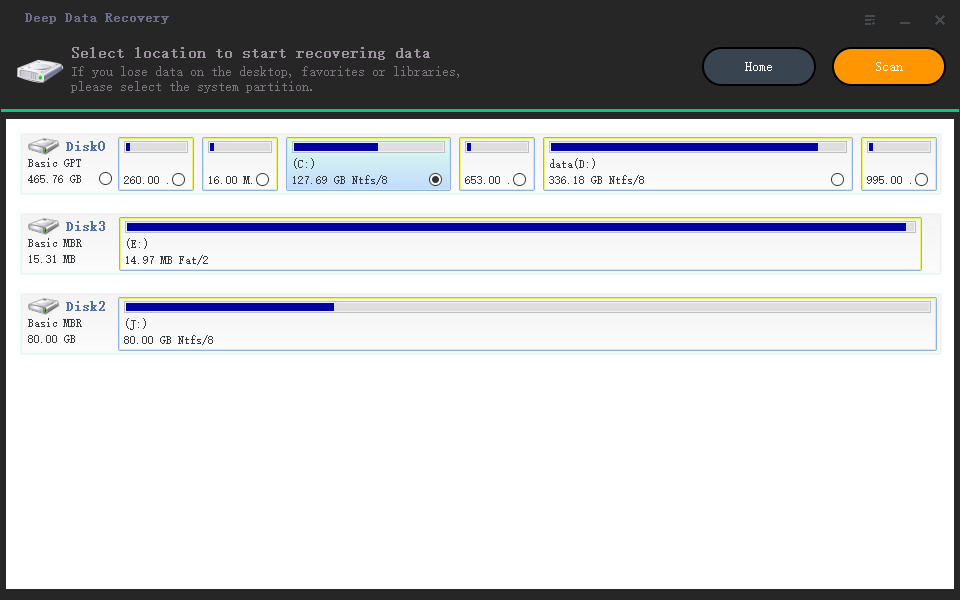
- To recover your lost photos, you'll need to start by selecting the location where the photos were stored on your device. This is usually the internal storage of your phone.
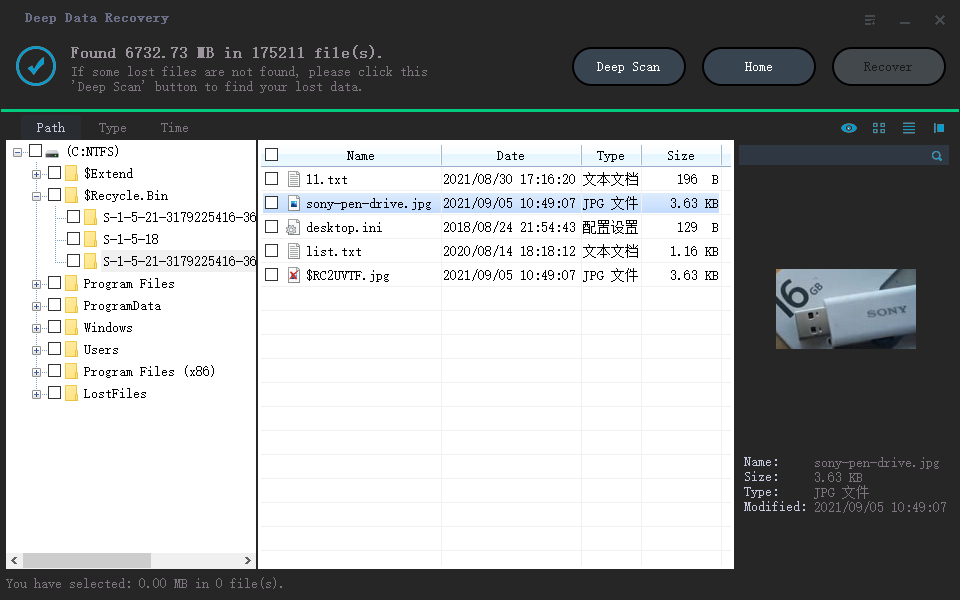
- After selecting the location where the lost photos were stored, the software will initiate a scanning process. This process involves two stages: a quick scan and a deep scan.
Related Articles
- How to Reinstall macOS on MacBook/iMac
- [Fix] Convert External Drive to APFS Failed/Greyed Out/Not Available
- How to Upgrade Acer Aspire Laptop to SSD in Windows 10/8/7/XP?
Learn how to Reinstall macOS on MacBook/iMac Convert External Drive to APFS Failed/Greyed Out/Not Available How to Upgrade Acer Aspire Laptop to SSD in Windows 10/8/7/XP with clear steps, key checks, and practical tips. - 4K Alignment: Align SSD after Clone in Windows 11, 10, 8, 7
You'll learn to align SSD after clone in this post with a secure and powerful tool. - Top 5 C Drive Full Windows 7 Solutions
This guide explains Top 5 C Drive Full Windows 7 Solutions with clear steps, key checks, and practical tips. - C Drive Is Filling Up By Itself in Windows 7 – Fix It with 6 Solutions
To deal with C drive full in Windows 7/8/10, you can run anti-virus, fix corrupted file system, disable Hibernation, and so on.
Products
Articles & Tutorials
- Data Recovery
- Data Backup
- File Recovery
- File Backup
- File synchronize
- System Backup and Restore
- Disk and Partition Clone
- Technical articles
- Disk Master Help
- Windows Deleted File and Disk Recovery Tutorials
- Windows File and Data Recovery Tutorials
- More Windows Tutorials for Install, Security, Files, and PC Tips
- Windows Boot, Repair, and Recovery Environment Tutorials
- Windows Backup Tutorials
- Windows Restore Tutorials
- Windows Clone and Migration Tutorials
- Windows Server Backup, Recovery, and Management Tutorials
- Windows Disk, Partition, and Storage Management Tutorials