7 Solutions for C Drive Is Filling Up by itself in Windows 7/10
- My C drive is automatically filling up
- What is filling up C drive in Windows 7/8/10/11?
- How to solve the "C drive filling up" issue?
- Solution 1. Run anti-virus software to scan your PC
- Solution 2. Fix corrupted file system
- Solution 3. Disable Hibernation
- Solution 4. Turn off System Restore
- Solution 5. Run Disk Cleanup
- Solution 6. Extend C drive without data loss
- Conclusion
My C drive is automatically filling up
"Here I come for help! My computer is running Windows 7, installed on a 1TB hard drive and C drive is 300GB. I don't have saved any video or music files on C drive. But it is filling up automatically and there is almost no free space. Have you ever encounter the C drive filling up by itself issue? What should I do?"
What is filling up C drive in Windows 7/8/10/11?
The C drive is filling up due to backup files, System Restore Points, the paging file, hidden files, and temporary files, which can be caused by a virus generating constant files, or a corrupted file system that shows incorrect free space.
How to solve the "C drive filling up" issue?
After understanding the common causes of a full C drive in Windows 7, it's time to learn about solutions for different situations.
Solution 1. Run anti-virus software to scan your PC
If the C drive is full, it's often due to a virus infection, and running a virus scan with Windows Defender or a third-party anti-virus software can help resolve the issue.
Solution 2. Fix corrupted file system
The issue of incorrect free space being displayed can be caused by a corrupted file system. To resolve this, follow these steps to fix the file system.
1. In Search box, input cmd and choose run as administrator among listed options.
2. In the Command Prompt, type the command `chkdsk C:/f /v /x` and press Enter.
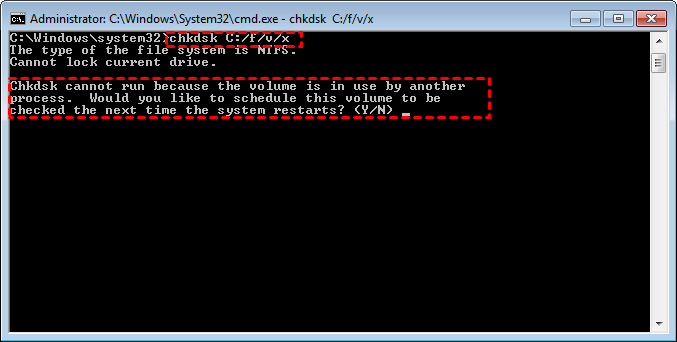
3. Then you'll be asked whether to schedule this volume to be checked the next time the system restarts. Type "Y" and press Enter.
4. After that, reboot your computer for checking.
Solution 3. Disable Hibernation
To free up disk space, you can disable hibernation by deleting the hiberfil.sys file, which is the swap file used by Windows for hibernation.
1. Run Command Prompt as administrator.
2. Input powercfg.exe /hibernate off and hit Enter.
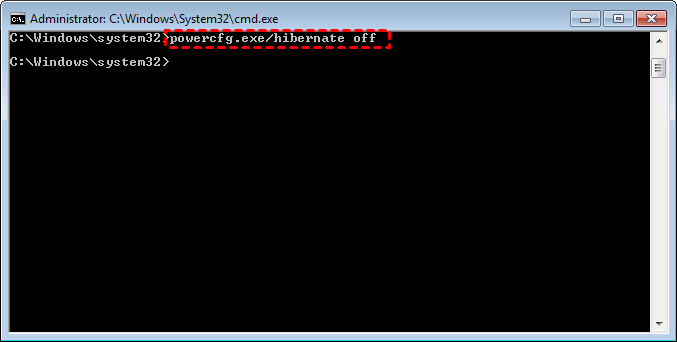
3. Exit from this window.
Solution 4. Turn off System Restore
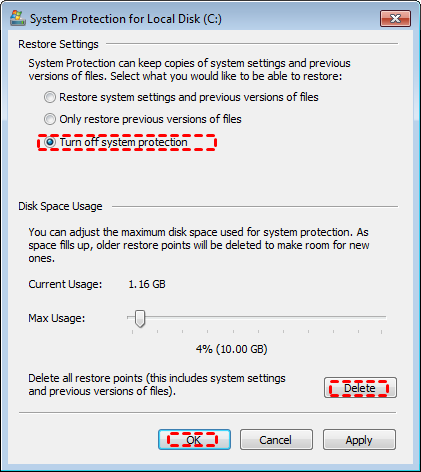
To free up disk space on your C drive, you can disable System Restore and delete its stored points, which can take up a significant amount of space. To do this, go to Control Panel > System > System Protection, then toggle off the switch to disable System Restore. You can also delete the stored restore points by clicking on the "Delete" button. This will help reclaim some of the disk space occupied by System Restore points.
1. Right-click Computer and choose Properties among the listed results.
* If you are running Windows 10, right-click This PC.
2. On the left pane, choose System Protection.
3. In the pop-up small window, select the C drive and click Configure.
4. To disable system protection, select "Turn off system protection" and click "OK", then confirm by clicking "Delete" and "Continue" to delete all system restore points and free up disk space.
Solution 5. Run Disk Cleanup
To fix the C drive full problem using Disk Cleanup, follow these steps: Launch Disk Cleanup, select the drive you want to clean up (usually C:), and choose the types of files you want to remove, such as temporary files, system files, and other items you don't need. The tool will scan the drive and display the amount of space you can free up. Click "OK" to delete the selected files and recover some space on your C drive. This process can help alleviate the C drive full issue.
1. In File Explorer, find the C drive, right-click it, and select Properties.
2. In the pop-up window, click Disk Cleanup.
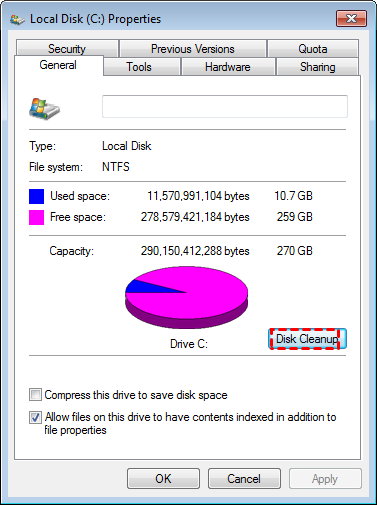
3. To free up available space on your C drive, you can calculate how much space can be freed up by deleting unnecessary files and folders. This can be done by using the built-in Disk Cleanup tool in Windows, which can identify and remove temporary files, system files, and other items that are no longer needed.
3. After that, choose the files that you need to delete.
Solution 6. Extend C drive without data loss
If your C drive has limited space, you can use a third-party partition manager software like Qiling Disk Master Professional to extend it without losing any data. This software allows you to resize your C drive and allocate more space to it, making it a useful tool for managing your disk space.
* You can download the Professional demo version to try it out first.
1. To allocate free space, install and run the software, then in the main interface, right-click on the area with sufficient free space and select "Allocate Free Space".
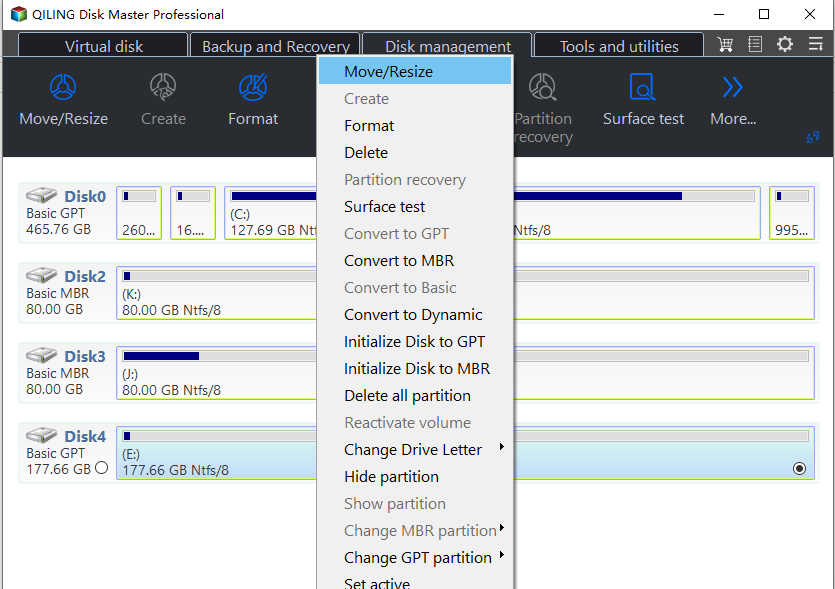
2. In this window, select the free space and choose C drive as the target drive.
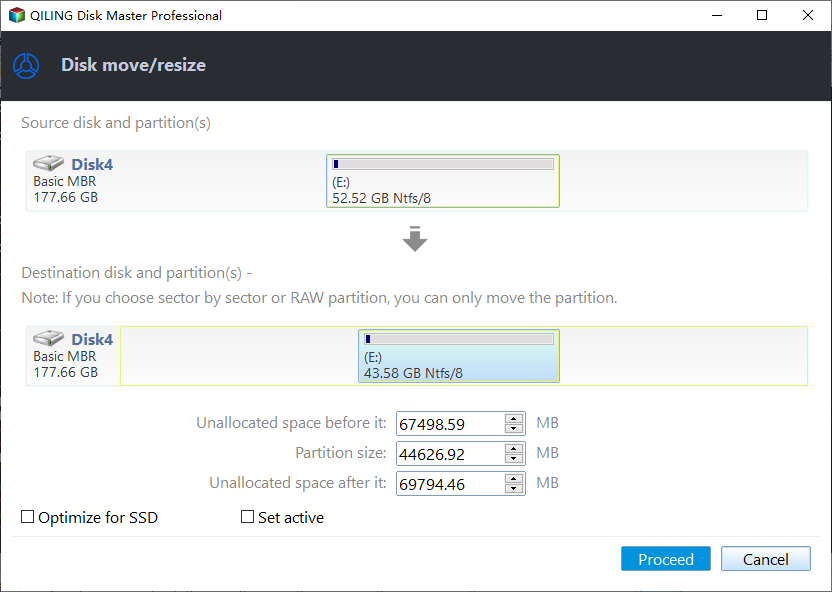
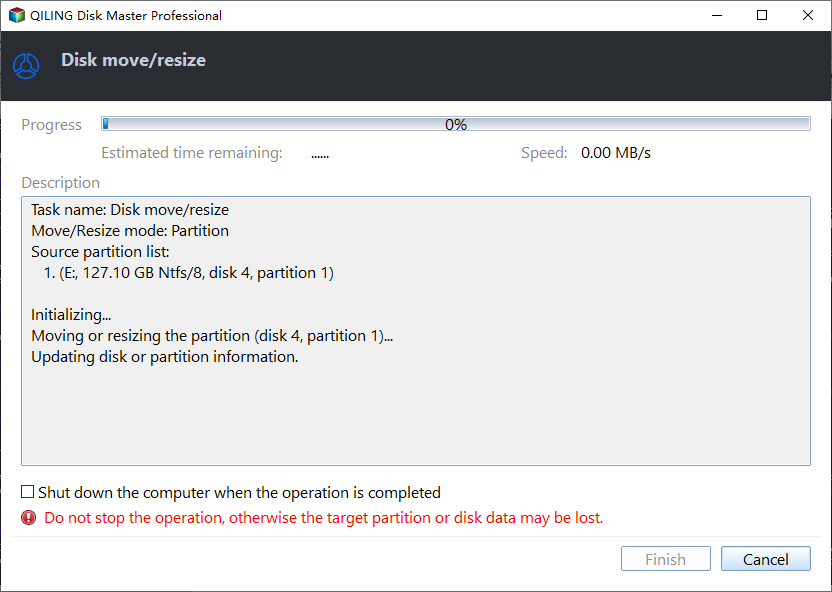
3. Click Apply and Proceed to commit the operation.
✍ Notes:
✔ Qiling Disk Master Professional supports Windows 11/10/8.1/8/7, XP, and Vista, while Qiling Disk Master Server is used for extending C drive in Windows Server.
✔ When there is unallocated space on the hard drive, despite it being non-contiguous with the C drive, you can add this unallocated space into the C drive using Qiling Disk Master.
Conclusion
It's frustrating when the C drive fills up unexpectedly. Besides the previously mentioned methods, you can free up space by uninstalling unnecessary applications on the C drive. If your disk is too small to meet your storage needs, consider cloning it to a larger one to ensure you have enough space for your data.
Related Articles
- How to Migrate Windows 7 from HDD to SSD for Free?
The Qiling Disk Master Standard allows you to migrate Windows 7 to SSD drive without reinstalling Windows. And you don't need to worry that you cannot boot from the new disk after migrating Windows OS from HDD to SSD. - Fixed: Windows 10 Couldn't Be Installed due to System Reserved Partition
It's frustrating to get the error "Windows 10 couldn't be installed" error when upgrading from Windows 7 or Windows 8. This post shows why can't upgrade to Windows 10 and effective solutions for this error. - An Effective Way to Convert FAT32 to Ext4 without Data Loss
Here, we would like to teach you how to convert FAT32 to Ext4 file system without damaging inside data under Windows 10, 8, 7 environment. The free Qiling Disk Master Standard can make it easy done. - [Three solutions] How to Convert HDD to GPT Effectively
The post demonstrates how to convert a traditional HDD to a GPT (GUID Partition Table) without losing any data, providing instructions for both command-line (CMD) and graphical user interface (GUI) methods. - Create Windows Server 2003 System Restore Point with Alternative Ways
Learn how to Create Windows Server 2003 System Restore Point with Alternative Ways with clear steps, key checks, and practical tips. - Windows Server 2008 (R2) Closes to End of Life| What Can You Do?
Microsoft announces Windows Server 2008 (R2) end of life date once again, your computer are more vulnerable to security risk. What to do to protect your server, get it now!
Products
Articles & Tutorials
- Data Recovery
- Data Backup
- File Recovery
- File Backup
- File synchronize
- System Backup and Restore
- Disk and Partition Clone
- Technical articles
- Disk Master Help
- Windows Deleted File and Disk Recovery Tutorials
- Windows File and Data Recovery Tutorials
- More Windows Tutorials for Install, Security, Files, and PC Tips
- Windows Boot, Repair, and Recovery Environment Tutorials
- Windows Backup Tutorials
- Windows Restore Tutorials
- Windows Clone and Migration Tutorials
- Windows Server Backup, Recovery, and Management Tutorials
- Windows Disk, Partition, and Storage Management Tutorials