[Three solutions] How to Convert HDD to GPT Effectively
About MBR and GPT
MBR and GPT are two distinct partition styles that differ in several aspects. The Master Boot Record (MBR) is an older partition style that stores the boot sector and partition table in a single sector, while the Globally Unique Identifier Partition Table (GPT) is a newer style that uses a 16-byte GUID for each partition and stores the partition table across multiple sectors. This difference in design leads to variations in how they handle partitioning, booting, and data recovery, making them suited to different needs and use cases.
✿ Partitioning method
MBR uses a traditional 32-The bit partition table is used to define the disk partitions, supporting up to four primary partitions or three primary partitions and an extended partition with multiple logical partitions inside.
GPT, on the other hand, uses a modern 64-bit partition table, allowing for up to 128 primary partitions on a single disk, in contrast to MBR's 4 primary partitions.
✿ Disk capacity
Due to its 32-The Master Boot Record (MBR) has limitations on disk capacity, only being able to address up to 2 terabytes of disk space, rendering any space beyond this limit unusable.
MBR has limitations, but GPT can handle larger disk capacities, supporting drives over 2TB, making it suitable for modern high-capacity storage devices.
✿ Data redundancy
MBR does not provide built-The Master Boot Record (MBR) is a critical part of a computer's disk management system. If the MBR becomes corrupt, the entire disk may become inaccessible, leading to potential data loss. This is because the MBR contains essential information, such as the disk's partition table, boot code, and other vital data.
GPT includes a backup partition table at the disk's end, ensuring redundancy. If the main partition table becomes corrupted, the system can recover partition info from the backup, minimizing the risk of data loss.
✿ Compatibility
MBR has been widely used for many years and is compatible with a wide range of operating systems, including older versions of Windows, macOS, and Linux.
GPT is becoming widely supported, but it requires a UEFI interface instead of legacy BIOS for booting, which is supported by most modern systems and newer operating systems.
✿ Partition naming
MBR uses a single-The current system uses a single byte value to identify partition types, which can lead to ambiguous partition names and limit the number of unique identifiers.
GPT uses Globally Unique Identifiers (GUIDs), a 128-bit value, to uniquely identify partitions, providing a globally unique name for each partition.
✿ Backup and restore
As MBR lacks built-In the event of a redundant system, backup and restoration processes can be more complex and may require the use of third-party tools.
GPT's backup partition table allows for easier backup and restoration of data, making it a more reliable and user-friendly process.
The GPT partition style has an advantage over MBR, allowing for larger storage capacity and more efficient disk management.
When need to convert HDD to GPT?
MBR (Master Boot Record) and GPT (Globally Unique Identifier Partition Table) are two distinct partition styles that differ in several aspects. While MBR is an older style that stores partition information in a single sector, GPT is a newer style that uses a globally unique identifier to store partition information in a more flexible and scalable manner. This difference in design allows GPT to support larger hard drives and more partitions, making it a more modern and efficient choice for many users.

If you are in the following condition, it is recommended to convert the disk into GPT:
1. You own a disk larger than 2TB.
To utilize the full capacity of a large-capacity HDD, such as a 4TB MBR HDD, it's necessary to convert it to GPT, allowing for the use of the entire disk space beyond 2TB, which would otherwise be unallocated and unusable for data storage.
2. You want to create more partitions for classified storage.
The MBR disk allows for 4 primary partitions or 3 primary & 1 extended partition. To have more, it can be converted to GPT.
3. You encounter an error.
On EFI systems, you may encounter the "Windows cannot be installed to this disk, The selected disk has an MBR partition table" warning while installing Windows OS. This issue can be resolved by converting the hard disk drive to GPT.
Three easy ways to convert HDD to GPT in Windows
To convert a hard disk drive to GPT, you need to understand the operating system's requirements. This involves knowing whether your OS supports GPT, as some older systems may not.
◤ The GPT disk is not supported in older Windows versions, specifically Windows XP 32-bit, Windows 2000, Windows NT 4, or Windows 95/98. In these systems, a GPT disk will be recognized as a GPT protective partition, meaning it can be read and written to, but not booted from. This limitation is due to the fact that these older Windows versions do not have built-in support for GPT disks.
◤ GPT disk can be used in various Windows versions, including Windows 11/10/8.1/8/7, Vista, and Windows Server 2003/2008(R2)/2012 (R2)/2016/2019/2022, both 32bit and 64bit. However, to use GPT as the boot device, the system must be 64bit and the motherboard must support UEFI.
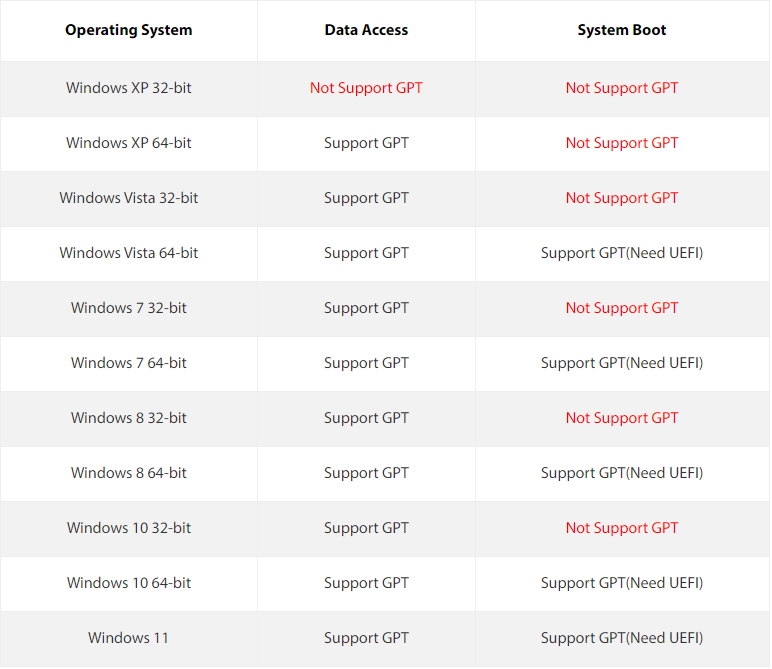
Make sure that GPT disk can be supported by the operating system that you are using; then you can select one between the two offered simple yet effective ways to convert hard disk drive into GPT.
✔ Way 1. Easily convert HDD into GPT using a GUI tool without losing data
If you have a hard drive with multiple partitions and want to convert it to GPT without losing data, or need to convert a system disk without Windows installation media, consider using a third-party MBR to GPT converter tool. Qiling Disk Master Professional is a reliable option that allows you to convert a data or system hard drive to GPT without deleting any partitions, and can also change a disk from GPT to MBR partition table without data loss.
To convert a 3TB HDD to GPT, first, install a tool like GPT fdisk or gdisk, which can handle GPT partitioning. Then, use the tool to create a new GPT partition table on the HDD.
PS: It is available to download its demo version and try it out first.
Step 1. To convert a hard drive to GPT, you can use Qiling Disk Master Professional. First, run the software, then locate the hard drive that needs converting. Right-click on the HDD and select the option to convert it to GPT.
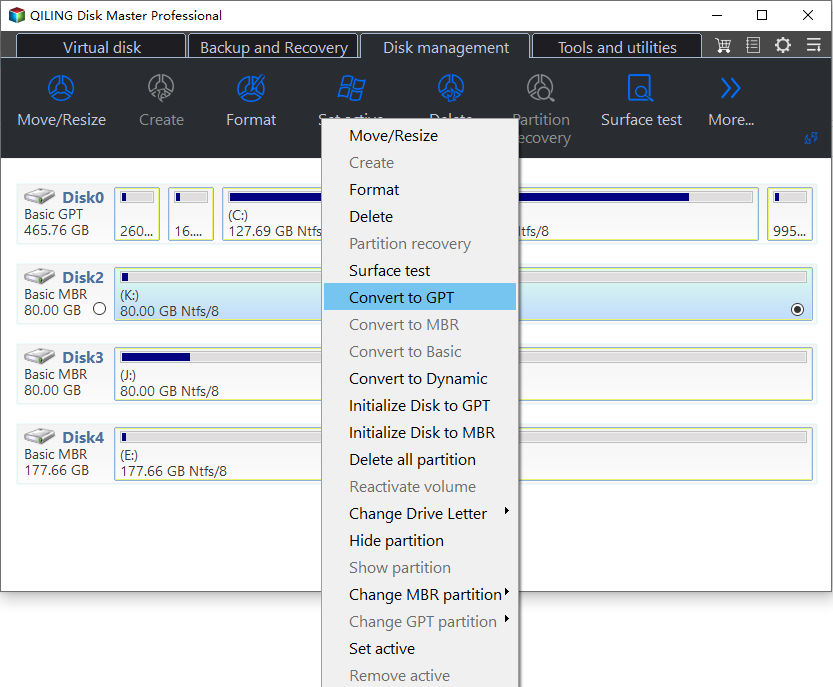
Step 2. Waiting for a moment to execute the operation.
1. For the system disk, you need to enter BIOS to change Legacy to EFI/UEFI after you convert it to GPT.
2. Qiling Disk Master Professional is a software that supports Windows 11/10/8.1/8/7 operating systems.converting MBR to GPT in Windows Server 2022, 2019, 2016, 2012, or 2008, please employ Qiling Disk Master Server.
✔ Way 2. Convert HDD to GPT using CMD [clean disk is needed]
If your HDD is initialized with MBR but not allocated or allocated without necessary data, you can convert it to GPT using CMD.
Step 1. Press Windows + R simultaneously, input cmd and press Enter key.
Step 2. Then, input diskpart and hit Enter key.
Step 3. Run the commands listed below:
• list disk
• select disk n To convert a hard drive to GPT, you'll need to boot from a live USB, open a terminal and run the command `sgdisk --zap-all /dev/sd{n}` (replace `{n}` with the actual number of the hard drive you want to convert) followed by `sgdisk --new 1::2048::4294967295 /dev/sd{n}` and finally `sgdisk --change-type 1: gpt /dev/sd{n}`. This will erase all data on the drive and convert it to GPT. Please note that this process is irreversible and will destroy all data on the drive.
• clean
• convert gpt
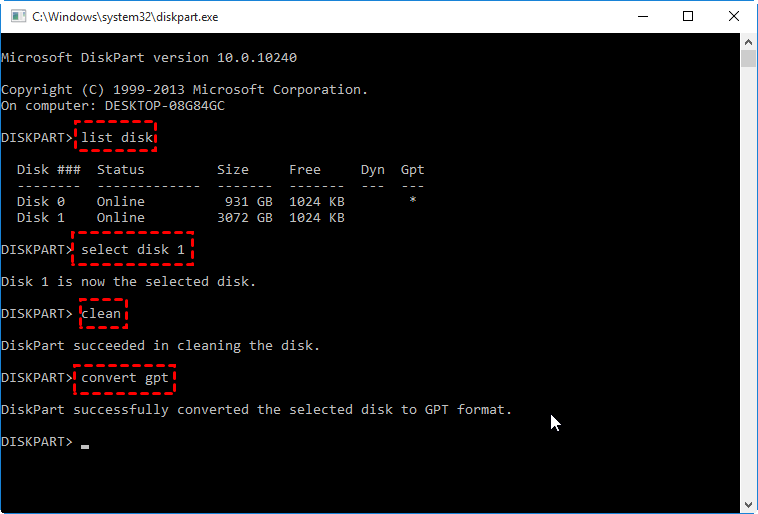
When you see Diskpart successfully converting the selected disk to GPT format, you can type exit and press Enter to close the window.
- ★Notes:
- If your disk is unallocated, you can skip the "clean" command.
- Before using the "clean" command, make sure to back up any important data to prevent loss.
- To convert an HDD with OS installed into GPT, insert a Windows installation media, boot from the installation disc, and press Shift+F10 to access Command Prompt, then run the commands to convert the disk to GPT.
- If your computer is running Windows 10 V1703 or later, you can use the built-in MBR2GPT tool to convert the MBR-formatted system disk to GPT partition format without data loss.
✔ Way 3. Convert HDD to GPT with Disk Management
Disk Management is a built-in Windows tool that allows users to perform essential disk partition management tasks, including formatting, resizing, deleting, and wiping partitions, as well as converting a disk to GPT.
Note: To convert an MBR disk to a GPT disk using this tool, first, delete all partitions on the target MBR disk to turn it into unallocated disk space, and back up the MBR disk to avoid data loss.
Step 1. Right-click on "My Computer" or "This PC" and choose "Manage", then select "Disk Management" from the list.
Step 2. To prepare the disk for conversion, right-click on each partition and select "Delete Volume" to erase the existing data and partitions, making the disk ready for the conversion process.
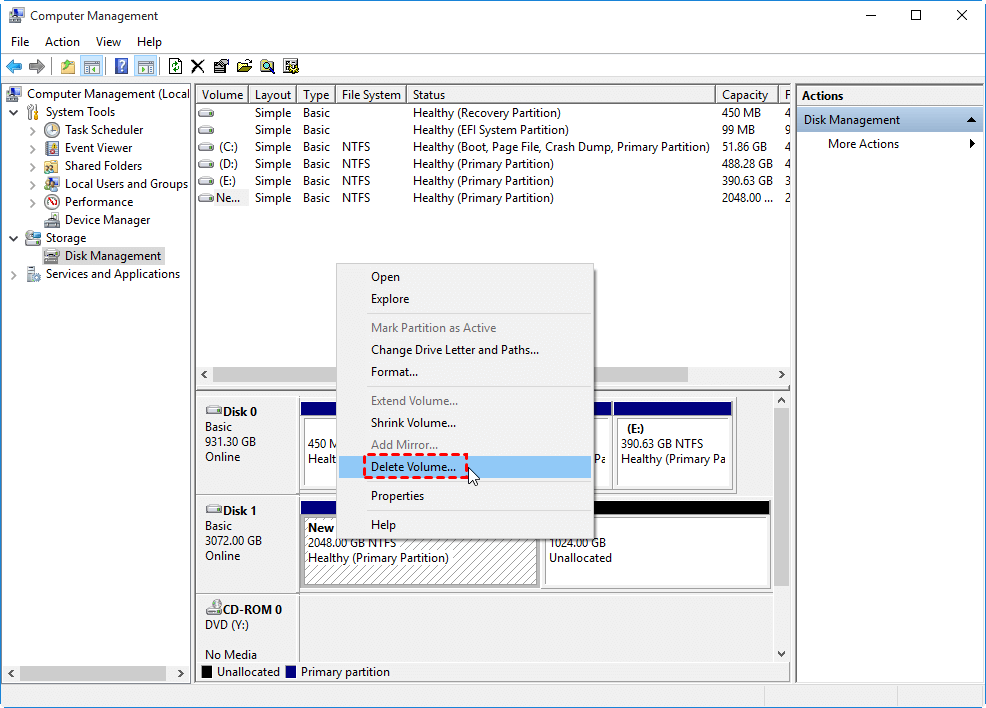
Step 3. Next, right-click on the target disk and choose "Convert to GPT Disk".
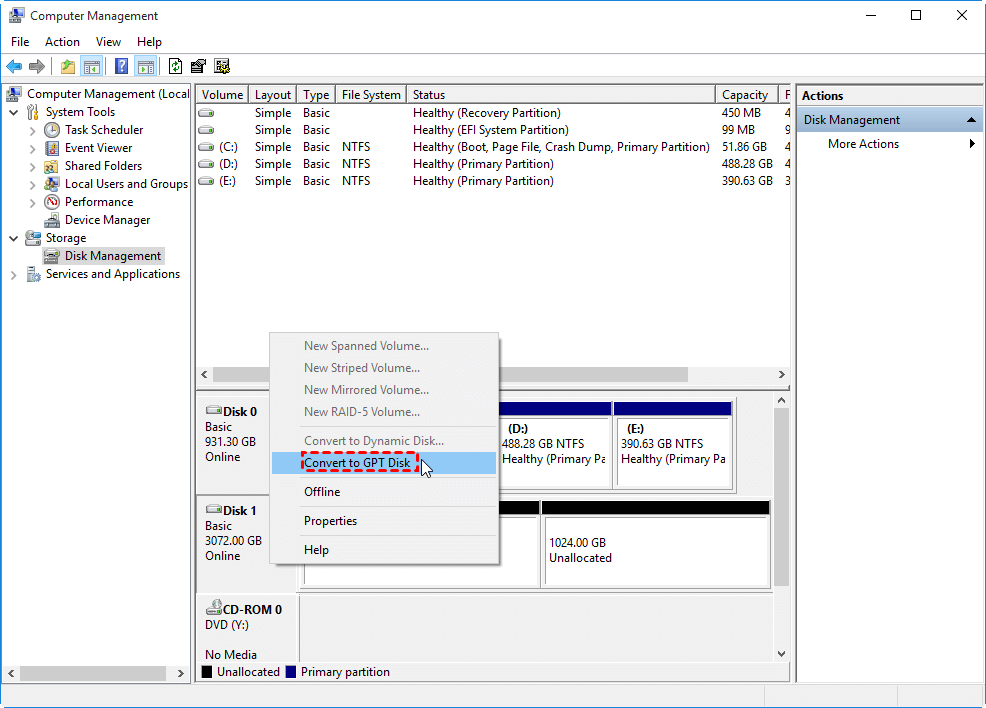
Step 4. To convert the Master Boot Record (MBR) to a Globally Unique Identifier Partition Table (GPT), follow the on-screen instructions. This process is typically fast and easy to complete.
Wrap thing up
You can convert a hard disk drive to GPT partition style by following the steps outlined above. Apart from MBR to GPT conversion, Qiling Disk Master Professional can also be helpful in fixing various issues, such as recovering a lost partition if you've accidentally deleted it, or extending the C drive without losing data if it's full after an update.
Related Articles
- How to Convert MBR to GPT during Windows Installation
Learn to convert MBR to GPT during Windows installation via Command Prompt and a handy tool to convert the disk without losing data. - Freeware to Format exFAT to FAT32 in Windows 7,8,10
Learn how to format exFAT to FAT32 in Windows 7/8/10 with freeware tools, file system tips, and safer formatting steps. - How to Format SD Card for Nintendo 3DS (XL) with Freeware?
To format an SD card for 3DS usage, you can use the built-in formatting tool on the device. Simply insert the SD card into the 3DS, go to the Homebrew Launcher, and select the "Format SD Card" option. Follow the on-screen instructions to complete the formatting process. - Best Free Software to Format SD Card to exFAT on Windows
This tutorial shows how to format SD card including micro SD card of Android phone like Galaxy S4 to exFAT file system on Windows 7/8/10 in easy and simple steps. - [Full Guide] How to Move Steam Games to External Hard Drive
Learn how to move Steam games to external hard drive on Windows 10/11. Step-by-step guide to transfer games without re-downloading, free up disk space, and run Steam games from external drives. - Full Guide| How to Move Windows 10 to Another Hard Drive
This guide explains Full Guide| How to Move Windows 10 to Another Hard Drive with clear steps, key checks, and practical tips.
Products
Articles & Tutorials
- Data Recovery
- Data Backup
- File Recovery
- File Backup
- File synchronize
- System Backup and Restore
- Disk and Partition Clone
- Technical articles
- Disk Master Help
- Windows Deleted File and Disk Recovery Tutorials
- Windows File and Data Recovery Tutorials
- More Windows Tutorials for Install, Security, Files, and PC Tips
- Windows Boot, Repair, and Recovery Environment Tutorials
- Windows Backup Tutorials
- Windows Restore Tutorials
- Windows Clone and Migration Tutorials
- Windows Server Backup, Recovery, and Management Tutorials
- Windows Disk, Partition, and Storage Management Tutorials