How to Fix Excel Cannot Open the File Because the Extension Is Not Valid Windows 11/10/7
Quick Navigation:
- Part 1. Why XLSX File is not Opening
- Part 2. Four Solutions for How to Fix 'Excel Cannot Open the File Because the Extension is Not Valid'
- Solution #1. Change the File Extension
- Solution #2. Open the Microsoft Excel file in Safe Mode
- Solution #3. Open Microsoft Excel File Using Open and Repair Feature
- Solution #4. Disable Automatic Calculation
- Part 3. How to Recover Lost/Deleted Excel Workbook
- Your Safe & Effective Excel Workbook Recovery Program
- How to do Excel Recovery with Deep Data Recovery Software
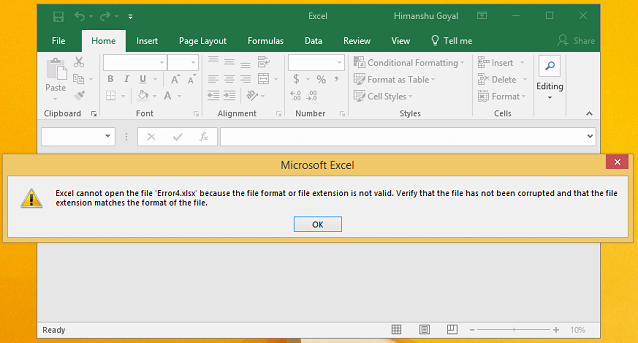
When trying to open an Excel file, users may encounter an error message stating 'Excel cannot open the file because the extension is not valid' on Windows 10, regardless of Microsoft Office version. To resolve this issue, users can try various methods, which are detailed in the article. These methods can help users successfully open their Excel files.
If the workbook is damaged or lost, compare these fixes with Excel not responding recovery steps.
Part 1. Why XLSX File is not Opening
The error "Excel cannot open the file because the extension is not valid" on Windows 7/10/11 may be caused by several factors, including incorrect file associations, corrupted system files, or issues with the Excel application itself.
- The document has undergone multiple revisions across various Excel versions.
- The document is not compatible with the latest version of Excel or it has been damaged.
- You have received the Excel file by email, which is not compatible with the Excel software on your computer
Part 2. Four Solutions for How to Fix 'Excel Cannot Open the File Because the Extension is Not Valid'
If you're unable to open your file, it's likely due to one of the following reasons: the file is corrupted, the file is too large, the file is not supported by your device, or the file is password-protected. Don't worry, there are solutions to these problems. You can try using a file recovery software, compressing the file, checking if your device supports the file type, or using a password-cracking tool (if applicable).
Solution #1. Change the File Extension
The "Excel cannot open the file because the extension is not valid" error may be caused by an incompatible file extension of your Excel file. Typically, Microsoft Excel is saved as XLS or XLSX file by default, with XLSX being the default for 2007 and later versions, and XLS for earlier versions. This means if you're using an older version, you may not be able to open XLSX files. To resolve the issue, follow the steps below.
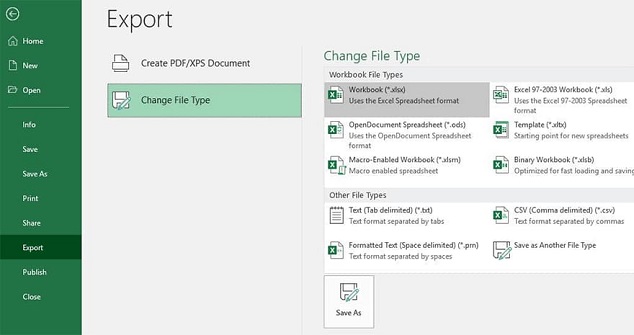
- Open the Microsoft Excel file and navigate to the File tab.
- Click the 'Export' button and select 'Change File Type'.
- To resolve the issue of Excel being unable to open a file due to an invalid file extension in Windows 11/10/7, change the file extension to a format that Microsoft Excel supports, such as .xls, .
- If you're unable to open a file, try clicking on it to see if you can open it. This is a simple troubleshooting step that can help you identify if the issue is with the file itself or with another factor.
Solution #2. Open the Microsoft Excel file in Safe Mode
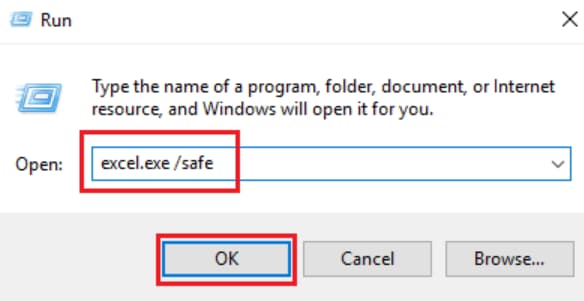
If you have tried the first solution and the file is not opening, another solution is to open the file in safe mode. This solution lets you check if there are errors that are affecting the Microsoft Excel file. Follow the steps below to use this option.
- To troubleshoot Microsoft Excel issues, press the 'Windows + R' key, type 'excel.exe /safe', and click 'OK'. This loads Excel without add-ons or templates, helping you determine if the program is functioning correctly or if it's been corrupted.
- If Microsoft Excel opens normally, check for any add-ons that might be causing issues with the file. If you find any, disable them and click "OK".
- If you're experiencing issues with Microsoft Excel, try restarting the application and see if the problem persists. If the issue remains, you can try closing and reopening the file, or checking for any updates to the Excel application. If none of these solutions work, you can also try resetting Excel to its default settings or seeking help from Microsoft support.
Solution #3. Open Microsoft Excel File Using Open and Repair Feature
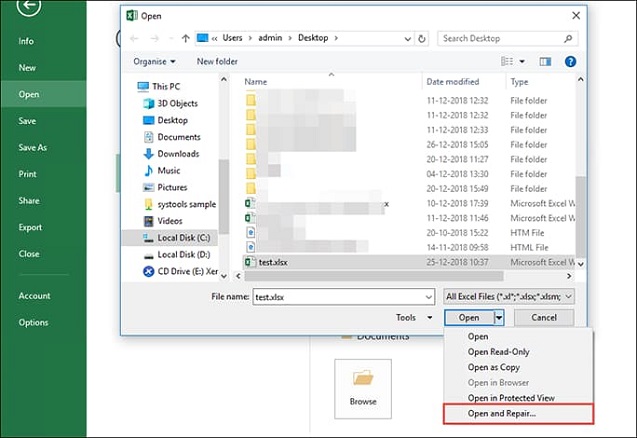
The 'Open and Repair' feature in Microsoft Excel can help resolve the 'Excel cannot open the file with available resources Window 11' issue. To use this feature, follow the steps to correct any errors and open the file successfully.
- Launch Office Excel and click 'Open' on the Microsoft Office button or the File menu.
- Click on the inaccessible Microsoft Excel file in the open dialog box.
- To fix a corrupted Excel file, click on the 'Open' button, click on the down arrow, and select 'Open and Repair'. This will initiate a scan and repair process to correct any errors in the file.
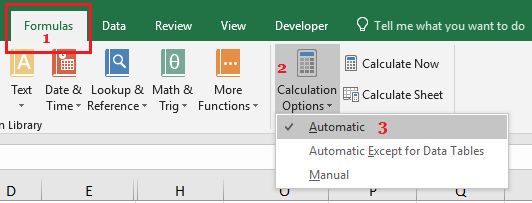
Solution #4. Disable Automatic Calculation
When the Automatic Calculation is enabled, it may prevent the Excel file from opening, leading to a 'Excel cannot open the file because the extension is not valid Windows 10' error code. To resolve this, disable Automatic Calculation by following these steps.
- Launch Microsoft Excel File
- To enable automatic calculation in Google Sheets, locate the "Automatic Calculation" option in the top bar of the spreadsheet, and right-click on the icon. This will allow you to enable or disable automatic recalculation of formulas in the spreadsheet.
- To remove an Excel file from "Automatic" mode, click on "Manual" to remove it, and then reopen the Excel file again.
Part 3. How to Recover Lost/Deleted Excel Workbook
Don't panic if you've accidentally deleted an Excel Workbook. You can recover your lost Excel files with a data recovery tool like Deep Data Recovery, which can help restore deleted workbooks.
Deep Data Recovery software is a recovery tool for Windows/Mac that can help recover deleted files, including Excel workbooks. It scans the selected drive and lists recoverable files so you can preview and restore the workbook you need.
Your Safe & Effective Excel Workbook Recovery Program
- The software offers two scanning modes to facilitate MS Excel recovery on Mac or Windows PC.
- Recoverit supports recovering Excel workbooks that have been deleted accidentally, corrupted by a virus, or lost due to a formatted disk, among other issues.
- The tool allows you to preview an Excel workbook before recovering it, giving you the opportunity to ensure you're recovering the correct file.
How to do Excel Recovery with Deep Data Recovery Software
To get started with Qiling, download and install the software from the official website, then launch it and follow the steps that follow.
- To begin the scanning process, select the file type(s) you want to scan. By default, all file types are usually selected, but you can easily narrow it down by clicking on 'go to setting' to deselect other file types and then selecting 'Document' to focus on that specific type.
- Select the specific location to scan and click the 'Scan' button to recover deleted files, then select the location where the deleted Excel document was saved.
- Preview the recovered Excel files and select the ones you want to recover. Click 'Recover' to save them.


If you see the error "Excel cannot open the file because the extension is not valid" or suspect that the workbook is corrupted or deleted, try the four methods above in order. They can help you repair the file, recover a lost workbook, and return to work with less interruption.
Related Articles
- Excel Not Responding How to Save Your Work in Windows 10
- How to Recover Temporary Excel Files in Windows 10/7/XP
- How to Open Download Files in Windows/Mac Chrome/Firefox/Microsoft Edge
- [Solved] Photos Cannot Open in Windows 11/10
- How to Fix MBR in Windows 7 With or Without Installation CD or DVD?
This article provides a step-by-step guide on how to fix the Master Boot Record (MBR) in Windows 7, whether or not you have a Windows installation disc. - How to Format Windows 7 With CD Step by Step?
In this article, we will show you how to format Windows 7 with CD step by step. Besides, you can also learn how to format Windows 7 with a USB drive.
Products
Articles & Tutorials
- Data Recovery
- Data Backup
- File Recovery
- File Backup
- File synchronize
- System Backup and Restore
- Disk and Partition Clone
- Technical articles
- Disk Master Help
- Windows Deleted File and Disk Recovery Tutorials
- Windows File and Data Recovery Tutorials
- More Windows Tutorials for Install, Security, Files, and PC Tips
- Windows Boot, Repair, and Recovery Environment Tutorials
- Windows Backup Tutorials
- Windows Restore Tutorials
- Windows Clone and Migration Tutorials
- Windows Server Backup, Recovery, and Management Tutorials
- Windows Disk, Partition, and Storage Management Tutorials