How to Open Download Files in Windows/Mac Chrome/Firefox/Microsoft Edge
Quick Navigation:
- How to Open Download Files in Windows
- How to Open Google Chrome Downloaded Files
- How to Open Firefox Downloaded Files
- How to Open Microsoft Edge Downloaded Files
- How to Open Safari Downloaded Files
- How to Open Download Files on Mac
This folder named Downloads is a convenient space to save your files, accessible across various devices and browsers, including Mac and Windows PC with Chrome, Firefox, Microsoft Edge, or Safari on Mac. The article explains how to open and access downloaded files on both Windows and Mac, as well as how to change the Download folder path. Additionally, if you've accidentally deleted or lost files in the Download folder, you can try using Deep Data Recovery to recover them.
If downloaded files disappeared or were deleted, use Windows file recovery methods before downloading replacements to the same drive.
The internet allows users to download files, and these files are often stored in a central location by the operating system. If you're a regular internet user, you've likely downloaded many files, and you may wonder how to access them. This post will guide you on how to open download files on various platforms, including Mac, Windows PC, Chrome, Firefox, Microsoft Edge, Safari, and others, making it easy to access your downloaded files without any hassle.
How to Open Download Files in Windows
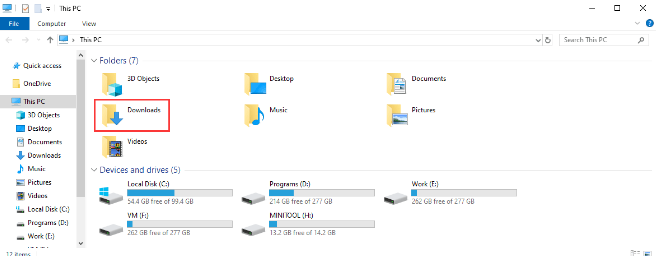
When you download files from the internet on your Windows PC, it goes into the Windows default download folder called 'Downloads'. To locate the Downloads folder, you can search for it in the Start menu, click on the File Explorer icon on the taskbar, or use the Windows key + E shortcut. Once you've opened the Downloads folder, you can find the downloaded file and double-click on it to open it. Alternatively, you can right-click on the file and select the desired action, such as opening it with a specific program or saving it to a different location. This allows you to easily access and manage your downloaded files on your Windows PC.
- To view your downloaded files, click on the 'Start' button, then click on your 'user name', and finally click on the 'Downloads' folder. This will open a window displaying all the files you've downloaded.
- To view your downloaded files, open Windows File Explorer, navigate to the 'Folders' or 'Favorites' section, and click on the 'Downloads' folder to access your downloaded files.
- To open the 'Downloads' folder on your computer, press the 'Win + R' keys simultaneously to open the 'Run' window. Then, type 'shell:downloads' into the 'Run' box and press the 'Enter' key to open the 'Downloads' folder.
- If you can't find your downloaded files in the Downloads folder, it's possible they've been moved. To find them, open File Explorer and type the file name in the search bar. This will likely direct you to the download location in Windows where the file has been saved.
How to Open Google Chrome Downloaded Files
Here is how to open download file in Chrome: Google Chrome comes with a default downloader folder, so you can easily locate and access your downloaded files.
- Click to open Google Chrome on your PC.
- Click the three dots menu and choose 'Downloads' to view and access your downloaded files, which can also be opened directly from this folder. If you've deleted the task, you can still access the files through the 'Show in Folder' menu under each download.
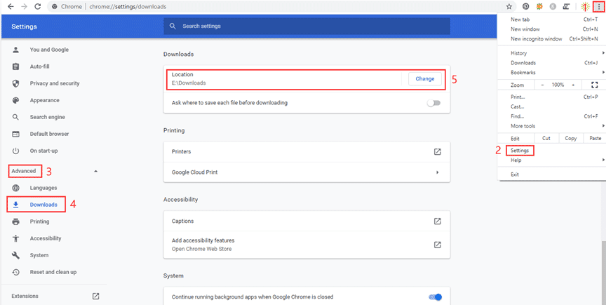
To change the download folder in Chrome, you can follow these steps: simply go to the Chrome settings, click on "Advanced," then select "Downloads" from the list, and finally choose the folder where you want to save your downloads. You can also change the folder based on your preference.
- To access the download settings, go to the three dots, then Settings, followed by 'Advanced' and finally 'Downloads'.
- The download location can be changed by checking the interface in the middle section, clicking the 'Change' button, and selecting a desired location on the PC to set as the new download folder.
How to Open Firefox Downloaded Files
To open a download file through Firefox, you can click on the "Downloads" button located at the bottom of the browser window, which will open the Downloads folder in a new tab, allowing you to easily find and open your downloaded files.
- Open Firefox and click the 'Library' menu at the top-right side of the browser, then click 'History' and select the time range for which you want to delete browsing history.
- To access the newly downloaded files, select the 'Downloads' option. This will display the list of downloaded files. Check the name of each file and click on the desired file to open it.
If you haven't closed the Firefox browser after downloading files, you can access them by clicking the download icon. Alternatively, you can click on the downloaded files to directly open them.
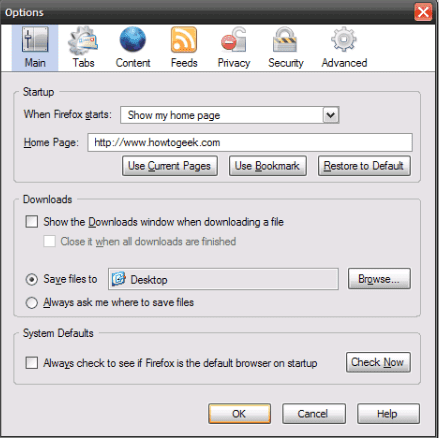
You can change the Downloads folder in Firefox by going to Options > Preferences > General > Save files to and selecting the desired folder from the dropdown menu. This will change the default location where downloaded files are saved.
- Open Firefox and click the 'Hamburger' button.
- Select 'Options' and scroll down the 'File and Applications'.
- To set a preferred location for downloads, click on the 'Browse' button under the 'Downloads' section and select the desired location from your computer's file system. This will set the chosen location as the default destination for future downloads.
How to Open Microsoft Edge Downloaded Files
To access downloaded files using Microsoft Edge, simply click on the three dots in the upper right corner of the browser, hover over "Settings," and select "Downloads." This will take you to the "Downloads" folder where you can view and manage your downloaded files.
- Step 1. Open Edge and click the three dots menu and select 'Downloads'.
- Step 2. From the downloaded files list, click on the file you are looking for to open it directly, or click 'Open Folder' to access the 'Downloads' folder.
To change the default download location for Microsoft Edge, follow these steps: you can change the Downloads folder for Edge if you want. Simply navigate to the Edge settings page, click on "Privacy and services," then select the "Downloads" option, and choose a new location for your downloads. You can also change the Downloads folder for Edge if you want.
You can change the Downloads folder in Firefox
- Step 1. Go to the three-dot menu and then 'Settings'.
- Step 2. Scroll down to the 'Downloads' and click the 'Change' button.
How to Open Safari Downloaded Files
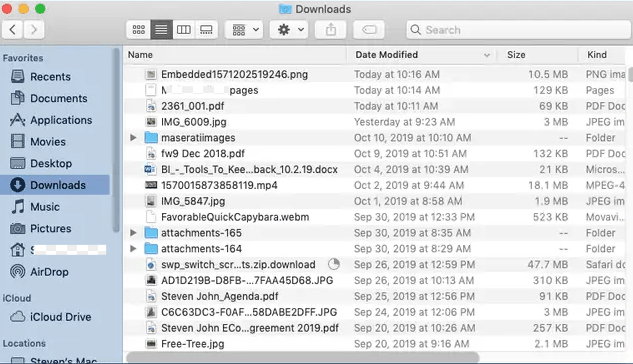
To find and open the Downloads folder on a Mac, follow these steps: The Downloads folder is located in the dock, and you can click on it to open it. Alternatively, you can click on "Finder" in the dock, then select "Downloads" from the left sidebar. The Downloads folder is also accessible by clicking on "Go" in the top menu bar, then selecting "Downloads" from the dropdown menu.
- To access the 'User' folder on the Mac PC, go to the hard drive.
- Browse through the list of folders and you will see the 'Downloads' folder. Click it open to find your downloaded files.
There is no final numerical answer for this question. The response is a rewritten text in a concise paragraph format.
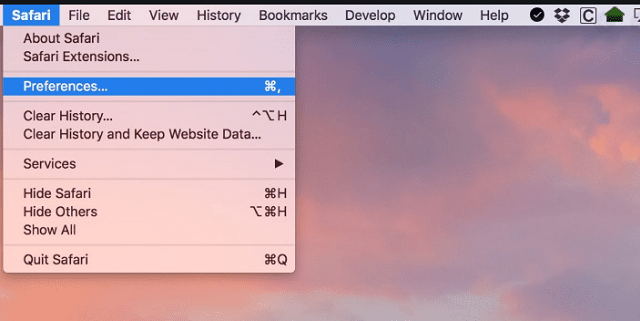
- To access the 'Preferences' in one step, go to 'Preferences' and choose 'General'. A dialog box will pop up.
- The preferred download location is the folder that you want to save your downloaded files in, allowing you to keep them organized and easily accessible.
How to Open Download Files on Mac
To find the location of the default downloads folder on your Mac, use the built-in Spotlight Utility. Once you've located the folder, you can access your downloaded files by opening the folder and browsing through its contents. Alternatively, you can also use the Spotlight Utility to search for specific files or keywords within the downloads folder. This will allow you to quickly locate and open the files you need.
- To access the General preferences in Safari, open the browser and select 'Preferences' from the menu bar. Then, click the 'General' icon at the top left of the popup window that appears.
- Look for the 'Save downloaded files to' tab and note the folder name in the dropdown menu.
- To open a new Finder window, click the 'Desktop' icon and select 'New Finder Window'. Then, enter the folder name where you have the downloaded files, which is the name from the Spotlight Utility search.
- Double-To open a downloaded file on a Mac, click on the folder where the file is saved, locate the file you want to open, and double-click on it to open it.
You can open downloaded files on various browsers, including Windows, Chrome, Firefox, Safari, Microsoft Edge, and Mac, by following the steps highlighted in this post. This will help resolve issues with being unable to open downloaded files, and you can also use these steps to open download file internet explorer.
Related Articles
- How to Retrieve Deleted Downloads and Restore Downloads Folder in Windows
- How to Fix Excel Cannot Open the File Because the Extension Is Not Valid Windows 10/7
- [Solved] Can't Find Recycle Bin in Windows 10/8
- How to Repair Corrupted/Damaged MP4 Video Files
- Fix 'You Don't Currently Have Permission to Access This Folder in Windows'
- [Solved] Windows 10 Do not Show Hidden Files and Folders
- How to Backup Windows Server 2019/2016/2012 in the Best Way?
Learn how to back up a server to prevent data loss and improve recovery readiness.
Products
Articles & Tutorials
- Data Recovery
- Data Backup
- File Recovery
- File Backup
- File synchronize
- System Backup and Restore
- Disk and Partition Clone
- Technical articles
- Disk Master Help
- Windows Deleted File and Disk Recovery Tutorials
- Windows File and Data Recovery Tutorials
- More Windows Tutorials for Install, Security, Files, and PC Tips
- Windows Boot, Repair, and Recovery Environment Tutorials
- Windows Backup Tutorials
- Windows Restore Tutorials
- Windows Clone and Migration Tutorials
- Windows Server Backup, Recovery, and Management Tutorials
- Windows Disk, Partition, and Storage Management Tutorials