How to Solve Hard Drive Won't Spin
Quick Navigation:
- Part 1. Causes for Hard Drive Spinning Not Working
- Part 2. How to Fix Hard Drive Won't Spin
- Check to see if the Hard Drive Failure is due to Electrical Surge
- Troubleshoot the PCB
- Fix Stuck Disk Head
- Fix Seized Spindle Motor
- Part 3. How to Protect the Data in the Hard Drive that Won't Spin
- Step-by-step Guide to Recover Data from the Hard Drive
A non-spinning hard drive is a major issue that requires prompt attention. Understanding the possible causes and taking immediate action are crucial to prevent further damage. If the hard drive is unrepairable, taking it to a professional repair service may be necessary, which can take several weeks. In the meantime, if data has been lost, consider using a hard drive recovery solution like Qiling to recover the data as soon as possible and prevent permanent loss.
If the drive is still detected but files are inaccessible, see corrupted hard drive repair options before trying risky fixes.
A hard drive can fail to spin due to various reasons, whether electrical or mechanical in nature. If your PC is plugged in and you're experiencing a 'hard drive won't spin' issue, it's essential to identify the cause and explore possible repair solutions. By understanding the root of the problem, you can take steps to resolve the issue and get your hard drive spinning again.
Part 1. Causes for Hard Drive Spinning Not Working
If you plug in a hard drive and don't hear the standard spinning sound, it may be due to issues with the firmware, insufficient power supply, or heavy power surge, but other serious problems could also be the cause.
- Platter motor seizure
- The write/read head is trapped on the platter
- Electrical failure on the Printed Circuit Board (PCB)
If your external hard drive is not spinning, it may not be recognized by your computer, and you won't be able to save or recover data. To resolve this issue, you can troubleshoot the hard drive using various methods.
Part 2. How to Fix Hard Drive Won't Spin
To identify why the hard drive is not working, start by checking the power supply, ensuring the hard drive is properly connected to the computer, and verifying that the drive is not damaged or faulty. You can also try running a diagnostic test on the hard drive to see if it's functioning properly. If the issue persists, consider replacing the hard drive or seeking professional help from a computer technician.
Check to see if the Hard Drive Failure is due to Electrical Surge
When you notice a burning smell on your hard drive, it's likely due to an electrical surge that's damaged the Printed Circuit Board (PCB). This requires further troubleshooting to identify the specific components that need replacement. If there's no burning smell, check the power supply by connecting the hard drive to another cable or PC. If the issue persists, it may be an electrical or mechanical fault, requiring a professional's attention.
Troubleshoot the PCB
The Printed Circuit Board (PCB) in a hard drive enables electricity to flow between components, allowing the device to function properly. Key components on the PCB include the Main Controller IC, Cache Chip, Motor Controller Chip, VS Diodes, Board Number, and ROM/BIOS. If any of these components fail, the hard drive may malfunction, with symptoms such as the computer hard drive not spinning.
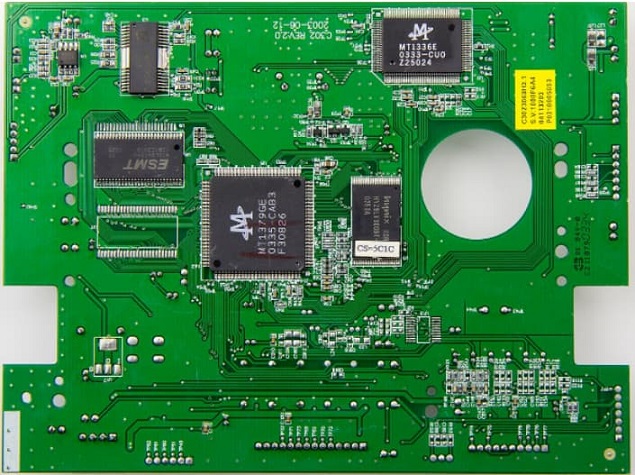
The most common components to fail on a PCB are the diodes, so it's essential to test them first before proceeding with any other checks. To do this, you'll need a multi-meter and a T8 screwdriver. Begin by following the steps to check the diodes, which should be the first priority in troubleshooting your PCB.
Step 1: Remove the PCB from the hard drive with the screwdriver.
Step 2: Touch both ends of the diode with the two probes on the multimeter.
Step 3: If the multi-meter shows a beeping sound and a number close to zero when testing a diode, it indicates that the diode is short circuit, meaning it's not functioning properly.
Step 4: If the drive is not functioning properly, you can either replace the diode to continue using it or discard it if you only want to recover data from it. To recover the data, a professional data recovery tool can be used.
Fix Stuck Disk Head
A stuck disk head can cause a computer hard drive not to spin, typically due to the head being stuck on the platter instead of the landing zone, preventing the disk from spinning. To resolve this issue, follow these steps.
Step 1: Remove the cover of the hard drive with a fitting screwdriver.
Step 2: To return the disk head to its landing zone, you'll need to use a hook-like instrument and a screwdriver to carefully guide it back.
Step 3: To minimize the pressure on the platter, turn the screw to the middle of the spindle counter-clockwise with a screwdriver and then pull the head with a hook-like instrument. This will help to reduce the pressure on the platter.
Step 4: If your external hard drive isn't being recognized, try reconnecting it to your PC. This often resolves the issue. Simply return the lid and reconnect your external hard drive to your computer.
Fix Seized Spindle Motor
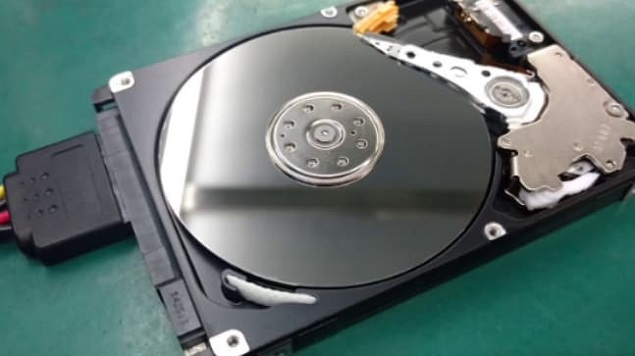
If the hard drive's spindle motor seizes or the spindle is damaged, it won't spin when plugged in. In this case, you'll need to swap the platter, which requires professional tools. It's suggested to take it to a technician, but if you're willing to try, detailed visual instructions are available on YouTube. Be sure to follow the video instructions carefully if you decide to attempt the repair yourself.
Part 3. How to Protect the Data in the Hard Drive that Won't Spin
If your hard drive is damaged, first check whether you have a previous backup. If the drive still works intermittently, use a professional backup tool like Qiling Disk Master to back up important files before repair. If you cannot back up the drive, try data recovery software or contact a technician.
Deep Data Recovery is a professional tool that safely and securely recovers deleted or lost files from any device, including hard drives, with no risk to your data.
Download the free trial version of Deep Data Recovery to scan for lost files.
Step-by-step Guide to Recover Data from the Hard Drive
To recover data from a failed hard drive, start by downloading and installing a reliable data recovery software on your PC. Once installed, launch the software and follow the on-screen instructions to initiate the recovery process.
Step 1: Select the file types you want to recover, deselecting all files by default, and manually choosing the desired ones. Then, click 'Start' to initiate the recovery process for a dead hard drive.
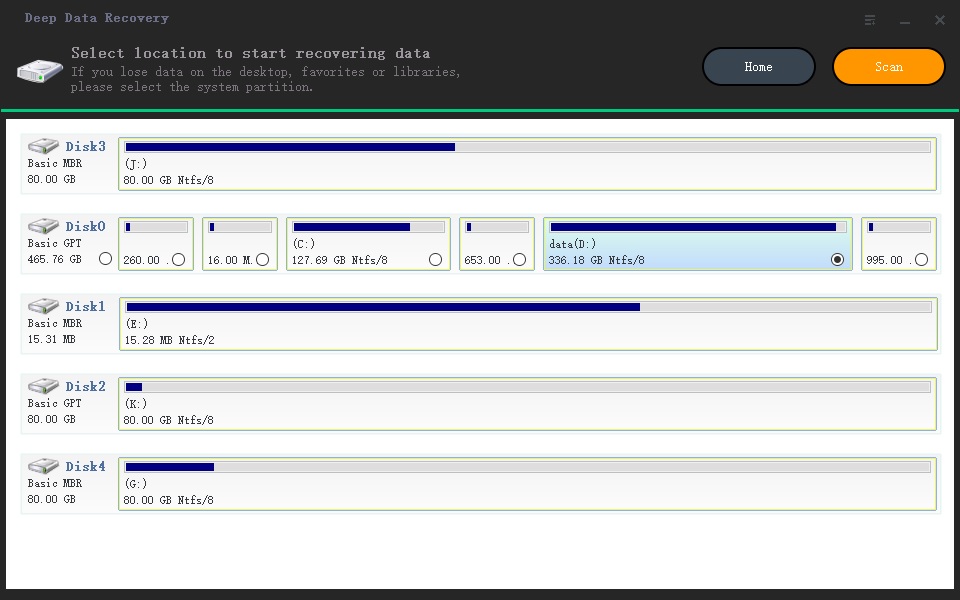
Step 2: Select the location to search for lost data, then click Scan to begin the recovery process.
Step 3: Preview the files and recover them by clicking the 'Recover' button. If you want to find more data, use the 'Deep Scan' option.
If you're experiencing issues with your hard drive not spinning, there are several methods to resolve the problem. You can try booting in safe mode, checking the BIOS settings, or running a diagnostic test to identify the issue. If data loss occurs during the troubleshooting process, data recovery methods can be employed to retrieve your files. It's recommended to go through these options one by one to find the best solution for your specific situation.
Related Articles
- Fix/Repair CHKDSK Is Not Available from RAW Drives
- Repair Corrupted External Hard Drive in Windows 7/10
- How to Fix 'This Device is currently in Use' when Ejecting
- [Solved] USB/External Hard Drive Folder Access Denied in Windows 10/7
- SanDisk Repair Tool to Perform SanDisk Memory SD Card/USB/HDD/SSD Repair
- How to Duplicate Hard Drive in Windows 10
- How to Ghost a Hard Drive of Windows 7/8/10/11 (Easy and Safe)
As for the task of ghosting Windows 7/8/10/11 hard drive, you have two effective ways, either imaging or cloning. Learn more about them now!
Products
Articles & Tutorials
- Data Recovery
- Data Backup
- File Recovery
- File Backup
- File synchronize
- System Backup and Restore
- Disk and Partition Clone
- Technical articles
- Disk Master Help
- Windows Deleted File and Disk Recovery Tutorials
- Windows File and Data Recovery Tutorials
- More Windows Tutorials for Install, Security, Files, and PC Tips
- Windows Boot, Repair, and Recovery Environment Tutorials
- Windows Backup Tutorials
- Windows Restore Tutorials
- Windows Clone and Migration Tutorials
- Windows Server Backup, Recovery, and Management Tutorials
- Windows Disk, Partition, and Storage Management Tutorials