How to Fix Corrupted Video Files After Recovery
Quick Navigation:
- Part 1. Why Video File Not Playing After Recovery?
- Part 2. How to Fix Recovered Video Won't Play
- Part 3. How to Repair Recovered Video Files for Free
- #1. Repair Recovered Videos Files with VLC Media Player
- #2. Fix Corrupted Videos with Digital Video Repair
- Part 4. How to Prevent Recovered Video Won't Play
When you recover deleted videos from a PC or another drive, it's not uncommon for the recovered video to be damaged. Fortunately, there are ways to fix damaged videos and get them playing normally.
For MP4-specific repair, compare these steps with corrupted MP4 file repair.
Part 1. Why Video File Not Playing After Recovery?
When you recover deleted videos from a PC or another drive, it's not uncommon for the recovered video to be damaged or not play properly. There are several reasons why this might happen.
- Lack header
- File carving techniques are used to recover deleted files from a storage device. These techniques involve searching for specific patterns or signatures in the data to identify and extract the file.
- Video downloading is a process where a video file is transferred from a server to a local device. However, if the internet connection or power supply is unstable, it can cause incomplete video downloading.
- Erroneous read and write system operations.
If a video file is not playing after recovery, there are several ways to troubleshoot the issue. The reason for the video file not playing can vary, but the following methods can help resolve the problem.
Part 2. How to Fix Recovered Video Won't Play
If a video file is corrupted after recovery, the most direct way to fix it is by using professional data recovery software. This type of software is specifically designed to scan, collect, and match the video information, allowing for the complete video to be recovered.
Deep Data Recovery is a professional data recovery tool that comes equipped with advanced technology for repairing damaged videos, pictures, and other files. This tool supports all types of videos shot by various cameras and drones, making it a reliable option for fixing corrupted videos after recovery.
- Click the DOWNLOAD button to get the program trial version. Install it on your computer. It's virus-free. Just install it like the way you install other software tools.
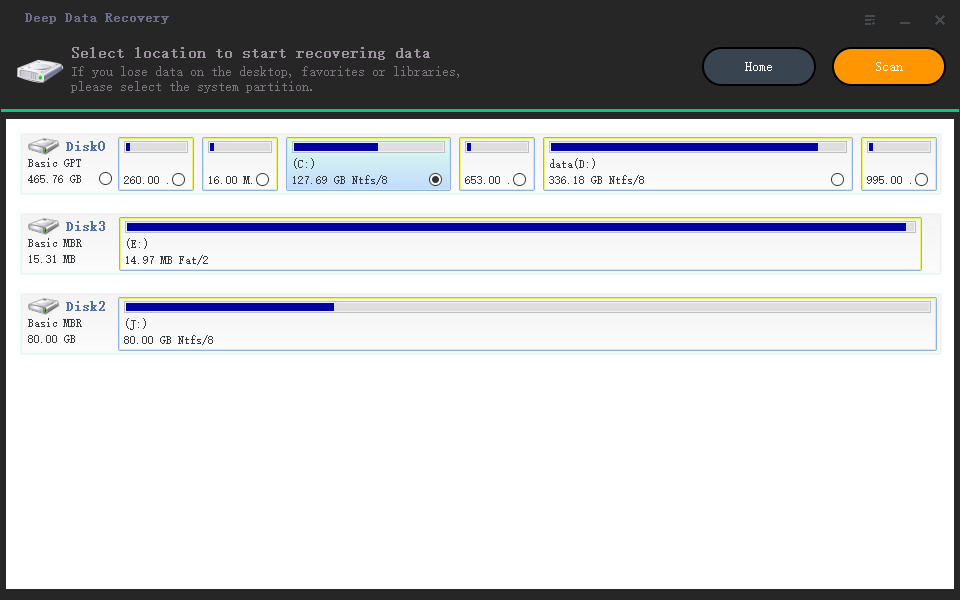
- To begin the process of recovering lost or corrupted videos, click on the "Scan" button next to the hard drive where the files were stored. This will initiate a thorough search of the selected drive for any files that match the specified criteria.
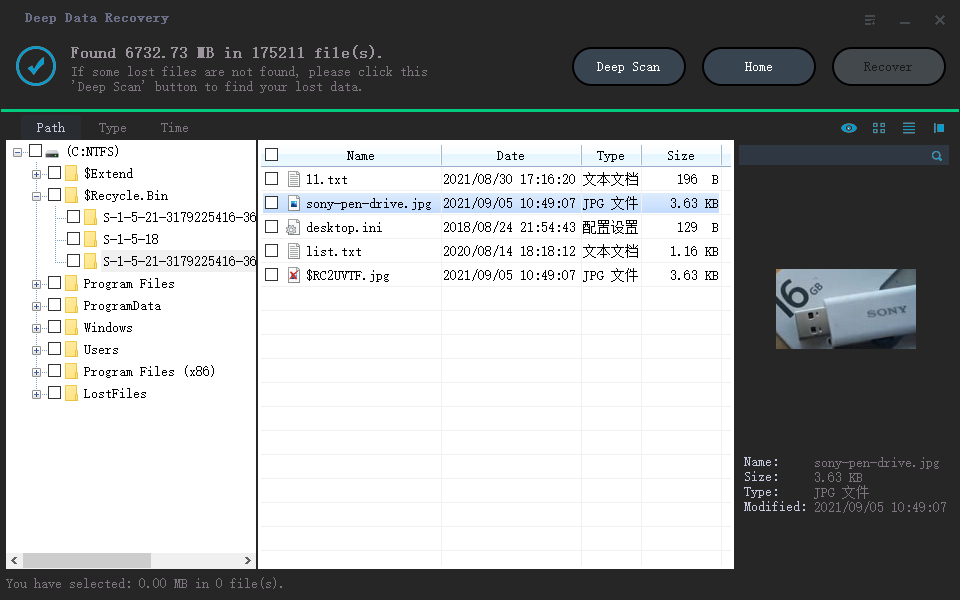
- Once the scanning process is complete, you can review the list of recovered files and select the corrupted video you want to recover.
Part 3. How to Repair Recovered Video Files for Free
Besides using a recovery software tool to fix corrupted video files after recovery, you can still use free software to learn how to repair recovered video files as well.
#1. Repair Recovered Videos Files with VLC Media Player
VLC Media Player is more than a video player. Its conversion feature may help rebuild some corrupted MP4 and MOV videos into playable files. Here is the process for repairing corrupted videos with VLC Media Player.
- You should download and install VLC Media Player on your computer.
- Launch it. Select Media > Convert or Save.
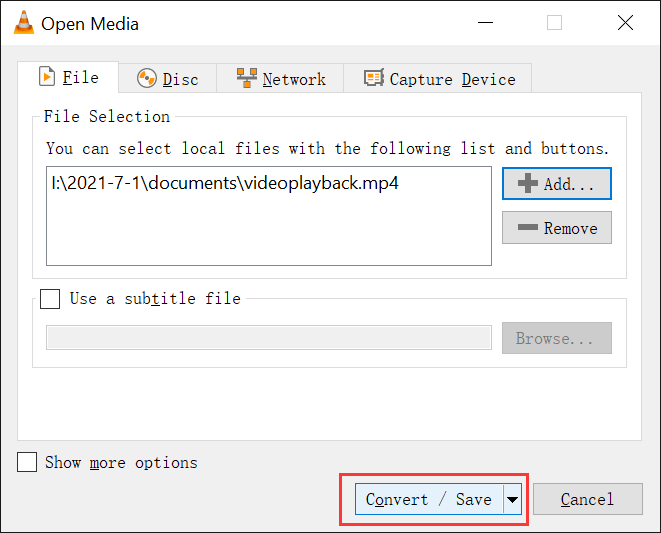
- Browse your computer for the corrupted video to load. After then, select it and click the button "Convert/Save" button at the bottom left.
- In the next window, you're asked to name it and find a destination folder for the converted file. From there, you can also select the wanted codec for the video and audio. It depends on your requirements. Save the selections by clicking "Save".
- Click the "Start" button to convert the corrupted video to another video format. When it is finished, you can open it with VLC to check whether it is playable.
#2. Fix Corrupted Videos with Digital Video Repair
Digital Video Repair, as its name implies, it is a tool to fix videos. It is not a professional data repair tool, but freeware you can use to repair corrupted MP4, AVI, 3GP, and more.
- Download and install the Digital video repair on your computer.
- Launch the video repair software on your computer.
- Browse your computer to load the corrupted video and set up a folder to save the upcoming repaired video. Then, click "Check Errors".
- Repairing corrupted videos can be a frustrating experience, but with the right tools, it's possible to recover them. Digital Video Repair is a user-friendly software that can help you fix corrupted videos.
Part 4. How to Prevent Recovered Video Won't Play
The methods above introduce three tools for fixing damaged video files after recovery. Video repair can take time and may not succeed if the file is severely overwritten or incomplete, so it is also important to prevent future video corruption.
If all your videos are saved on your computers, USB flash drives, SD cards, etc., it's essential to back them up to prevent data loss and corruption. Here's a step-by-step guide to help you save your memories:
- Use storage devices properly. Never power off the storage device abruptly.
- make sure the environment is virus-free, making use of security software to safeguard your storage devices.
If the videos are deleted or lost, use professional data recovery to retrieve them. Deep Data Recovery is a good option as thousands of people have proved it can fix damaged videos, pictures, PDFs, Docs while doing the data recovery process.
Related Articles
- How to Fix Excel Cannot Open the File Because the Extension Is Not Valid
- [Solved] Deleted File/Folder Not in Recycle Bin
- How to Copy Dell Recovery Partition in Windows 11/10/8/7
For people wondering how to copy Dell recovery partition to another hard drive or USB, this post provides 3 methods to do it with built-in feature or Qiling Disk Master. - How to Defragment Partition and Hard Drive?
Before using Partition Assistant we highly recommend you do a complete defragment on the partition which you want to resize. - Configure Email Notification for Windows Server 2012 (R2) Backup (2 Ways)
This article introduces 2 effective ways to enable and configure email notifications for Windows Server Backup 2012 (R2). Learn more about them now! - How to Create A System Image Backup on Windows Server 2003?
Learn how to Create A System Image Backup on Windows Server 2003 with clear steps, key checks, and practical tips.
Products
Articles & Tutorials
- Data Recovery
- Data Backup
- File Recovery
- File Backup
- File synchronize
- System Backup and Restore
- Disk and Partition Clone
- Technical articles
- Disk Master Help
- Windows Deleted File and Disk Recovery Tutorials
- Windows File and Data Recovery Tutorials
- More Windows Tutorials for Install, Security, Files, and PC Tips
- Windows Boot, Repair, and Recovery Environment Tutorials
- Windows Backup Tutorials
- Windows Restore Tutorials
- Windows Clone and Migration Tutorials
- Windows Server Backup, Recovery, and Management Tutorials
- Windows Disk, Partition, and Storage Management Tutorials