How Can You Convert GPT to MBR without Data Loss Using Command Prompt?
What do GPT and MBR mean?
GPT (GUID Partition Table) and MBR (Master Boot Record) are two different partition styles used on hard drives. While both serve the purpose of organizing data on a disk, they have distinct characteristics.
▸ GPT (short for GUID partition table)
The modern standard layout for partition tables on newer systems uses UEFI, allowing for larger hard drives (over 2TB) and an unlimited number of partitions, but most OSes limit this to 128.
▸ MBR (short for Master Boot Record)
MBR works with Legacy BIOS and many older systems, but it has limits. It supports disks up to 2TB and allows only four primary partitions, or three primary partitions plus one extended partition.
Due to GPT and MBR's different features and functions, you will need to choose the correct one (GPT or MBR) for your system to recognize the drive, with MBR being the preferred choice for older operating systems or 32-bit Windows OS.
How can I convert GPT to MBR without data loss using Command Prompt?
Converting a GPT disk to MBR or performing basic disk partition management can be done with built-in Windows tools such as Disk Management and Command Prompt. However, Command Prompt cannot directly convert a disk with existing partitions without data loss because DiskPart requires cleaning the disk first.
The Command Prompt can only convert an empty disk from GPT to MBR or vice versa. Since the "clean" command deletes all existing partitions, you must back up the disk before using CMD if you want to protect your files.
Backing up your data is the only safe way to avoid data loss when converting between GPT and MBR using Command Prompt.
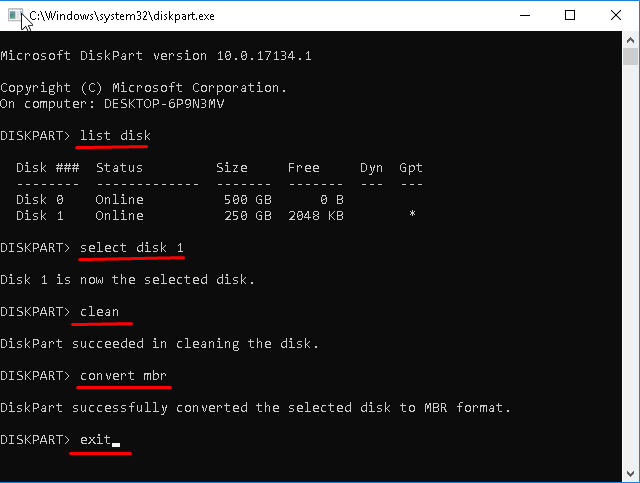
Step 1. Open Command Prompt as administrator. During Windows installation, press "Shift + F10" to open Command Prompt, then type "diskpart.exe" and press Enter.
Step 2. Type "list disk" and hit Enter.
Step 3. Type "select disk n", replacing n with the number of the GPT disk you want to convert.
Step 4. Type "clean". (This will delete all partitions and data on the selected disk).
Step 5. Type "convert mbr".
Step 6. Type "exit".
After the disk is converted and partitioned, restore your backup image or copied files to the MBR disk. Do not restore data to the disk until the conversion is complete and the target partition layout is ready.
Alternative to convert GPT to MBR within 3 steps
To avoid data loss when converting between GPT and MBR using the command prompt, it's essential to back up all data beforehand, as the conversion process will delete all partitions. However, this process can be time-consuming, and a more practical approach is to use third-party software like Qiling Disk Master Professional Edition, which can perform the conversion without deleting any partitions or data.
Step 1. Install and launch Qiling Disk Master Professional. You can download the Professional Demo version to try it first.
Step 2. Right-click the disk you want to convert, select Convert to MBR from the right column, and the conversion process will start.
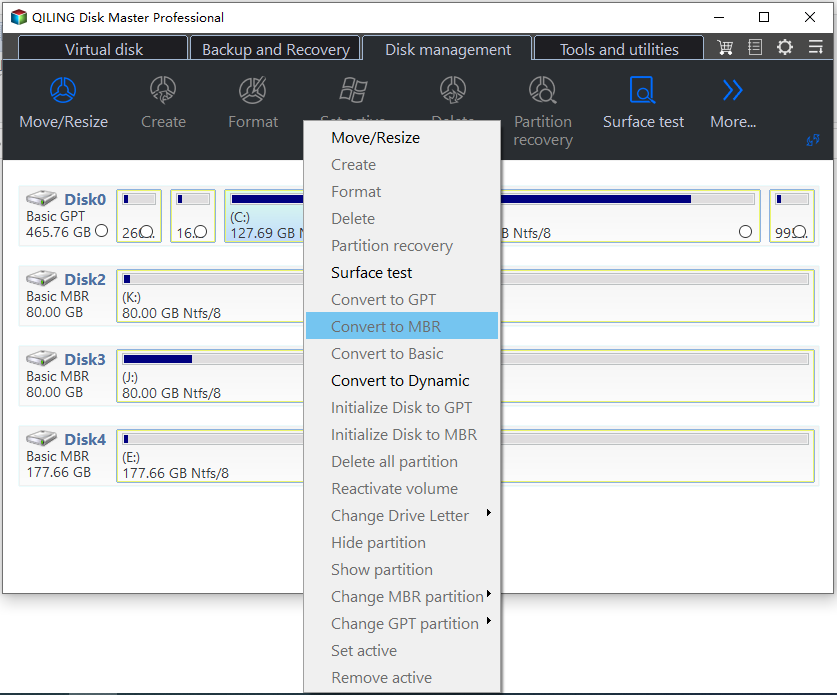
Step 3. Wait for a moment while the application converts the disk to an MBR disk.
Qiling Disk Master allows users to convert partition style between GPT and MBR when needed, enabling users to change the system disk between GPT and MBR partition styles by following a simple 3-step process as long as their PC boots successfully.
Qiling Disk Master is compatible with many Windows operating systems, including Windows 11/10/8.1/8/7/XP/Vista, and Windows Server OS like Server 2022, 2019, 2016, and more. However, for Server OS, please use Qiling Disk Master Server.
Bonus: How to convert GPT to MBR during Windows installation
If you cannot boot your computer normally or need to convert the disk during Windows installation, create bootable media with Qiling Disk Master and enter WinPE mode to complete the conversion.

Summary
To convert a GPT disk to MBR without losing data, it's essential to back up your data first. If you don't, using the command prompt to convert will wipe the disk, resulting in data loss. However, using Qiling Disk Master allows for a direct conversion between GPT and MBR without deleting partitions or wiping the drive.
Qiling Disk Master offers various useful functions in Disk Management, including converting FAT32 to NTFS without data loss, merging partitions, converting logical to primary partitions, converting dynamic disk to basic without deleting volume, deleting extended partitions, cloning MBR and GPT disks, resizing/moving partitions, and more.
Related Articles
- How to Remove Drive from RAID?
Removing drive from Software RAID 0, 5 array shrinks volume to free up unallocated space and reconfigure dynamic disk structure to optimize PC performance. - How to Shrink Volume on Dynamic Disk?
Qiling Dynamic Disk Manager can help you shrink volume on dynamic disk to free up unallocated space which can be used to create and extend volume. - What is MBR Disk(Master Boot Record)?
This post will explain what is MBR disk and show how to convert to MBR or GPT without losing data. - How Can You Convert GPT to MBR without Data Loss Using Command Prompt?
Learn how to convert GPT to MBR using Command Prompt and why DiskPart deletes partitions. Back up first or use Qiling Disk Master to avoid data loss. - SFC SCANNOW Finds Corrupted Files But Unable to Fix [Solved]
Find practical fixes for SFC SCANNOW Finds Corrupted Files But Unable to Fix, including disk, partition, file system, or Windows troubleshooting steps. - How to Fix New Simple Volume Greyed Out Error in Windows Disk Management
When the New Simple Volume option is greyed out in Disk Management, you can't create a new volume on unallocated space on your PC. This issue can be resolved by running the built-in Check Disk (chkdsk) tool, checking for disk errors, and then creating a new volume.
Products
Articles & Tutorials
- Data Recovery
- Data Backup
- File Recovery
- File Backup
- File synchronize
- System Backup and Restore
- Disk and Partition Clone
- Technical articles
- Disk Master Help
- Windows Deleted File and Disk Recovery Tutorials
- Windows File and Data Recovery Tutorials
- More Windows Tutorials for Install, Security, Files, and PC Tips
- Windows Boot, Repair, and Recovery Environment Tutorials
- Windows Backup Tutorials
- Windows Restore Tutorials
- Windows Clone and Migration Tutorials
- Windows Server Backup, Recovery, and Management Tutorials
- Windows Disk, Partition, and Storage Management Tutorials