Deep PC Cleaning: Make the Computer Run Faster!
Why need a deep PC cleaning?
A computer may slow down over time because of aging hardware, network issues, dust buildup, and accumulated junk files. Some problems require hardware or network fixes, but deep PC cleaning can often improve speed and stability.
▶ Deep clean PC from dust
Regularly cleaning the excessive dust in the computer's chassis can improve its running speed and prevent hardware burnout due to excessive temperature, ultimately prolonging its lifespan. This is because static electricity generated by the host attracts dust, which can cause poor heat dissipation and affect the computer's performance. By removing the dust, you can ensure better heat dissipation and maintain the computer's optimal functioning.
▶ Deep clean PC junk files
After prolonged computer use, a significant amount of junk files accumulates on the system, including caches, unwanted files, corrupt registry keys, duplicates, outdated data, cookies, temporary files, and recycle bin contents. These unnecessary files consume valuable drive space, potentially leading to performance issues, such as a slow PC, if not regularly cleaned up. Regularly removing junk files is essential to maintain a computer's optimal speed and performance.
Cleaning your PC regularly, every 3-6 months, helps remove junk files and dust, maintaining its performance and overall health.
How to deep clean my computer for free
Deep PC cleaning includes physical cleaning and file cleanup. Physical cleaning removes dust from fans, vents, and components to reduce overheating, while file cleanup removes junk files, caches, and other unnecessary data to free up disk space.
▶ How do I clean dust out of computer?
To clean the dust inside the computer host, follow these steps:
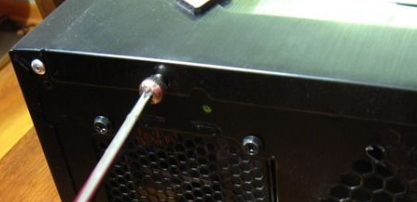
1. First, use a screwdriver to unscrew the screws of the chassis, disassemble it, and remove the baffle to get a clear view. The dustiest locations are then visible, specifically the graphics card, cooling fan, hard disk, and the bottom of the chassis.
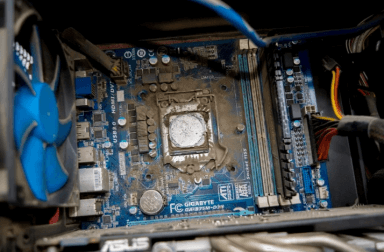
2. Remove the removable parts such as graphics card, hard disk, memory card, etc. and wipe the surface with a dry cloth. If it's uneven, use a brush to clean it. Use a blower to clean the cooling fan, being careful not to use hot air.
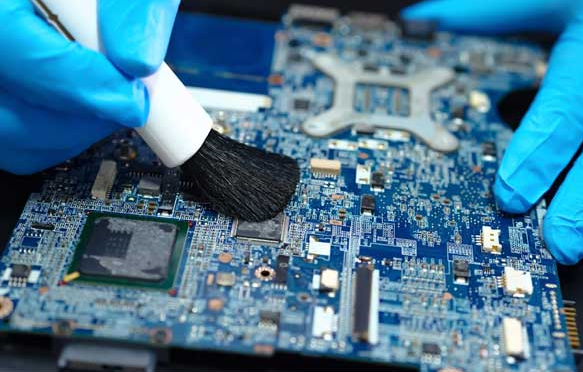
3. To clean the metal socket of a memory stick, gently wipe it with a rubber to remove dust and rust, and then wipe off any rubber residue with a paper towel.
4. The bottom and surface of the chassis can be cleaned with a damp cloth, but you need to wait for it to dry.
5. After cleaning the dust, close the cover on the side of the main box, and then screw in the screws. This improvement results in better computer performance and a quieter host computer sound when turned on again.
▶ Download the best PC Cleaner for free
To deep clean computer files, the key is to use a trusted PC Cleaner, which is essential for removing PC junk files.
I highly recommend using Qiling Disk Master Standard, a free disk partition management tool compatible with Windows 11, 10, 8, 7, Vista, and XP. It has a "PC Cleaner" feature that provides a deep cleaning service, scanning your device, sorting junk files, and allowing you to clear them all at once to free up space.
Apart from that, you can try Merge Partition to extend drive space. You can download the freeware to try deep PC cleaning.
Final words
Deep PC cleaning means cleaning both physical dust and unnecessary files. After removing dust from the case, fans, and components, you can use a PC cleaner to clear caches, temporary files, and other junk data.
Upgrading to the Pro Edition of PC Cleaner not only frees up space by cleaning your computer, but also allows you to move installed applications/folders to another drive or delete large files to further free up space. For Windows Server users, the Server Edition is recommended.
Related Articles
- How Often Should PC Be Cleaned?
Most PC users know that cleaning their PC is important, but only a few of them know how often should PC be cleaned. So in this post, we will provide you the answer and 2 easy ways to clean your PC. - Best PC Cleaner And Optimizer for Windows 10 & 11
Compare built-in tools with a dedicated PC cleaner and optimizer for Windows 10 or 11, and find a cleaner that fits daily PC maintenance. - Best Free PC Cleaner for Windows OS [2022]
This guide explains Best Free PC Cleaner for Windows OS with clear steps, key checks, and practical tips. - How to Format External Hard Drive for PS3 [2024 Full Guide]
Learn which file system to choose for a PS3 external hard drive and follow the proper formatting steps to make the drive usable for PS3 storage. - How to Boot From NVMe [2024 Easy Tutorial]
Learn how to boot from an NVMe drive and use it as your primary boot drive with our easy-to-follow guide. We'll walk you through the clear steps to enhance and improve your system boot times, making it a great resource for anyone looking to upgrade their system's performance. - How to Boot Lenovo Laptop from USB Windows 11/10 [Full Guide]
Learn how to create a bootable USB, enter Lenovo BIOS settings, set USB as the first boot device, and boot a Lenovo laptop from USB safely.
Products
Articles & Tutorials
- Data Recovery
- Data Backup
- File Recovery
- File Backup
- File synchronize
- System Backup and Restore
- Disk and Partition Clone
- Technical articles
- Disk Master Help
- Windows Deleted File and Disk Recovery Tutorials
- Windows File and Data Recovery Tutorials
- More Windows Tutorials for Install, Security, Files, and PC Tips
- Windows Boot, Repair, and Recovery Environment Tutorials
- Windows Backup Tutorials
- Windows Restore Tutorials
- Windows Clone and Migration Tutorials
- Windows Server Backup, Recovery, and Management Tutorials
- Windows Disk, Partition, and Storage Management Tutorials