Qiling Backup Help Documents
How to Backup Physical Machines with Qiling Backup
Backing up physical machines is just as crucial as virtual ones, and scheduling disk backups is a reliable way to ensure data security. In the event of a disaster, restoring these backups can quickly recover data, saving time and reducing stress.
Qiling Backup offers a simple and reliable solution for centralized backup management of all Windows operating systems, allowing users to backup all devices to a local or network location and easily restore them to their original state when needed.
How to Create Backups of Physical Machines
Prerequisites for Windows Backup:
- Computer with Qiling Backup installed
- Computer with Qiling Backup Agent installed
- Local disk or network share to store backup files
Windows Backup provides three types of backups: System Backup, Disk Backup, and Partition Backup. System Backup is primarily used for backing up the operating system, while Disk Backup is used to back up the entire disk, including both the OS and regular data disks. Partition Backup is used to back up specific data partitions. Here, we'll use Disk Backup as an example.
1. Launch the software, go to the Backup tab, and select either File Backup or System Backup, depending on your preference.

Tip: You can backup files to Qiling Cloud using the Cloud Backup feature, which provides 1TB of free storage for 15 days after registering a Qiling account.
2. To back up your data, click on either the "Folder" or "Files" tab to select the data you want to save.

3. To select a destination, click on the small triangle next to the "Save as type" dropdown menu and choose either "Save to disk" which includes internal or external drives, or click on the triangle to select a network location or a cloud drive.

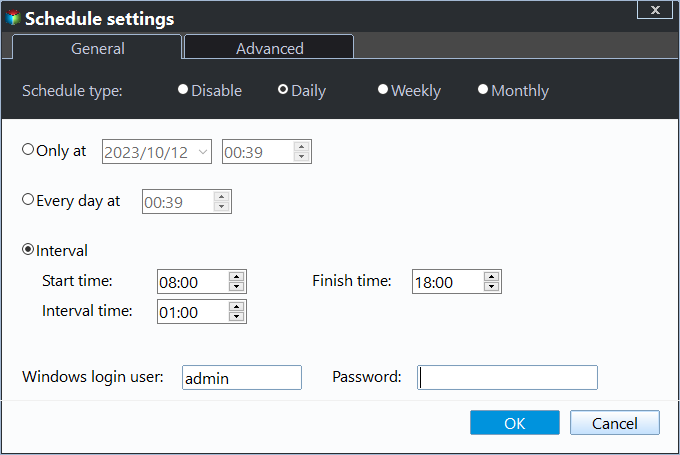
4. To schedule a task, click on the "Schedule" button at the bottom of the page. In the window that appears, select the "Daily" option and choose the "Intervals" option to set the start and end times for the task.
To set up automatic backups, you can select a backup frequency during a specified time period, such as hourly backups from 12am to 11:59pm, or limited to specific hours like during office hours.
You can also set up Weekly or Monthly backup, upgrade to Professional edition to unlock Event triggers and USB plug in backup, or set up Weekly or Monthly backup.
5. Click Start Backup to execute the task.

Summary
Now that we've covered the Windows Disk Backup process, the same goes for System Backup and Partition Backup. In addition to backing up the entire hard drive, users can also choose to backup the System and Partition separately.
In Backup Tasks, you can view backup details and continue with full, incremental, or differential backups. You can also manage tasks, such as editing or deleting them.
If there's an issue with your Windows device, you can restore it to its previous state, effectively reverting any changes made.
Related Articles
- Backup Windows 11 to External USB Drive (Best Freeware)
Learn how to Backup Windows 11 to External USB Drive (Best Freeware) with clear steps, key checks, and practical tips. - Easily Clone SSD to SSD in Windows 11 with the Best Migration Tool
To clone an SSD to another SSD in Windows 11, we recommend using Qiling Disk Master, a reliable and user-friendly software that can efficiently complete this task. Get it now and proceed with the cloning process. - Free|How to Create Full Backup of Your Windows 11 PC (2 Ways)
This tutorial will demonstrate how to create a full backup of your Windows 11 PC to spare you from the risk of data loss. Following is the stepwise guide for you. - 2 Easy Ways to Download Windows 11 22H2 ISO without Issues
You can download the Windows 11 22H2 ISO using one of two methods, depending on your needs. To get started, you can choose the method that best suits you.
Products
Articles & Tutorials
- Data Recovery
- Data Backup
- File Recovery
- File Backup
- File synchronize
- System Backup and Restore
- Disk and Partition Clone
- Technical articles
- Disk Master Help
- Windows Deleted File and Disk Recovery Tutorials
- Windows File and Data Recovery Tutorials
- More Windows Tutorials for Install, Security, Files, and PC Tips
- Windows Boot, Repair, and Recovery Environment Tutorials
- Windows Backup Tutorials
- Windows Restore Tutorials
- Windows Clone and Migration Tutorials
- Windows Server Backup, Recovery, and Management Tutorials
- Windows Disk, Partition, and Storage Management Tutorials