2 Easy Ways to Download Windows 11 22H2 ISO without Issues
What's New in the Windows 11 22H2 Update?
Windows 11 22H2, also known as the Windows 11 2022 Update, became available on September 20, 2022, marking the first major update to the next generation of Windows. This update introduced a range of new features and improvements to enhance security, productivity, and the overall user experience, with notable updates including.
- Start menu improvements: Windows 11 22H2 allows you to customize the "Recommended" section of the Start menu by choosing from three options: "More pins", "Default", and "More recommendations", giving you more control over the balance between recommended items and pinned apps.
- Taskbar overflow: The new version introduces a taskbar overflow feature that automatically transitions to an "Overflow" mode when the taskbar reaches its maximum capacity, making it easier to switch and launch applications.
- File Explorer update: Windows 11 introduces visual changes and improvements to File Explorer, including support for tabs and a redesigned navigation pane, with features such as a new Home Page, OneDrive integration, shortcuts, and changes to the context menu.
- New Task Manager Design: Windows 11 22H2 has a revamped Task Manager with a modern design, featuring a command bar for daily operations and a dark theme. It also includes a new Efficiency mode, previously known as Eco Mode, which allows users to limit resource-intensive applications and prioritize other tasks.
Here is a brief list of these updates for you. Next, I will show you two ways to implement Microsoft Windows 11 22H2 ISO download.

How to Download Windows 11 22H2 ISO File
Starting September 20, you can download Windows 11 22H2 ISO files in various ways, including from the Microsoft support site and using the Media Creation Tool. To get started, you can visit the Microsoft support site and follow the prompts to download the ISO file. Alternatively, you can use the Media Creation Tool, which allows you to create a bootable USB drive or CD/DVD to install Windows 11 22H2. Let's take a look at the detailed steps to download Microsoft Windows 11 22H2 ISO.
Method 1. Download Windows 11 22H2 ISO File from Microsoft Website
You can directly download the Windows 11 22H2 update ISO from the official website to perform a Windows 11 upgrade.
- To download Windows 11, go to the Microsoft Software Download page, select the Windows 11 option under the "Download Windows 11 Disk Image (ISO)" section, and click the Download button.

- Then select the installation language and click the Confirm button.
- To download Windows 11 22H2 ISO File 64-bit, visit the Microsoft website and select the version of Windows 11 that matches your computer's specifications, such as 64-bit or 32-bit, to begin the download process.
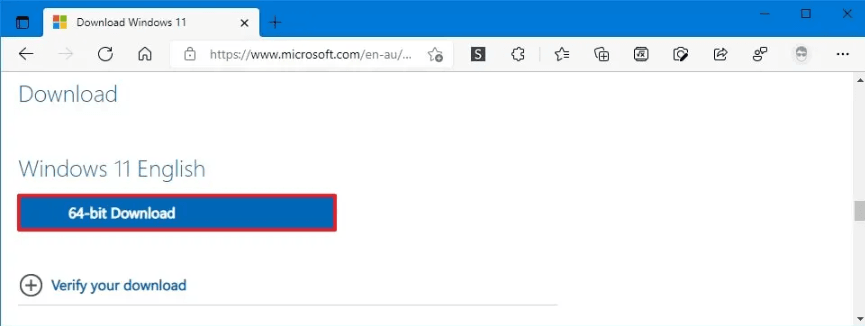
- Once you have completed the steps to download the Windows 11 22H2 image, the image will be downloaded and you can use it to create a bootable media or install the operating system on a virtual machine.
Method 2. Download Windows 11 22H2 ISO File from Media Creation Tool
You can download the Windows 11 ISO file using the Media Creation Tool, which also works for Windows 11 22H2 ISO download. Follow the steps below:
- To create Windows 11 installation media, go to the Microsoft Software Download page, scroll down to the "Create Windows 11 Installation Media" section, and click the "Download Now" button.
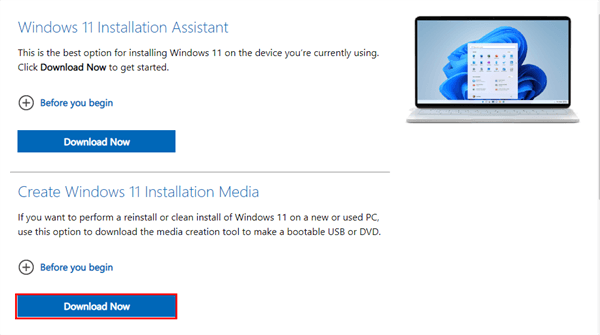
- Double-Click the MediaCreationToolW11.exe file to launch the tool. Accept the license terms, then click Next. Select the ISO file option and click Next.
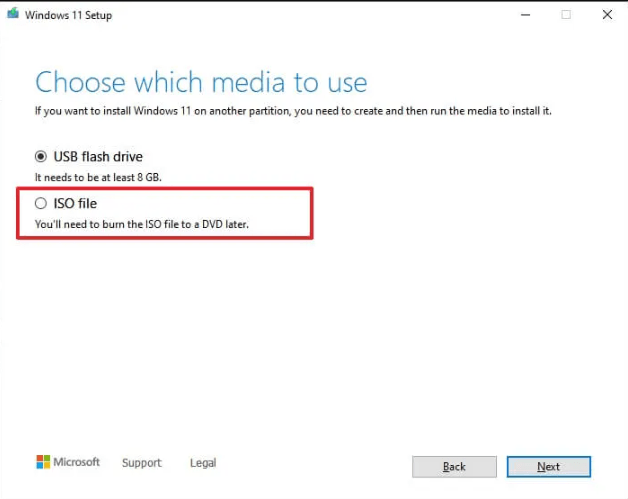
- Select the location to save the ISO file, confirm the ISO file name and click the Save button.
- Finally, click the Finish button to download Windows 22H2 ISO.
After completing the steps, the application will download the content and create an ISO file of the Windows 11 2022 update.
Backup Computer Before Performing Windows 11 Updates
The Windows 11 22H2 update, released on September 20, has been met with high expectations from users, but many have encountered issues during the update process, including a common error code - 0x800f0806, which can occur when trying to download the update.
To avoid potential problems during the update process, it's recommended to make a backup of your computer before updating, and Qiling Disk Master Standard is a free software that can help you create a system or disk backup in just a few steps.
- Different backup methods: File Backup, You can choose from three backup methods: System Backup, Disk Backup, and Partition Backup, each catering to different needs.
- Multiple backup destinations: The software allows you to back up data to various destinations, such as internal and external hard drives, cloud storage services, USB drives, network-attached storage (NAS) devices, and network locations.
- The software provides automatic backup, allowing users to continuously save their data without missing any changes. Users can choose from daily, weekly, or monthly backup frequencies.
If you're new to this software, click the download button to install it on your computer, and then follow the steps shown below to back up your Windows 11 computer.
- Launch the software, click Backup on the left pane, and select Disk Backup on the right.

- Click the "+" button next to "Disks" and select the disk that contains the Windows 11 installation.

- Choose the destination place where you plan to store the backup image, and you can also check the options for "Options", "Schedule", and "Scheme" in the left corner.

✍ Tips:
☪ Options: You can add comments to your backups and adjust the compression level of your backups from here. If you want to encrypt your backups, pleaseupgrade to Qiling Disk Master Professional.
☪ Scheme: In the Professional version, you can enable a feature to automatically delete old backup images to ensure there's always enough space for new ones.
- After confirming all your settings, click Proceed.
Conclusion
You can download Windows 11 22H2 ISO files in two ways, and choose the one that suits your needs. Before upgrading, it's a good idea to back up your current Windows 11 system to avoid unexpected problems. A system backup will allow you to restore your computer to a normal working state if you encounter any issues during the upgrade, or if you're not satisfied with the upgraded system.
Related Articles
- Guide | Enable UEFI Secure Boot for Windows 11 Update
Enabling UEFI Secure Boot is one of the essential requirements for Windows 11 upgrade. This page gives a comprehensive introduction to UEFI Secure Boot and shows how to enable UEFI Secure Boot step by step. - How to Get Zoho Mail Backup: 3 Easy Ways
This article covers 3 easy ways to do Zoho Mail backup, and using Qiling Disk Master to create an automatic backup of your Zoho emails is particularly recommended. - Properly Backup VMware Workstation Virtual Machine [4 Ways]
Learn how to back up Properly Backup VMware Workstation Virtual Machine with practical steps, storage tips, and safer recovery planning. - Backup or Sync Files to Cloud Drive | Which Is Better?
This article illustrates the differences between cloud backup, cloud sync and cloud storage and how to backup or sync files to cloud drive easily. - 2 Easy Ways to Download Windows 11 22H2 ISO without Issues
You can download the Windows 11 22H2 ISO using one of two methods, depending on your needs. To get started, you can choose the method that best suits you. - [6 Ways] How to Free up Space on Windows 11
Learn how to Free up Space on Windows 11 with clear steps, key checks, and practical tips.
Products
Articles & Tutorials
- Data Recovery
- Data Backup
- File Recovery
- File Backup
- File synchronize
- System Backup and Restore
- Disk and Partition Clone
- Technical articles
- Disk Master Help
- Windows Deleted File and Disk Recovery Tutorials
- Windows File and Data Recovery Tutorials
- More Windows Tutorials for Install, Security, Files, and PC Tips
- Windows Boot, Repair, and Recovery Environment Tutorials
- Windows Backup Tutorials
- Windows Restore Tutorials
- Windows Clone and Migration Tutorials
- Windows Server Backup, Recovery, and Management Tutorials
- Windows Disk, Partition, and Storage Management Tutorials