How to Fix Problem of 'Whea Uncorrectable Error' in Windows 8
Quick Navigation:
- Causes of Whea Uncorrectable Errors on Windows 8
- Driver Conflicts
- Damaged Hardware
- Corrupt Registry or System Files
- How to Fix the Problem of 'Whea Uncorrectable Error'
- Solution #1: Disable Overclock in the BIOS
- Solution #2: Start Windows 8 in Safe Mode to check for Drivers
- Solution #3: Check for Hardware Issues
- Solution #4: Uninstall Problematic Windows 8 Updates
- Solution #5: Run the Windows 8 Memory Diagnostics
- Solution #6: Disable extra audio devices
- Solution #7: Disable the Turbo Boost Feature within BIOS
If you're experiencing the WHEA_UNCORRECTABLE_ERROR code on your Windows 8 PC, don't panic - it's a fixable issue. This error typically appears when your system encounters a problem that requires a restart. The blue screen error message often shows up in the lower right-hand corner of the screen, but with the right information, you can resolve the issue and get back to using your PC.
If the error points to disk or memory instability, this Kernel Security Check Failure guide covers another Windows stop-code repair path.
Causes of Whea Uncorrectable Errors on Windows 8
The Windows 8 Whea uncorrectable error often appears due to hardware issues such as damaged hard drives, PSUs, CPUs, GPUs, or corrupt RAM, as well as outdated or corrupted device drivers. These problems can cause the error code to appear.
Driver Conflicts
The error message can appear if there's an outdated or misconfigured driver that triggers conflicts in the system, typically due to a wrong Windows upgrade or driver update.
Damaged Hardware
A malfunctioning hardware component, such as a damaged hard drive, video card, memory, or motherboard, particularly in over-clocked systems, can cause the Whea uncorrectable error Windows 8.1 message.
Corrupt Registry or System Files
When an important registry or system file is missing or corrupt, you may get an error message. This can be caused by a power outage, virus attacks, or disk write/read errors.
How to Fix the Problem of 'Whea Uncorrectable Error'
We've explored what the 'Whea Uncorrectable Error' message is about and its possible causes. Now, let's dive into the solutions. There are seven ways to fix the problem, and we'll examine each one to help you resolve the issue.
Solution #1: Disable Overclock in the BIOS
To fix the 'Whea Uncorrectable Error' caused by overclocking, you need to uninstall or disable any overclocking software on your PC. This should resolve the issue and prevent the error from occurring in the future.
1. To open the Start Menu on your PC, click on the Windows logo in the bottom left corner of the screen. This will open the Start Menu, where you can find various settings and options.
2. Now navigate to 'Update and Security' and then 'Recovery Tab'.
3. Click the 'Restart Now' button from Advanced Startup.
4. To access the UEFI Firmware Settings from Advanced Startup, navigate to Troubleshoot, and then Advanced Options, and finally UEFI Firmware Settings.
5. Click the restart button.
6. The computer will restart and automatically open BIOS. From there, navigate to the Advanced Tab, then Performance, and finally Overclocking.
7. Disable overlocking
8. Save the changes to BIOS and restart your PC normally.
This should resolve the issue. In case it doesn't, try any of the other solutions provided below.
Solution #2: Start Windows 8 in Safe Mode to check for Drivers
Updating drivers manually can cause damage to your PC, so it's recommended to automatically update them. If you're experiencing the Win 8 Whea uncorrectable error issue due to driver problems, you can resolve it by automatically updating the drivers.
Step 1: Close or reboot the Windows 8 system.
Step 2: Press F8 or Shift + F8 after the PC comes up. This should start the Recovery Mode.
Step 3: Click 'Safe Mode' and follow the onscreen prompting.
Step 4: After the PC boots in Safe Mode, move the mouse to the right-hand side of the screen. Open the Start Menu and click the search box.
Step 5: To troubleshoot the issue, open the Device Manager by typing 'Device Manager' in the search box, and then update each driver individually to identify the problematic driver.
Step 6: Reboot the system after the update and the error message should disappear after this.
Solution #3: Check for Hardware Issues
Step 1: Follow the process to enter 'Safe Mode' in the solution described above.
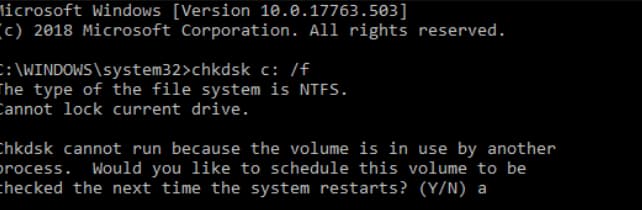
Step 2: Click to open the Start screen and type 'chkdsk' to fix Windows 8 whea uncorrectable error.
Step 3: Left-click on it and start the 'chkdsk' program.
Step 4: If the program runs normally, it means your hard drive is functioning properly. If it stops with errors, it means your hard drive is not functioning properly. If it's not functioning properly, follow the second solution above. This solution is for when your hard drive is functioning properly.
Solution #4: Uninstall Problematic Windows 8 Updates
To fix the Whea Uncorrectable Error message caused by a problematic Windows 8 update, try removing the update. To do this, go to the Control Panel, click on "Programs and Features", and select "View installed updates". Look for the problematic update, right-click on it, and select "Uninstall". Follow the prompts to complete the uninstallation process.
Step 1: Long press on Windows Key + I to open the 'Setting'.
Step 2: Navigate to the 'Update and Security' section and click in 'Update History'.
Step 3: Click on 'Uninstall Updates' to display the list of updates.
Step 4: Double-click on the specific problematic updates to remove them.
If the issue persists after removing the updates, you may want to block the updates entirely and prevent them from installing.
Solution #5: Run the Windows 8 Memory Diagnostics
To fix the 'whea uncorrectable error' issue in Windows 8/8.1, start by booting your computer in Safe Mode and then running the built-in System File Checker (SFC) to scan for corrupted system files. If the issue persists, try running the Windows Memory Diagnostic tool to check for any memory-related problems.
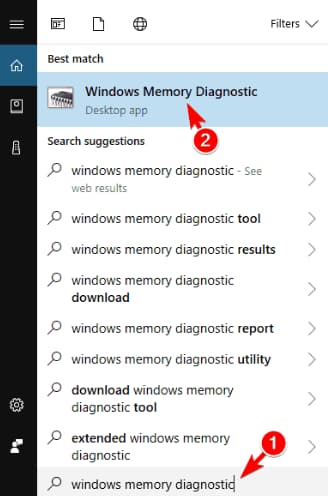
Step 1: Press the Start button and type 'Windows Memory Diagnostic' in the search box.
Step 2: Left-click on 'Windows Memory Diagnostic' and let it run.
Step 3: If there's any error notification, follow the on-screen prompting to resolve the issue.
Solution #6: Disable extra audio devices
Step 1: To access the sound menu, click the Windows key + S, then type 'Sound' in the search bar and select the 'Sound' menu from the result list, which will open a new window.
Step 2: Return to the Playback tab when the Sound window opens.
Step 3: To disable all non-default audio devices, right-click on each one and select 'Disable'. This should be done for both recording and playback devices. Once you've disabled all non-default devices, click 'Apply' and then 'Ok' to save the changes.
Solution #7: Disable the Turbo Boost Feature within BIOS
To fix the Windows 8 Whea Uncorrectable Error, disable the Turbo Boost feature in your PC's BIOS settings, check your motherboard manual for instructions. If you have Intel Turbo Boost installed, uninstall it. Resetting the BIOS to its default settings may also resolve the issue, often resolving the problem after disabling Turbo Boost.
Any of the seven solutions listed can resolve the Win 8 Whea uncorrectable error problem, and trying each one may lead to finding the solution that works best for your specific situation.
To avoid losing important files due to system crashes, hard drive damage, or boot issues, save them on a separate drive, such as Drive D or Drive C, and not on the system drive. Consider using Qiling Disk Master to back up files with smaller capacity, and Qiling Free Data Recovery to recover lost files if needed. This will help prevent permanent file loss.
Related Articles
- Fix 0x80240fff Windows 10 Update Error
- [Solved] Can't Find Recycle Bin in Windows 10/8
- [Solved] Deleted File Not Showing in Recycle Bin
- Fix an Undetected External Hard Drive
- [4 Fixes] Desktop Files Disappeared in Windows 7
If your desktop files have disappeared in Windows 7, this guide can help. We've got 4 feasible solutions to help you recover missing desktop folders and files efficiently.
Products
Articles & Tutorials
- Data Recovery
- Data Backup
- File Recovery
- File Backup
- File synchronize
- System Backup and Restore
- Disk and Partition Clone
- Technical articles
- Disk Master Help
- Windows Deleted File and Disk Recovery Tutorials
- Windows File and Data Recovery Tutorials
- More Windows Tutorials for Install, Security, Files, and PC Tips
- Windows Boot, Repair, and Recovery Environment Tutorials
- Windows Backup Tutorials
- Windows Restore Tutorials
- Windows Clone and Migration Tutorials
- Windows Server Backup, Recovery, and Management Tutorials
- Windows Disk, Partition, and Storage Management Tutorials