How to Recover Shift Deleted Photos in Windows
Unfortunately, if you've permanently deleted a file using Shift + Delete, it's not recoverable from the Recycle Bin. However, you can try using a third-party file recovery software, such as Deep Data Recovery Wizard or Recuva, to scan your system for deleted files. These tools can potentially recover the file if it hasn't been overwritten by other data. Be cautious when using such software, as they may not work in all cases, and some may even cause issues with your system. If you're not comfortable using third-party software, you can also try using the built-in Windows File Recovery tool, which can be downloaded from Microsoft's website. Note that the success of these methods depends on various factors, including the type of file, the amount of time passed since deletion, and the system's disk space usage.
For photo-specific recovery, compare these steps with SanDisk photo recovery when pictures were stored on a memory card.
Shift delete files is a common way to delete files, easy and efficient, but also irreversible. Unlike regular delete, shift delete bypasses the recycle bin, making it difficult to recover deleted files. However, if you need to undelete shift deleted files, there are methods available, including using software, to recover these files in Windows 7/8/10/11.
- Quick Navigation
- Part 1. How to Restore Deleted Files after Shift Delete with File History
- Part 2. How to Recover Shift Deleted Files in Windows 7/8/10/11 with Previous Versions
- Part 3. How to do Windows Shift Delete Recovery with Backup Files
- Part 4. How to Undelete Shift Delete Files with Software (Fully Recommended)
- Part 5. Tips for Shift Delete You Must Know (Shift Delete Vs Delete, Prevent Data Loss)
To recover shift deleted files, regardless of the type (videos, documents, photos, folders, etc.), stop using your computer immediately to prevent further data loss. Once you've stopped using your computer, follow the steps below to retrieve the shift deleted files until you successfully recover them.
Part 1. How to Restore Deleted Files after Shift Delete with File History
If you've accidentally shifted deleted files, they may seem to have vanished, but if you've enabled File History, you can easily recover them in Windows 11, 10, 8, or 7.
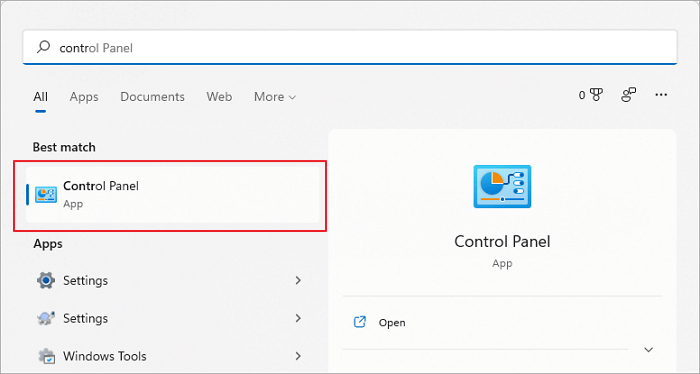
- To open the Control Panel, click the "Search" icon and type "control panel" in the search bar.
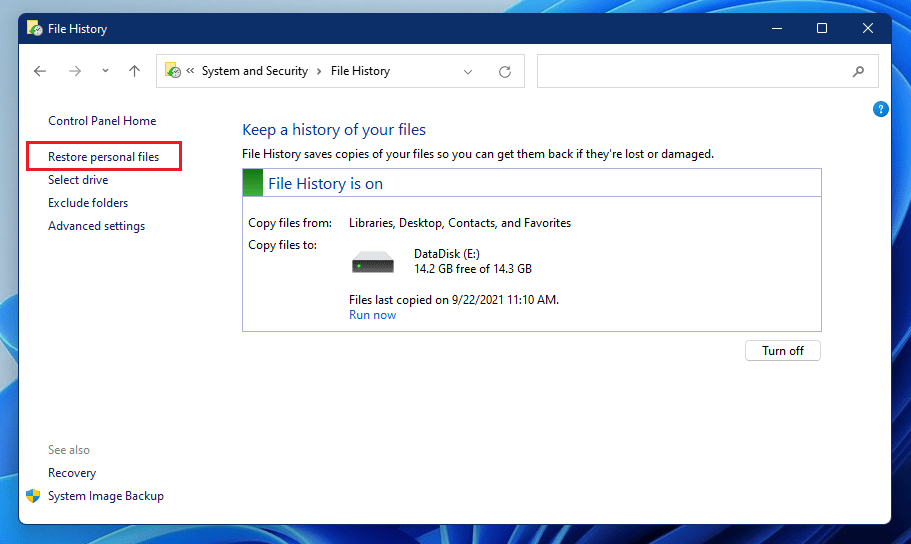
- To restore personal files, navigate to the "System and Security" section, then select "File History", and finally click on "Restore personal files".
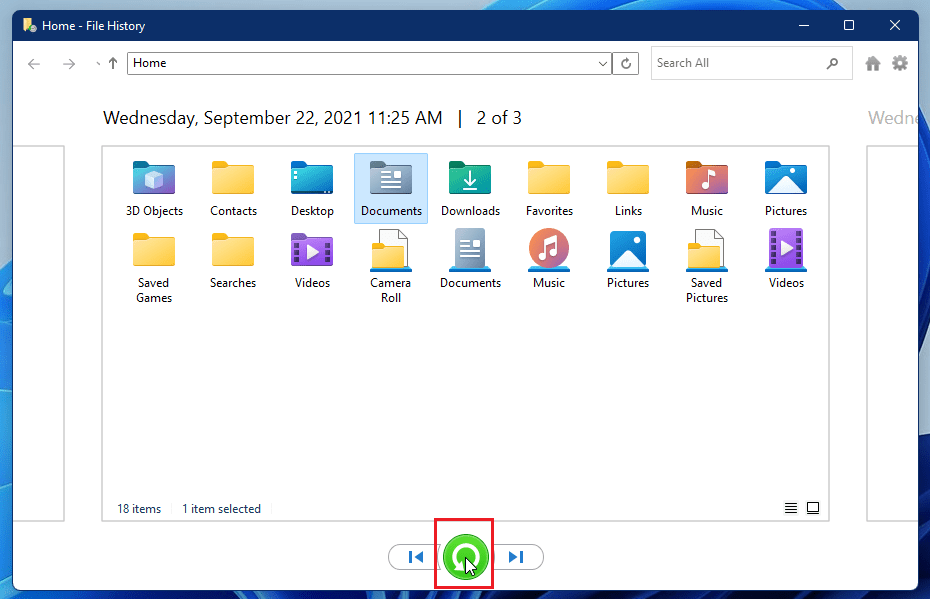
- Locate the folder where the deleted files were stored.
- To restore the files, click on the "Restore" button. This will return the files to their original location.
If you're unable to see any folders, it's likely that File History has been turned off. To prevent future data loss, you should turn it back on.
- Go to Control Panel > System and Security > File History.
- To enable File History, click on File History options and toggle the switch to ON.
Part 2. How to Recover Shift Deleted Files in Windows 7/8/10/11 with Previous Versions
You can restore shift deleted files in Windows 11 by trying your luck with shift delete recovery, which is available for Windows 7, 8, 10, and 11. This feature allows you to retrieve previous versions of all files and folders on your PC, and you can follow the instructions to do so.
- Find the folder/drive where the deleted file is saved.
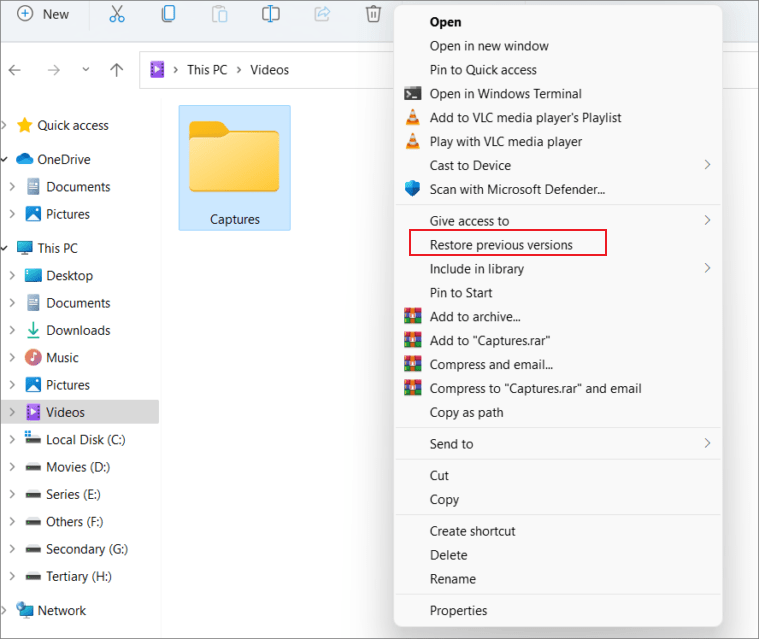
- Right-clicking on it and selecting the "Restore Previous Versions" option.
- To recover your files, select the desired version from the available options and click on the "Restore" button to retrieve your files.
If there are no previous versions available, the system will display a message stating "There are no previous versions available".
Part 3. How to do Windows Shift Delete Recovery with Backup Files
The purpose of backing up files is to enable data recovery and restore in case of accidental deletion, including shift delete, allowing users to retrieve deleted files in Windows 7, 8, 10, and 11, and recover permanently deleted files without software, provided Windows backup is enabled.
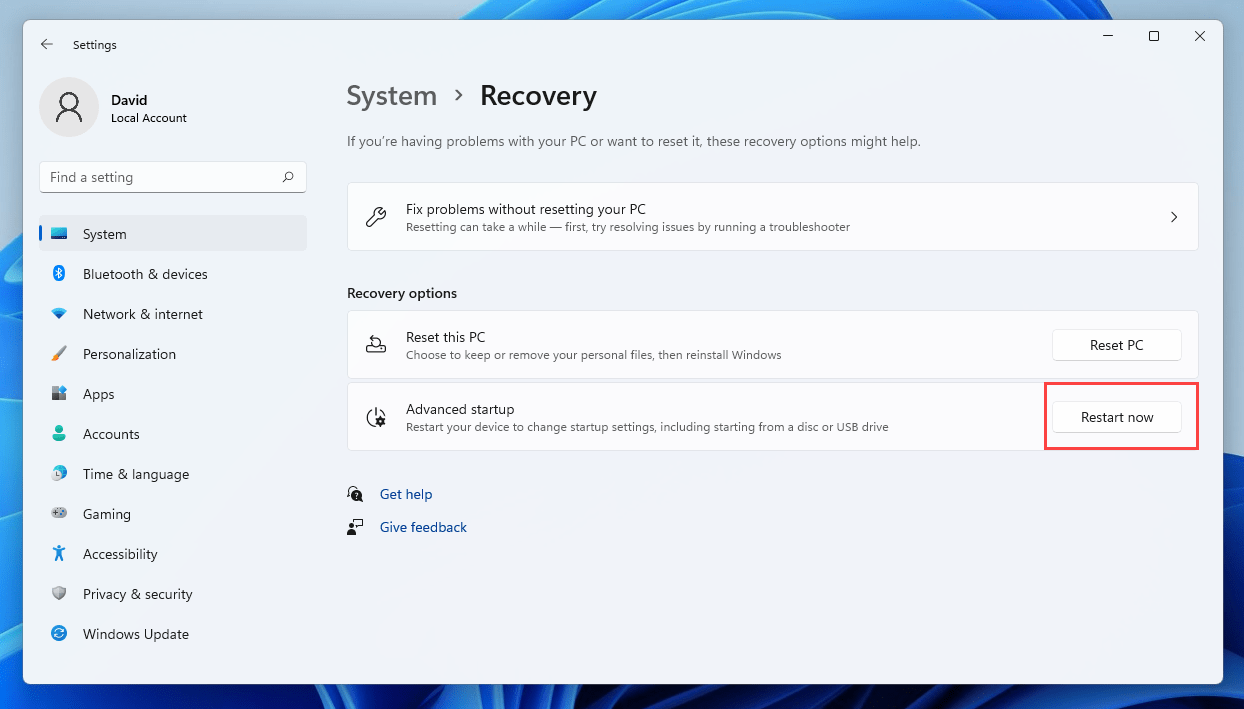
for Windows 11
- To restart your computer in Windows 11, go to "Settings" > "System" > "Recovery", and click "Restart now".
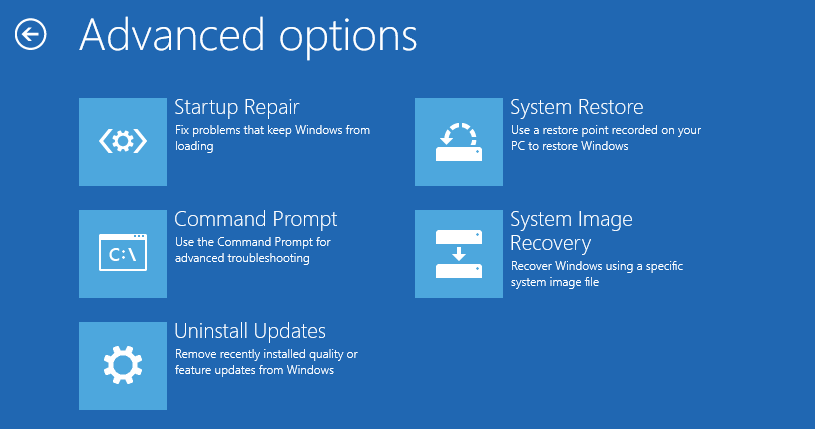
- When your Windows 11 finishes restarting, you will see the "Advanced startup" page.
- You can choose to restore your system to a previous state using System Restore, or you can use System Image Recovery to restore your entire system from a backup image. Please select the option that best suits your needs.
- To recover a shift file in Windows 11, first, you'll need to open the Command Prompt as an administrator. Next, navigate to the directory where your shift file is located using the 'cd' command.
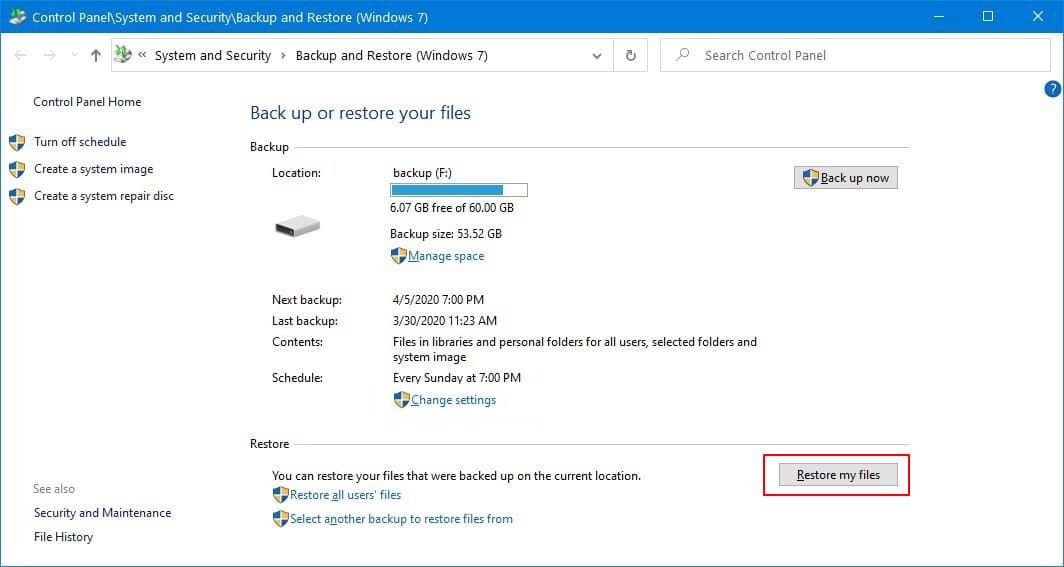
for other Windows
- To restore your files, go to the Control Panel, click on System and Maintenance, then click on Select Backup and Restore, and finally click on Restore my files.
- Tap "Browse for files" to choose the previously created backup.
- If you're trying to save a backup, navigate to the destination you want to save it to. If there's a conflict, choose how you want to handle it - either copy and replace the existing file, don't copy the new one, or copy it and keep both files.
- Let the restore shift deleted files process finish, then all permanently deleted files will be visible on your PC at the selected location.
Part 4. How to Undelete Shift Delete Files with Software
If all the above-After listed methods failed to recover shift delete files on Windows, you may need professional shift delete recovery software for help. This software will scan your PC, searching for the shift delete files, and allow you to selectively find and recover them.
Deep Data Recovery is a great option for shift delete file recovery Windows due to its effectiveness in recovering files that have been accidentally deleted using the shift key.
Your Best Software for Recover Shift Deleted Files on Windows 11/10/8/7/XP
- With Deep Data Recovery Wizard, you can recover almost all file types used daily, displaying all the recoverable files for you in a user-friendly interface. This software allows you to recover files from various storage devices, including hard drives, solid-state drives, USB drives, memory cards, and more, making it a versatile tool for recovering lost data.
- This software is highly effective in recovering files deleted using Shift + Delete in Windows 11, 10, 8, and 7, without any compatibility issues.
- It can also recover files deleted during cut and paste in Windows PC.
- Before proceeding, ensure that the software is safe to use and preview all recoverable files to avoid any potential data loss or corruption. This precautionary step allows you to inspect the files that can be recovered and make an informed decision about how to proceed.
Guide for How to Recover a Shift Deleted Folder/File in Windows 7/8/10/11
- Download the best sift delete file recovery software
- Launch it on your Windows PC.
- Select the location to scan for deleted files and click on the "Scan" button.
- Once the scanning process is completed, preview the recoverable files
- To recover deleted files, select the files you want to retrieve and click the "Recover" button to save them.


Part 5. Tips for Shift Delete You Must Know (Shift Delete Vs Delete, Prevent Data Loss)
Shift Delete Vs Delete
- When you delete files by pressing the "Delete" button or selecting the Delete option in the right-click menu, they are automatically moved to the Recycle Bin instead of being permanently deleted. This means that the deleted files or folders are preserved and can be recovered until the Recycle Bin is emptied, allowing you to retrieve them if needed.
- If you use the "Shift + Delete" command to delete files, they are permanently deleted and can't be found anywhere on the computer. However, you can try to recover them using previous versions, file history, or backup files. If these methods fail, it's essential to act quickly and use a data recovery software like Deep Data Recovery to prevent permanent data loss.
How to Prevent Data Loss?
- Don't use the Shift Delete function regularly, as it permanently deletes files without the option to restore them. Instead, use the regular Delete function, which sends files to the recycle bin, giving you the chance to recover them if needed. This approach is more suitable for daily use, allowing you to safely delete files you're sure you no longer need.
- Backing up files is a good idea, especially if you're unsure what you'll need. You can store them on an external hard drive or use Windows File History, Windows backup, or cloud services. You can even schedule a backup with Qiling Disk Master to automatically backup hard drives, folders, and selected files.
Related Articles
- How to Recover Shift Deleted Excel Files from Windows PC
- How to Fix a Windows 11 Installation Error 0x8007007f
- How To Recover Data From SSD In Windows 11
- Free Data Recovery Software for Windows 11
- Restore Deleted Files on C Drive in Windows 10/11/8/7
- Guide to Recover Deleted Files with System Restore in Windows 10, 11
You can recover deleted files with System Restore, and for further assistance, you can also use another data recovery tool to recover deleted files in Windows 10/11.
Products
Articles & Tutorials
- Data Recovery
- Data Backup
- File Recovery
- File Backup
- File synchronize
- System Backup and Restore
- Disk and Partition Clone
- Technical articles
- Disk Master Help
- Windows Deleted File and Disk Recovery Tutorials
- Windows File and Data Recovery Tutorials
- More Windows Tutorials for Install, Security, Files, and PC Tips
- Windows Boot, Repair, and Recovery Environment Tutorials
- Windows Backup Tutorials
- Windows Restore Tutorials
- Windows Clone and Migration Tutorials
- Windows Server Backup, Recovery, and Management Tutorials
- Windows Disk, Partition, and Storage Management Tutorials