How to Recover Deleted Files from NTFS Partition/Drive/External Hard Drive/Formatted NTFS Drive
Quick Navigation:
- Part 1. How to Recover Deleted Files from NTFS Drive
- Method 1. Restore Deleted Files from Recycle Bin
- Method 2. Use the Command Prompt to Recover Files from NTFS Partition/Drive
- Method 3. Use Software to Retrieve Deleted Files from NTFS Partition/Drive
- Part 2. FAQ for Data Recovery from NTFs File System
- 1. How to Recover Files from Formatted NTFS Drive
- 2. Is It Possible to Recover Files from Damaged/Corrupted/Crashed NTFS drive?
- 3. What Is the NTFS File System?
Yes, it is possible to recover deleted files from an NTFS partition. You can use data recovery software to scan the disk and retrieve the lost files. Just be sure to stop using the drive immediately to prevent overwriting the deleted data. Some popular data recovery tools include Deep Data Recovery Wizard, Recuva, and Disk Drill. These programs can help you recover deleted files, including photos and documents, from your NTFS drive.
If the NTFS partition becomes RAW or inaccessible, this NTFS partition recovery guide explains related partition-level recovery steps.
Data recovery from an NTFS file system is possible even after deletion, whether it's a Windows PC's internal NTFS partition, an external hard drive, or a formatted NTFS drive. The process can be applied to recover files from NTFS partitions, external hard drives, formatted, corrupted, or damaged NTFS drives.
Part 1. How to Recover Deleted Files from NTFS Drive
Method 1. Restore Deleted Files from Recycle Bin
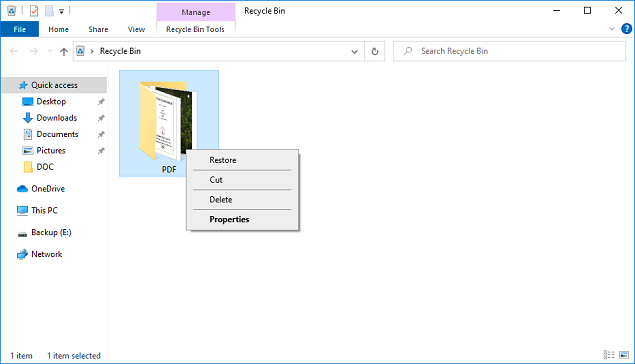
If you've deleted files from the NTFS partition or drive on your computer, start by checking the recycle bin to see if the deleted files are still there.
- Click the recycle bin to open it.
- Scroll down to find the deleted files from the NTFS partition.
- Select the desired files, click "Restore" and the files will be recovered and can be found.
Method 2. Use the Command Prompt to Recover Files from NTFS Partition/Drive
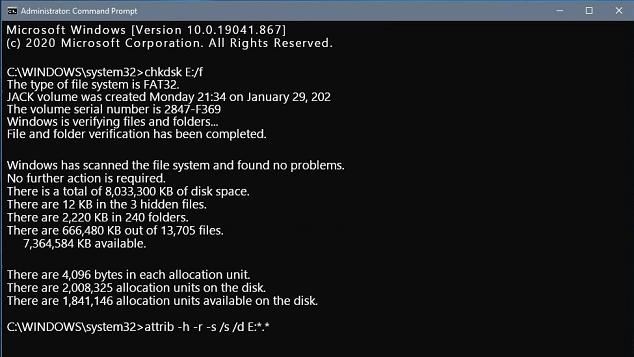
If you've recently deleted files from an NTFS partition or drive, you can try using the Command Prompt (CMD) to recover the data. This method may be effective if the files have not been overwritten for a long time.
- Press Win+R > type cmd > press Enter
- Type chkdsk "drive letter" /f into the command prompt and press Enter. This command will run a check on the specified drive and attempt to automatically fix any errors it finds.
- To get the command lines back, hold down the Y key until they appear again.
- The drive letter is C:. I typed it in and pressed Enter.
- To recover deleted files from an NTFS partition, first, go to the Command Prompt as an administrator. Then, type the command "[drive letter]: \ >attrib –h –r –s /s /d *.*]" and press Enter.
Please replace the "drive letter" with the real NTFS hard drive letter.
Method 3. Use Software to Retrieve Deleted Files from NTFS Partition/Drive
When files are deleted from an NTFS disk, the operating system only eliminates the data's logical access, leaving the physical files intact until the space is reused. NTFS data recovery software can help recover deleted files by re-establishing the logical connection to the data. Since data is not truly lost until it's replaced, you can recover it with a few simple clicks using NTFS disk recovery software.
- To recover data from an NTFS drive, download the latest version of the NTFS data recovery software and install it on your PC by double-clicking the.exe file. The software is fully compatible with Windows PCs and operating systems, making it the best hard drive recovery software available.
- When you open the app, a window will appear where you choose which NTFS drive to scan. Clicking the "Scan" button will initiate a scan of the NTFS partition or drive, and the software will begin recovering data from the NTFS file system.
- The software will scan the NTFS partition for missing or deleted files, which may take a few minutes. Once the scan is complete, you can view and filter the files, then select the type you want to recover and hit the "Recover" button, saving the files to your computer.


Part 2. FAQ for Data Recovery from NTFs File System
1. How to Recover Files from Formatted NTFS Drive
To recover files from a formatted NTFS drive, first, stop using the drive to prevent overwriting the existing data, and then use data recovery software to scan the drive and retrieve the lost files.
- Stop using the NTFS drive/partition immediately to prevent overwriting existing data, as adding more data would overwrite the existing data and a data recovery application would not be able to retrieve data from an NTFS hard drive.
- Download Deep Data Recovery, launch NTFS data recovery, click "Start", select the formatted NTFS hard drive, click "Scan", preview and recover files.
2. Is It Possible to Recover Files from Damaged/Corrupted/Crashed NTFS drive?
If the NTFS drive is damaged, corrupted, or crashed, data recovery may be possible, but the process can be complex and may require specialized software or hardware. The extent of data recovery depends on the nature and severity of the damage.
- If the NTFS hard drive is physically damaged, try cloning it to another external hard drive first. You can check this YouTube video for guidance.
- If a damaged NTFS hard drive is not being recognized by the computer, the user should contact the seller to have it repaired.
- If your NTFS hard drive is corrupted or crashed, start by fixing it using a format or the Windows built-in hard disk tools. Once that's done, attempt to recover files from the drive using Deep Data Recovery.
3. What Is the NTFS File System?
NTFS (New Technology File System) is the standard file system used by Windows operating systems, offering advantages such as large file transfer and file encryption. As a result, many Windows users install it on their hard drives, allowing them to efficiently manage and transfer large amounts of data, and even perform multiple file operations simultaneously. This makes NTFS a valuable feature for PC users dealing with data storage issues.
Related Articles
- How to Recover Deleted Files Not In Recycle Bin
- Download Free NTFS Undelete Tool Windows 7/8/10/11
- C Drive Data Recovery | Recover Deleted Files from C Drive
Learn how to Recover Deleted Files Not In Recycle Bin Download Free NTFS Undelete Tool Windows 7/8/10/11 C Drive Data Recovery | Recover Deleted Files from C Drive with clear steps, key checks, and practical tips. - 9 Effective Ways to Recover Deleted Files from Recycle Bin
This guide explains 9 Effective Ways to Recover Deleted Files from Recycle Bin with clear steps, key checks, and practical tips. - How to Restore Previous Version of Files (4 Ways)
Learn how to Restore Previous Version of Files (4 Ways) with clear steps, key checks, and practical tips. - 7 Fixes | This Device Cannot Start Code 10!
Learn how to fix this device cannot start code 10 via seven fixes in this guide. Besides, you can get top-rated data recovery software for Windows to recover files.
Products
Articles & Tutorials
- Data Recovery
- Data Backup
- File Recovery
- File Backup
- File synchronize
- System Backup and Restore
- Disk and Partition Clone
- Technical articles
- Disk Master Help
- Windows Deleted File and Disk Recovery Tutorials
- Windows File and Data Recovery Tutorials
- More Windows Tutorials for Install, Security, Files, and PC Tips
- Windows Boot, Repair, and Recovery Environment Tutorials
- Windows Backup Tutorials
- Windows Restore Tutorials
- Windows Clone and Migration Tutorials
- Windows Server Backup, Recovery, and Management Tutorials
- Windows Disk, Partition, and Storage Management Tutorials