Top 2 Ways to Automatically Upload Photos to Dropbox
Want to automatically upload photos to Dropbox?
Dropbox is a popular file hosting service that allows users to upload files from their computer to access them later from anywhere via the internet. Once installed, a special folder appears on the computer, making it easy to upload files and access them remotely.
By sending files, especially photos and videos, to Dropbox, you can free up space on your device and create a backup, ensuring your files are safe even in the event of a disk failure or system crash.
Saving photos manually to Dropbox after each shoot can be a time-consuming and laborious task for anyone who loves photography, but there's an easier way: uploading photos to Dropbox automatically.
How to upload photos to Dropbox automatically
There are two approaches to realize this idea: use Dropbox's built-in camera uploads feature or a third-party software that syncs local folders to Dropbox automatically.
Preparations for both methods:
To get started with Dropbox, download and install the desktop app on your computer, sign up for an account, and then log in to access the service.
Steps:
1. Download the Dropbox desktop app from its official website.
2. Go to your download directory, then double-click the Dropbox icon to start the installation.
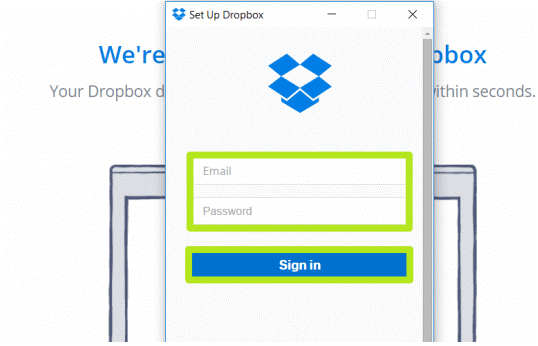
3. Once the software is installed, you will be asked to either sign in with an existing account or create a new one.
4. If you don't have a Dropbox account, create one by following a prompt. If you already have an account, log in with your credentials. Once logged in, click "Open my Dropbox" and then "Get Started." This completes the installation process.
Then you can try the following methods to upload photos:
- Method 1. Automatically upload all photos from phone to Dropbox
- Method 2. Automatically sync photos to Dropbox with freeware
1. Automatically upload all photos from phone to Dropbox
Dropbox's Camera Uploads feature allows you to automatically upload photos from your mobile devices to your Dropbox account, with the photos stored in the Camera Uploads folder. Once enabled, you can then move the uploaded photos to different folders in your Dropbox account as needed.
Steps:
1. To access Dropbox settings, click the Dropbox icon in your system tray and then click the gear icon to manage settings.
2. Choose Preferences... from the list.
3. Go to the Backups tab, and select the option to enable camera uploads for either photos only or photos and videos.

4. When you enable camera uploads, you'll be prompted to allow a device to automatically save photos to Dropbox each time it's connected to a computer with the Dropbox desktop app. This feature saves you time by automatically uploading your photos to Dropbox. When you connect a camera or mobile device to a computer, you'll be asked if you'd like to enable camera uploads for that device.
To enable camera uploads on your iOS or Android app, you can simply toggle the switch to allow the app to access your device's camera and upload photos and videos directly from your device, eliminating the need to manually connect your device each time you want to upload files.
For Android app:
1. To access the camera roll upload settings, tap the "Menu" icon, then select "Settings" from the dropdown menu. From there, scroll down and choose "Camera uploads" under the "Features" section.
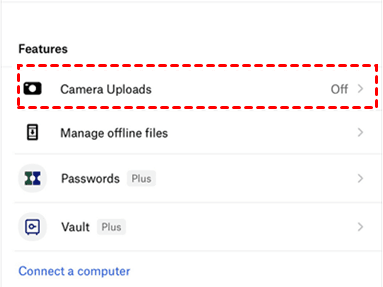
2. Click on "Back up my photos" and then click "Allow" when prompted, allowing the app to automatically upload all your photos to Dropbox.
For iOS devices:
1. To access Dropbox on your mobile device, open the Dropbox app, tap the person icon, select Camera Uploads, and confirm by tapping OK if prompted to grant access.
2. To upload photos to the Cameral Uploads folder in Dropbox, click on the slide button next to "Cameral Uploads".
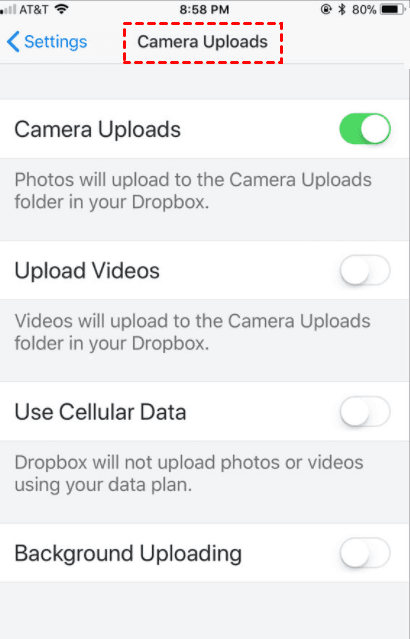
3. To use the Dropbox app, you can choose to upload videos, use cell data, or enable the background uploading feature, which will automatically upload photos from your iPhone to Dropbox whenever you take a photo.
On mobile devices, the feature is only available for photos. For more details, check the official tutorial online. However, many users have experienced issues with Dropbox camera uploads not working unless they open the app and refresh it, making Method 2 a more recommended approach.
2. Automatically sync photos to Dropbox with freeware
Qiling Disk Master Standard is a powerful desktop freeware that can sync photos to Dropbox more stably and from a variety of media. It allows you to upload photos from your PC, external hard drive, NAS, cloud drive, mobile device (via USB cable or SD card adapter), and more. With this freeware, you can also set up a sync schedule for automatic uploading.
Qiling Disk Master Standard is a software that works on Windows operating systems from XP to 10, and supports various photo formats, allowing users to download and use it on their PC.
To automatically upload photos from a specific folder on your PC to Dropbox, you can use a combination of software and scripting. You can use the Dropbox API to create a script that monitors the folder for new photos and uploads them to your Dropbox account.
Steps:
1. Install and launch the freeware, then switch to the Sync tab and select File Sync.

2. To sync photos, click on the "Folder" option and select the folder containing the photos you want to sync. Alternatively, if you want to sync photos from other locations like a USB drive or external drive, select the corresponding source directory after connecting the device.

Tip on how to sync files with certain file extensions:
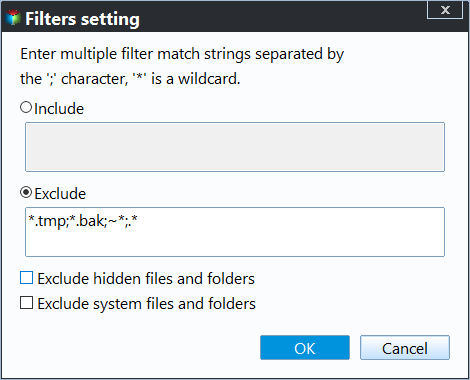
Click the funnel-To exclude or include specific file types, click the button of the selected folder, and then type the file extension you want to exclude or include in the corresponding box. Either way, the wildcards are supported, and you can separate multiple masks with semi-colons, such as *.doc;*.xls;*.ppt;*.temp;*.tmp;*.bak;*~;*.temp;temp*. This feature helps to save space by syncing less files, and you need to upgrade to Qiling Disk Master Professional to use it.
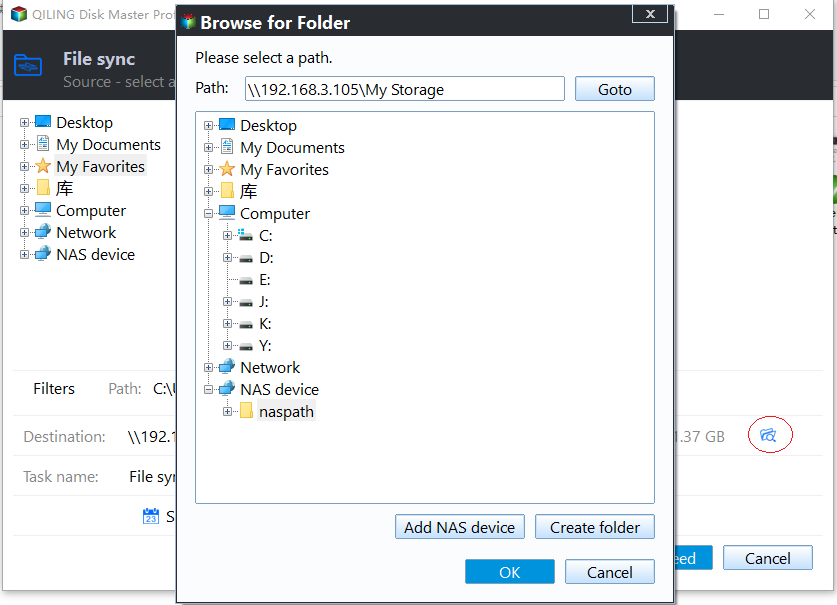
3. To specify Dropbox as the sync destination, click the small down arrow and choose "Select a cloud drive" in the drop-down menu, then select "Dropbox" in the popping-out window.
4. To set up a schedule sync for automatic uploading, choose a plan and set specific settings to run the sync task automatically as desired, or make further settings in the options.
- Daily, Weekly, Monthly: This tool enables automatic file syncing based on customizable frequencies, including hourly backups within a day by setting intervals from 1 to 6 hours.
- Event triggers (premium feature): The script is designed to synchronize files on specific events, including system startup, shutdown, user logon, and user logoff.
- USB plug in (premium feature): This script copies files automatically when a USB drive is connected, eliminating the need to manually connect it every time.
- Options: The tool allows for various settings and options to be enabled, including comments, email notifications, and synchronization features such as syncing deletions from the source directory to the destination, verifying the integrity of files in the destination directory during synchronization, and more.

5. To confirm your operations, click Proceed after reviewing them, then manage the sync task in the Home tab to view the synchronized photos in Dropbox.
Tips:
- Please do not change the folder name of the source directory after syncing, as this will prevent the program from detecting it.
- You can also automatically upload photos to Dropbox without setting up scheduled sync settings, thanks to the assistance of various tools and apps that can help you achieve this. File Sync (advanced editions only).
- Except for File Sync, you are able to sync files with File Sync Keeping files in the target directory consistent with the source directory is the best option. This ensures that any accidental changes, such as adding a new file, are detected and deleted at the next sync, maintaining the integrity of the target directory.
Conclusion
Using Cameral Uploads or Qiling Disk Master can automatically upload photos to Dropbox, preventing accidental data loss and repetitive operations. However, sometimes Dropbox Cameral Upload may not work or miss photos, which can be avoided by using Qiling Disk Master instead.
Syncing files and folders is not limited to Google Drive and Dropbox. You can also sync files to other cloud drives like Google Drive and OneDrive, sync folders between drives, or mirror a folder to a network drive in real-time. Additionally, this software serves as an all-around data backup and cloning tool, allowing for file backup, system backup, disk cloning, partition cloning, and more to safeguard your valuable data.
Related Articles
- Sync Folder to Network Drive in Windows 7/8/10 | 3 Ways
Syncing local folder to network drive automatically is one of the best ways to protect data in the long-term. For easy access, you can choose to make network files available offline. - Dropbox Not Syncing in Windows 10 - How to Fix and Sync Files?
This guide explains Dropbox Not Syncing in Windows 10 - How to Fix and Sync Files with clear steps, key checks, and practical tips. - How to Sync Desktop to OneDrive Automatically? (2 Ways Included)
Syncing desktop to OneDrive is one of the best ways to protect data safely, not only the current files but also changes made later. - Easiest Way to Sync SD Card to Computer or Google Drive in Windows
- How to Delete File History Backup in Windows 10?(4 Ways included)
You will learn 4 ways to delete file history backup in Windows 10 or 11 and how to backup files without occupying much disk space.
Products
Articles & Tutorials
- Data Recovery
- Data Backup
- File Recovery
- File Backup
- File synchronize
- System Backup and Restore
- Disk and Partition Clone
- Technical articles
- Disk Master Help
- Windows Deleted File and Disk Recovery Tutorials
- Windows File and Data Recovery Tutorials
- More Windows Tutorials for Install, Security, Files, and PC Tips
- Windows Boot, Repair, and Recovery Environment Tutorials
- Windows Backup Tutorials
- Windows Restore Tutorials
- Windows Clone and Migration Tutorials
- Windows Server Backup, Recovery, and Management Tutorials
- Windows Disk, Partition, and Storage Management Tutorials